Writing email in Svanja works much like any other mail app, and your messages go out through your own connected mailbox. Along the way, you can attach files straight from a client’s Space, schedule emails for later, and rely on built-in checks that catch common mistakes like a missing attachment before you send.
You need a connected mailbox before you can write email. See Connecting your mailbox.
Write a new email
- Choose New email at the top of the sidebar from any page. In the Inbox, you can also press C.
- If you have more than one address, pick the one you want under From.
- Enter your recipients under To. Svanja suggests matching contacts as you type, and Cc and Bcc are available too.
- Add a subject and write your message.
- Choose Send.
As you write, Svanja saves your draft automatically and shows “Saved at” with the time. Once you send, the email updates its status from Sending to Sent. If you see Delivery issue, Send failed, or Bounced, the message didn’t arrive. Bounced means the receiving server rejected it, such as when an address doesn’t exist.
Reply to or forward an email
You’ll find Reply, Reply all, and Forward on any open conversation and in each message’s menu. Pressing R replies to the open conversation. Svanja quotes the earlier message below your text, and you can fold the quote away, remove it, or bring it back. Reply all only appears when there is someone else to include.
Which address does it come from?
The From field sets which mailbox and address your email goes out from. A single mailbox can have more than one address. Some providers let you send from extra addresses, called aliases, such as info@ alongside your own address.
You can see all of a mailbox’s addresses on its From addresses tab in Settings under Mail management. If an alias shows Needs approval, turn it on with Enable address before sending from it. On the Team plan, you only see the addresses you’re allowed to use.
Format your text
New emails start in plain text. To add formatting, choose Aa (Formatting options) and select Rich. This opens a toolbar with bold, italic, headings, lists, quotes, links, and images. You can also add alternative text to an image, which gives a short description for people who can’t see it.
Switching back to Plain strips all formatting from the draft. Svanja will ask you to confirm first.
Attach a file
Choose the paperclip icon (Attach file) or drag and drop a file onto the composer. You can also attach files already stored in Svanja:
- Attach from Spaces searches the files in your Spaces. You can preview a file and attach it without downloading it first.
- Attach artifact attaches a document the assistant created, such as a PDF offer. If a newer version exists, the composer lets you know.
Each email can hold up to 25 attachments, up to 25 MB in total.
Where are my drafts?
Drafts you start in Svanja stay in Svanja until you send them. They won’t show up in your email provider’s Drafts folder or your phone’s mail app. You’ll find them under Drafts in the sidebar, where each row shows who the email is for. Clicking the bin icon in the composer discards a draft permanently.
Drafts written by the assistant appear inside the conversation, right above the newest message. See Chat and the assistant.
Send an email later
- Choose the arrow next to Send.
- Choose Schedule send.
- Pick a date and time under Send at.
- Choose Schedule.
Until that time arrives, the email waits in Svanja and shows “Scheduled for” with the scheduled time. If you need to edit the message or change the time, choose Cancel send, make your changes, and schedule it again. You can also schedule several drafts at once by selecting them in Drafts and choosing Schedule send above the list.
Can I stop an email after sending?
When you choose Send yourself, the email goes out immediately. There’s no undo, so give it one last read before you hit send.
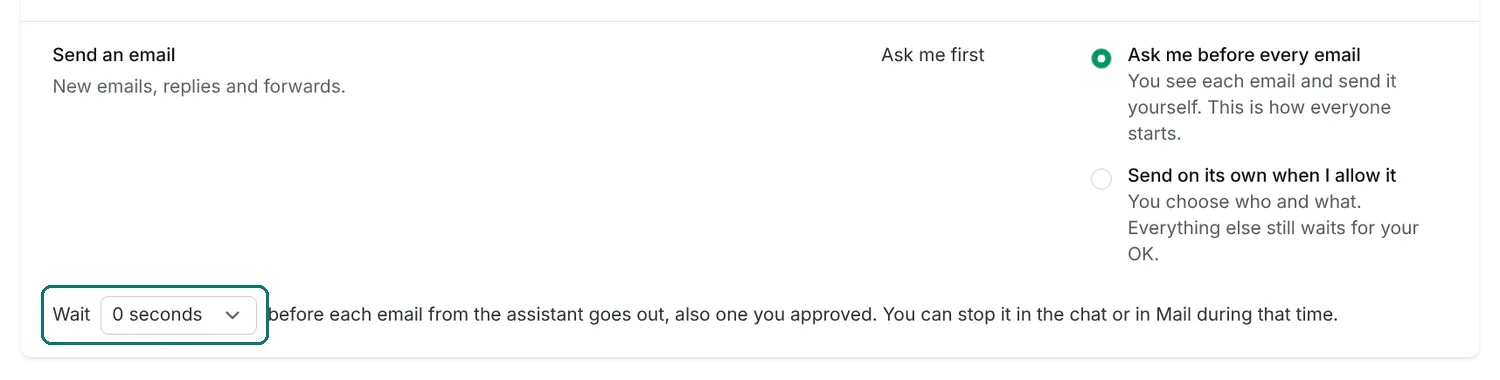
Any email waiting to go out shows Cancel send in Mail. This includes scheduled emails as well as emails from the assistant during their short delay. You can set that delay in Settings, Assistant to 0, 10, 30, or 60 seconds before each assistant email goes out. During that window, the chat or task also displays a stop button. See What the assistant may do.
Why does Svanja ask “Send anyway?”
Before an email goes out, Svanja checks it for potential issues. If it spots something, it asks Send anyway? and lists what it found. You can choose Confirm and send (or Confirm and schedule), or select Review draft to go back and fix it.
| Warning | When it appears |
|---|---|
| No subject | The email has no subject. |
| Missing attachment | The text mentions an attachment, but none is attached. |
| Many recipients | The email goes to 10 or more addresses. |
| Internal and external mixed | Colleagues and outside people are on the same email. |
| A new reply arrived | Someone wrote in the conversation after you opened the draft. |
| A colleague replied or is replying | Another reply was sent or scheduled, or someone is writing one right now. |
| The conversation changed | Its assignment, queue, or status changed since you opened the draft. |
| Different sender | You reply from a different address than the last reply in the conversation. |
| Blocked recipient | A recipient matches a sender rule that blocks them. |
The warnings about colleagues are especially helpful in shared mailboxes, where two people might otherwise answer the same client.
Set your signature
Each address has its own signature. Svanja adds it to new emails sent from that address, and everyone who uses that address shares the same signature. Because signatures live in mailbox settings, you need to be the team’s owner or an admin to change them.
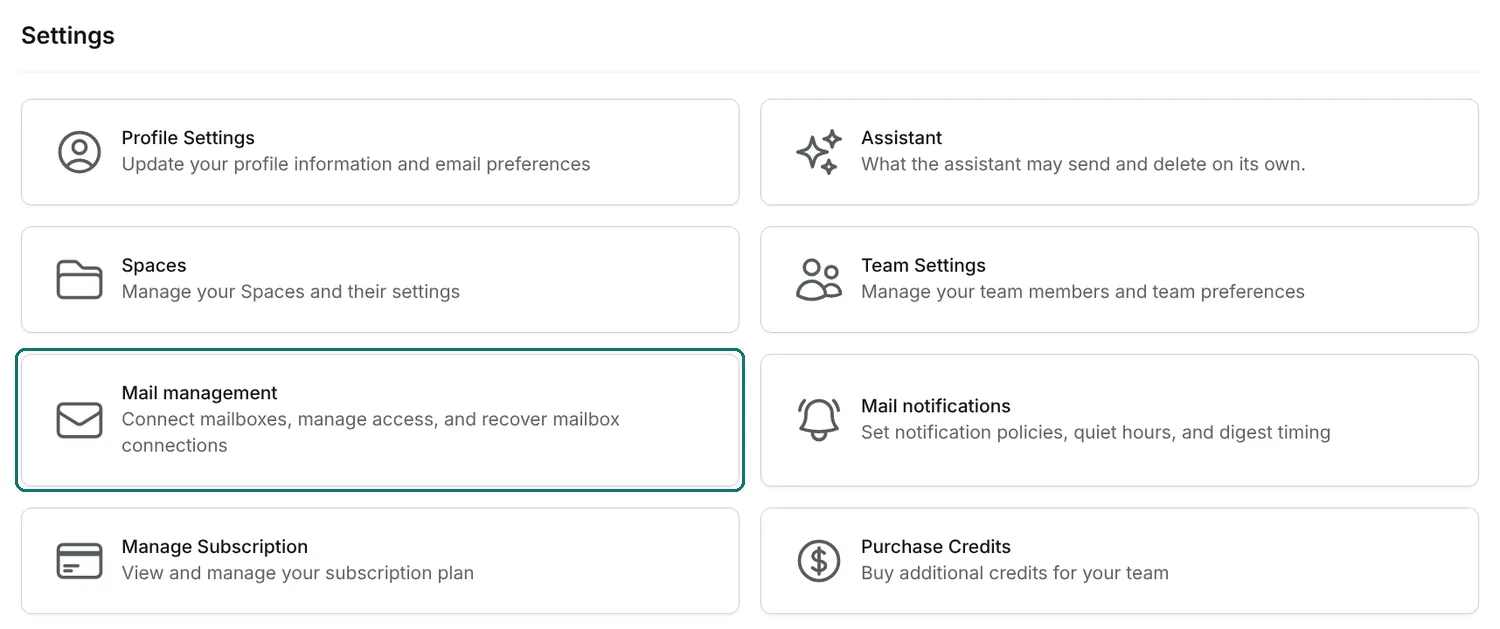
- Open Settings and choose Mail management.
- Under Connected mailboxes, choose the mailbox.
- Open the From addresses tab.
- Open Mailbox signature. If the mailbox has several addresses, open Signature for that address.
- Type the signature under Signature source.
- Choose Save.
The field accepts simple HTML, like <p>Best regards,<br>Support Team</p>. Preview below it shows how the signature will look, and Clear removes it.
Get help while you write
- Insert snippet drops in text you use often, and the AI menu (Ctrl+J) helps you draft or rewrite your message. See Snippets and writing styles.
- Send with follow-up, found under the arrow next to Send, automatically sends follow-up emails if nobody replies. See Snooze, reminders and follow-ups.