The Inbox is where you read and answer email. It shows a list of conversations alongside the one you have open. A conversation groups an email and all its replies into a single row.
Unlike other mail apps, Svanja knows who is writing. Next to an email, you see the sender as a contact along with their company and your notes on them. You can also ask the assistant about an email and move on to the next one while it works.
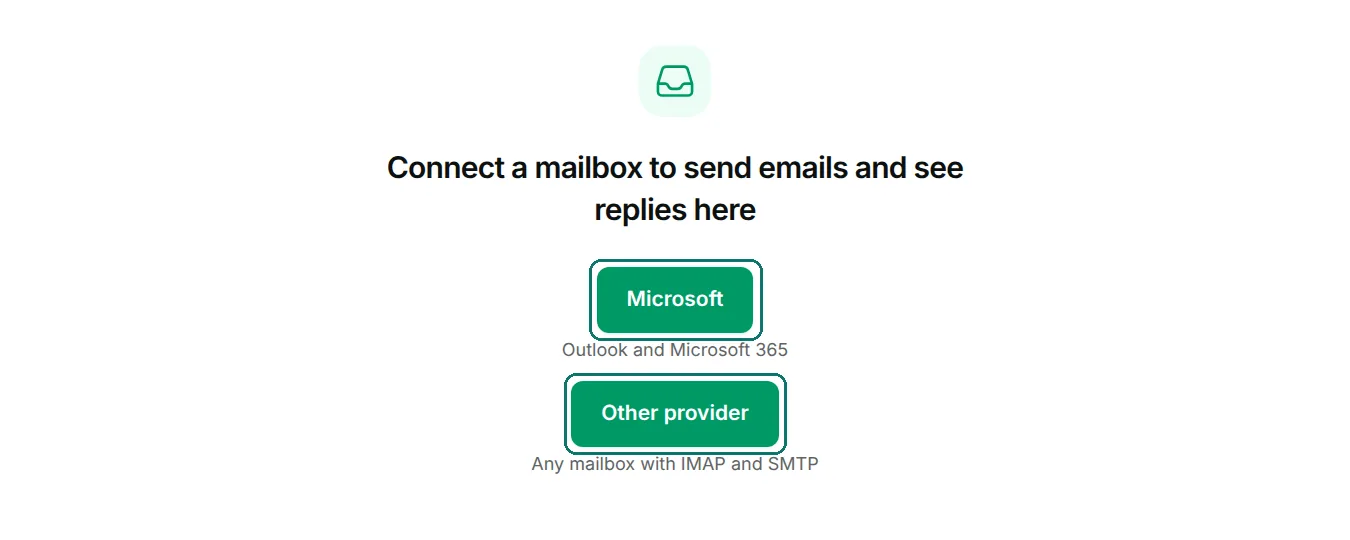
The Inbox needs a connected mailbox. Until you connect one, the Inbox gives you two choices: Microsoft for Outlook and Microsoft 365, and Other provider for any mailbox with IMAP and SMTP. See Connecting your mailbox.
Which emails do I see?
Inbox in the sidebar shows every mailbox you can read in one list. To see only one mailbox, click it under Mailboxes. Its arrow opens its own folders, including folders you created at your mail provider. An inbox group shows a few mailboxes together, such as all your support addresses. You can set up groups in Settings under Mail management.
The sidebar also has Starred, Snoozed, Sent, and Drafts, and More opens the rest. Some entries are views rather than folders. A view collects conversations from all folders based on one condition: Snoozed (put away until later), Assigned to me, Pending (marked as waiting for something), and Reminders due. You can save your own views too. See Search and views.
Read an email
Unread conversations appear in bold with a dot. Some rows also show a colored status from the assistant. Reply ready means a reply is waiting for you. Question for you means the assistant needs an answer before it continues. Working on it means it’s still busy with this email.
Click a row to open the conversation. Earlier messages collapse to one line, so click any of them to read it. Click the recipient line to see all addresses. Reply all only appears when there’s someone else to include.
When you open an email, the assistant panel adds a second tab called Details. It shows the sender as a contact with their company, along with the conversation’s tags, internal notes, reminders, and activity. Click the tab or the sender’s name to open it.
To change how the list looks, click the gear icon next to Mail in the sidebar to open Quick settings. Compact shows one line per conversation. Under Reading pane, Right of the list opens conversations beside the list, while No split gives the list the whole page. Under Details panel, choose Open automatically if you want Details to open with every email.
Done or Archive?
Both get an email out of your way, but they work in different places.
Done finishes the conversation in Svanja, removing it from the Inbox and views like Pending. Nothing changes at your mail provider, so your phone still shows the email. If a new reply arrives, the conversation comes back on its own. Choose Done at the top of the conversation, or press E.
Archive in mailbox archives the email at your provider, just like archiving it in Outlook. You’ll find it in the More menu of an open conversation. Use it if you also read mail on your phone and want to keep that inbox clean too.
What else can I do with an email?
The bar above an open conversation includes Done, a clock for snoozing, and Move to. Its More menu holds the rest:
- Mark as pending keeps the conversation in Pending while you wait on something. A new reply makes it active again.
- Tags, Mailbox labels, and Assign sort the conversation or hand it to a colleague. See Shared mailboxes.
- Print, Show original with all headers, and Mark as spam.
- Check rules for this message shows which of your rules would match it.
Ask the assistant (or pressing A) lets you Ask about this email…, Summarize this conversation, Make this a task, Make a rule for emails like this, or save the email to a Space. See Chat and the assistant.
Work on many emails at once
- Check the rows, or press X on each one.
- Choose an action in the bar above the list.
The actions come in three groups:
| Group | What it changes | Actions |
|---|---|---|
| Workflow | Only Svanja | Done, assign, queue, tags, snooze, active or pending |
| Your mailbox at the provider | Archive, move, Trash, read or unread, star, labels | |
| Drafts | The selected drafts | Send now, Schedule send, Discard |
After searching in one mailbox, All matching search results also selects older matches that aren’t shown in the list. Svanja asks before moving, archiving, or deleting them. Moving only works within one mailbox at a time. Right after marking conversations as Done, Undo moves them back.
Why are images hidden?
Images that load from the internet can tell the sender when and where you opened an email. To protect your privacy, Svanja shows Images are hidden. Choose Show images to load them for that email. The More menu next to it has Always show from if you want to allow the sender or their whole domain. Svanja also removes likely tracking pixels and tells you how many.
What do the warnings under a sender mean?
A gray line means the address is new, with its first email arriving within the last week. A yellow box labeled Review this sender points out a warning sign. For example, replies might go to another domain, the sender name might contain a different address, or the email may have failed its sender checks (SPF, DKIM, or DMARC).
A link with a warning opens a check first, such as when its visible text doesn’t match its real address. Choose Open link to go there anyway. Your team can also block or allow senders for everyone. See Shared mailboxes.
Keyboard shortcuts
Press ? to see the shortcuts in the app, or open Help and choose Keyboard shortcuts. On a Mac, use Cmd instead of Ctrl. Single keys like J or E only work when you aren’t typing in a field and no menu is open. Press Esc or click outside the field first.
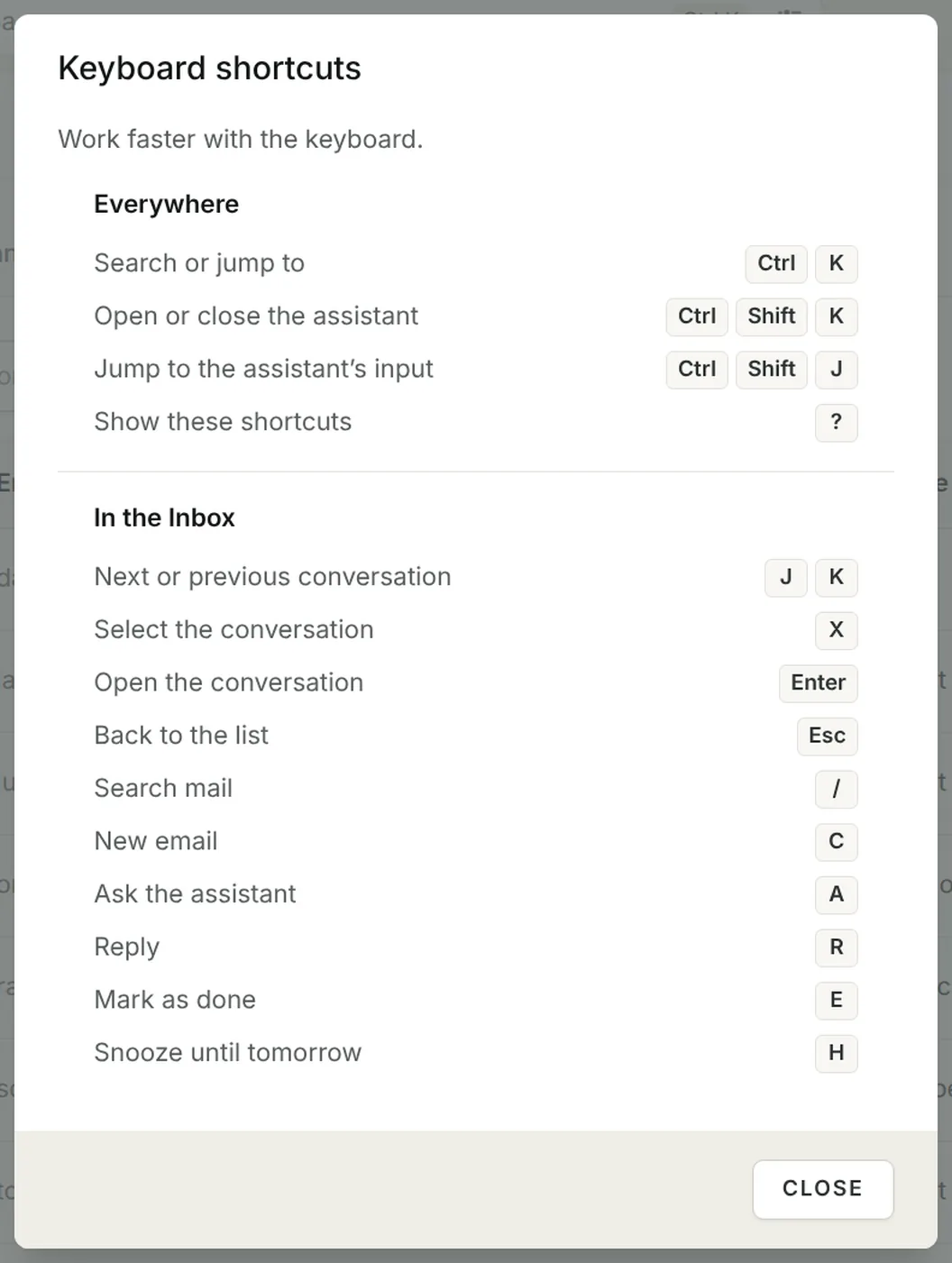
| Keys | What they do | Where |
|---|---|---|
| Ctrl+K or / | Search, or jump to a page | Everywhere |
| Ctrl+Shift+K | Open or close the assistant | Everywhere |
| Ctrl+Shift+J | Jump to the assistant’s input | Everywhere |
| ? | Show the shortcuts | Everywhere |
| J or K | Next or previous conversation | Inbox |
| X | Select the conversation | Inbox |
| Enter | Open the conversation | Inbox |
| Esc | Back to the list | Inbox |
| C | New email | Inbox |
| R | Reply | Inbox |
| A | Open Ask the assistant | Inbox |
| E | Mark as done | Inbox |
| H | Snooze until tomorrow | Inbox |
| Ctrl+J | Open the AI menu | While you write |
| Ctrl+Z | Undo the last AI change, when the cursor isn’t in a field | While you write |
| Esc | Stop AI text that is still being written | While you write |
In the list, the arrow keys also move up and down, and Space selects a conversation just like X.