In a small agency, several people work for the same clients and answer the same mailboxes. On the Team plan, everyone works in one Svanja team. You share mailboxes and client Spaces with the people who need them, keep common know-how in a team library, and let team rules route the mail.
The assistant always works with the access of the person using it, so it only reads what that person can open.
What do you need?
You need the Team plan. It costs €24 per member a month, or €240 a year, with at least 2 members. Each member adds 2,500 credits a month, shared by the team. Credits are how you pay for the assistant’s work. Plan changes are turned off for now, and the plan page says so. See Credits and prices.
Invite the team
The team owner adds people and gives each one a role.
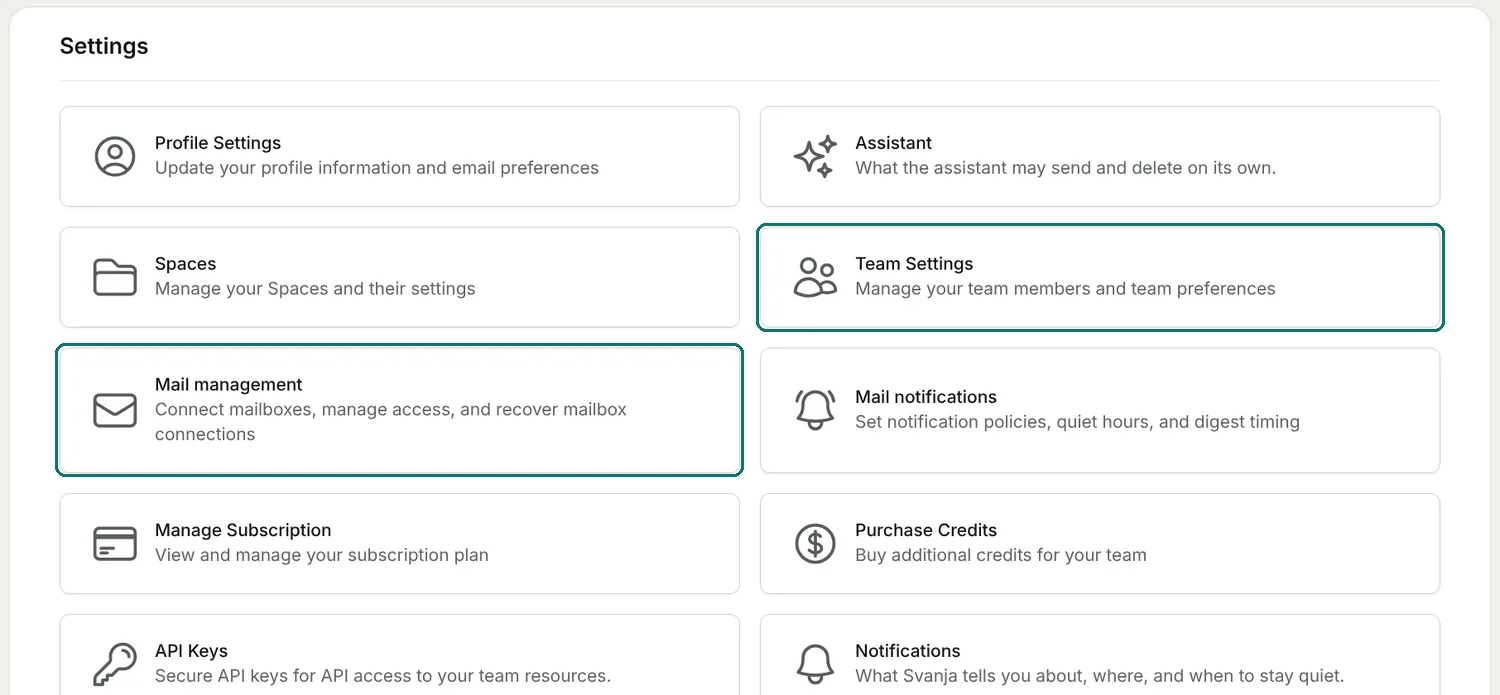
- Open Settings and choose Team Settings.
- Under Add Team Member, enter the person’s email address.
- Choose a role and the Spaces they can open.
- Choose Add.
The person gets an email and joins by signing in with that same address. Each member takes a seat, and open invitations count too.
| Role | What they can do |
|---|---|
| Owner | Everything, including members, roles, and billing |
| Administrator | Sees every Space, decides who opens which, and connects mailboxes |
| Manager | Creates Spaces and changes the Spaces they can open |
| Member | Works in the Spaces and mailboxes they were given |
See Account and sign-in.
Connect and share the mailboxes
An owner or admin connects each mailbox, shared ones like hello@ as well as personal ones, under Settings, Mail management.
Then open the mailbox’s People tab. Check Can read for everyone who should see it, and Can send for each address they can send from. People without access don’t see the mailbox at all. Even owners and admins need Can read before they can read a mailbox. See Shared mailboxes and A shared inbox for a small team.
Give each client a Space
A client Space holds one client’s notes, files, and Space instructions, which is the note the assistant reads first for that client. Create it from the client’s company in Contacts with Create client Space.
Then open the Space’s Members tab, check the colleagues who work on this client, and choose Save access. Owners and admins can always open it.
When someone asks the assistant about a client’s email, the Space is picked for them as long as they can open both the mailbox and the Space. See Spaces.
Keep shared know-how in the team library
The team library is a Space everyone on the team can open for the skills and templates you all use. A skill is a saved way of doing a job, like a monthly client report. When one person improves it, everyone gets the updated version. See Skills.
Set your brand once under Settings, Document brand, with your name, color, and logo. Documents and shared pages use it.
Let team rules route the mail
A rule starts work without you asking. Under For, a rule can belong to My team instead of Just me. A team rule runs as a member you choose, with that member’s access.
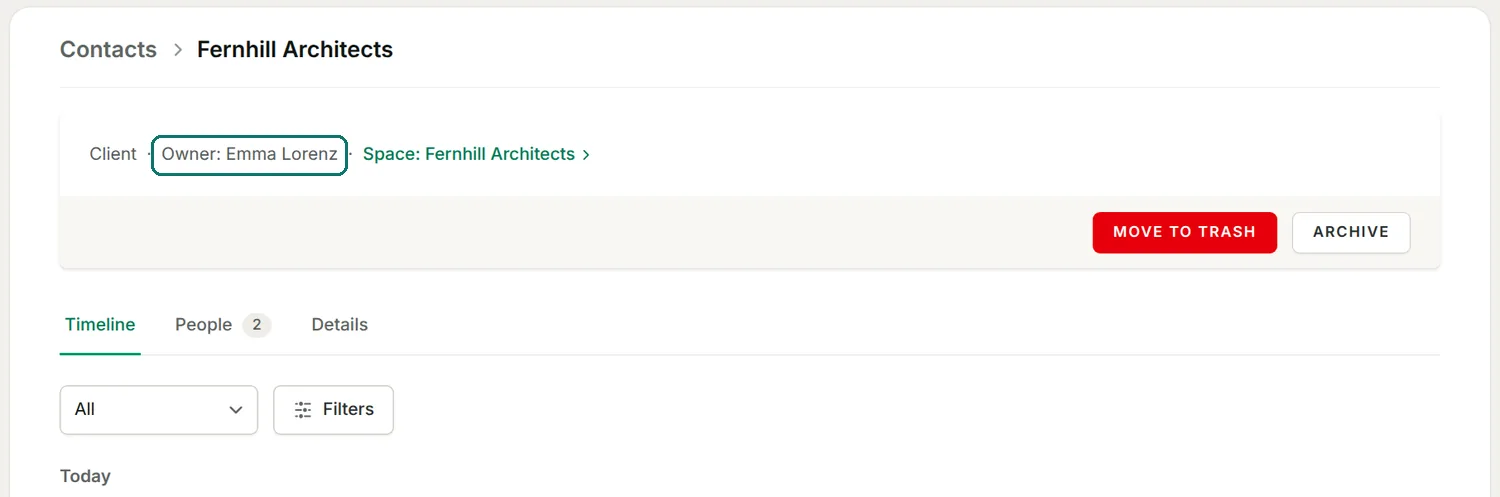
A good first team rule sends client mail to the right person. Set Sender is to A client, and under Organize the mail without AI, set Assign to to The client’s account manager. That’s whoever is Owner on the client’s company in Contacts. If that person can’t read the mailbox, the conversation goes to the queue under Assign to group instead. This rule uses no AI and costs nothing. See Email rules and automation.
Keep costs in check
The team shares its credits. On Credits and usage, owners and admins can see what each member used and give each person a monthly limit. Rules that only sort mail use no credits.
When someone is away or leaves
Select a colleague’s conversations and assign them to someone else in one go. You can also pass on a task with Hand over. When someone leaves, their notes stay in the client’s Spaces, and Team Settings lists the Shared tasks need a new owner.