A skill is a written way of working, like a page in a handbook for a new colleague. It tells the assistant how you want one kind of job done, such as a client’s monthly update. You write it once in plain words. When that job comes up again, the assistant follows the skill instead of guessing.
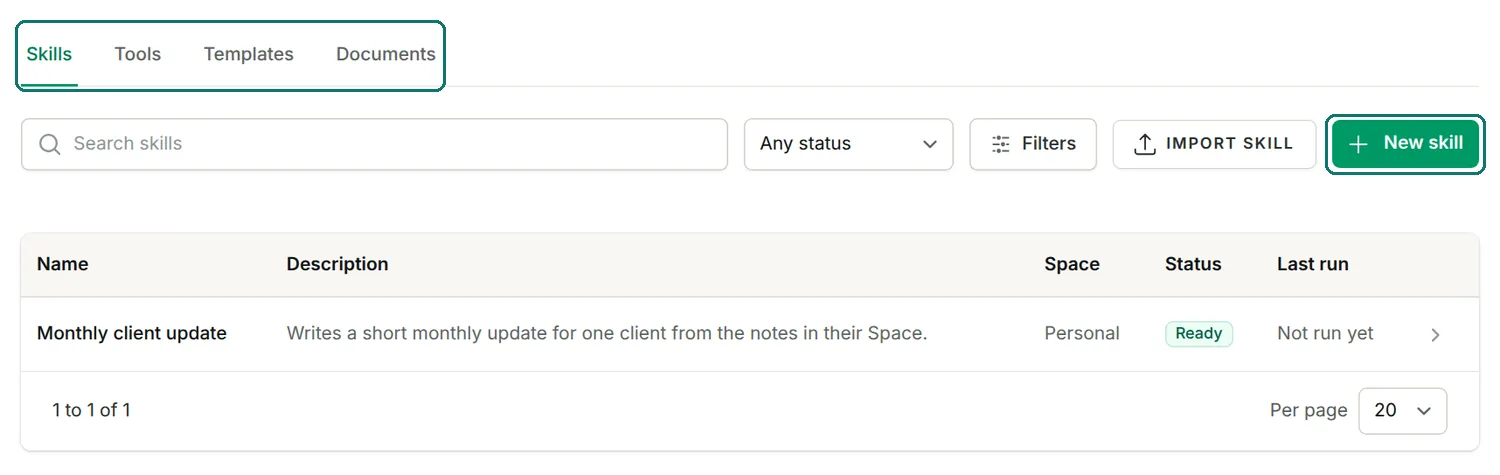
The Skills page in the sidebar has four tabs. Skills stores your written instructions, and Tools keeps reusable scripts. Templates turns details into branded PDFs, while Documents lists the files your tasks have created.
What is in a skill?
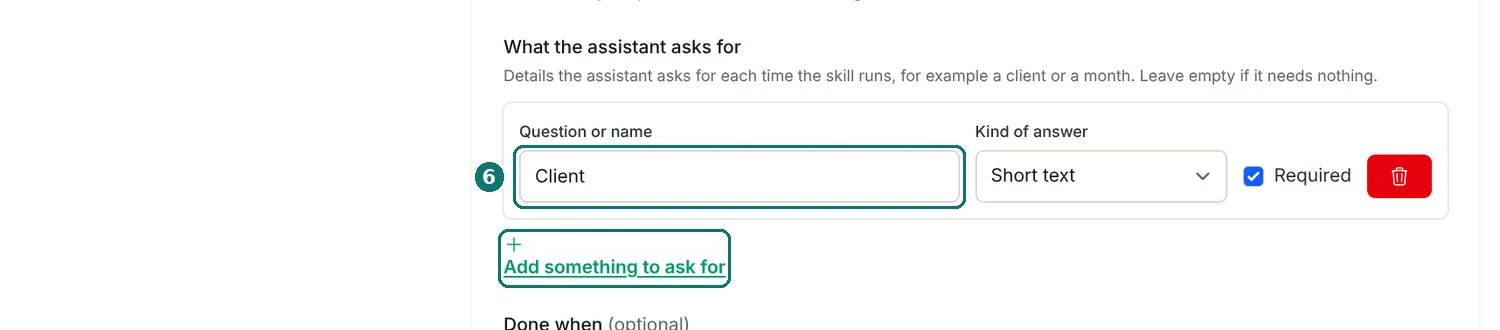
A skill has a name, a one-sentence description of what it is for, and the steps to follow. The assistant reads that description to decide when the skill fits a request, so keep it clear. A skill can also ask you for details each time it runs, such as a client name or a month.
Each skill is saved in a Space as a file called SKILL.md. A Space is the folder for one client or project (see Spaces). Everyone who can use that Space can run the skill.
Write a skill
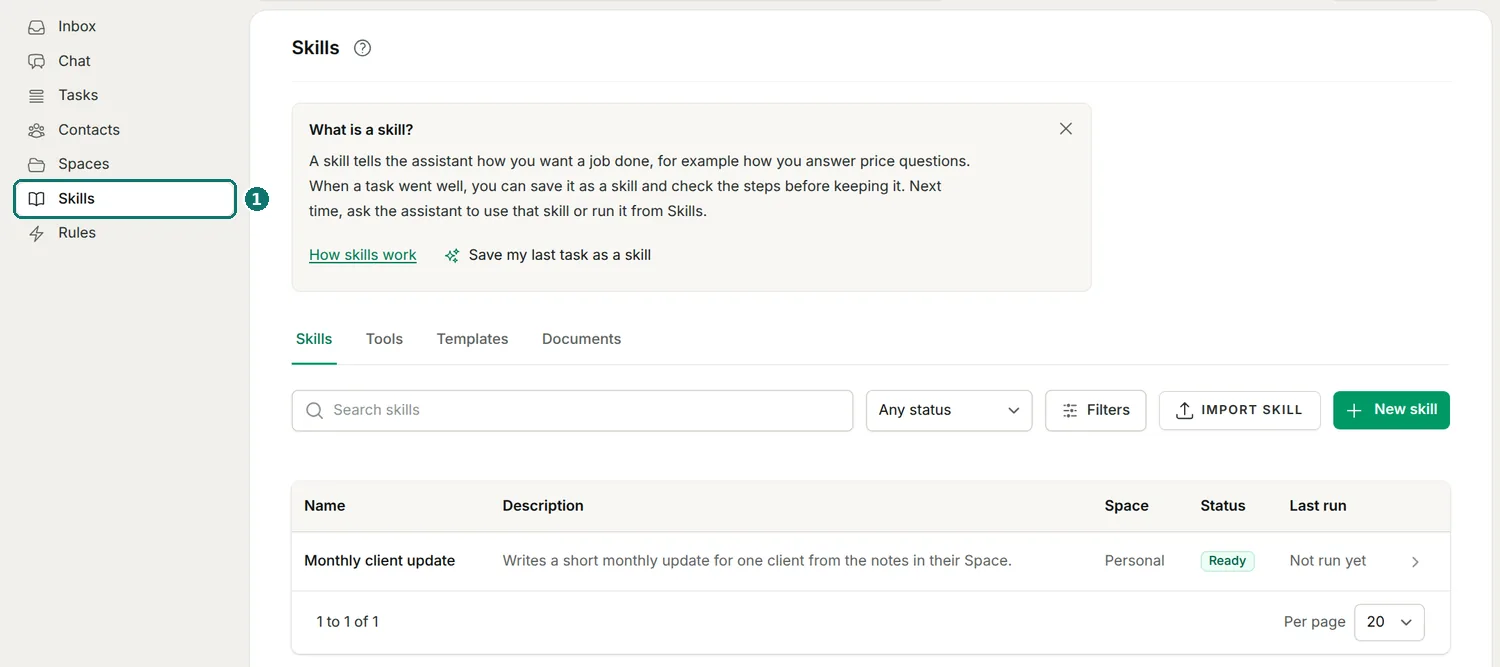
- Open Skills.
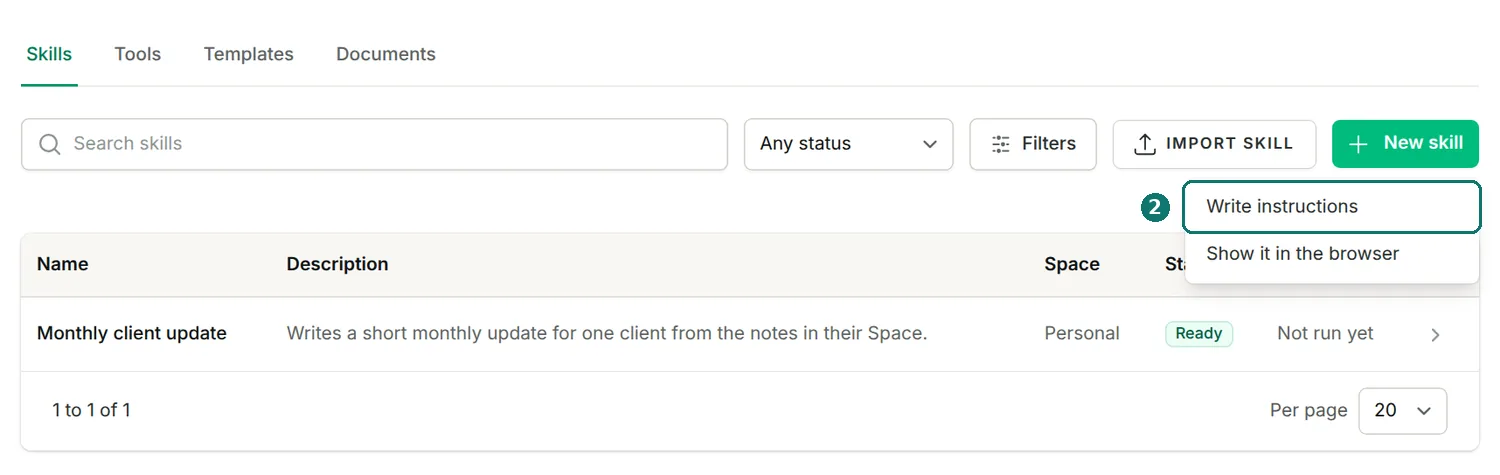
- Choose New skill, then Write instructions.
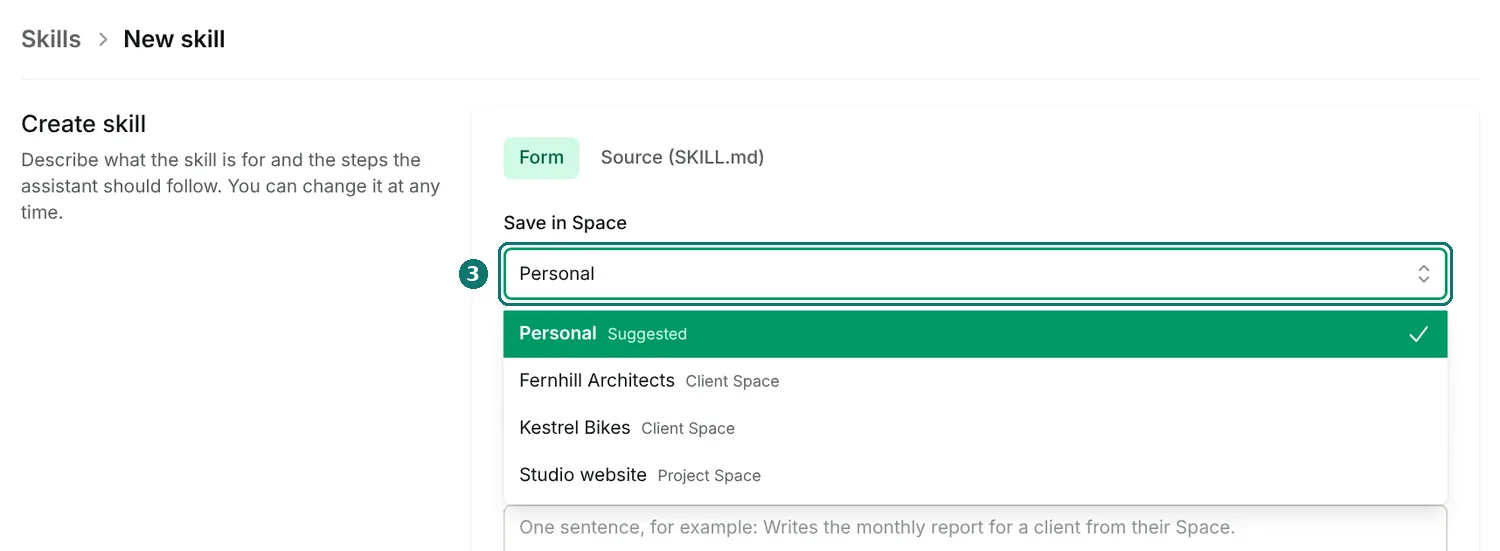
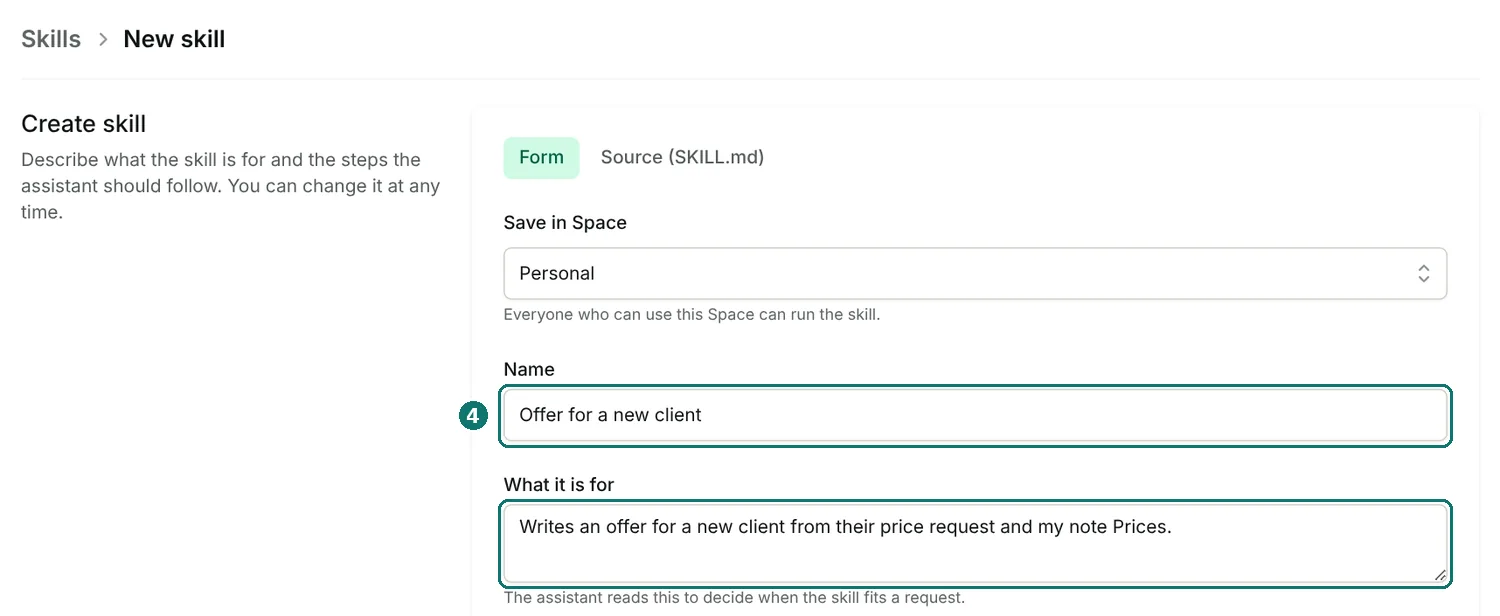
- Under Save in Space, pick the Space. Your Personal Space keeps the skill for you alone.
- Fill in Name and What it is for.
- Write the steps under Instructions.
- Under What the assistant asks for, choose Add something to ask for for each detail it needs.
- Choose Create skill.
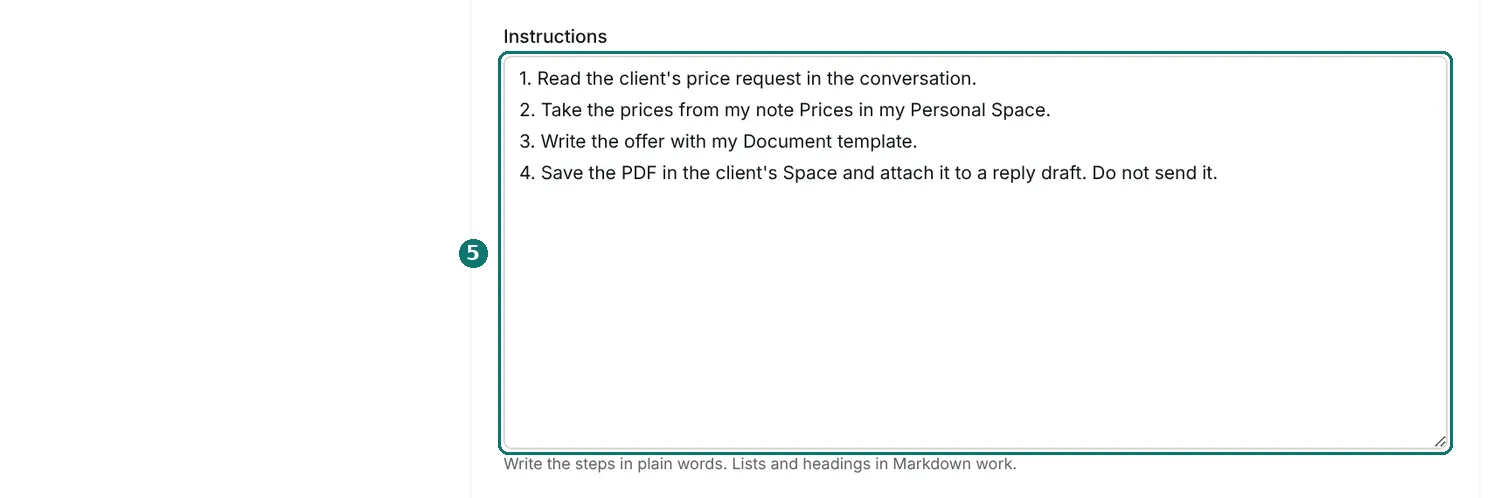
Instructions can be a short list:
1. Read the client's notes from this month.
2. Summarize what was done and what comes next.
3. Save the update in the client's Space.
Use Done when to tell the assistant how it knows the work is finished, with one point per line. If you prefer to edit the file directly, switch to Source (SKILL.md).
Other ways to make a skill
- Save a task as a skill. After a task goes well, choose Save as skill on the task page. The assistant writes down the steps for you to review before saving.
- Show it in the browser. Under New skill, choose Show it in the browser. Do a web task once in the assistant’s browser, then save the recording as a skill. Passwords and codes are never recorded. See The computer and its browser.
Run a skill
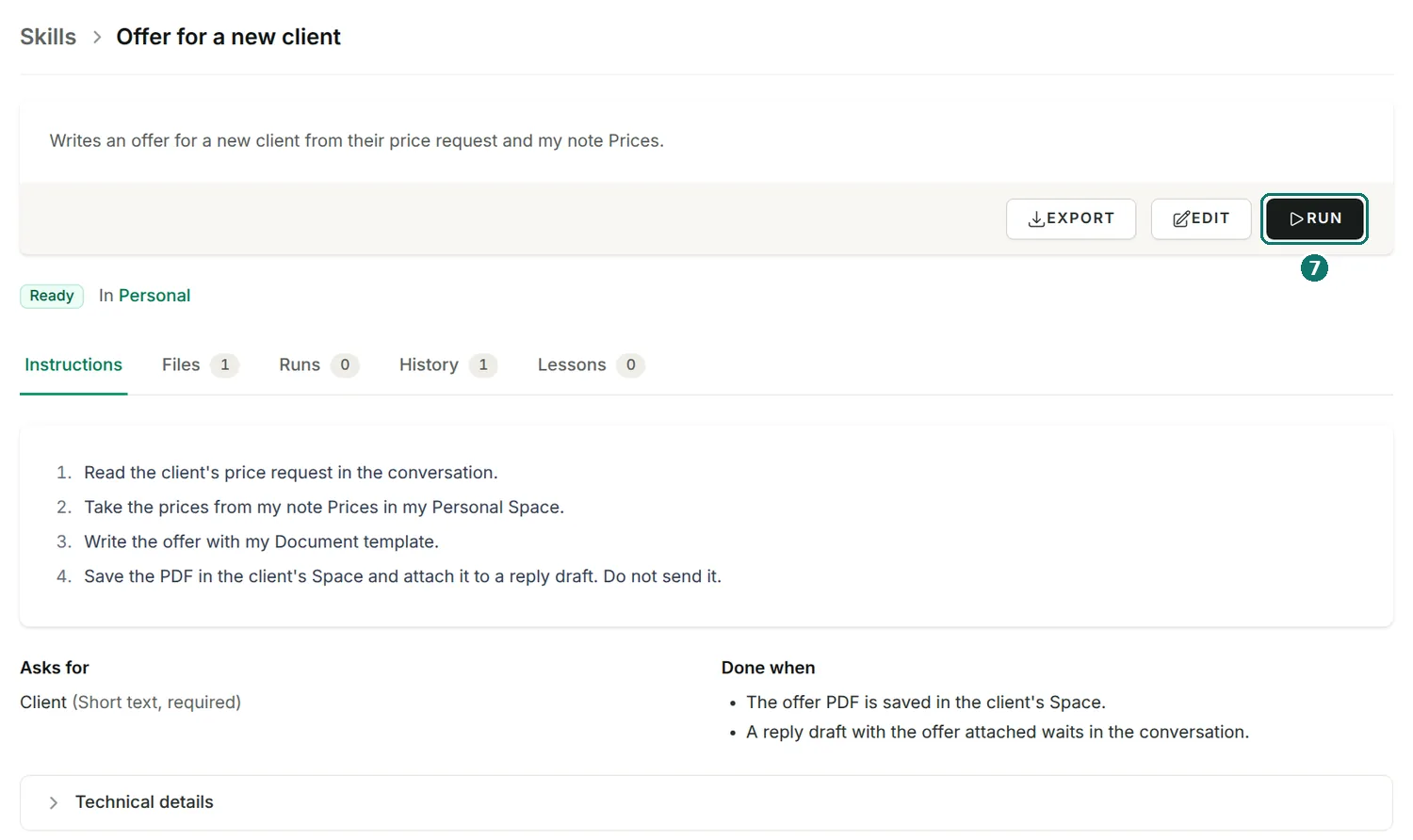
- Open the skill.
- Choose Run.
- Fill in the details it asks for.
- Choose Start.
The assistant starts a task with those details, and you can follow its progress in Tasks. You can also ask for the job in chat, or type / in the chat and pick the skill. Running a skill creates a task, so it uses credits like any other task.
The skill’s Runs tab lists every run along with its result and cost. Any skill that executes scripts shows “Runs on your computer.”
Change a skill and teach it lessons
Choose Edit to update a skill. Your changes apply to future runs, while runs already in progress keep the version they started with. The History tab saves every version, and you can roll back at any time with Restore this version.
A lesson is a correction that sticks. While a skill’s task is running, tell the task what to do differently, such as “Lesson: leave internal hours out of this update.” If you have permission to edit the skill’s Space, Svanja saves the correction on the Lessons tab. The assistant reads those lessons every time it runs the skill.
Move a skill to another Space or account
Export packs a skill and its files into a ZIP archive. Import skill lets you bring one in from a ZIP file or copy one from another Space. Any files that look like passwords or keys are automatically left out.
What is a tool?
A tool is a script that the assistant saves along with its inputs and a test check. Future tasks can then run the same script again instead of writing a new one from scratch. To save one, open a task that wrote a script and choose Save as tool. Saved tools appear on the Tools tab.
Open a tool to see what it asks for and what it produces. Choose Run to start it, and set a Credit limit if you want the run to stop before spending more. Check tests whether the tool still works. Tools run on a computer, which uses computer time (see The computer and its browser).
Create a PDF from a template
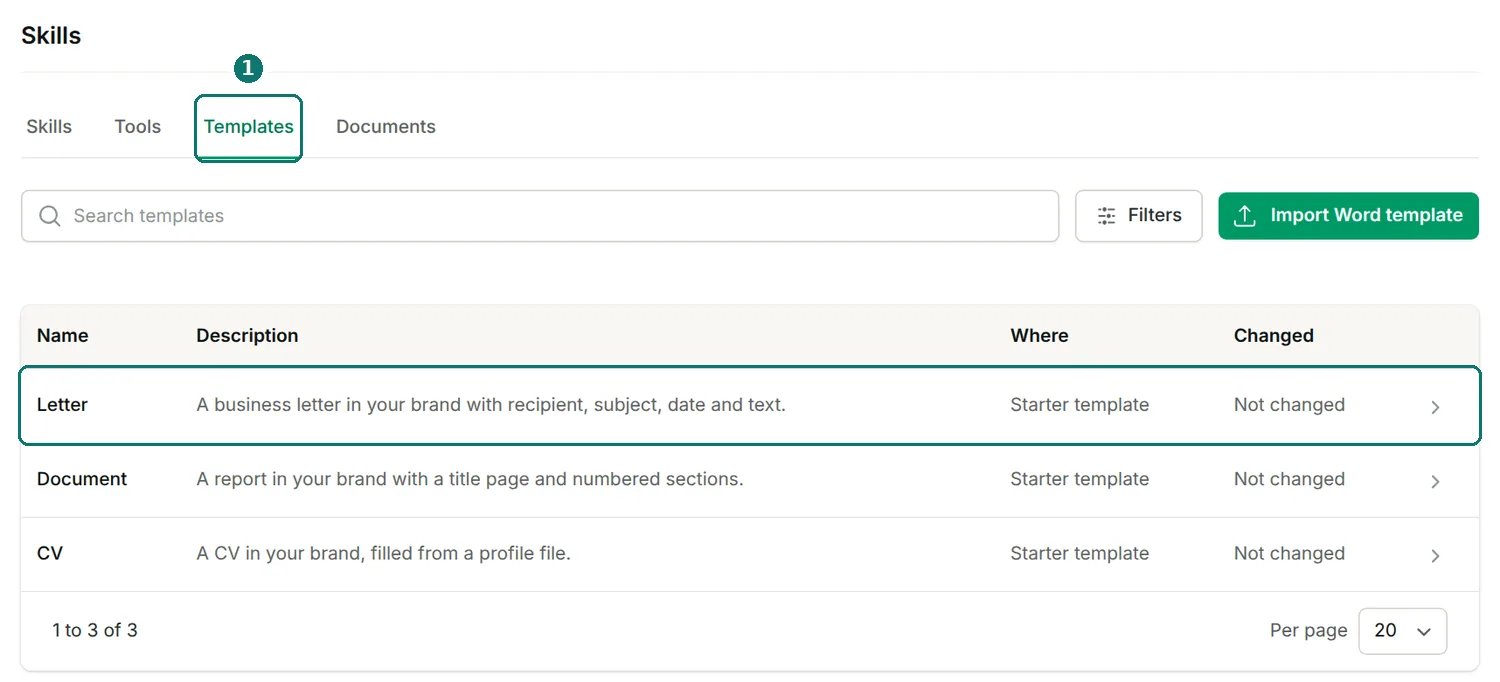
A template turns a few details into a finished PDF in your brand. Svanja comes with three starters on the Templates tab: Letter, Document (a report with a title page), and CV.
- Open Templates.
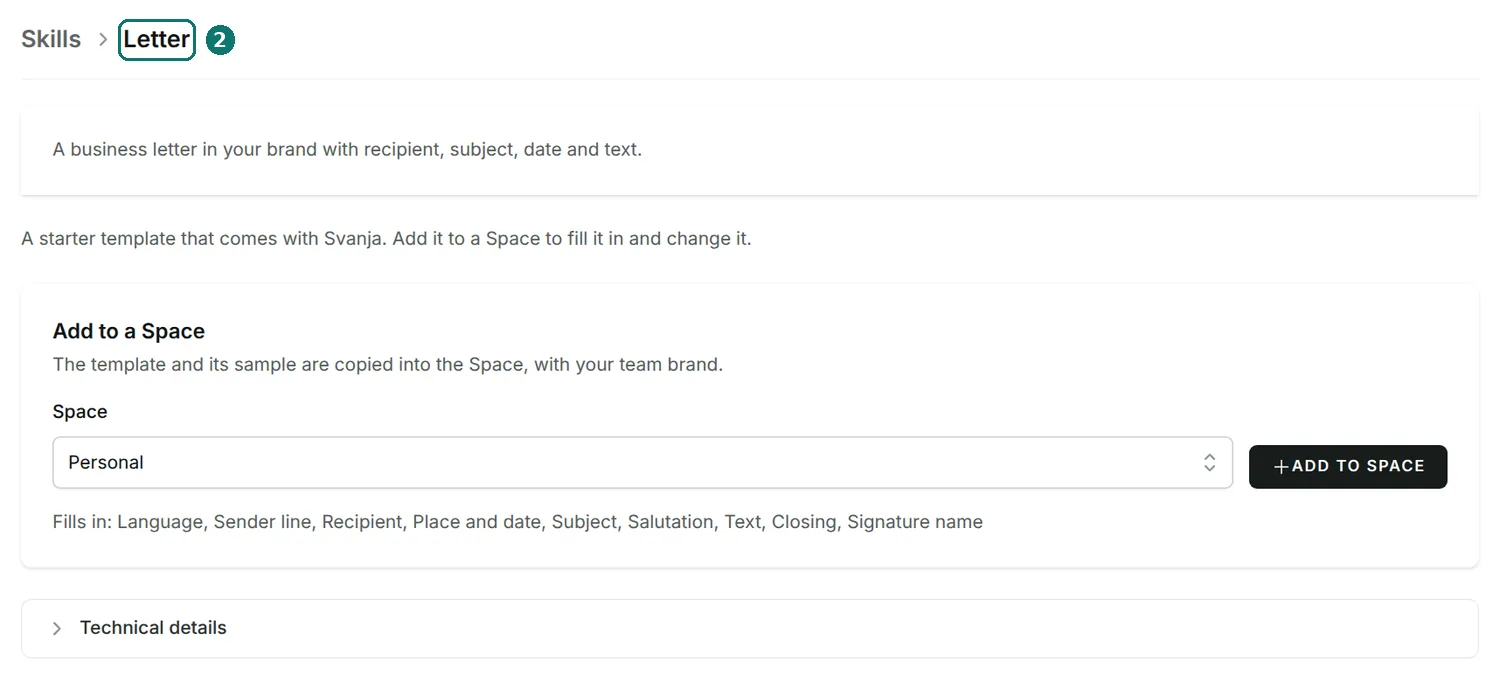
- Open a starter, for example Letter.
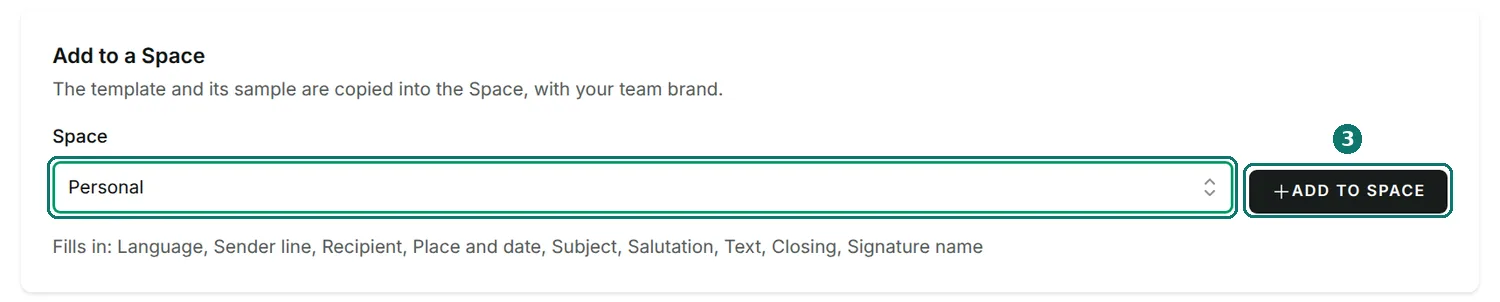
- Under Add to a Space, pick the Space and choose Add to Space.
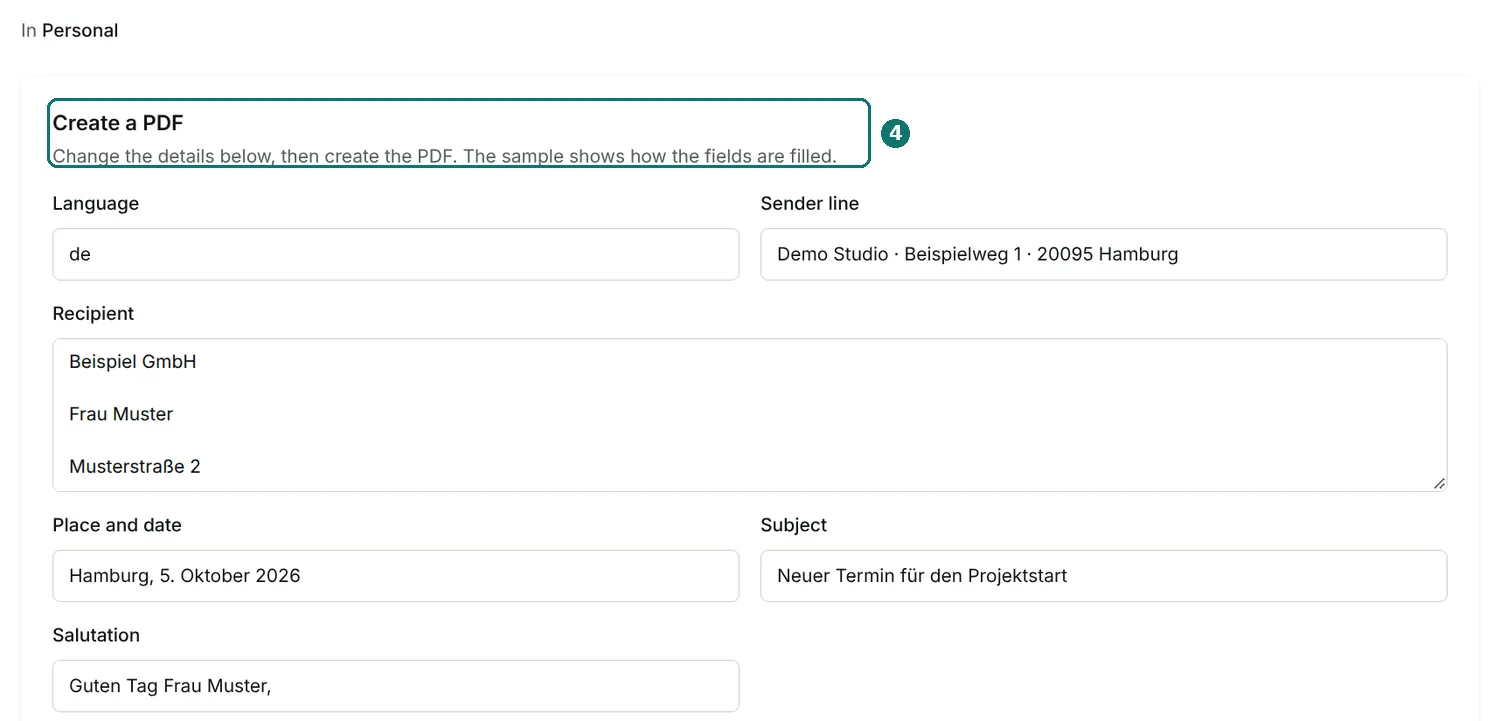
- Change the details under Create a PDF. The sample text shows how each field is filled.
- Choose Create PDF.
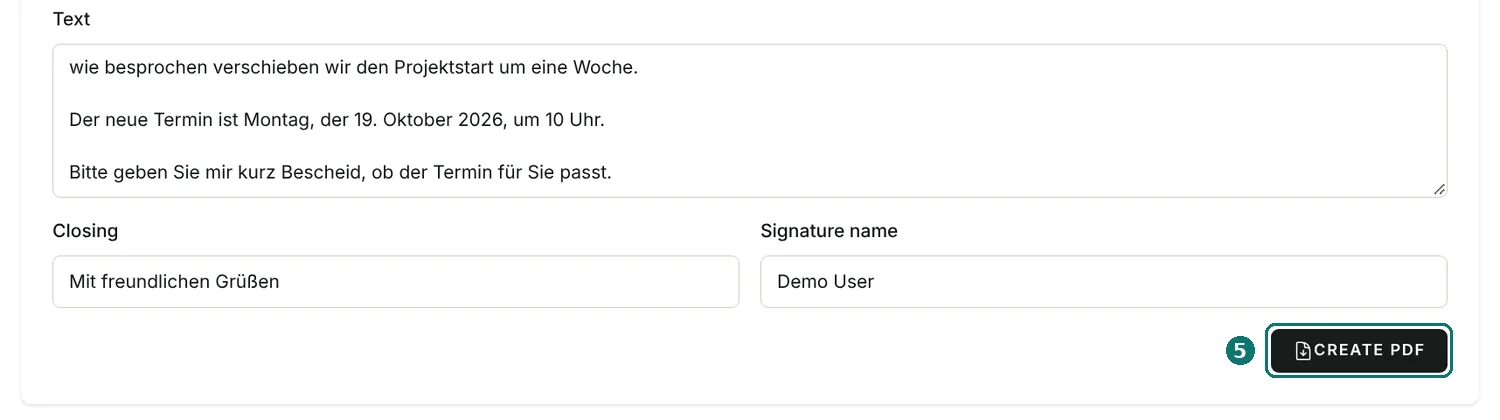
Each PDF costs 1 credit. The name, color, and logo come from Document brand. To change them, open Settings and choose that card.
Turn your Word templates into Svanja templates
- On the Templates tab, choose Import Word template.
- Pick the Space and up to 12 Word files (.docx, .dotx or .odt).
- Choose Import.
The assistant converts each file so you can compare the original with the new template. Choose Keep for the ones that look right. For anything that needs work, describe what to fix, such as “keep the logo at the top right,” and choose Ask for changes. Your original Word files are never modified.
Where are the documents my tasks made?
When a task creates a PDF, a spreadsheet, or a chart, it appears on the task page and on the Documents tab. Open a document to view it. From there, you can:
- Ask for changes, which makes a new version and keeps the old one.
- Download it.
- Attach to reply, which adds it to a reply draft.
- Save to Space, so it stays with the client.