Before you answer a client, you often need to look something up, like what you agreed to on the last call or what the offer said. In Svanja, those notes and files live in the client’s Space, which is linked to their emails. Open an email, and its Details tab shows the client’s Space. Ask the assistant about the email, and it reads that Space first.
This page shows how to set up the link, what to put in the Space, and how to use it day to day.
How does an email find the right Space?
Three things in Svanja connect an email to a Space:
- A contact is a person you write with, matched by their email address.
- A company groups the contacts who work there, usually by their email domain.
- A client Space belongs to one company and holds its notes and files.
The chain runs from the sender’s address to their contact, from the contact to the company, and from the company to its Space. If any link in that chain is missing, the Space won’t show up next to the email. See Contacts and companies.
Link a client to a Space
- Open Contacts on the Companies tab.
- Open the client’s company, or add it with Add company.
- Open Details and set Stage to Client.
- Under Domains, add the client’s email domain.
- Under When someone writes from this domain, choose Link them automatically.
- Under Client Space, choose Create client Space. If you already have a project Space for them, use Or link an existing project Space instead.
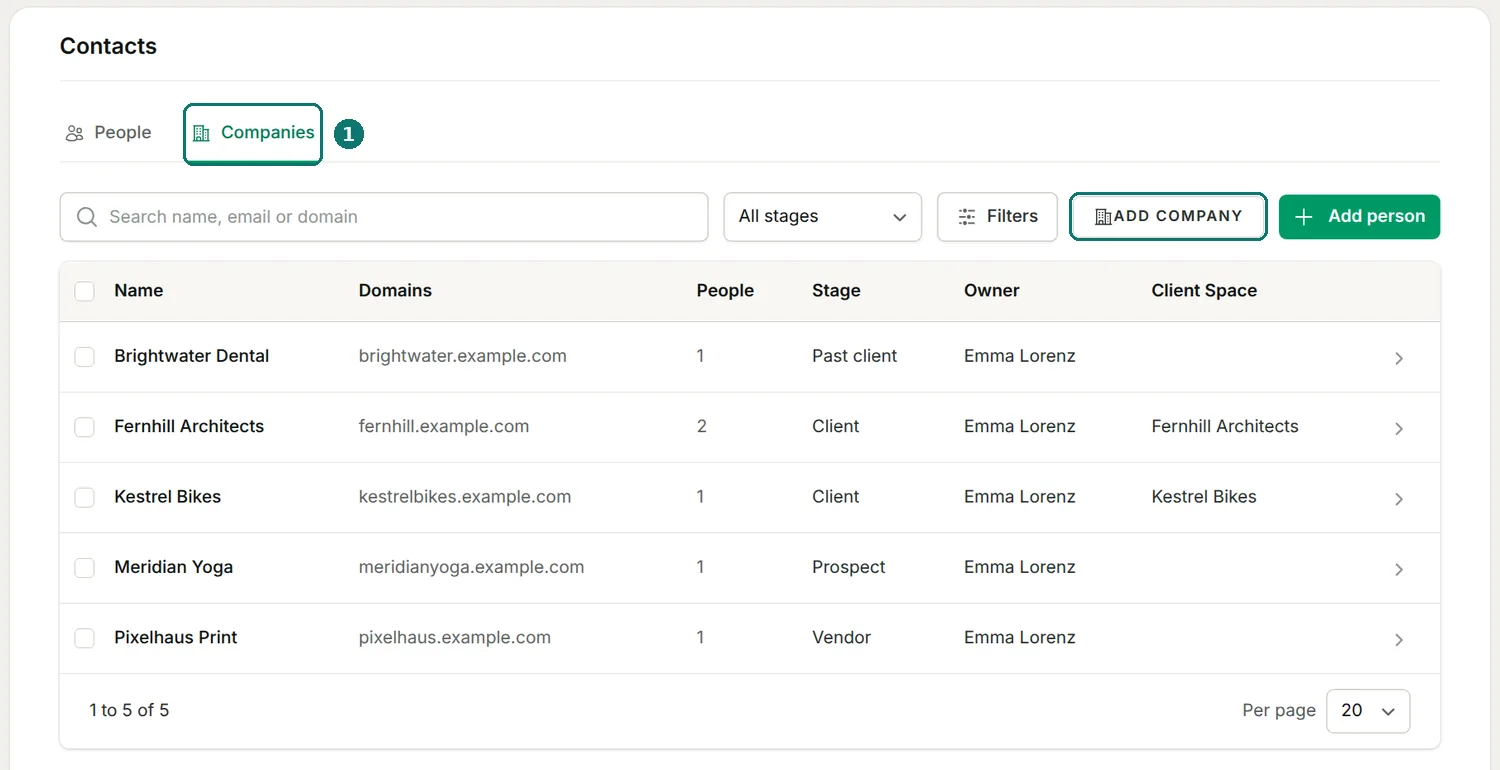
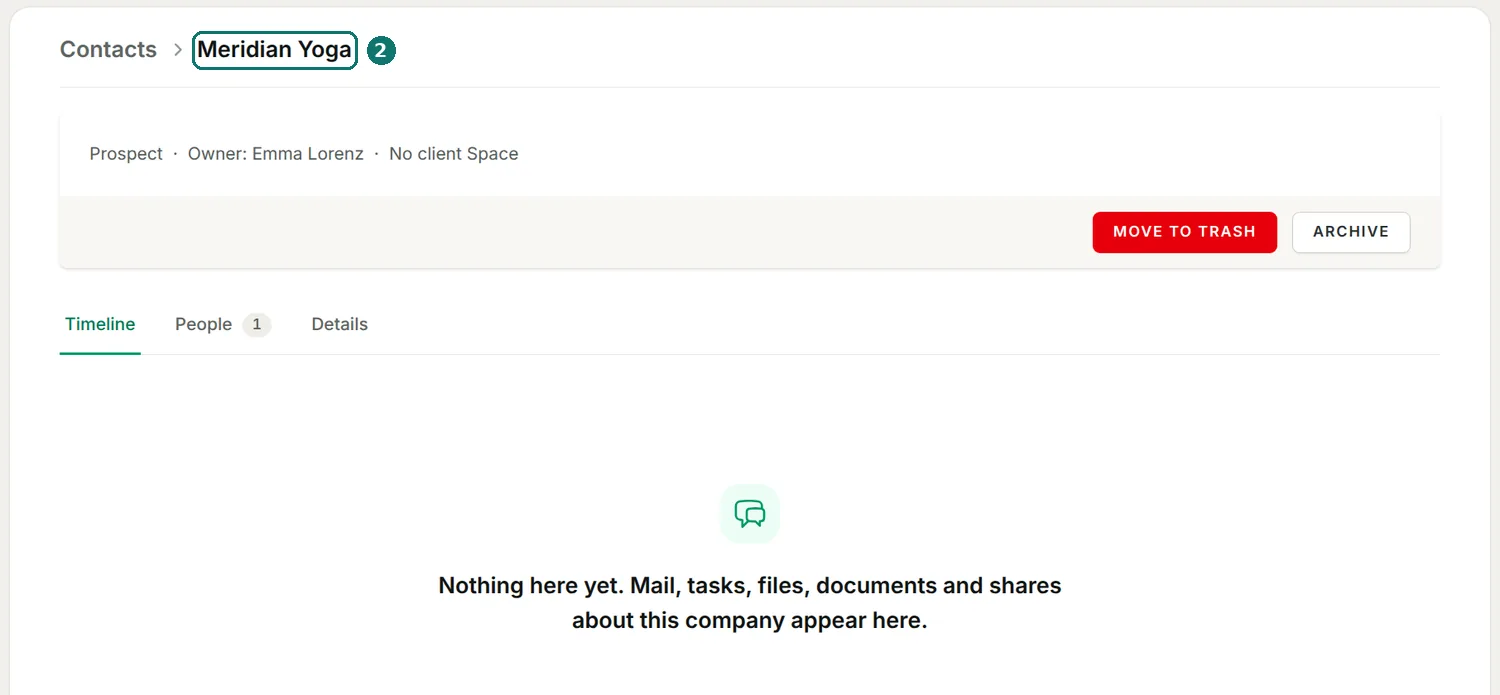
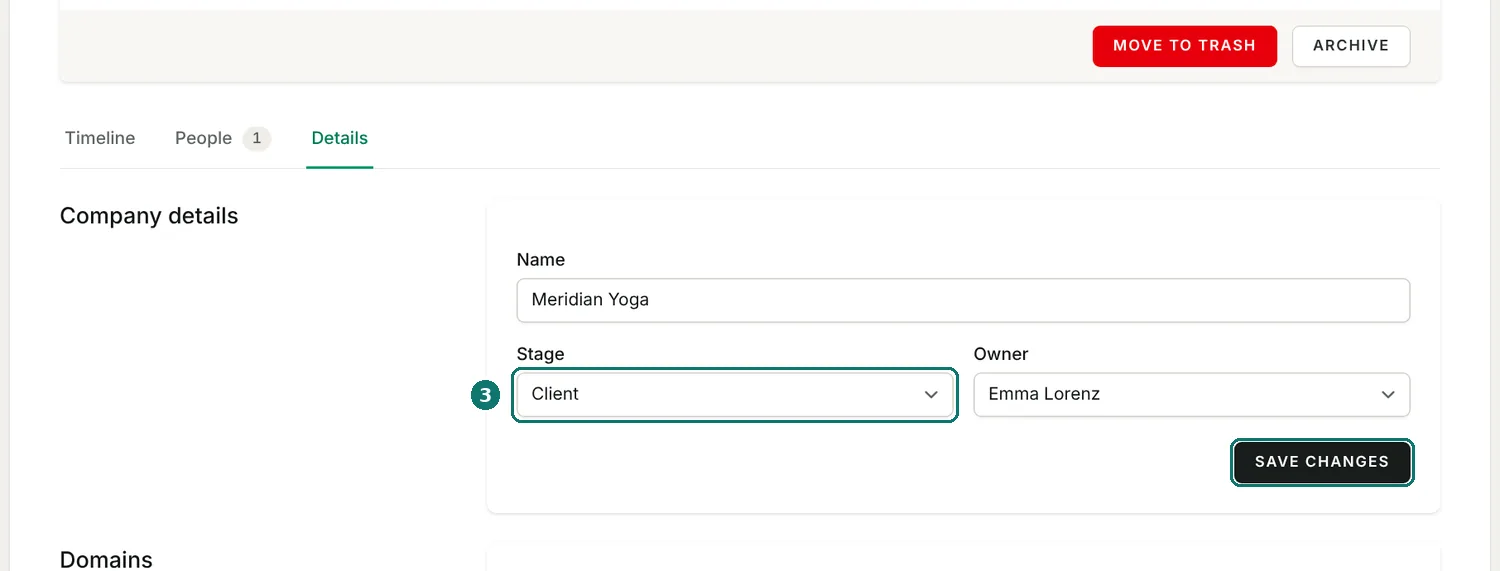
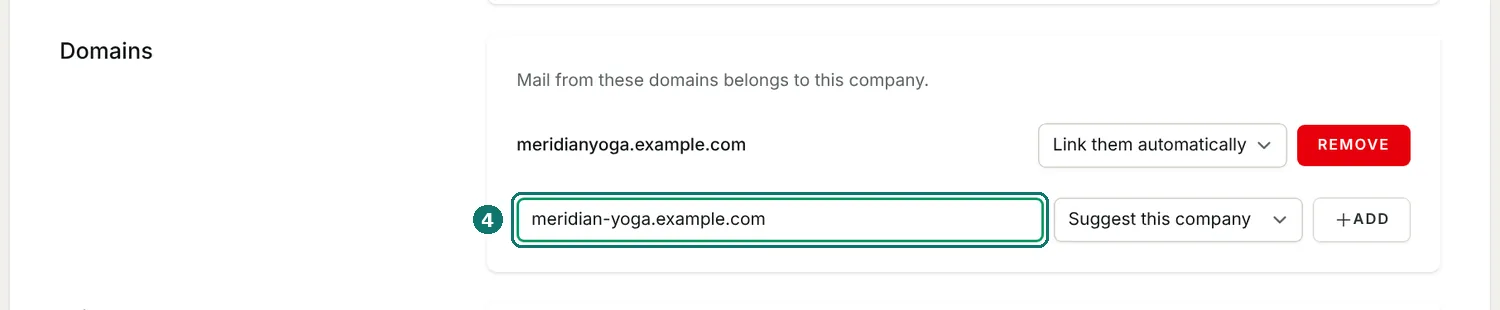
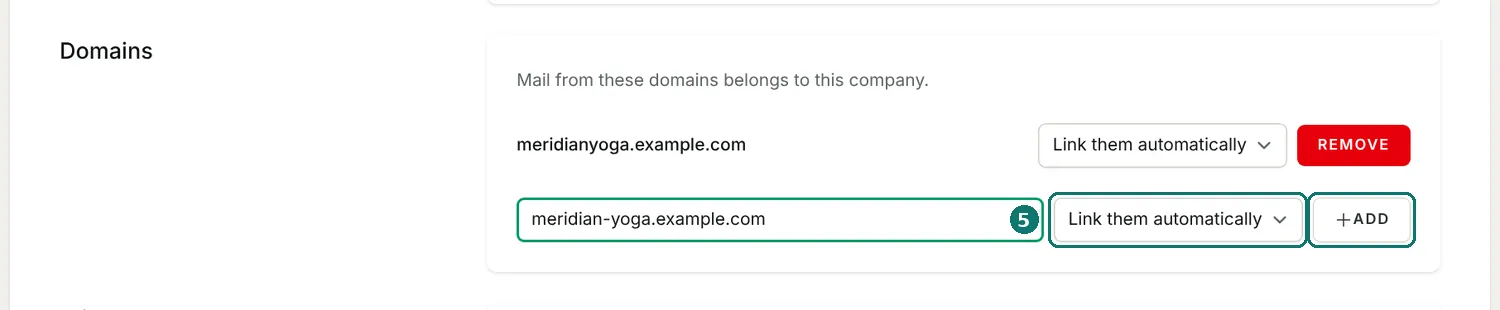
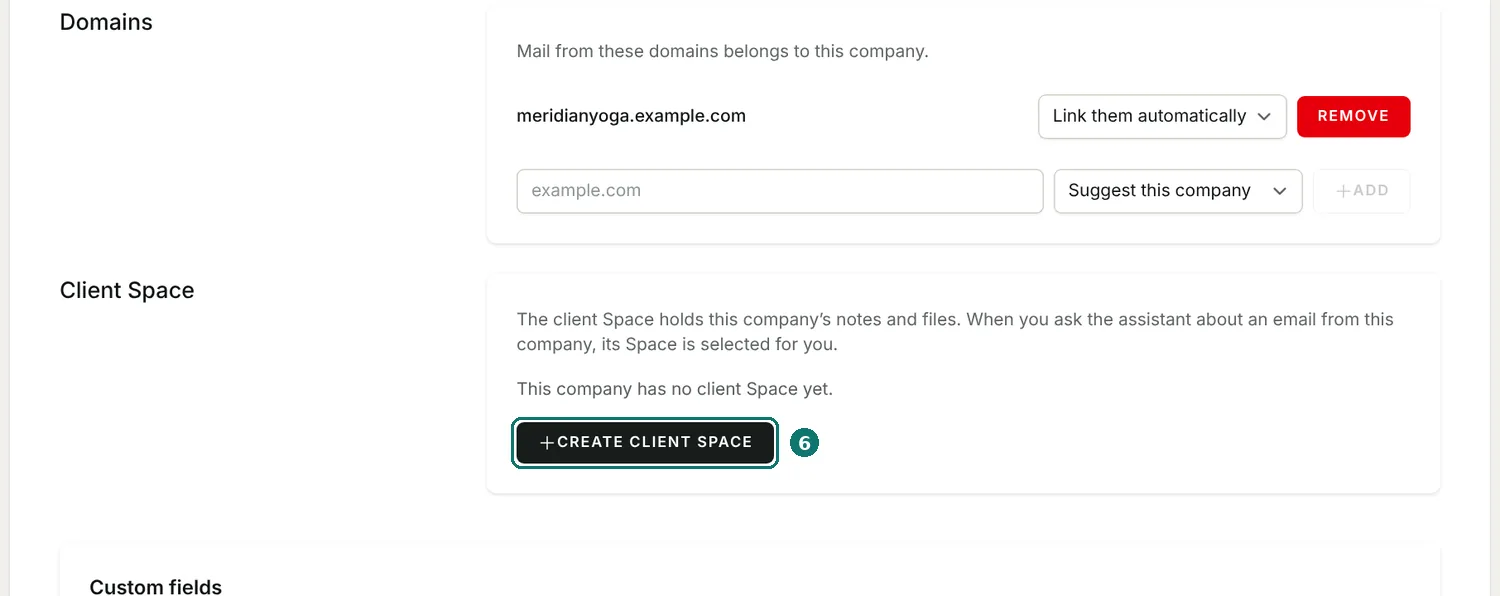
The domain link only applies to people added from now on. For anyone already in Contacts, open their profile and make sure Company is set to the client. Public mail domains like gmail.com are never linked to a company.
What goes into the Space?
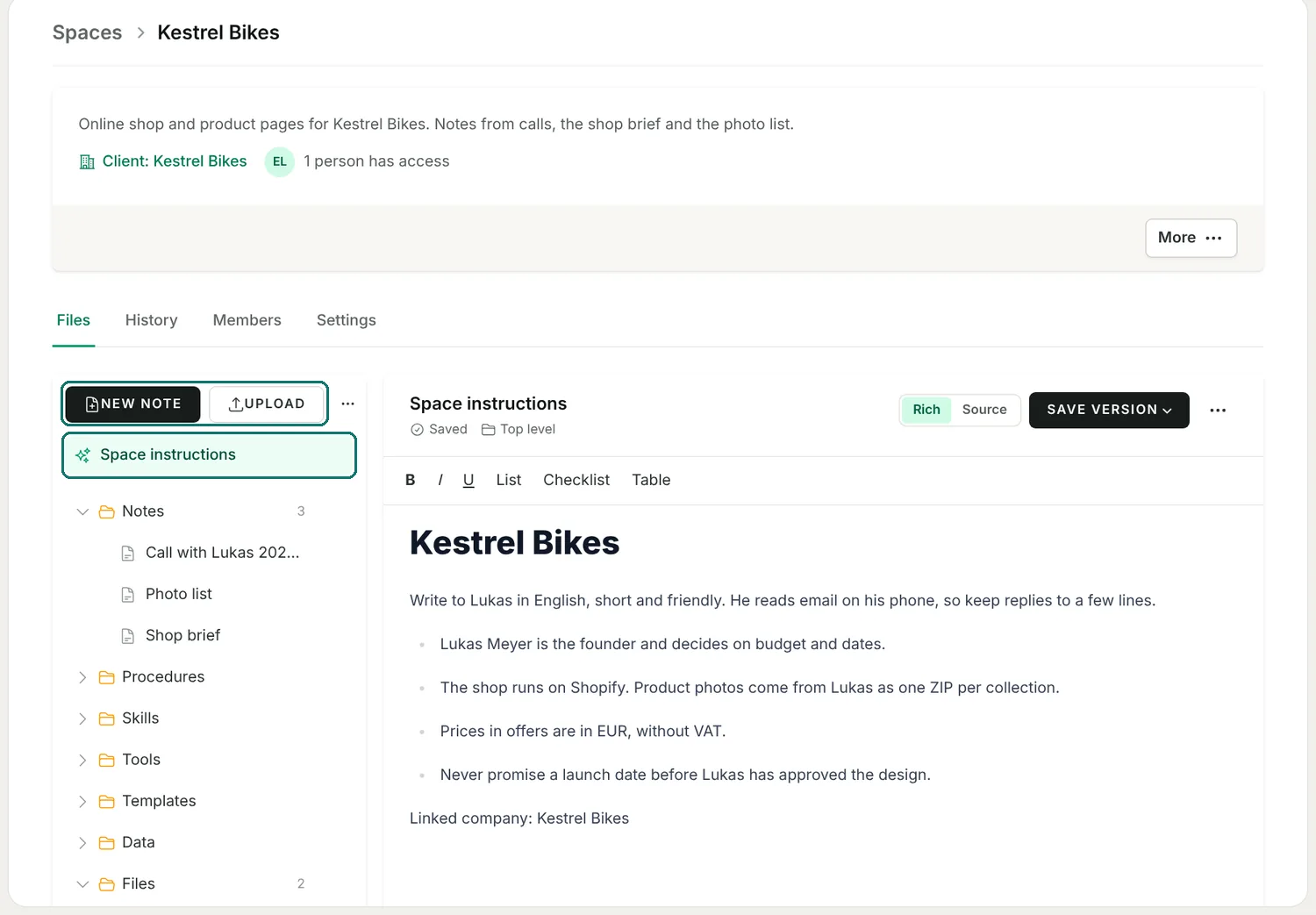
Start with Space instructions, the note at the top of the Space. The assistant reads this first whenever it works on anything for the client. Write down what a new colleague would need to know:
Write in English, short and friendly.
The founder decides on budget and dates.
Prices in offers are in EUR, without VAT.
Then add the things you look up most often:
- the offer or signed scope, added with Upload
- one note per call with the date in the title, created with New note
- files you keep elsewhere, like an Obsidian vault, imported with Bring files in as A folder or A zip file
Use Pin on the notes and files you need most. Every change is saved in the Space’s History. See Spaces and Import, export and Git.
What do you see next to an email?
When you open a client’s email, the Details tab shows:
- the person, their company, and its stage
- the client Space with its pinned files, where you can open and edit pinned notes
- recent conversations and open tasks with this client
While writing a reply, Attach from Spaces lets you add a file from the Space without downloading it first.
Ask the assistant about the email
Open the email and choose Ask the assistant, then Ask about this email…. The chat opens with the client’s Space already selected. From there, you can ask something like, “What did we agree about the launch date?” Draft a reply under the newest message also follows the Space instructions. See Chat and the assistant.
The assistant can also keep the Space up to date. Ask it to add today’s call to the client’s notes, or use the Save to the option in the menu, which names the client’s Space. Its edits appear in History, marked as the assistant’s, and you can undo them anytime.
The assistant only reads Spaces you have access to. If you want to keep it out of a specific Space, turn on Hide from the assistant in the Space’s Settings.
See everything about a client
The company’s page in Contacts has a Timeline showing the client’s emails, tasks, files, documents, and shares, newest first. Open work lists anything that is still open.
Share it with your team
On the Team plan, the Space’s Members tab controls which colleagues can open it. The assistant will then use the Space for each of them, as long as they can also read the mailbox the email is in.