Some work takes more than reading and writing text. A task might need to clean up a CSV file with a script, build a PDF offer, or download a report from a web portal that has no API. For jobs like these, the assistant uses its own computer, a Linux machine in the cloud with a terminal and a real web browser.
You don’t have to set anything up. It starts when a task needs it and goes to sleep when nothing is running. If you prefer, tasks can also run on a computer of your own.
When does a task use the computer?
The assistant decides when a job needs the computer. Once it’s running, a task can:
- run scripts, for example to convert files
- install the programs a script needs
- open websites, read them, and fill in forms
- build documents from templates
It pulls the files it needs from your Spaces and connections. Results go back to the task, where you can save them to a Space. Because the computer is a temporary workspace, Svanja occasionally rebuilds it. When that happens, you get a “Your computer was rebuilt” notification, and you may need to sign in to some websites again.
Watch the browser and take control
When a task opens a website, its task page shows a live view of the browser. To step in, choose Take over. Click anywhere on the view to interact with the page, and use the fields below it to type. The assistant waits until you choose Hand back to the assistant.
Sign in to a website
Many sites require a sign-in before a task can use them. You sign in once yourself, and Svanja’s browser keeps the session active for later tasks, the same way your own browser does. Svanja never stores your password.
- Open Connections.
- Under Website sign-ins, choose Sign in to a site.
- Under Site address, enter the site, for example
https://example.com. - Under Name, give the sign-in a name, like “Reports portal”.
- Under Who can use it, choose Just me or My team.
- Choose Open and sign in.
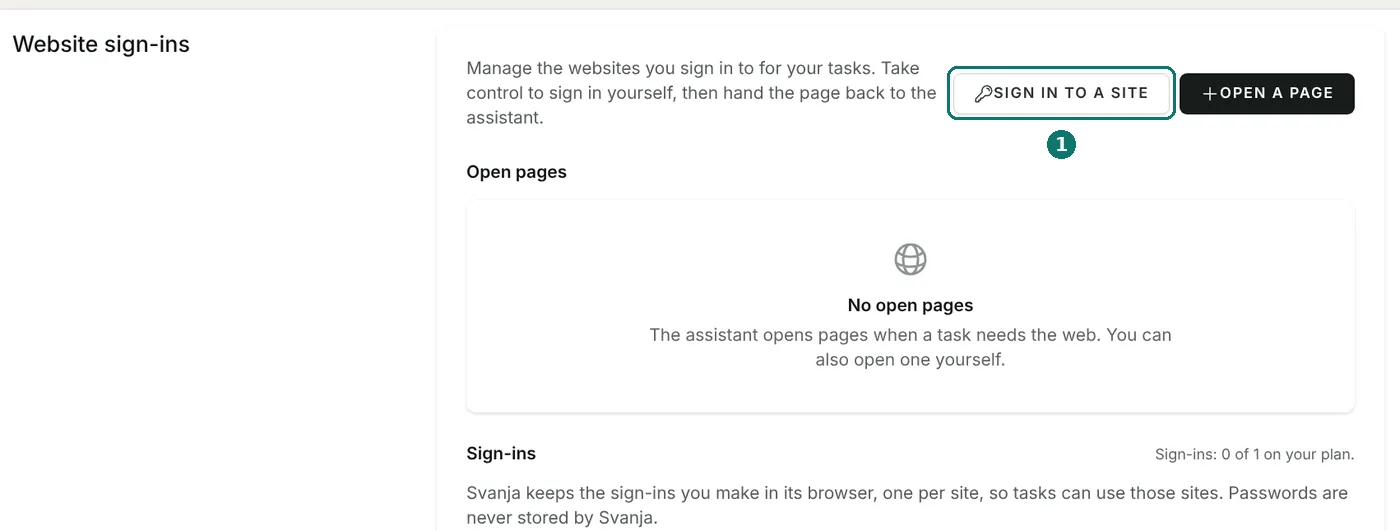
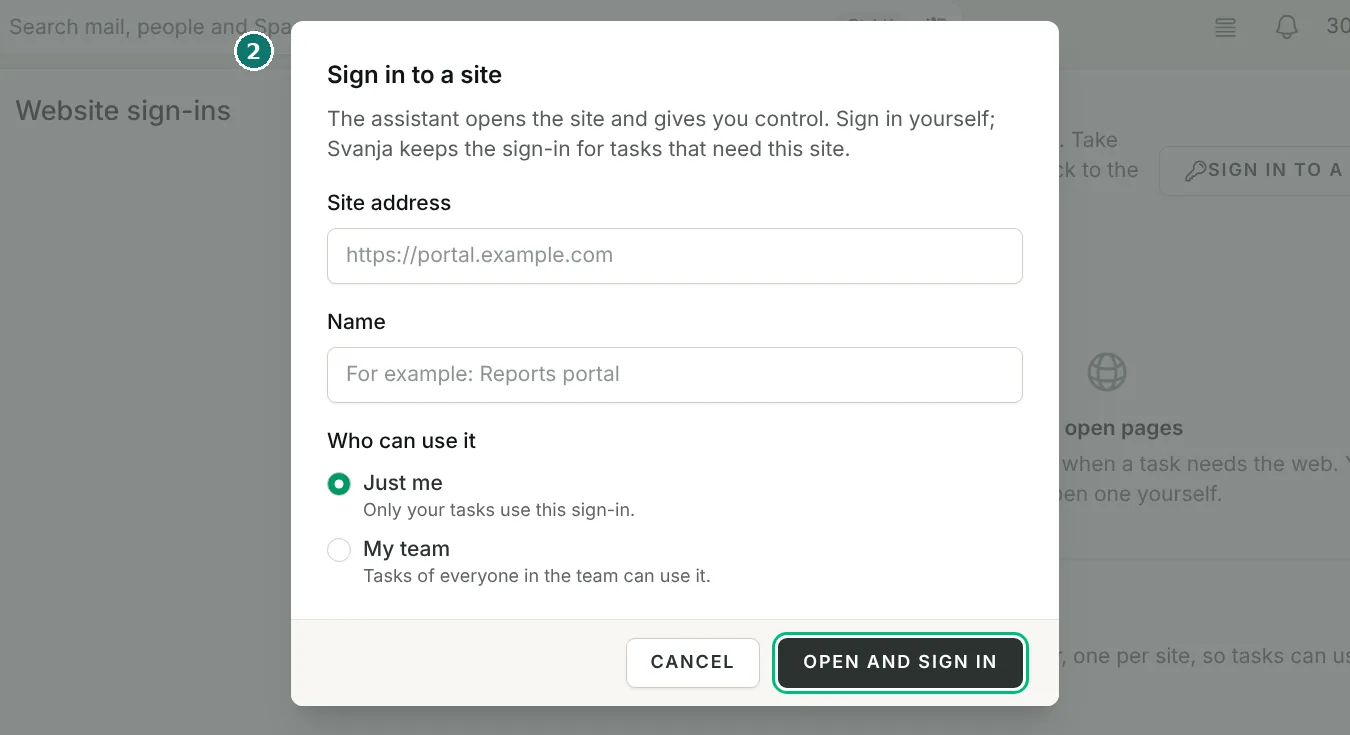
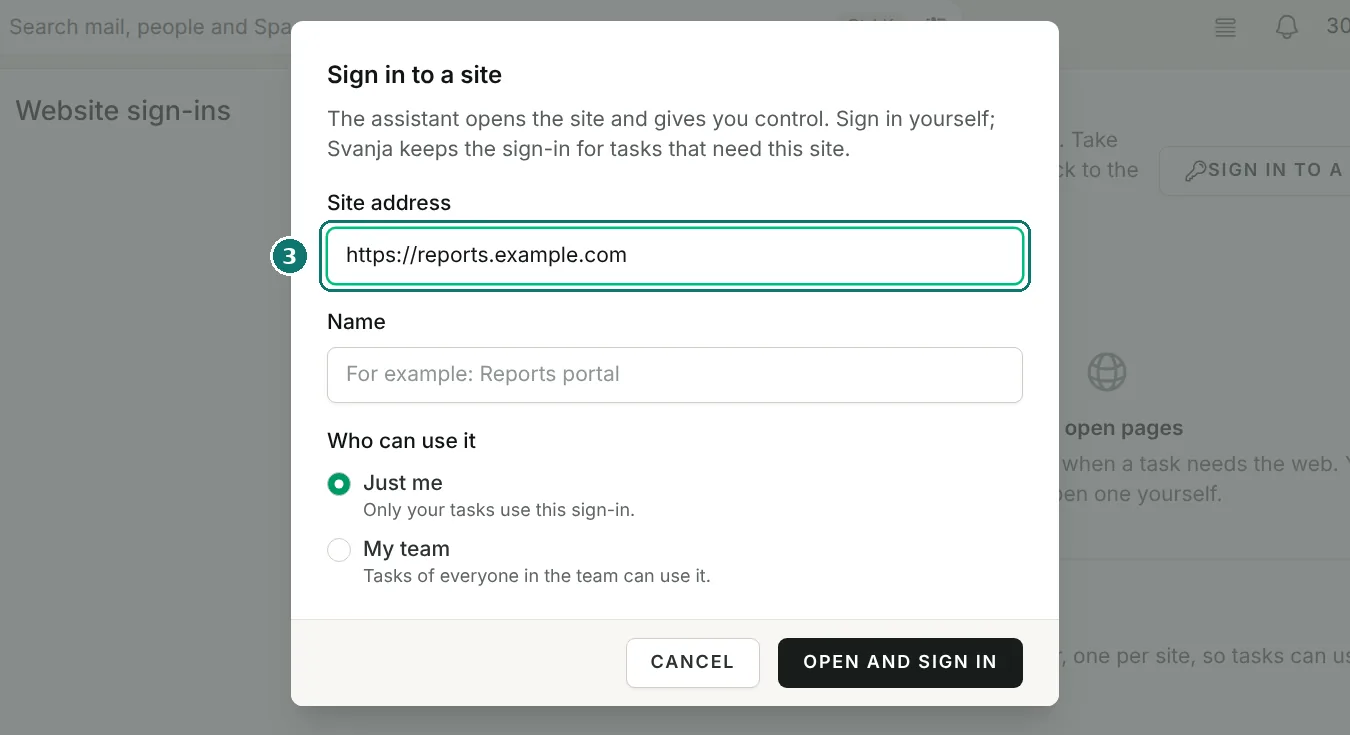
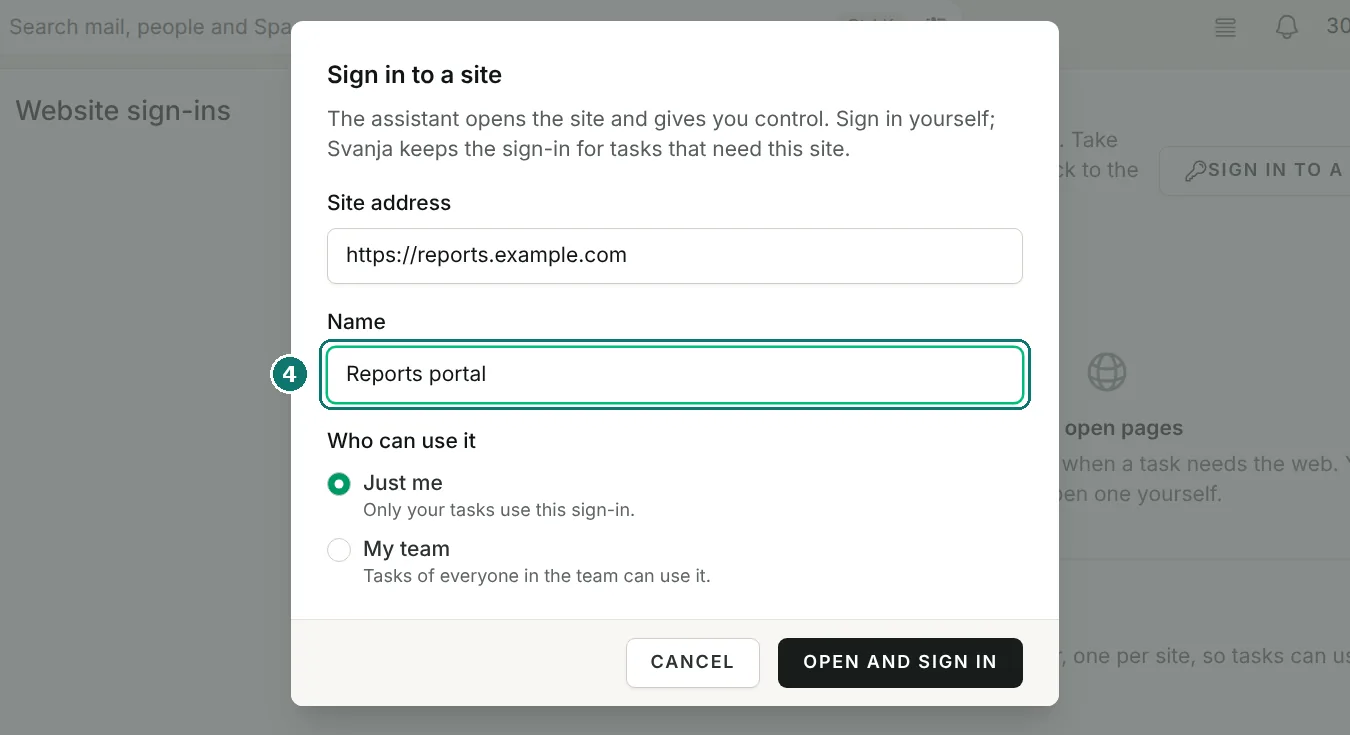
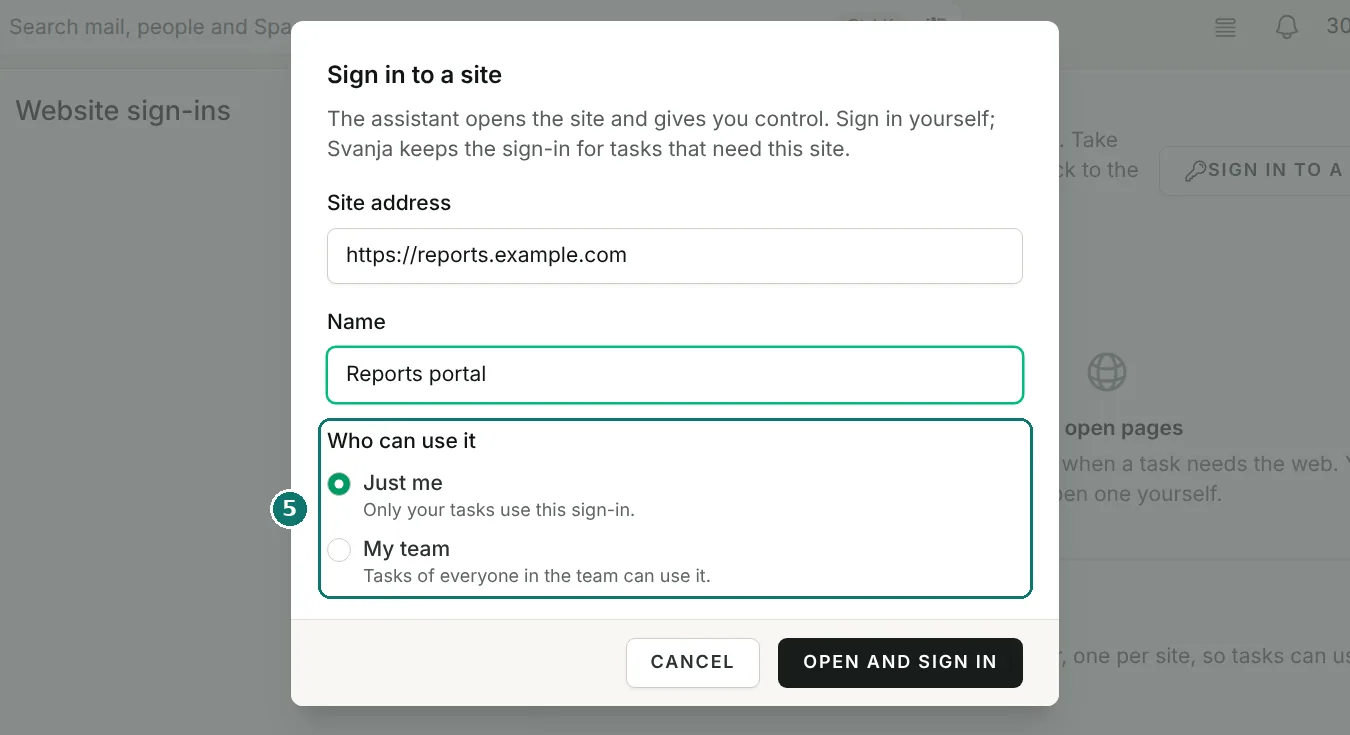
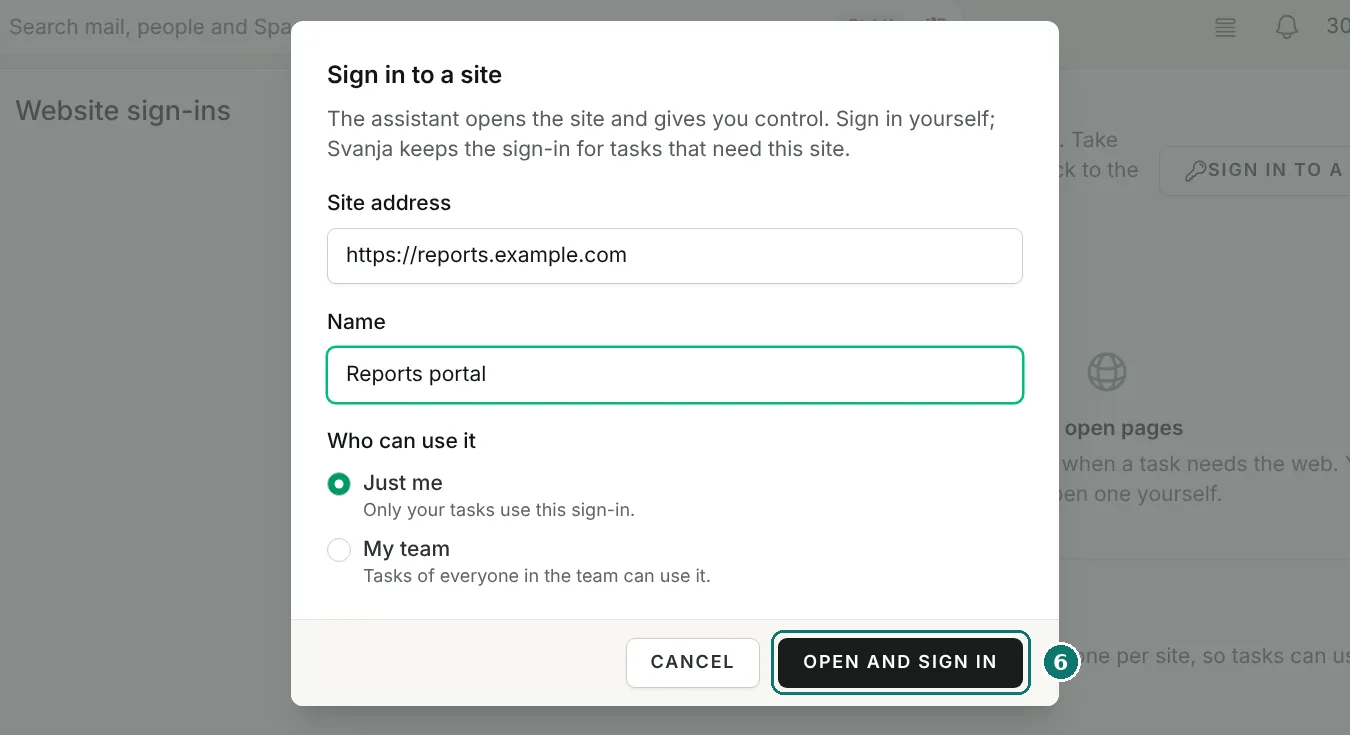
The site opens under Open pages with you in control. Sign in on the page, then choose Hand back to the assistant. The sign-in then appears under Sign-ins, and tasks can use the site from there.
If a task runs into a sign-in it doesn’t have, it pauses with Sign-in needed. Take over on the task page, sign in, and hand the browser back.
Each sign-in has Sign out and Forget options. Forget closes the site’s pages and deletes the browser data Svanja kept for it. The Free plan includes 1 sign-in, while Pro and Team have no fixed limit. Team rules can only use sign-ins shared with My team.
You can also use Open a page on the same screen to open any address in Svanja’s browser.
What if a website step can’t be undone?
Some steps on a website can’t be taken back, like sending a form, paying, or booking. Before doing anything like that, the assistant stops and asks. You have two ways to continue:
- Allow actions on this site. On Connections, the task’s page under Open pages has this button. Describe in a short sentence what the assistant may do there and choose Allow. This applies to that site for this one task.
- Take control on Connections, or Take over on the task page, and do the step yourself. For a single payment, this is the safer choice.
Show the assistant a job once
Some web tasks are easier to show than to explain. In Skills, open the New skill menu and choose Show it in the browser. Walk through the steps once while the assistant records them (it never records passwords or codes), then save the recording as a skill. See Skills.
Add programs a Space always needs
If a client’s work always needs the same programs, add them to the Space. On the Space’s Settings tab, under Add to your Space setup, list Packages and Setup commands, one per line. For example, you might add the package wkhtmltopdf or the command pip install pandas. Then choose Add to setup. Svanja installs them whenever a task for that Space starts the computer.
What does computer time cost?
Computer time costs 3 credits per minute while the computer is working, and nothing while it sleeps. The Free plan includes up to 120 minutes a month. Pro and Team have no minute limit; they only draw from your credits.
When your minutes or credits run out, tasks that need the computer pause with Allowance used. You can check how many minutes you’ve used this month under Credits and usage. See Credits and prices.
Run tasks on your own computer
You can pair a machine of your own, like your laptop or an office server. Tasks then run commands in folders you choose and can use a browser there. This helps when a client’s files are already on that machine. Time on your own machine doesn’t use computer credits, though the AI work still uses credits.
You need:
- the svanja command line on the machine
- Linux, to run task commands in your folders. On macOS and Windows, a paired machine only does browser work.
- Google Chrome or Chromium, for browser work
| Plan | Paired machines |
|---|---|
| Free | 1 |
| Pro | 3 |
| Team | 3 per member, shared by the team |
To pair the machine:
- Install the svanja command line.
- Open Connections and find Pair your own machine.
- Choose Copy command.
- Paste it into a terminal on your machine and replace
<path>with a folder the assistant may use. - Approve the machine in the browser window that opens.
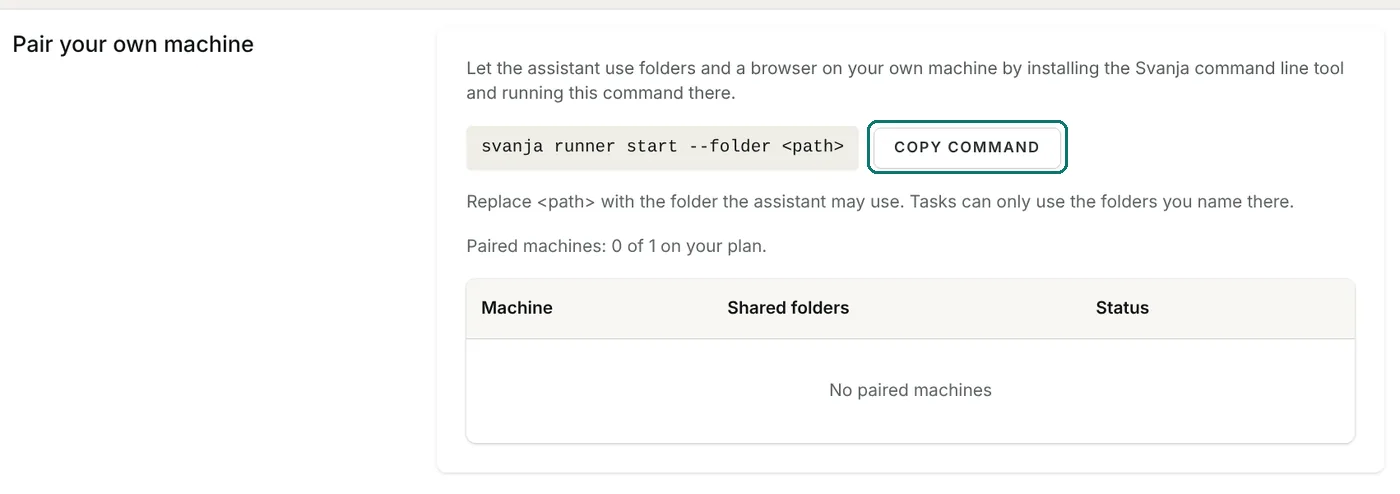
With the folder filled in, the command looks like this:
svanja runner start --folder ~/WorkRepeat --folder for more folders. The command stays open and runs the jobs it gets, so the machine stays available as long as it runs. Press Ctrl+C to stop it. A task that needs the machine while it’s offline waits with Waiting for the computer and resumes once you start the command again.
To let tasks use your browser, add --shared-browser. Tasks then use your open Chrome installation in their own windows. First, turn on remote debugging in Chrome at chrome://inspect/#remote-debugging. To keep Svanja separate from your own browsing, use --automation-profile NAME instead, which opens a separate browser profile.
What can the assistant do on my computer?
Task commands only work inside the folders you specify. On Linux, each command runs inside a sandbox called bubblewrap that can only see those folders. If commands fail, run svanja doctor to check the sandbox setup and see how to fix it.
When a task stops, Svanja only closes the programs that task started. In Chrome, tasks never add tabs to your windows or close pages they didn’t open. On websites, the assistant still stops before steps that can’t be undone, the same as it does in the cloud.
To remove the machine, run svanja runner unpair or choose Unpair machine on Connections. Any files already saved to your Spaces stay there.