Before you can answer a bug report, you have to figure out which project it’s about, what changed, and how to explain it without jargon. The assistant can do that first round for you. It reads the client’s notes, looks into the problem, and leaves its findings along with a draft reply. You review both and decide what to send.
You can do this for one email at a time, or set up a rule to handle every report that comes in.
Set up the client first
The assistant works from the client’s Space. A client Space is a folder for a single company, linked to it in Contacts, that holds your notes, files, and instructions for the assistant.
- Open Contacts and open the client’s company.
- Check that its stage is Client.
- Choose Create client Space, or open the Space if it already has one.
- Write what a developer needs into the Space instructions.
For example:
Project: online shop on Shopify. Staging: staging.example.com. Reply in English, short and friendly. Never promise a date for a fix; say I’ll confirm by email.
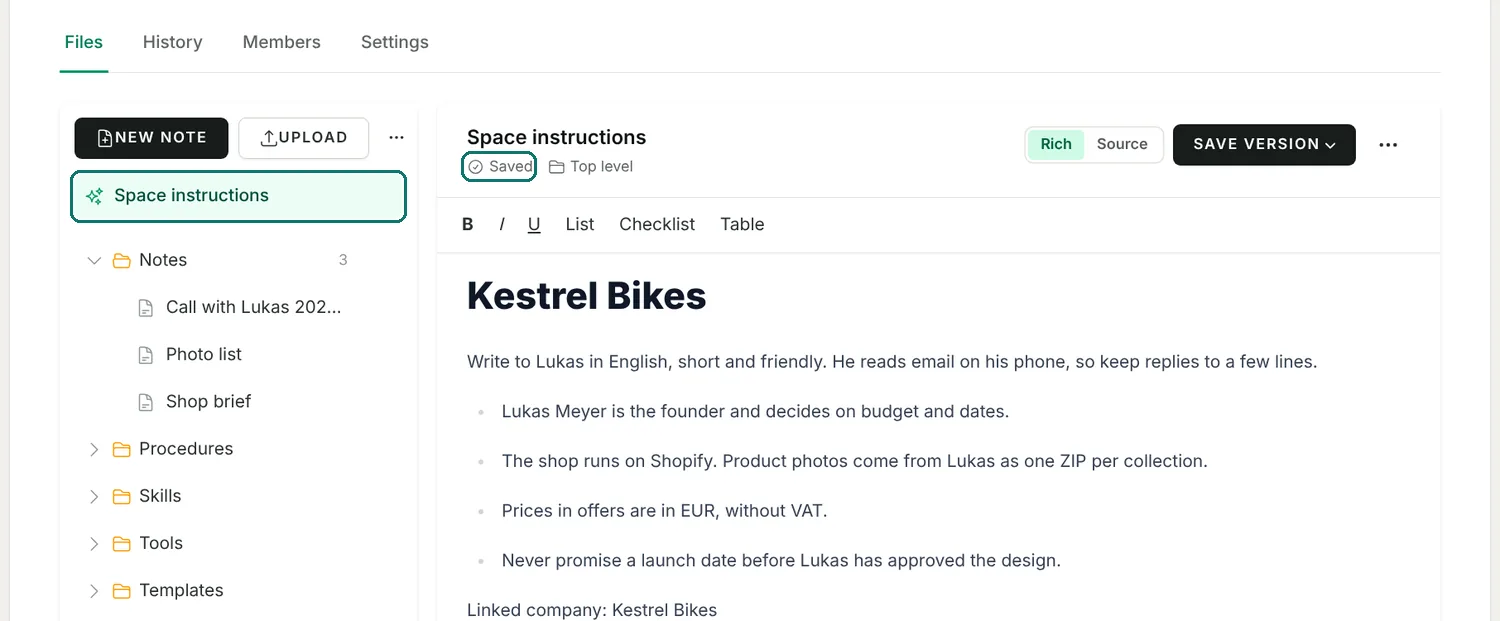
Other notes you keep in the same Space, such as known issues, help too. If GitHub is available under Connections, connect it so the assistant can read the code and issues as well. See Spaces and Connections.
Look into one report
- Open the email.
- Choose Ask the assistant, then Ask about this email….
- Write what you want, for example: “Look into the problem this email reports. Check the client’s Space for anything related. Write down what you found and draft a reply in plain words. Don’t send it.”
The assistant starts a task, which is a job it runs in the background. On the task page, you can see what it reads. If it needs to run a script, it uses its cloud computer. Once it finishes, the task page shows its findings, and the email shows Reply ready in your Inbox. Review both, make any edits you want, and send the reply yourself. See Tasks.
Make this a task in the same menu gives you findings, risks, and next steps, without drafting a reply. Use Ask about this email… when you want a draft.
Let a rule handle every report
A rule kicks off work automatically so you don’t have to ask each time. Svanja includes a sample rule for bug reports:
| Part | Setting |
|---|---|
| When | Mail received |
| Only if | Sender is A client, and the assistant agrees that the message reports a problem or asks for a fix |
| Do | Prepare a reply with what you found and the next steps. Do not send it. |
- Open Rules and choose Start from a sample.
- Choose Client reports a problem.
- Under Mailboxes, choose your support mailbox.
- Choose Test on recent events and read the previews.
- If they look right, choose Enable.
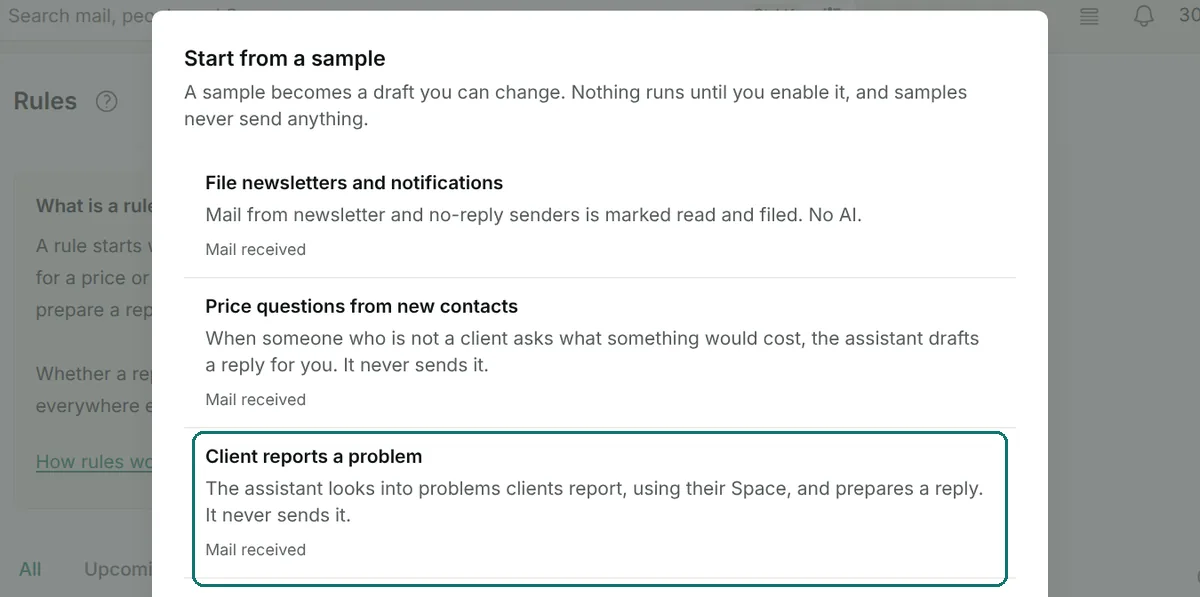
The rule only runs when the sender, or the sender’s company, has the stage Client. Each run uses credits. To cap usage, open Credits and usage and set a Default limit per task (credits). See Rules.
Keep what you learned
Ask the assistant to add a note to the client’s Space, such as “export bug, date filter, fixed in release 2.3.” The next time something similar comes up, it will find the note. You can also see the email, the task, and the files in the company’s Timeline in Contacts.
If you handle the same kind of problem the same way each time, open a task that went well and choose Save as skill. A skill is a saved set of steps for doing a job. The assistant drafts the steps, and you review them before saving. Next time, ask for the skill by name or include it in a rule. See Skills.