The Svanja API lets your own code do what you do in the app, like saving a note in a client’s Space or starting a task. It’s a JSON API over HTTPS, and every call works for one team.
This page walks you through creating an API key and sending your first request, then covers what all calls have in common. The reference pages list every endpoint, one area per page. The svanja command line and AI apps connected over MCP use the same API.
What is an API key?
An API key is a secret your code sends with every request. It belongs to one team and to the person who created it, and it can never do more than that person can do in the app. Only team owners and admins can create keys.
| Plan | API keys |
|---|---|
| Free | One key, and it can only read |
| Pro and Team | As many as you need, with any kind of access |
Create an API key
- Open Settings and choose API Keys.
- Under Key Name, type a name you’ll recognize later, like the script that uses it.
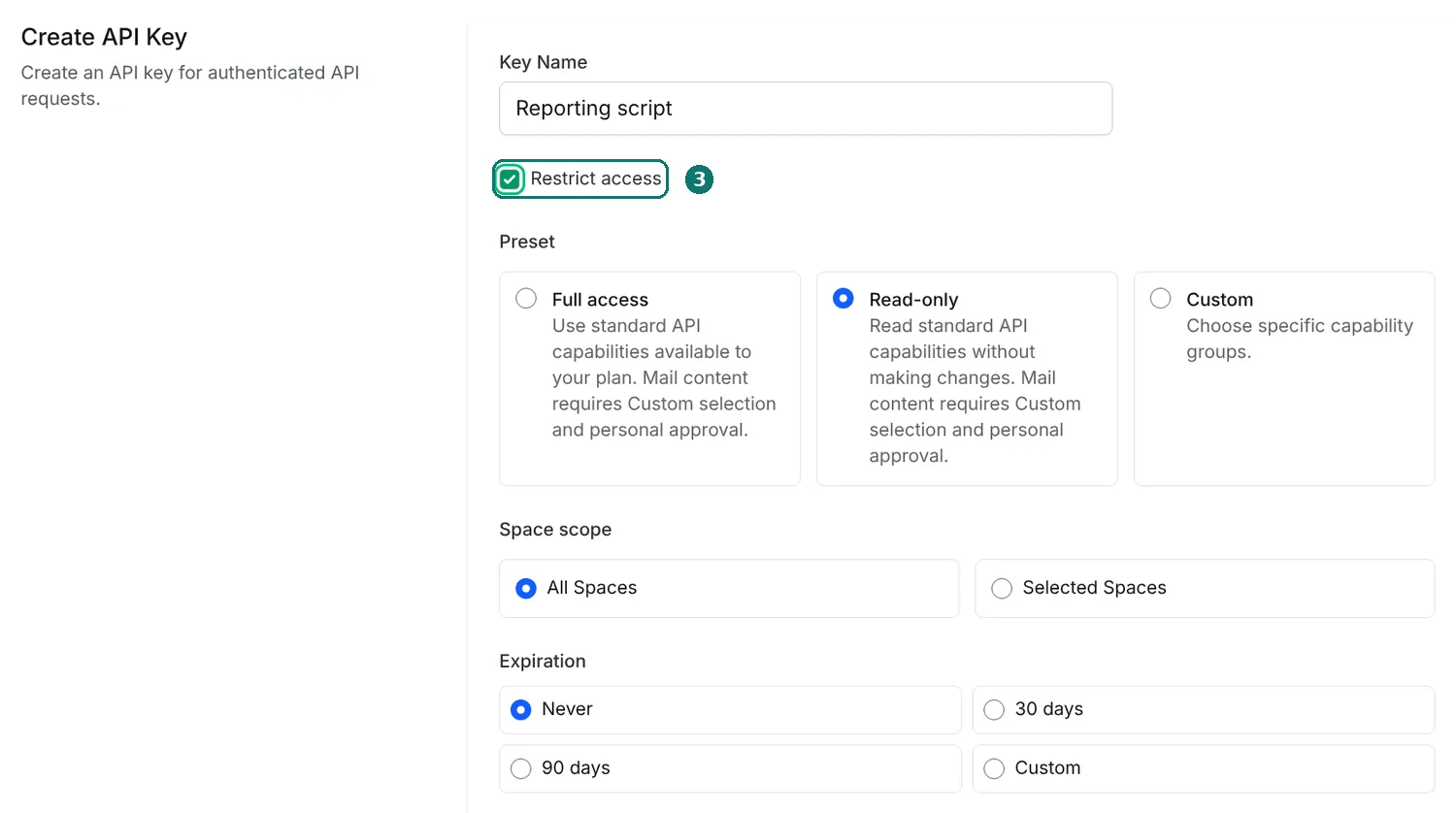
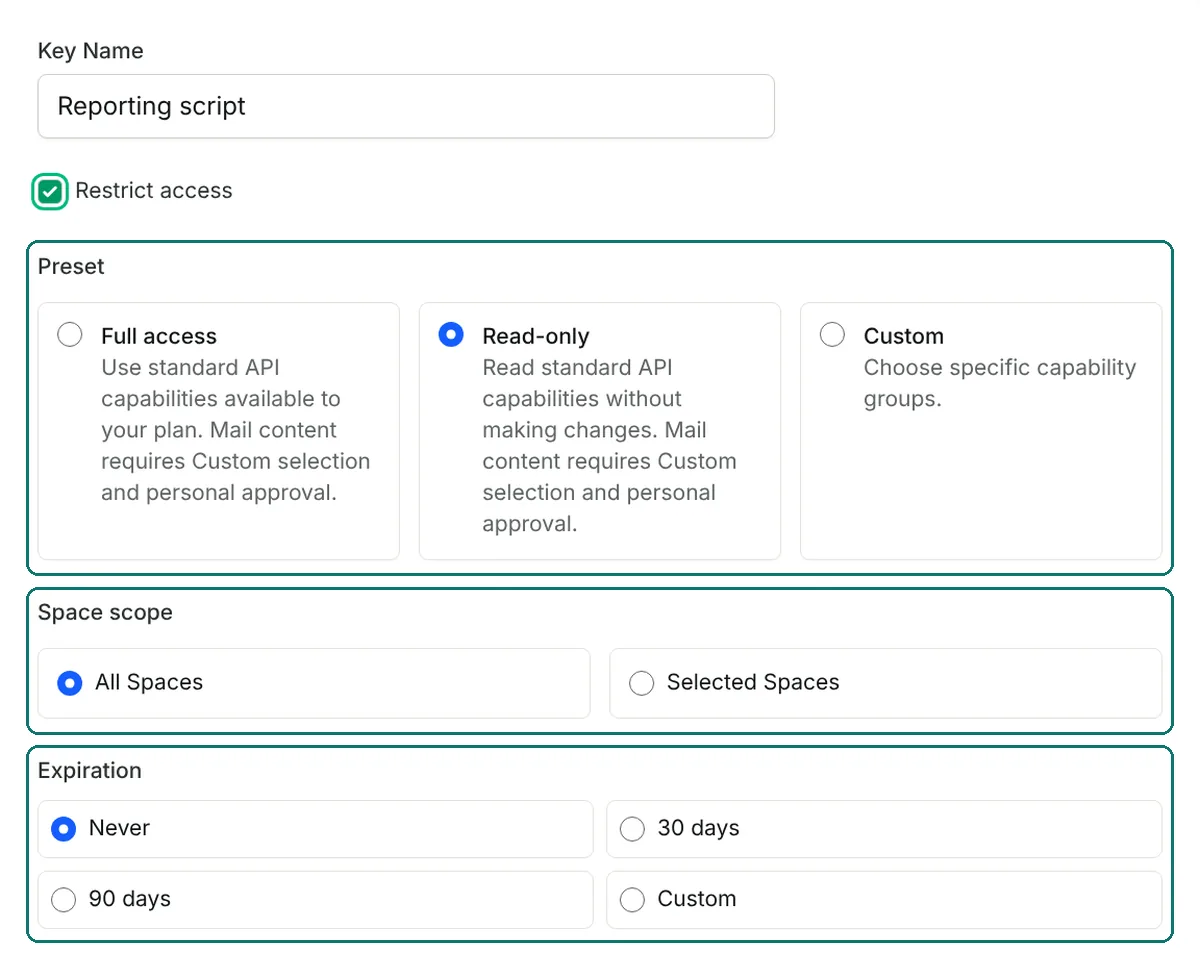
- If the key should do less than the default, tick Restrict access and choose its access. The next section explains the choices.
- Choose Create.
- Copy the key from the API Key window. You see it only this once.
- Choose Close.
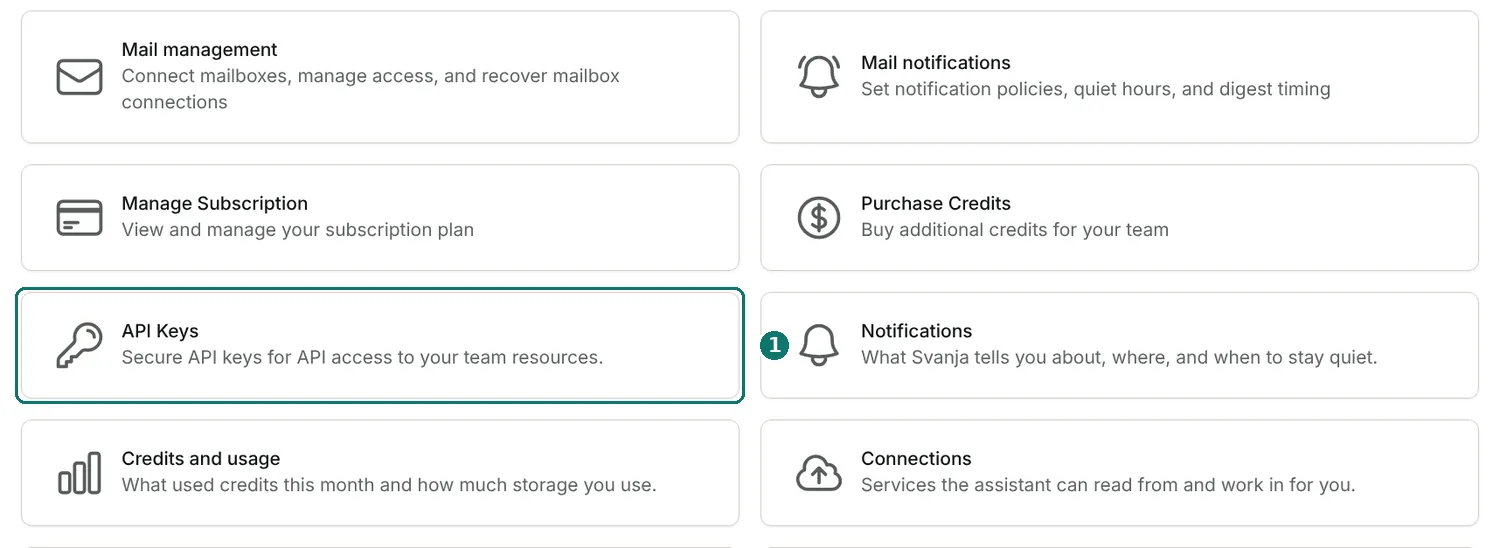
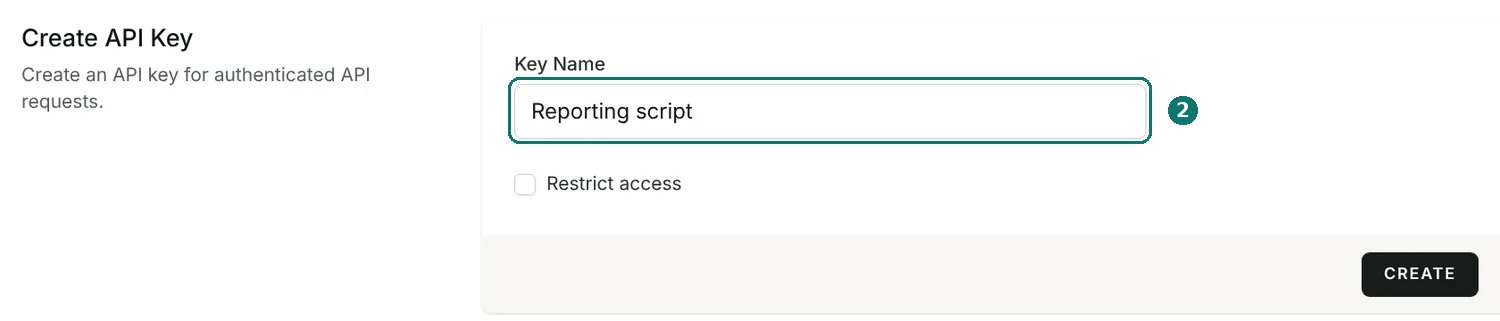
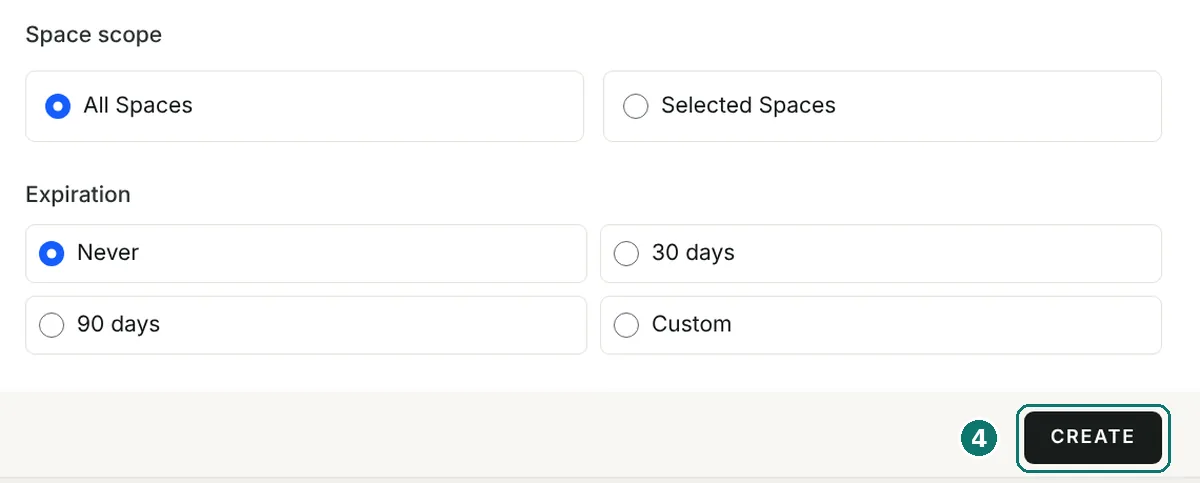
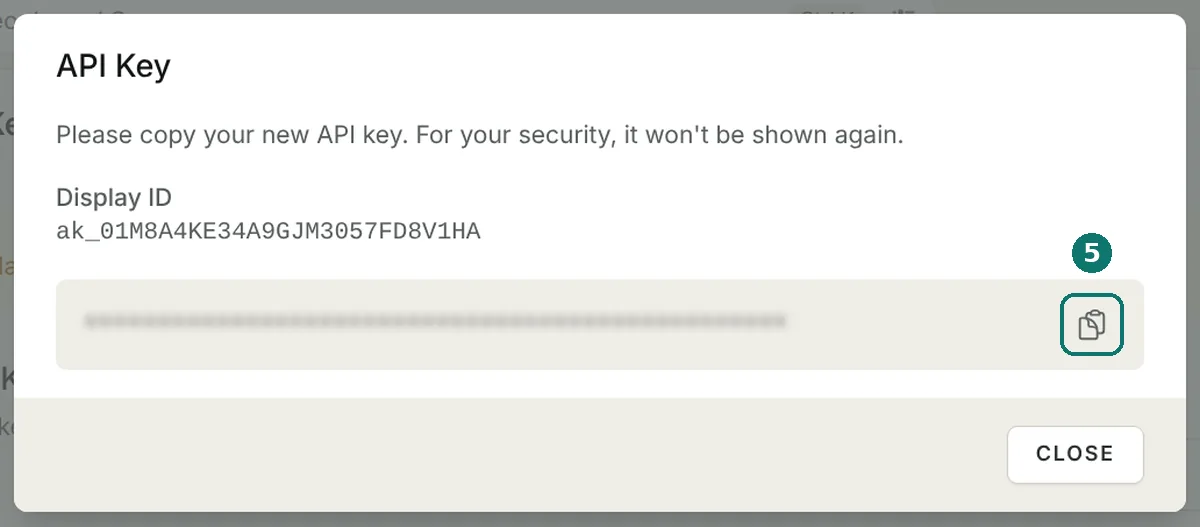
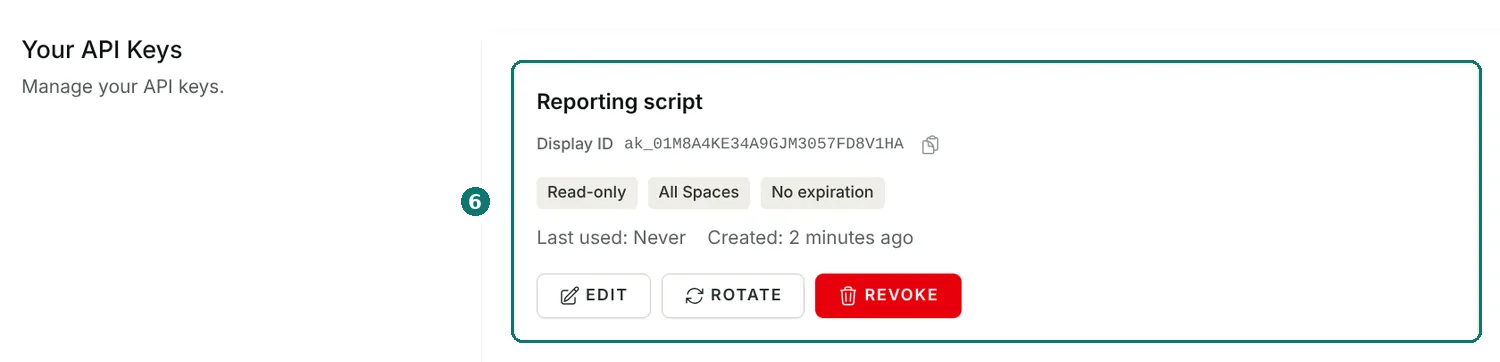
Without Restrict access, the key gets your plan’s default: full access to all Spaces on Pro and Team, read-only on Free. It never expires. Treat it like a password and store it in a password manager or your tool’s secret settings.
Choose what a key may do
Restrict access opens three choices. The first is the Preset:
| Preset | What the key may do |
|---|---|
| Full access | Read and change everything your plan allows, except mail |
| Read-only | Read everything your plan allows, except mail and the team’s API keys. It can’t change anything. |
| Custom | Only the areas you pick under Capability groups, each set to Off, Read or Read and write. This is the only way to give a key mail access. |
On the Free plan, Read-only is the only option.
Under Space scope, All Spaces includes Spaces you create later, your Personal Space, and the team library. Selected Spaces lets you select client and project Spaces one by one. Under Expiration, choose Never, 30 days, 90 days, or Custom. Pick an expiration date for keys on shared computers.
Give a key access to your mail
A Custom key can include mail areas like Mail content to read messages, Mail drafts to write drafts, or Mail sending to send them. After that, the person who owns the key has to approve which of their mailboxes it can use. Nobody else can do this for them.
- Open Settings and choose API Keys.
- Under the key in Your API Keys, open Mail access approval.
- Tick the permissions you approve. For a permission that changes something, also tick Allow changes for this scope.
- Under Approved mailboxes, tick the mailboxes the key may use.
- Choose Save.
Once sending is approved, your code decides when an email goes out, and the assistant’s send settings don’t apply to API keys. You can revoke it in the same place with Withdraw mail access. See Mail for how sending works.
Change, replace or revoke a key
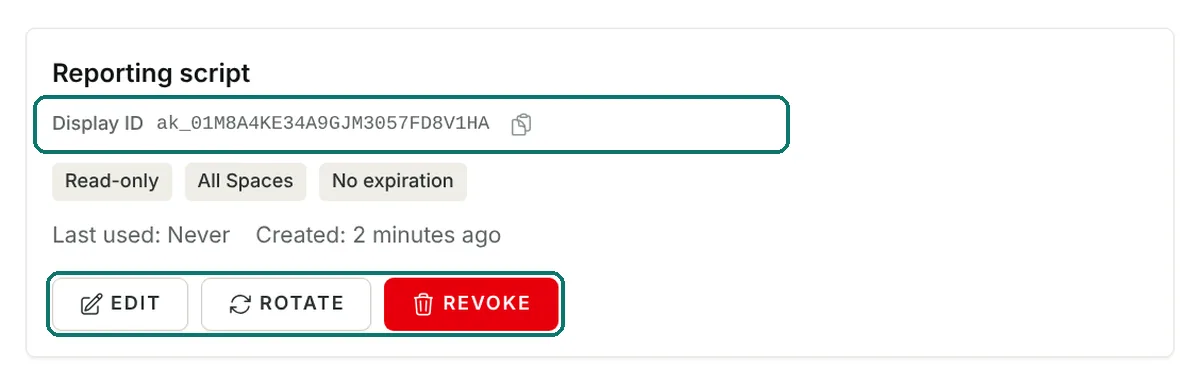
Each key in Your API Keys shows its Display ID, which starts with ak_. It isn’t secret, so include it when you write to support. Edit changes the key’s name and access. Rotate creates a new key with the same settings and stops the old one right away. Revoke stops the key for good. Show revoked keys brings revoked keys back into the list.
Send your first request
Every request goes to this base address:
https://app.svanja.com/api/v1The key has two parts separated by a pipe, id|secret. Send the whole value as a bearer token:
Authorization: Bearer 12|AbCdEf...The examples read the key from the SVANJA_API_KEY environment variable so it doesn’t end up in your shell history. read -rs prompts for it without showing it on screen:
read -rs SVANJA_API_KEY && export SVANJA_API_KEYPaste the whole key and press Enter. Then ask GET /whoami which team and key you’re using and what the key can do:
curl https://app.svanja.com/api/v1/whoami \
  -H "Authorization: Bearer $SVANJA_API_KEY" \
  -H "Accept: application/json"
Then list your Spaces:
curl https://app.svanja.com/api/v1/spaces \
  -H "Authorization: Bearer $SVANJA_API_KEY" \
  -H "Accept: application/json"
GET /capabilities lists every operation, whether your key can use it right now, and why not if it can’t. Agents that explore the API on their own start there.
What comes back
A single item comes back under data:
{
  "data": {
    "id": "01HY9Y8A7B6C5D4E3F2G1H0J9K",
    "name": "Website relaunch"
  }
}
A list comes back under data too, with paging details under meta.pagination:
{
  "data": [],
  "meta": {
    "pagination": {
      "current_page": 1,
      "per_page": 25,
      "total": 0,
      "last_page": 1,
      "has_more": false
    }
  }
}
Most lists take page and per_page, with 25 items by default and up to 100. Some lists use cursor pagination instead, where you pass meta.pagination.next_cursor as cursor. Each reference page tells you which kind a list uses.
Actions that wait for a person’s OK
Some operations only run after the key’s owner approves them in the app, such as turning on a rule, writing to a connected service, or publishing. The reference pages note which ones need approval.
The first call changes nothing. It returns 403 with the code authorization_required, and details.authorization_request holds an id and an approval_url. The person opens that link and approves the action. Then you send the same request again with authorization_request_id added:
curl -X POST https://app.svanja.com/api/v1/rules/RULE_ID/actions \
  -H "Authorization: Bearer $SVANJA_API_KEY" \
  -H "Content-Type: application/json" \
  -H "Idempotency-Key: $(uuidgen)" \
  -d '{"action":"enable","authorization_request_id":"AUTHORIZATION_REQUEST_ID"}'
If the rest of the body differs from what was approved, you get authorization_scope_changed. An approval request expires after 45 minutes.
When something goes wrong
Every error response includes a stable code, a readable message, a request_id, and sometimes details:
{
  "error": {
    "code": "validation_failed",
    "message": "The given data was invalid.",
    "details": { "name": ["The name field is required."] }
  },
  "request_id": "00000000-0000-4000-8000-000000000000"
}
Build your error handling on code, because the message follows the language you ask for.
| Code | Status | What it means |
|---|---|---|
unauthenticated |
401 | No key was sent. |
invalid_token |
401 | The key is wrong. |
token_expired |
401 | The key has expired. |
token_revoked |
401 | The key was revoked. |
api_access_unavailable |
403 | The team’s plan has no API access. |
capability_unavailable |
403 | The plan or the key’s setup doesn’t include this area. |
forbidden_ability |
403 | The key isn’t allowed to do this. |
forbidden_project_scope |
403 | The key is limited to other Spaces. |
visibility_user_unavailable |
403 | The person the key belongs to left the team or lost access. Create a new key. |
mail_delegation_required |
403 | The key’s owner hasn’t approved mail access for it yet. |
authorization_required |
403 | This needs a person’s OK first. |
mail_content_unavailable |
503 | The message content is out of reach for a moment. Try again shortly. |
mail_provider_unavailable |
503 | The mail provider didn’t answer. Check the status of the change before you retry it. |
resource_not_found |
404 | It doesn’t exist, or the key can’t see it. |
route_not_found |
404 | The path doesn’t exist. |
method_not_allowed |
405 | The path doesn’t support this method. |
malformed_json |
400 | The body isn’t valid JSON. |
validation_failed |
422 | A field is missing or wrong. details says which. |
plan_limit_reached |
422 | This would go over a plan limit. |
conflict |
409 | The data changed in the meantime. |
idempotency_conflict |
409 | The idempotency key was used with a different body. |
authorization_scope_changed |
409 | What a person approved no longer matches the request. |
rate_limited |
429 | Too many requests. Wait for Retry-After. |
internal_error |
500 | Something went wrong on our side. |
Retry a write without doing it twice
When a write times out, you can’t know whether it went through. To retry safely, send an Idempotency-Key header with your own unique value on POST, PATCH, PUT, and DELETE:
Idempotency-Key: 6f1c2f7e-4b1a-4a57-9a43-3a3a9b5b2c10When the whole request matches, Svanja replays the original response with the header Idempotent-Replayed: true. Sending the same key with a different body returns idempotency_conflict. Keys stay valid for 24 hours. A 429 or 5xx response isn’t replayed, so retrying after one of those runs the request again. Many write endpoints require this header, and their reference pages note it.
Some writes, mostly in Mail and for files, also need the current revision of what you’re changing. If someone changed it in the meantime, you get conflict instead of overwriting their work.
How many requests can I make?
A key can make 60 requests a minute. Mail requests that reach the mail provider, like reading a message’s text, also count against a second budget of 20 a minute. Each response tells you how much is left:
| Header | What it says |
|---|---|
X-RateLimit-Limit |
Requests per minute |
X-RateLimit-Remaining |
Requests left in this minute |
X-RateLimit-Reset |
When the limit resets, as a Unix timestamp |
Retry-After |
On a 429, how many seconds to wait |
Request IDs and language
Every response includes an X-Request-Id header, and error bodies repeat it as request_id. Include it when you write to support. Send Accept-Language: de for German messages, or en for English.
Where is the full list of endpoints?
The OpenAPI description of the whole API is at /api/v1/openapi.json and /api/v1/openapi.yaml. Use it to generate a client or import the API into a tool like Postman. In the app, the API reference button on the API Keys page shows every operation with its matching command and MCP tool.
The reference on this site has one page per area:
- Discovery and account, Spaces and Files and notes
- Tasks, Skills, Tools and Templates
- Rules, Connections and Computers
- Mail and CRM
- Artifacts, Publications, Changes and Activity
- Assistant, Channels and API keys