You probably write some answers over and over, like your rates. A snippet saves that text once so you can drop it into any email. The composer, the window where you write an email, also has an AI menu that drafts and rewrites for you. A writing style tells the AI how you write, so its drafts sound like you.
All three work on the email in front of you. For bigger jobs that need your notes or files, ask the assistant instead (see the last section).
What is a snippet?
A snippet is a saved piece of text with a title. There are two kinds:
- A Text snippet goes into your email exactly as you saved it. It costs nothing.
- An AI snippet adapts its text to the email you’re writing, like filling in the person’s name. Each adaptation uses credits.
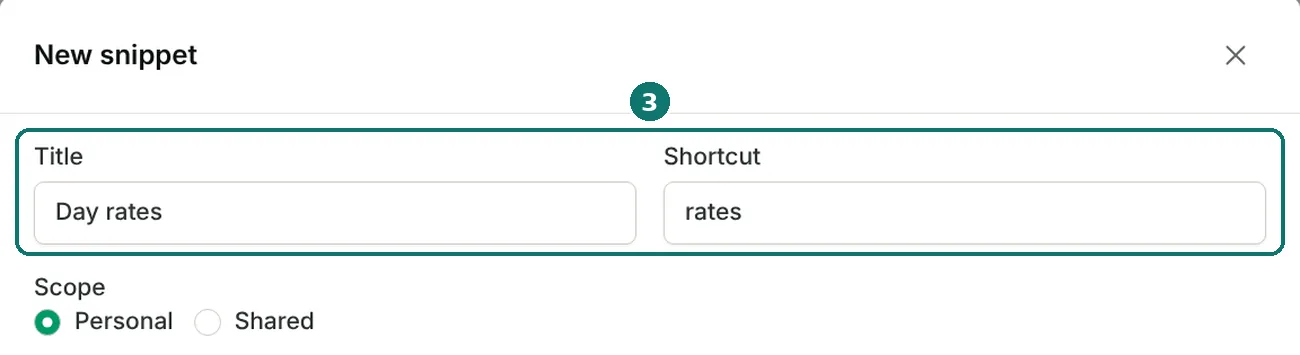
You can also give a snippet a shortcut, a short code like rates. When you search in the composer, a matching shortcut shows up first.
Every snippet also has a scope:
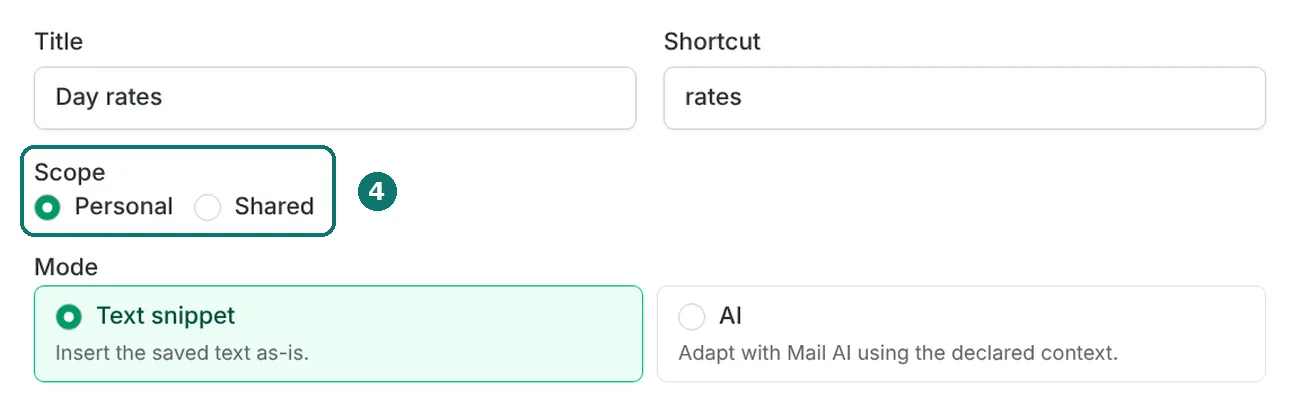
- Personal snippets are only for you.
- Shared snippets are for everyone on your team. Only the team owner and admins can create or change them.
Create a snippet
- Open Mail snippets.
- Choose Create snippet.
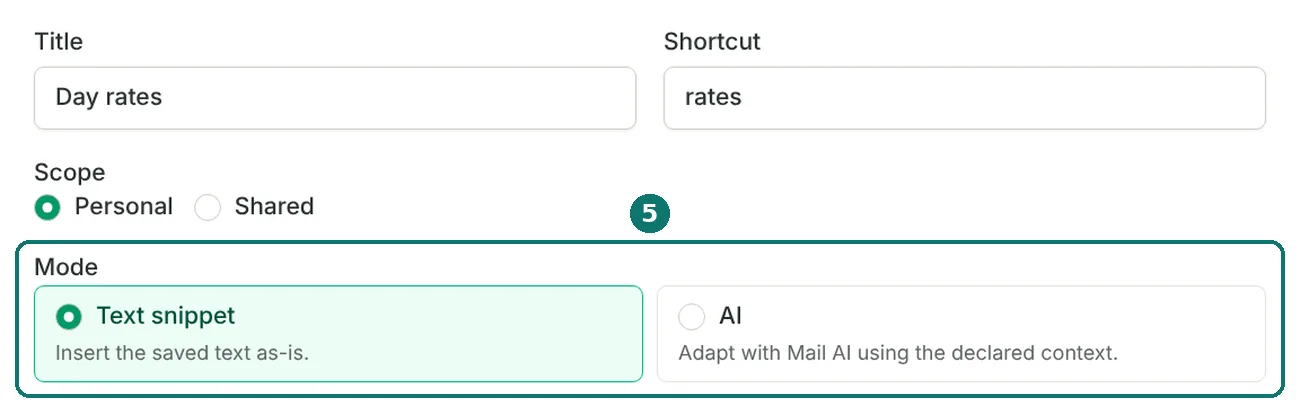
- Enter a Title, and a Shortcut if you want one.
- Under Scope, choose Personal or Shared.
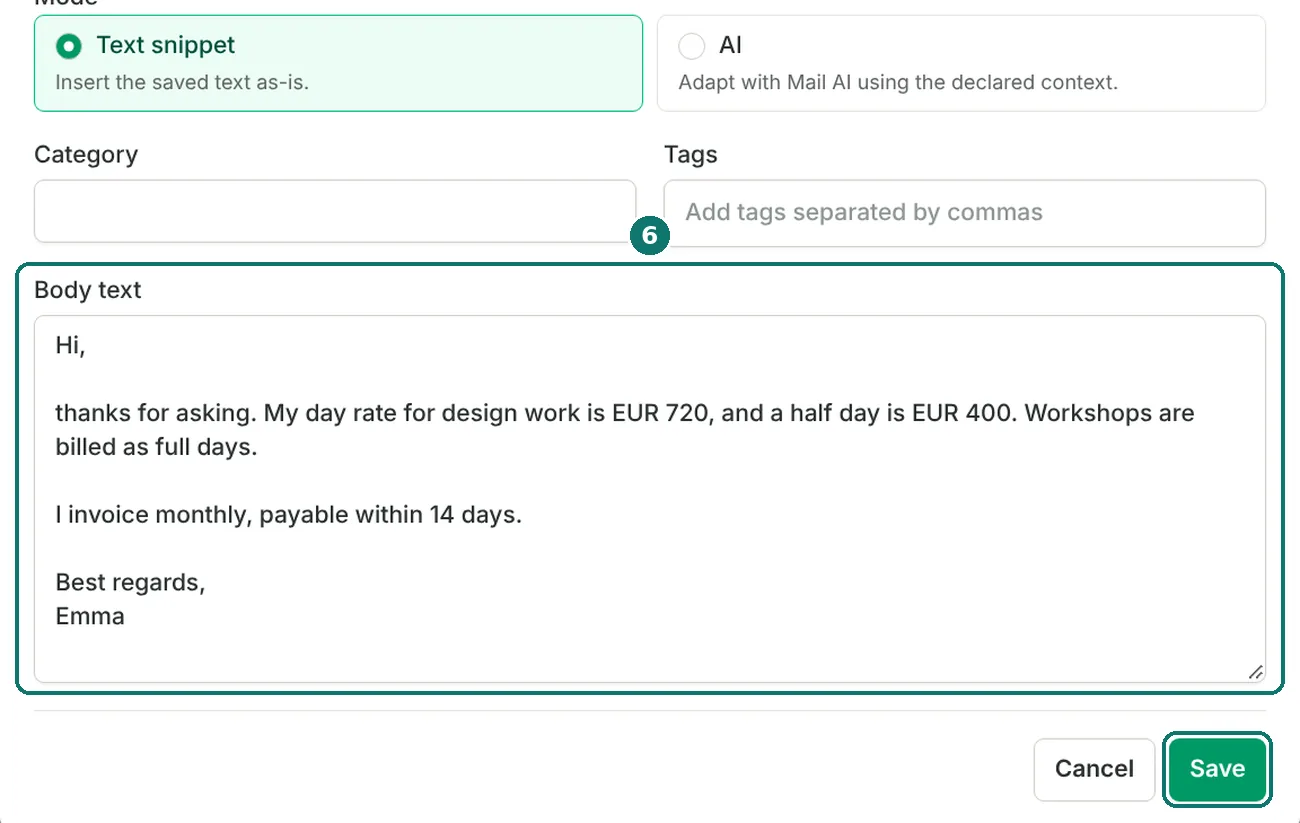
- Under Mode, choose Text snippet or AI.
- Write the text in Body text.
- Choose Save.
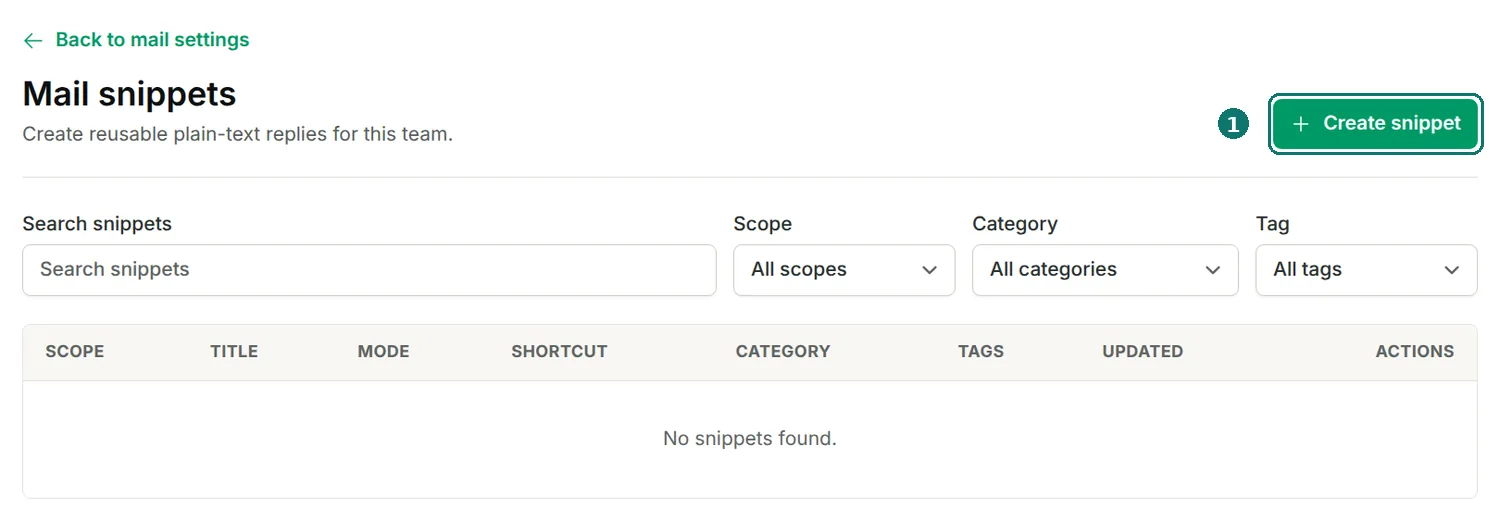
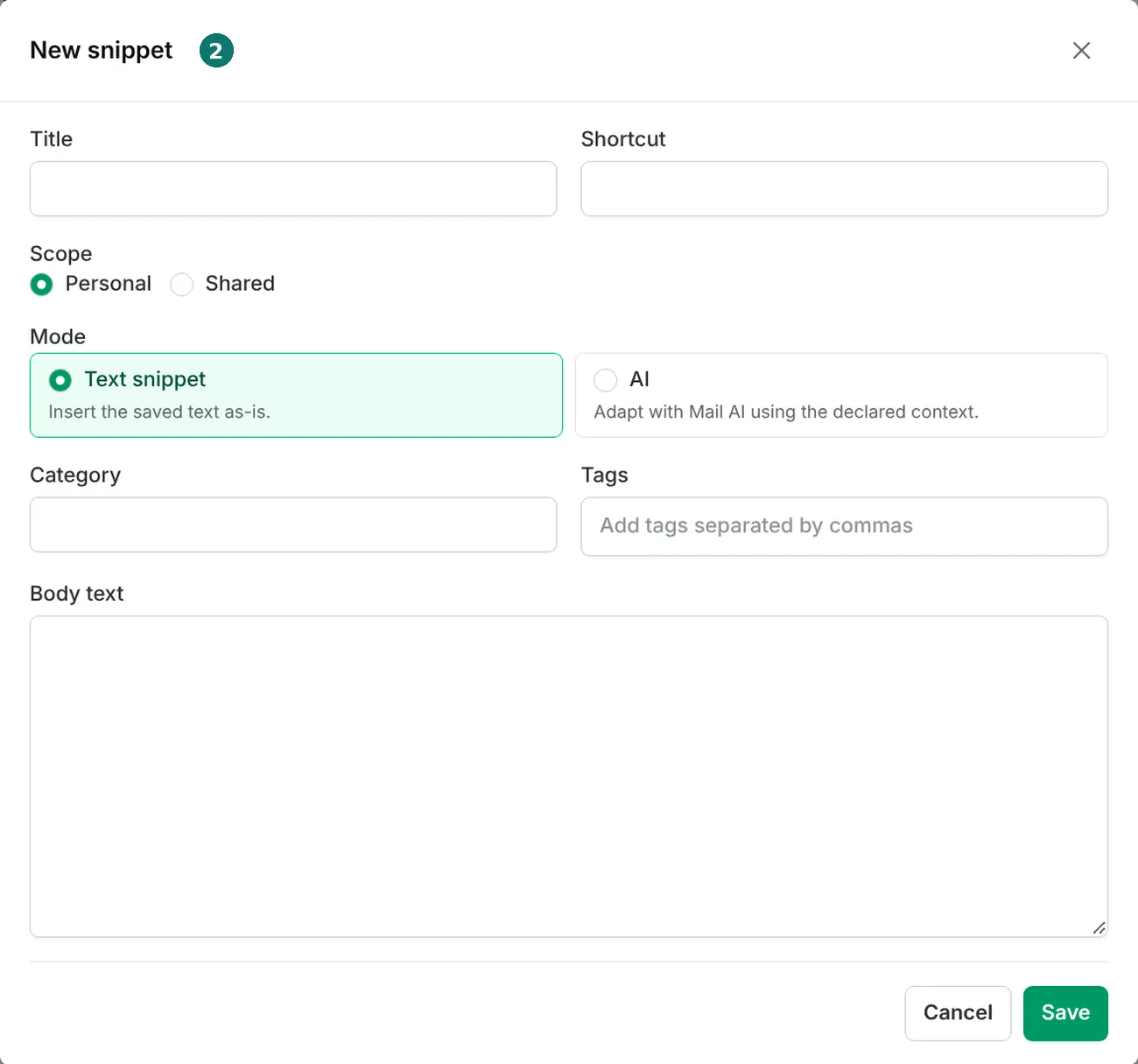
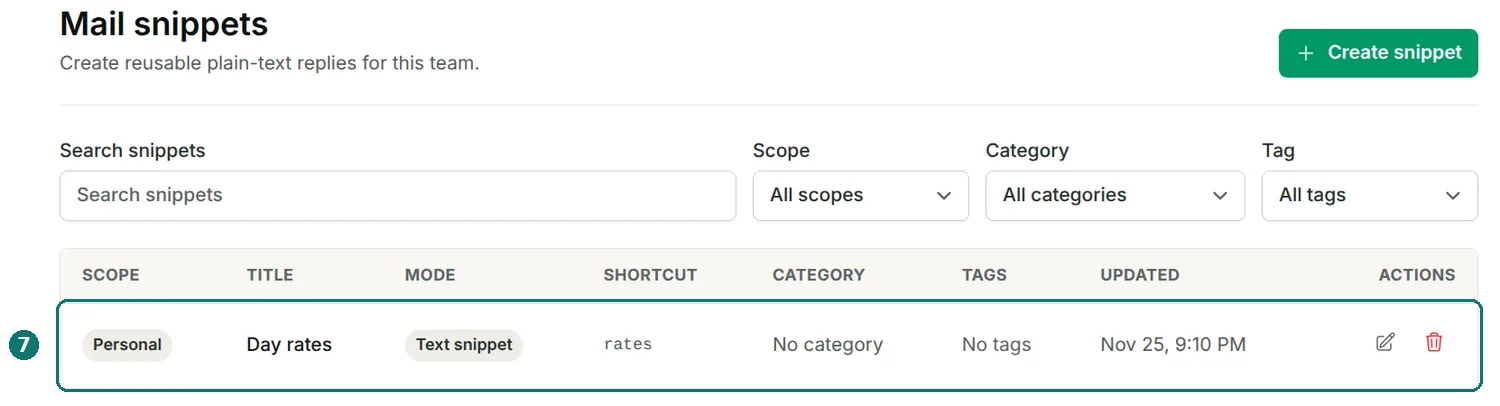
Your new snippet now appears in the list. Category and Tags are optional, and they help when you have a long list to filter. Snippets hold plain text only.
Set up an AI snippet
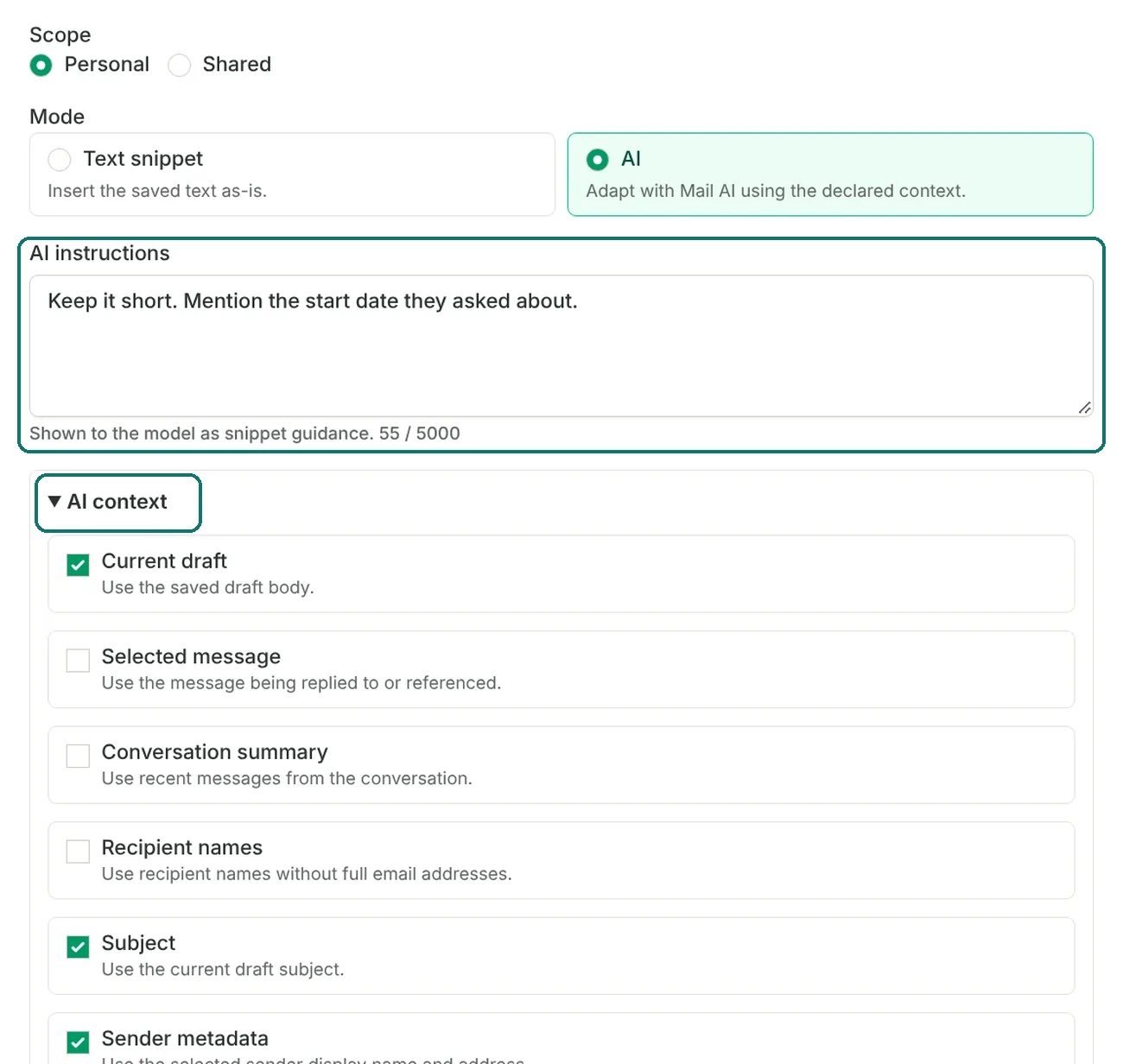
When you choose AI as the mode, the form gets two more parts. In AI instructions, you tell the AI how to adapt the text, like a note to a colleague:
Keep it short. Mention the start date they asked about.Under AI context, check what the AI can read when it adapts the snippet:
| Option | What the AI reads |
|---|---|
| Current draft | What you wrote so far |
| Selected message | The email you’re replying to |
| Conversation summary | The recent messages |
| Recipient names | Names, without addresses |
| Subject | Your subject line |
| Sender metadata | Your sending name and address |
| User instruction | An extra instruction you type each time |
In AI mode, the text field is called Source/example body (optional). If you fill it in, the AI uses it as a starting point.
Insert a snippet while you write
In the composer, choose Insert snippet, search for the one you want, and choose Insert. Make sure you’ve picked a sender first, the address you’re writing from.
An AI snippet offers two choices instead:
- Adapt with AI asks for an optional Instruction, then shows the adapted text as a preview. Choose Skip to go without an instruction.
- Insert literal puts in the saved text without AI and costs nothing.
What is a writing style?
A writing style describes how you write: your tone, how long your emails are, and how you greet people and sign off. When the AI drafts or rewrites an email, it follows the style. Without a style, it writes in a neutral default. A style only changes the wording; it doesn’t change who sends the email.
Your styles are in Mail AI styles. Create style lets you write one by hand, with a Locale (its language), Guidance, and Examples. That costs nothing. Instead of writing one from scratch, you can let Svanja build one from your sent mail.
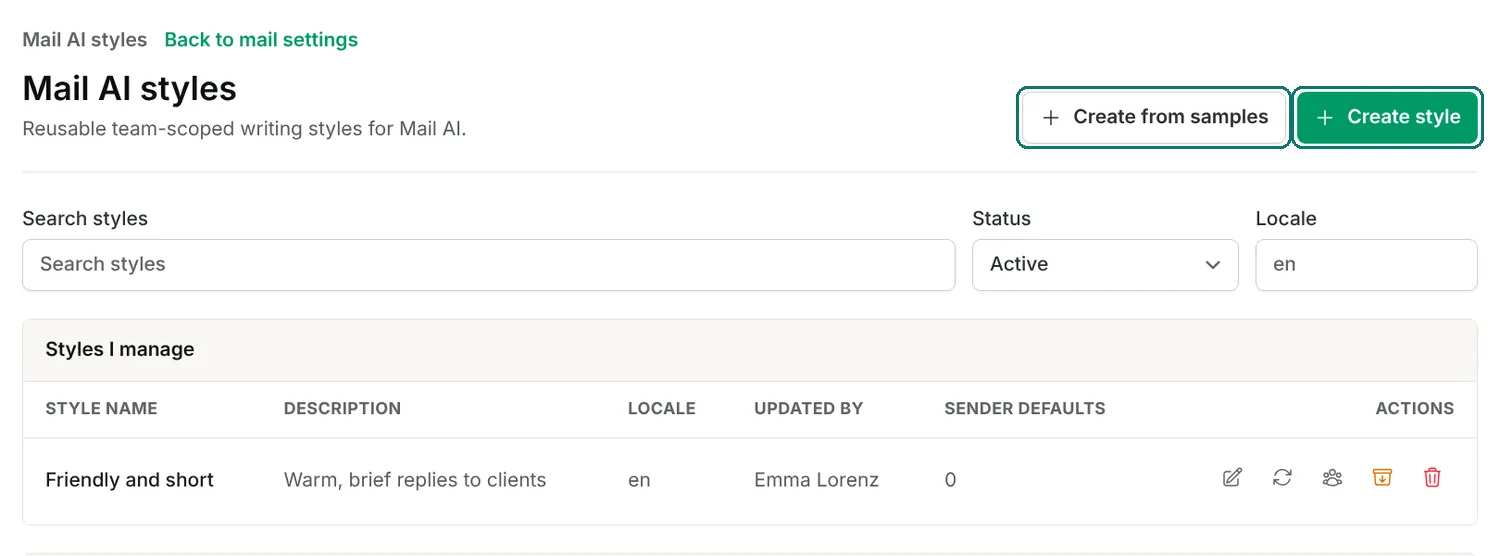
Create a style from your sent mail
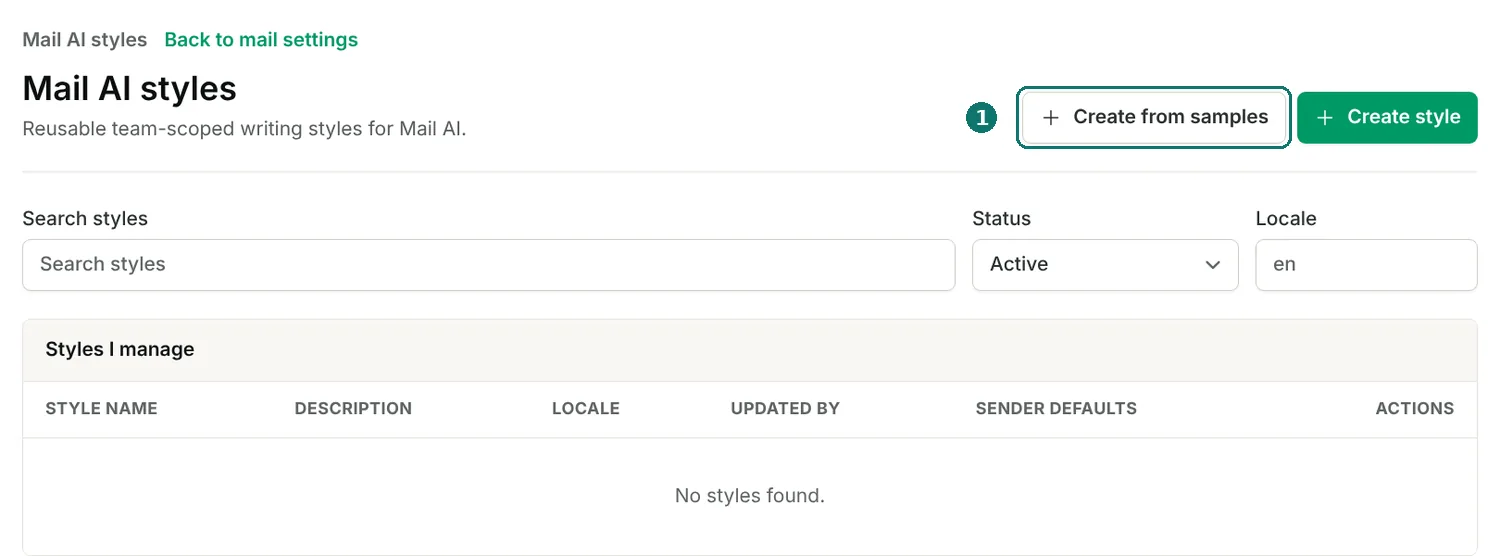
- Open Mail AI styles.
- Choose Create from samples.
- Pick where the samples come from: Recent sent, Selected sent messages, or Pasted text.
- For sent mail, choose the Mailbox and then Load sent messages. For pasted text, paste your writing into Writing examples.
- Choose Generate voice.
- Read the name, the description, the guidance, and the example. Change what you want.
- Choose Save voice.
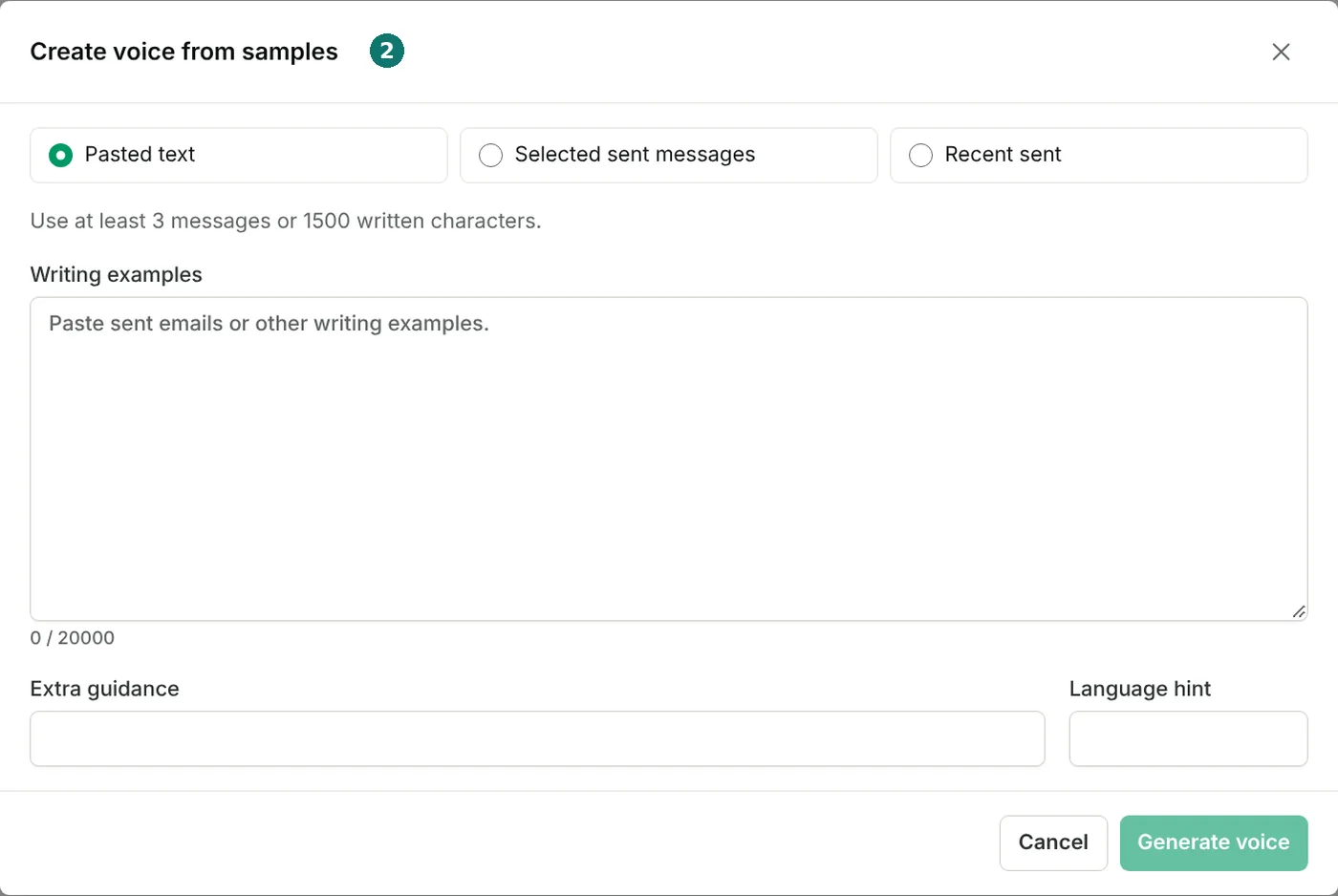

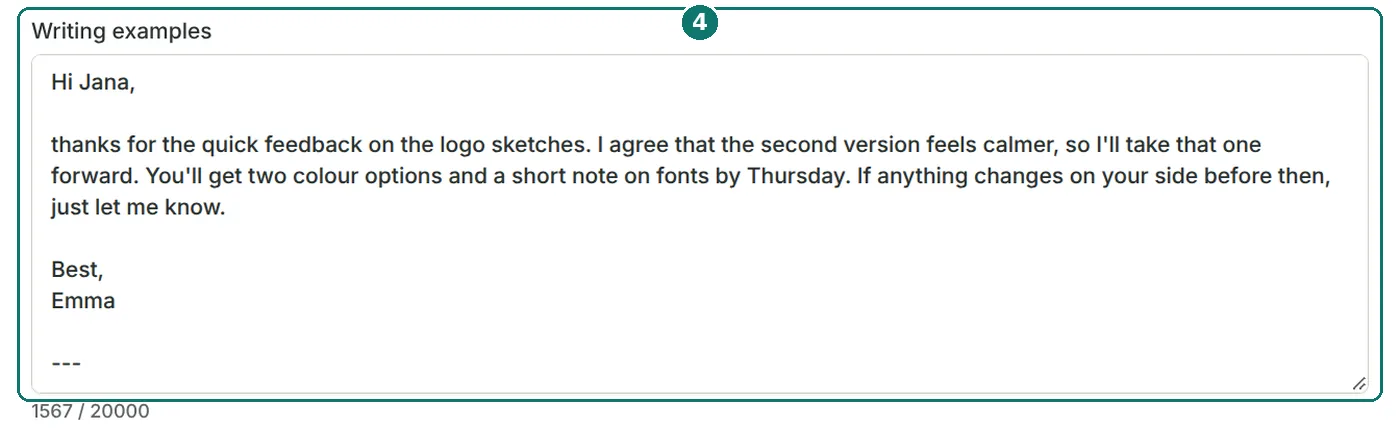


Svanja needs at least 3 emails or 1,500 characters of your own writing. From sent mail, it reads up to 30 emails from the last 90 days. Before the AI looks at them, Svanja strips out quoted replies, forwarded text, and your signature. Generating a style uses credits once. Later, you can use Refresh from samples to rebuild it from newer mail.
Which style does a draft use?
Each address you send from can have a default style, the sender default. You set it on the mailbox’s page:
- Open Settings and choose Mail management.
- Choose the mailbox.
- Open From addresses.
- Under Default voice, pick the style and choose Save.
In the composer, the AI menu shows Style at the top. From there, you can pick a different style for that email or switch back to Use default.
On the Team plan, you can share a style. Open Manage grants on a style to give each colleague Select (so they can use it) or Manage (so they can also edit it).
Use the AI menu in the composer
In the composer, choose AI or press Ctrl+J (Cmd+J on a Mac). Any option stays grayed out until it has what it needs, like some draft text.
| Item | What it does |
|---|---|
| Draft with instruction | Writes an email from a short instruction you type |
| Draft reply | Writes a reply from up to the last 8 messages |
| Improve writing | Makes your text clearer |
| Rewrite body | Writes your text again in a different way |
| Suggest subject | Offers up to 5 subject lines |
When you select part of your text, a small bar offers Rewrite, Shorter, Simpler, Fix language, and Alternatives for that part.
The AI writes into a preview next to your email. Your email only changes when you choose Replace body, Insert at cursor, Replace selection, or Use subject for a subject. Discard throws the text away. A preview expires after an hour.
Changed your mind? Undo last AI change puts your old text back. It works for one minute after the change.
What does it cost?
Credits are how you pay for AI work in Svanja. These actions use credits from your team’s balance:
- each draft, rewrite, and subject idea from the AI menu
- each adapted AI snippet
- each style made with Create from samples
The exact amount depends on how long the conversation and your text are. A short reply uses a few. You pay once the AI finishes writing the text, even if you discard it. When your balance is too low, the AI menu says Mail AI is paused, and nothing is charged. See Plans, credits and prices.
When should I ask the assistant instead?
The AI menu only reads this email and its conversation. When the answer depends on more, like your price list in a Space, ask the assistant. Open the email and choose Draft a reply next to Reply and Forward. The assistant puts its draft into the conversation for you to check. See Chat with the assistant.