If you already work in ChatGPT, Claude or a coding agent, you can access your Svanja mail and client notes right from those tools. Claude can search your emails and summarize a contract, and a coding agent can check a client’s Space while fixing their bug.
This works through MCP (Model Context Protocol), a standard way for AI apps to connect to other services. Svanja gives you two options: a hosted server that runs at Svanja and lets you sign in through your browser, or a local server that runs on your computer as part of the svanja command line. See Connect AI apps over MCP for the full details.
Which way fits?
| You work in | Use |
|---|---|
| ChatGPT or Claude | The hosted server |
| Claude Code or Codex | The hosted server or the local server |
| Cursor and other apps that start a local command | The local server |
| Your own scripts | The command line or the API |
Connect ChatGPT or Claude
You need to be an owner or admin of your Svanja team, and your ChatGPT or Claude account needs to allow custom connectors.
- In ChatGPT or Claude, add a custom connector.
- Paste the address
https://app.svanja.com/mcp. - Sign in to Svanja when prompted.
- Open Advanced settings and choose the Spaces and areas the app can use.
- For email, switch on Your mail and choose the mailboxes.
- Choose Approve.
Mail access is off by default, so don’t skip step 5 if you want to ask about your emails. Your connection stays active for up to 30 days before the app asks you to sign in again.
Once you’re connected, you can ask things like:
- “Search my Svanja mail for the latest contract and sum up the payment terms.”
- “Draft a reply to the last email in this thread, using my note on price questions.”
Any draft the app writes is saved directly in the Svanja conversation, ready for you to review and send.
Connect Claude Code or Codex on your computer
The local server is built into the svanja command line, a tool for your terminal.
- Install the command line by following The svanja command line.
- Sign in with
svanja login --base-url https://app.svanja.com. - Add the server to your agent:
claude mcp add --transport stdio svanja -- svanja mcp serve
codex mcp add svanja -- svanja mcp serve
Signing in creates an API key for your computer, which shows up under Computers signed in on the API Keys card in Settings. Your agent gets whatever permissions that key has.
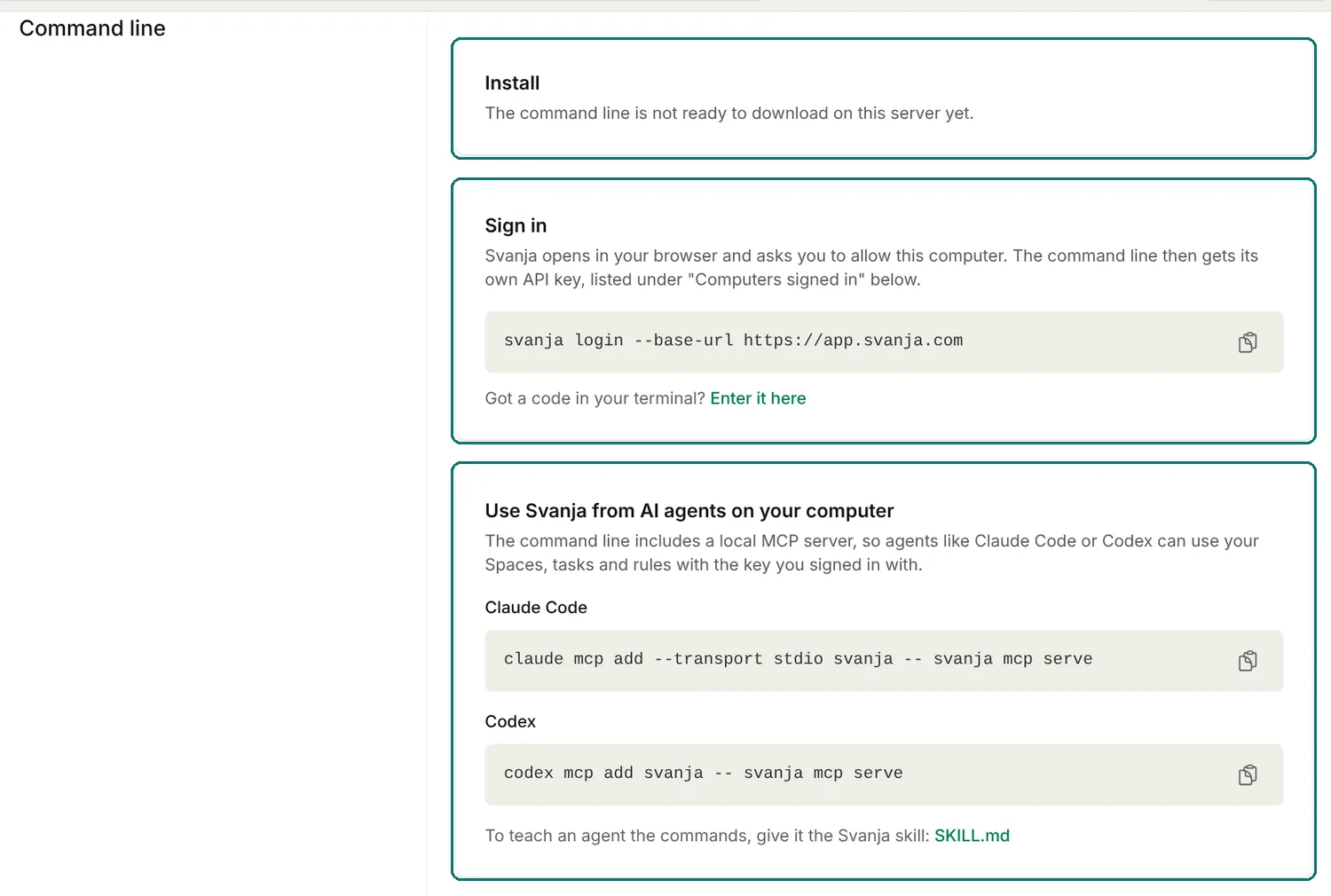
With the server connected, the agent can read a client’s Space instructions, such as their staging address. On the Free plan, keys are read-only. If you want an agent to write notes or start tasks, you’ll need Pro or Team. For email, the key needs mail access, which the key’s owner approves for each mailbox. To teach your agent the available commands, give it the Svanja skill file SKILL.md from the same page.
Open a Space as a folder
Every Space is also a Git repository, which is a folder that includes its full history. To get the clone address and an access token, open the Space’s Settings, go to Advanced, and choose Work with Git. Once you clone it next to the client’s code, your agent can read the notes as regular files. On the Free plan, tokens are read-only, and any changes you push wait in Svanja until someone reviews them. See Import, export and Git.
Keep control
Each connection only sees the specific Spaces, areas and mailboxes you approve. On the hosted server, sending follows your rules in Settings, Assistant, so by default you confirm every email before it goes out. On the local server, sending requires a key with mail-sending permission approved by its owner, and you still have to confirm each email explicitly.
Keep in mind that Svanja can’t control what an AI app does with the text of an email once it reads it, so only grant mail access where you need it.
You can remove access anytime from the API Keys card in Settings. Revoke a key directly there, or open MCP Connections and choose Revoke next to an app.