Svanja puts one search box in the top bar of every page. Use it to find emails, people and companies from Contacts, and notes and files in your Spaces. When you search your email, it can also look through older messages still sitting at your mail provider.
If you run the same search or filter often, save it as a view. Views live in the sidebar and always show the latest matches. Tags are your own labels for sorting conversations across all your mailboxes.
What does the search box find?
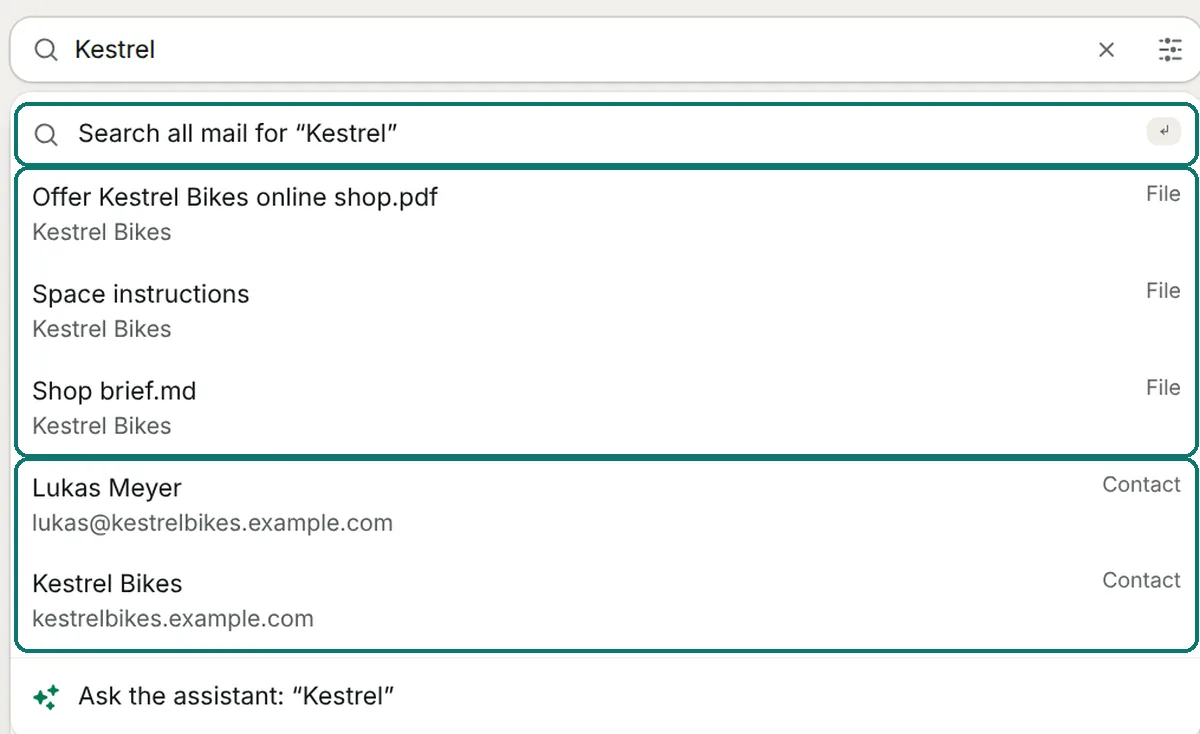
Click the search box, or press / or Ctrl+K (Cmd+K on a Mac), and type at least two letters. Results appear in groups:
| Group | What you find |
|---|---|
| Conversations whose subject or text matches | |
| Contacts | People and companies |
| Notes and files | Notes and files in your Spaces, including the text inside them |
| Tasks | Tasks the assistant works on |
| Skills | Your skills. Run and the skill’s name starts one right away |
| Actions | Shortcuts like New email, New Space and Ask the assistant |
| Navigation | Pages and settings, like “credits” |
The top option, Search all mail for, searches your email for what you typed. Press Enter to run it. At the bottom, Ask the assistant turns your search into a question for the assistant.
How does a mail search work?
Svanja keeps the last 90 days of your email on hand, while older mail stays at your mail provider. When you search by words, sender, or date, Svanja also checks your provider so older emails turn up too. Filters that only exist in Svanja, like tags or assignments, only search the mail Svanja already has.
You can choose where Svanja looks using Search in under Search options (covered next):
| Where | What it searches |
|---|---|
| Current folder | The folder you’re in |
| All mail | Every folder of the mailbox, except Trash, Spam and Drafts |
| Current view | The view you’re in, like Pending |
| Current drafts | Your drafts, which only exist in Svanja |
If you select All mailboxes above the list, a single search covers up to 20 mailboxes at once. A status line above the results tells you what was searched, such as “Searched all mail”. If a mail provider doesn’t respond, that line lets you know and gives you a way to try again.
Search with more detail
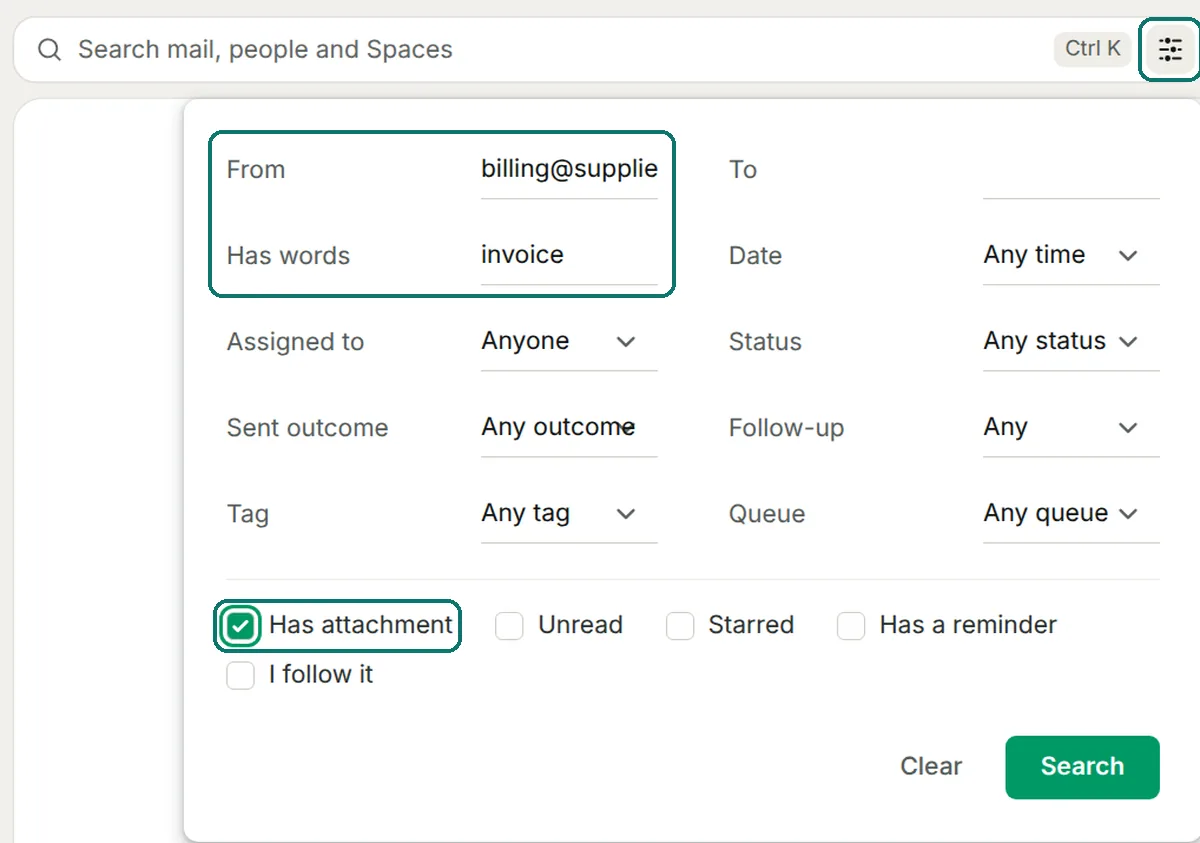
Click the button on the right side of the search box to open Search options. This form lets you narrow down email with these fields:
- From and To
- Has words
- Date, like the last 30 days or since a date
- Search in and Mailbox
- Assigned to, Status, Tag and Queue
- Sent outcome and Follow-up
- Has attachment, Unread, Starred, Has a reminder and I follow it
For example, to find a PDF invoice from a specific supplier, enter billing@supplier.example.com in From, type invoice in Has words, and tick Has attachment.
Narrow the list with filters
In Mail, use More filters above the list to narrow down any folder, view, or search. You can filter by:
- who the conversation is assigned to, or Unassigned
- the queue, or No queue
- tags
- conversations you follow
- the status, Active or Pending
- Unread, Starred and Due reminders
- what happened to an email you sent, like Awaiting reply or Out of office
- custom fields, with conditions like Equals or Is empty
Each active filter appears as a small label above the list. Click its x to clear it.
Which views are there already?
Alongside folders like Inbox and Sent, the Mail sidebar includes built-in views that pull from all your folders. Some of them sit under More:
| View | What it shows |
|---|---|
| Assigned to me | Conversations assigned to you |
| Unassigned | Conversations nobody has picked up |
| Pending | Conversations marked as waiting for something |
| Reminders due | Conversations whose reminder is due |
Save a view
Custom views keep a search or set of filters one click away.
- In Mail, run the search or set the filters.
- Choose the + next to Views in the sidebar, then Save the current filters as a view.
- Enter a Name.
- Choose Save custom view.
Your new view appears in the sidebar under Views and updates automatically with the latest matches.
Open Manage custom views from the same menu to see all your views. From there, you can rename, duplicate, or archive them. Choose Update from current view to save whatever is currently on screen into the view. If you delete a view, it moves to Deleted, where you can restore it later.
Tags, labels or folders?
Svanja gives you three ways to organize email, and where each one is stored determines who can see it.
| Tags | Mailbox labels | Folders | |
|---|---|---|---|
| Stored | In Svanja | At your mail provider | At your mail provider |
| Works with | Every mailbox | Microsoft 365 and Gmail | Every mailbox |
| Your phone’s mail app shows it | No | Yes | Yes |
| Who sees it | Your whole team | Everyone who can read the mailbox | Everyone who can read the mailbox |
Use tags when your team needs to see the label and your mail provider doesn’t. Use labels or folders if you also read email in another app and want the same setup there.
Add a tag to a conversation
A tag is a colored label that lives only in Svanja, so it works the same way in every mailbox.
To tag an open conversation, click More and pick Tags. To tag several at once, select them in the list and click Tags above it. You can add up to 25 tags to a single conversation. All your tags also appear under Tags in the sidebar, and clicking one shows every conversation with that tag.
You can also set up Rules to add tags automatically, without using AI or credits.
Create and manage tags
Tags are shared across the whole team, and the team owner and admins can create or edit them.
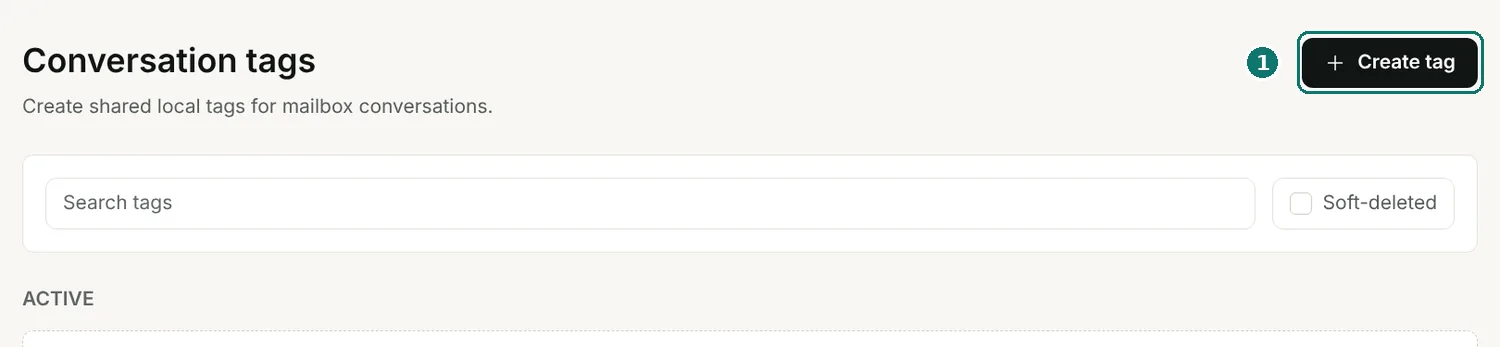
- Open Conversation tags.
- Choose Create tag.
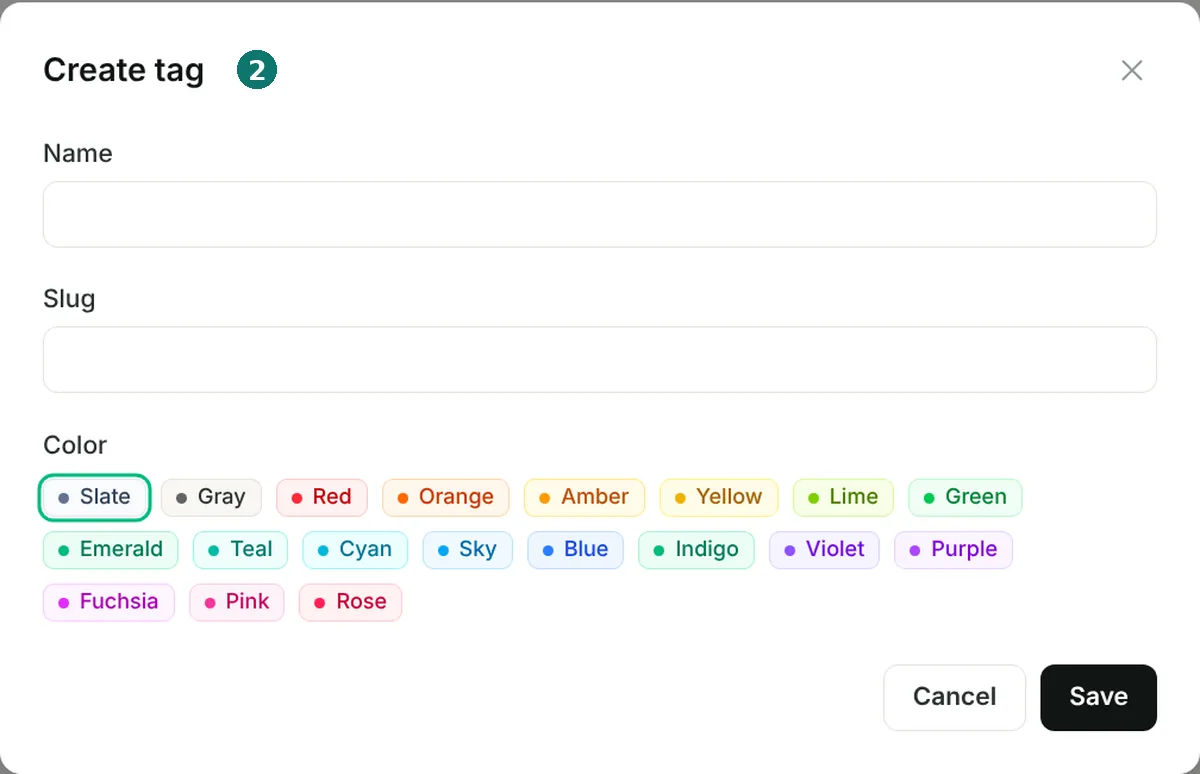
- Enter a Name and pick a Color.
- Choose Save.
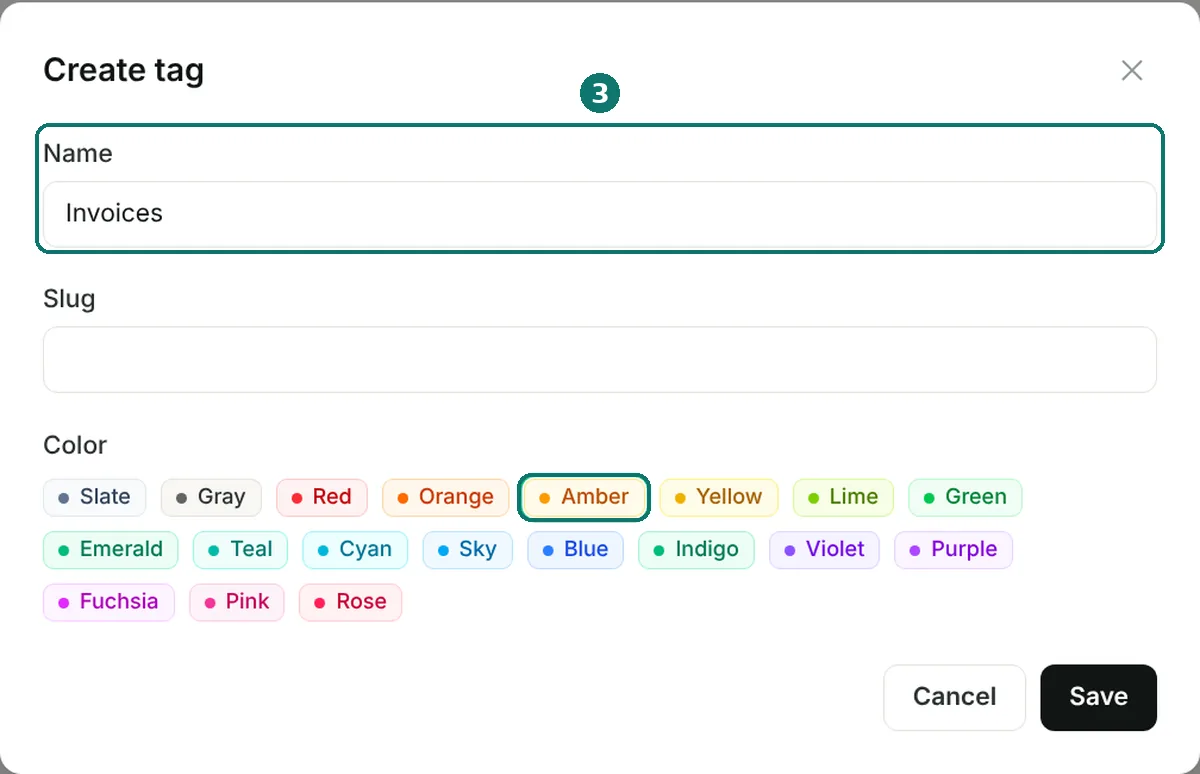
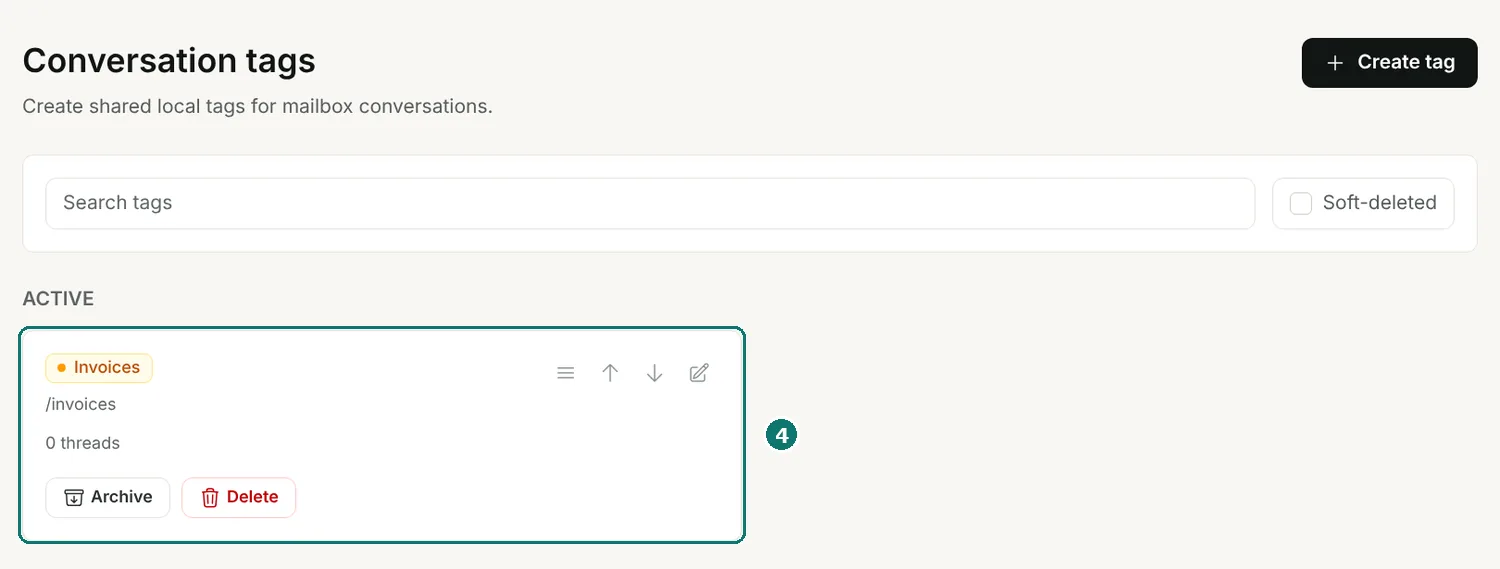
The tag is now ready to use in every mailbox, and a team can have up to 200 tags. From the list, you can:
- drag tags into a new order and choose Save order
- Archive a tag so it stays on older conversations, while nobody can add it to new ones
- Delete a tag and later Restore it from Soft-deleted, or remove it for good with Delete forever
How do labels and folders work?
Microsoft 365 and Gmail have their own labels. In an open conversation, you’ll find them under More and then Mailbox labels. Any label you add in Svanja syncs back to your provider, so it shows up on your phone too. Mailboxes connected over IMAP don’t support labels, so use folders or tags for those.
Folders come directly from your mail provider, including Inbox, Sent, and any folders you created yourself. Use Move to put selected emails into another folder in the same mailbox. To add, rename, or delete folders, hover over the mailbox name in the sidebar and choose Manage folders. A folder must be empty before you can delete it, and you can’t rename or delete Inbox or Sent.
Related pages
- The inbox
- Shared mailboxes
- Rules
- Chat with the assistant, for questions that are easier to ask than to search