When a small team shares one login for support@, two people end up answering the same customer. In Svanja, everyone works in the same mailbox with their own login. Each conversation can have an owner, the team leaves notes next to the email, and you see when a colleague is already replying. The mailbox stays at your mail provider.
This page shows how to set that up and how the team works in it day to day. You can find the full details on Shared mailboxes.
What do you need?
You need the Team plan, at €24 per member a month with at least 2 members. See Credits and prices.
You also need a shared mailbox with its own sign-in, like a Microsoft 365 user mailbox or any mailbox with IMAP and SMTP. A team owner or admin connects it.
Connect the mailbox and give access
- Open Settings and choose Mail management.
- Connect support@, signing in with the mailbox’s own login once.
- Open the mailbox and its People tab.
- Check Can read for everyone who should open and search the mailbox.
- Check Can send for each address they may send from.
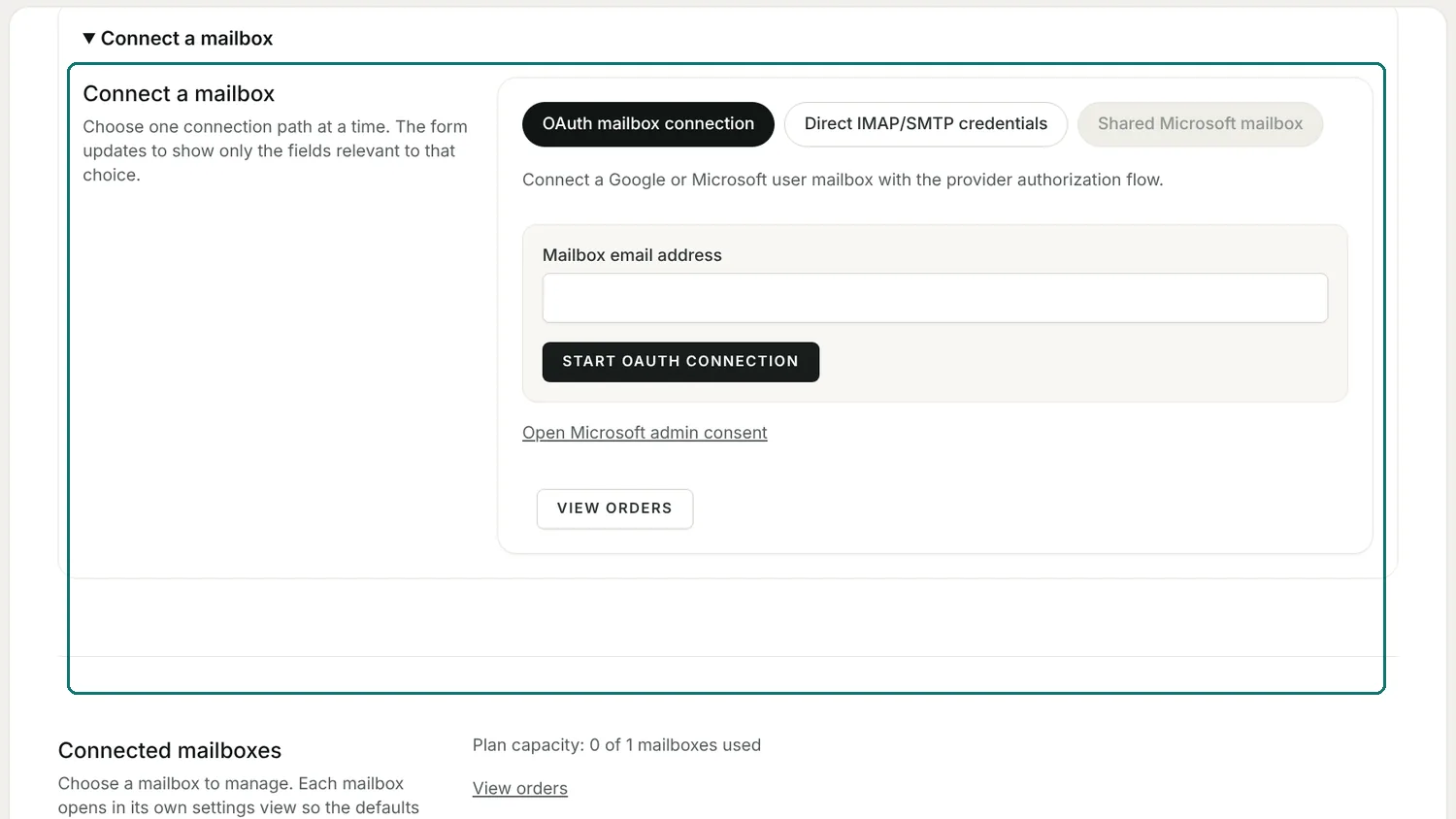
Someone needs Can read before they can get Can send. Nobody needs the mailbox password anymore, and when someone leaves, you remove their access in Svanja. On the Addresses and signatures tab, give support@ one signature for everyone. See Connecting your mailbox.
Decide who answers what
Assigning gives a conversation one owner, so the rest of the team knows it’s taken. Assignments exist only in Svanja.
- Open a new conversation from More, Unassigned in the sidebar.
- Choose Assign and pick yourself.
- Reply. While you wait for the customer, choose Mark pending.
- When the matter is settled, choose Done.
The conversation now appears under Assigned to me for you and under More, Assigned for everyone else. A pending conversation comes back by itself when the customer answers.
Sort work into queues
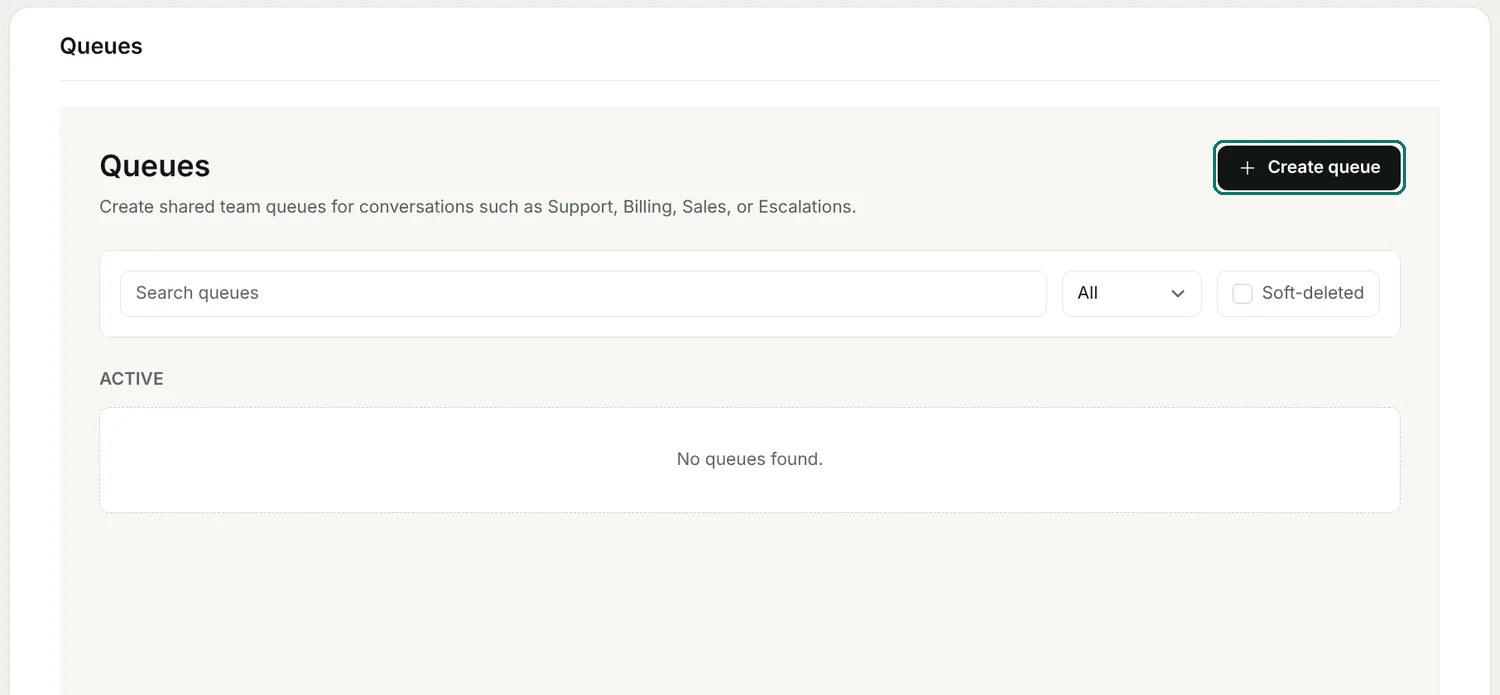
A queue is a shared list for one kind of work, like Support or Billing. A conversation can be in a queue and assigned to a person at the same time. Create queues in Queues with Create queue, then choose Queue on an open conversation.
Talk about an email with internal notes
An internal note is a comment on a conversation that the customer never sees. Choose Add note on the Details tab of the conversation. Type @ to mention a colleague, who then gets a notification. Only people who can read the mailbox see notes.
To get notified about every new reply in a conversation someone else handles, choose Follow.
How does Svanja stop double replies?
When a colleague has the same conversation open, you see Viewing now with their name. When they start writing, you see Currently replying. Before you send, Svanja checks again. If a colleague is replying right now, or a reply went out since you opened your draft, you get a Send anyway? warning with the reason.
Let rules do the sorting
Rules that only sort mail use no AI and no credits. Here are three that work well for support@:
- Mail with “invoice” in the subject goes to the Billing queue with Assign to group.
- Mail from clients goes to The client’s account manager, who needs Can read on support@.
- Newsletters are marked as read and moved to a folder.
A team rule with AI can also draft replies. Keep your procedure as a note in the team library, and write under How to draft the reply: “Use the note Refunds in the team library. Don’t promise an amount.” The draft waits in the conversation for whoever picks it up. See Email rules and automation.
Share good answers
Turn a good answer into a shared snippet in Mail snippets, so everyone can insert it. A shared writing style set as the sender default for support@ makes AI drafts sound consistent, no matter who writes. See Snippets and writing styles.
What does your mail provider see?
Archiving, moving, read state, and labels also sync back to your provider. Assignments, queues, notes, Pending, and Done exist only in Svanja. Anyone who opens support@ in another mail app sees the same folders, but not who’s answering what.