Svanja is an email app for freelancers and small agencies. It works with the mailbox you already have, such as a Microsoft 365 address or an IONOS mailbox. Your email stays with your provider. Svanja displays your messages, helps you reply, and keeps each client’s notes and files right next to their emails.
Svanja also includes an assistant. You can ask it about your mail and clients, or hand off work like drafting a reply or comparing three offers.
The parts of Svanja
These terms come up throughout Svanja, and each one has its own page in these docs.
| Word | What it is |
|---|---|
| Mailbox | An email account you connect to Svanja. Svanja reads and sends messages through it. Connect your mailbox |
| Inbox | Where you read and reply to your email. The Inbox |
| Assistant | The AI built into Svanja. It reads what you can read and handles the work you give it. Chat and the assistant |
| Chat | A conversation with the assistant, either in the side panel or on the Chat page. |
| Task | A longer job the assistant runs in the background. It pauses and waits for you when it needs an answer or your OK. Tasks |
| Space | A folder for one client or project. It holds notes, files, and instructions for the assistant. Spaces |
| Personal Space | Your private Space. Only you can open it. |
| Contact | A person or company you write with. A company can have its own client Space. Contacts |
| Rule | Starts work automatically without you asking, such as when an email asks for a price. Rules |
| Skill | Your instructions for a specific kind of job, so the assistant does it your way. Skills |
| Connection | Another service you link to Svanja so the assistant can read from it and work in it. Connections |
| Credit | How Svanja counts AI work. One credit equals one euro cent. Credits and prices |
| Team | Where your mailboxes, Spaces, and credits live. Every account has one, even if you work alone. Your account and team |
Get an account
Svanja is in early access. Sign up for the waitlist, and we approve new accounts by hand.
- Open Sign up.
- Enter your name, email address, and a password.
- Choose Join Waitlist.
You’ll see a page confirming you’re on the waitlist. Once your account is approved, you’ll get an email and can sign in. Every account starts on the Free plan, which includes one mailbox, three Spaces for clients or projects, and 300 credits a month.
Find your way around
Every page shares the same layout: the sidebar on the left, the top bar across the top, and the main page in the center. The assistant opens in a panel on the right.
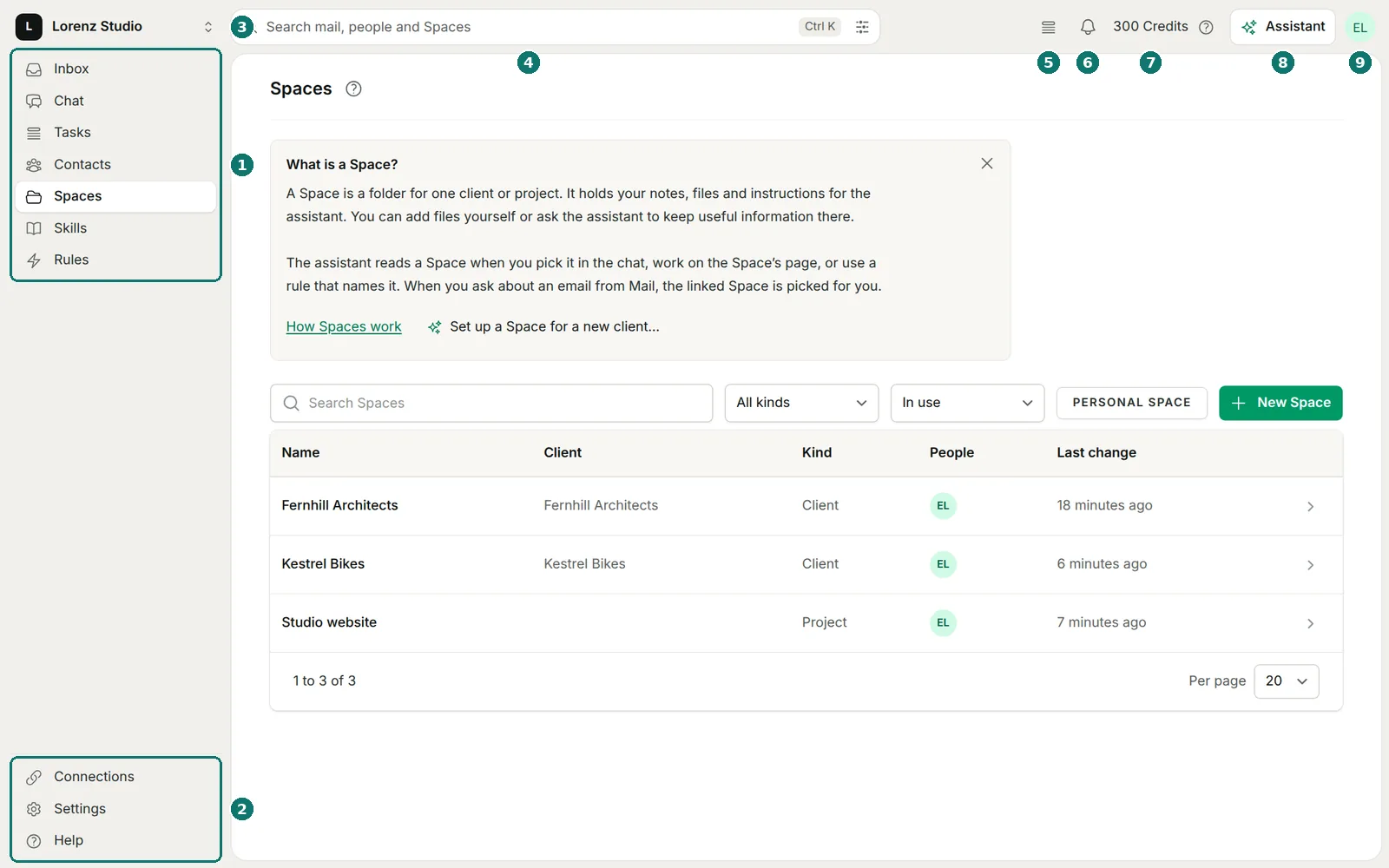
Here is what each number in the picture points to:
- The main pages in the sidebar:
- Inbox: read and reply to your email.
- Chat: talk to the assistant on a full page, with your earlier chats nearby.
- Tasks: check on jobs the assistant is running in the background.
- Contacts: manage the people and companies you write with.
- Spaces: organize notes and files, with one Space for each client or project.
- Skills: store instructions for jobs you want done your way, along with document templates.
- Rules: set up work that starts automatically.
- Connections, Settings, and Help sit at the bottom of the sidebar.
- Your team’s name opens team settings and lets you switch teams.
- The search field finds mail, notes, contacts, and tasks. Press Ctrl+K to jump straight to it.
- Tasks shows how many tasks are running or waiting for you.
- The bell opens your notifications.
- How many credits your team has left.
- Assistant opens the assistant panel. You can also press Ctrl+Shift+K (Cmd+Shift+K on a Mac).
- Your picture opens your profile, where you can set your language and time zone.
Once you connect a mailbox, New email appears at the top of the sidebar, and your mail folders show up below the main pages. On a phone, the main pages sit in the bottom bar, and Menu opens the full sidebar.
What should I do first?
These three steps will get you up and running. Follow them in order, since the assistant relies on both your mail and your Spaces.
Connect your mailbox
Open Inbox. Before a mailbox is connected, you’ll see two options: Microsoft for Microsoft 365 work or school mailboxes, and Other provider for any mailbox with IMAP and SMTP.
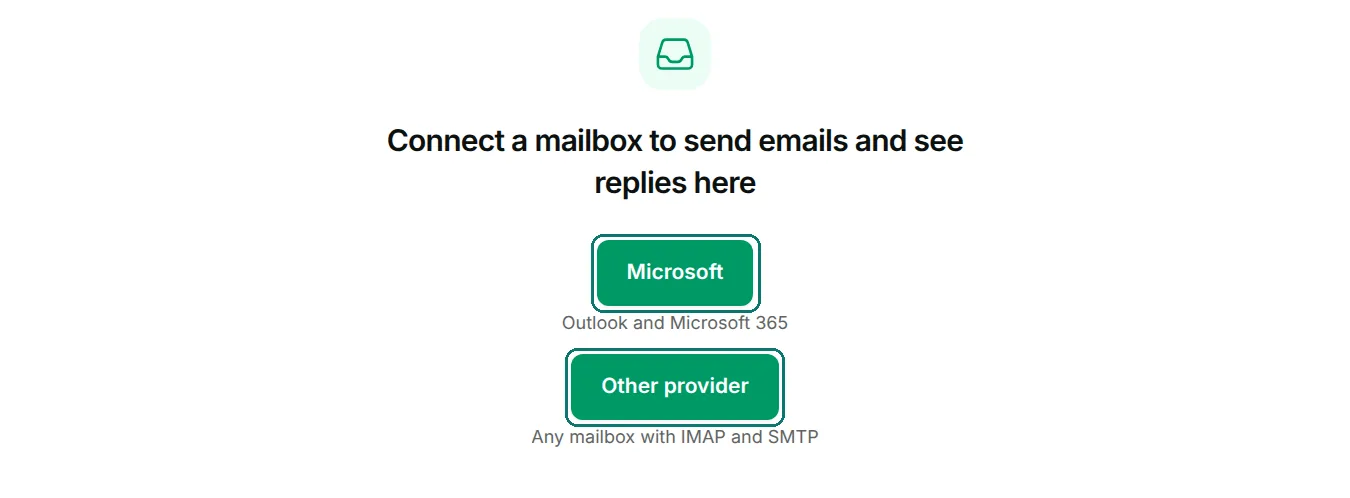
Svanja then loads your email from the last 90 days, and you can start working while it loads. Connect your mailbox walks through both options step by step. If you joined someone else’s team, the owner or an admin connects mailboxes and shares them with you.
Create a Space for a client
A Space holds the notes, files, and instructions for a single client. Each client Space links to that client’s company in Contacts, so when you ask about an email from them, the assistant picks their Space automatically.
- Open Spaces.
- Choose New Space.
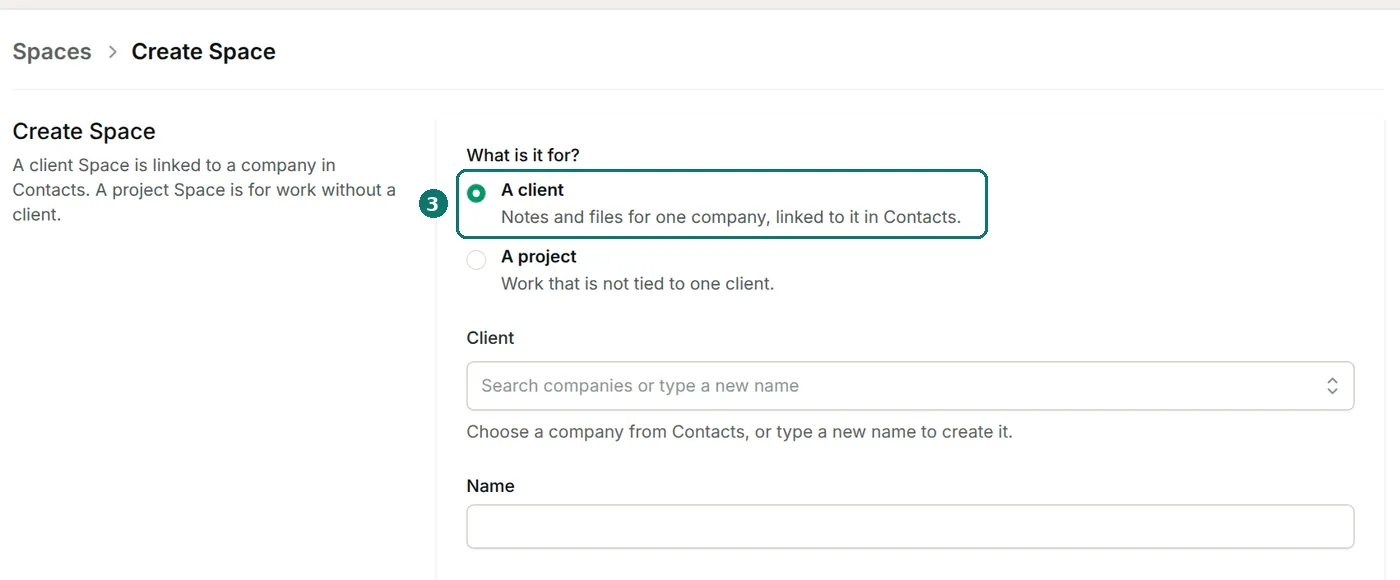
- Under What is it for?, choose A client.
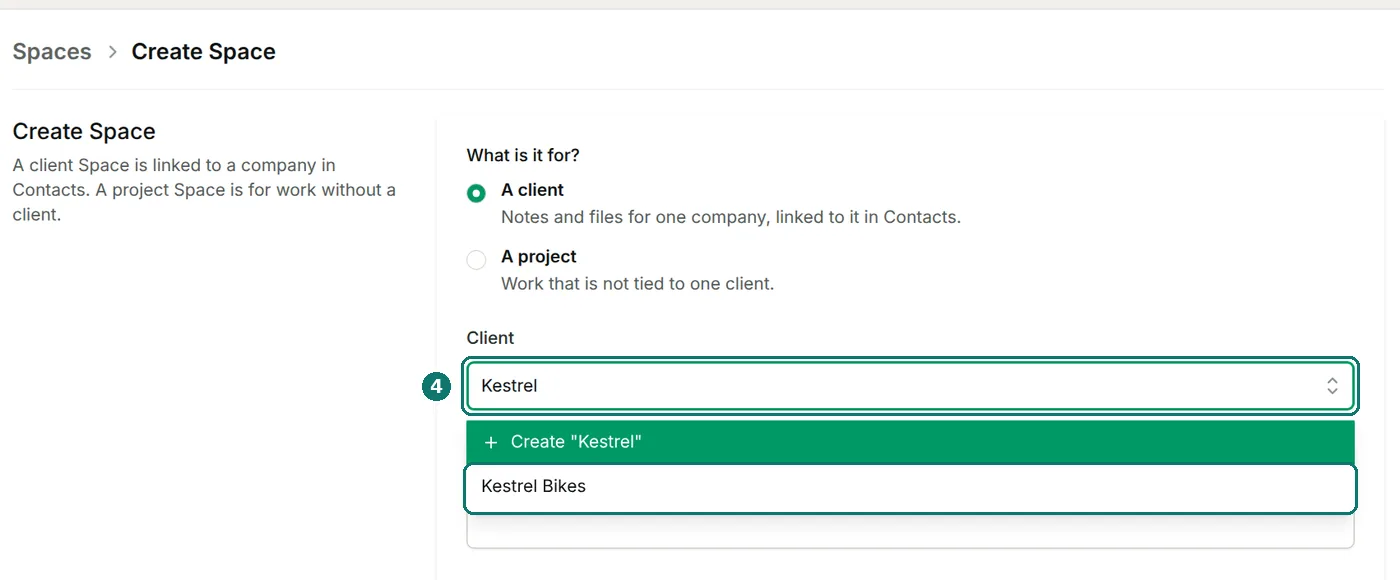
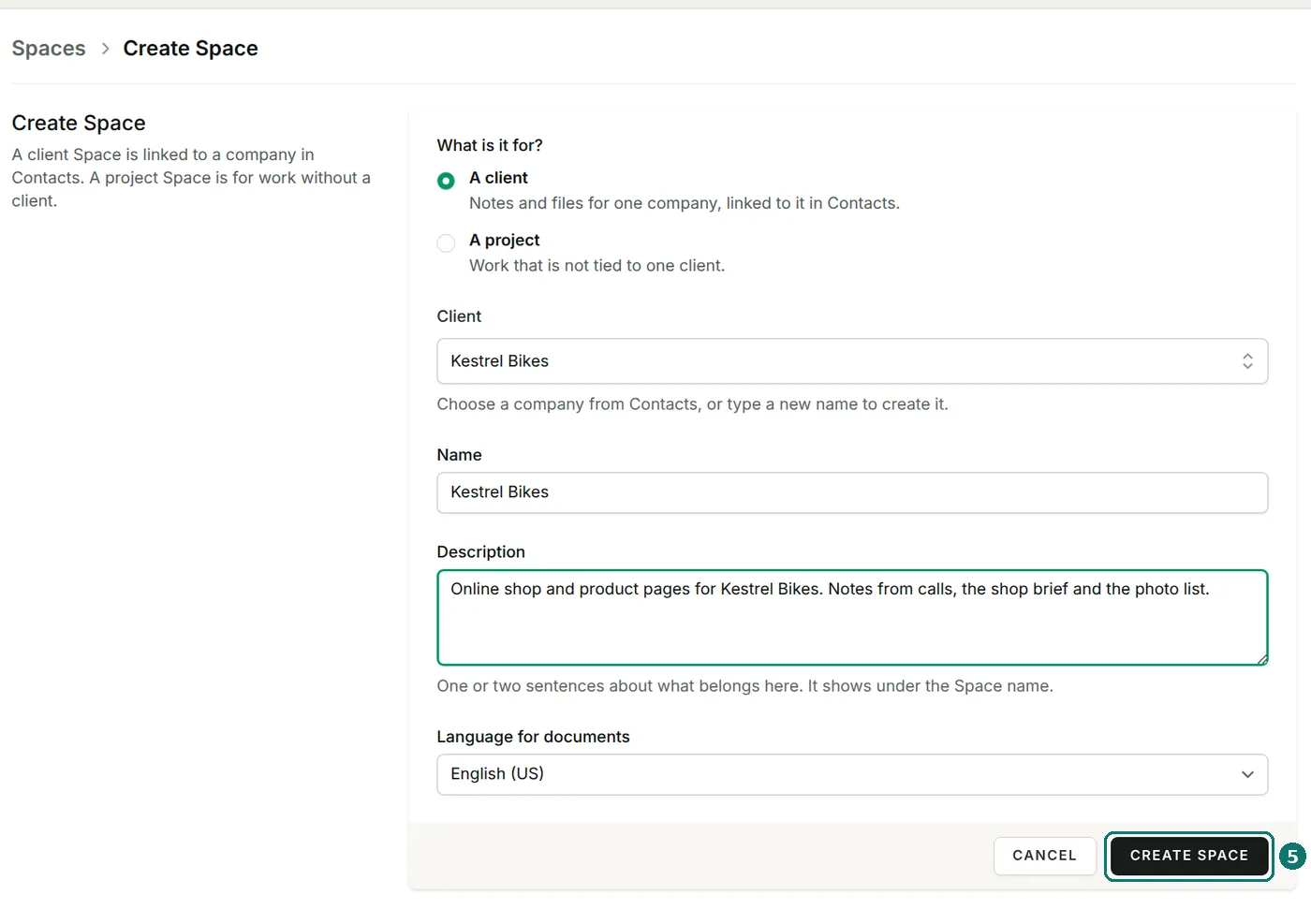
- Under Client, choose the company from Contacts, or type a new name to create it.
- Choose Create Space.
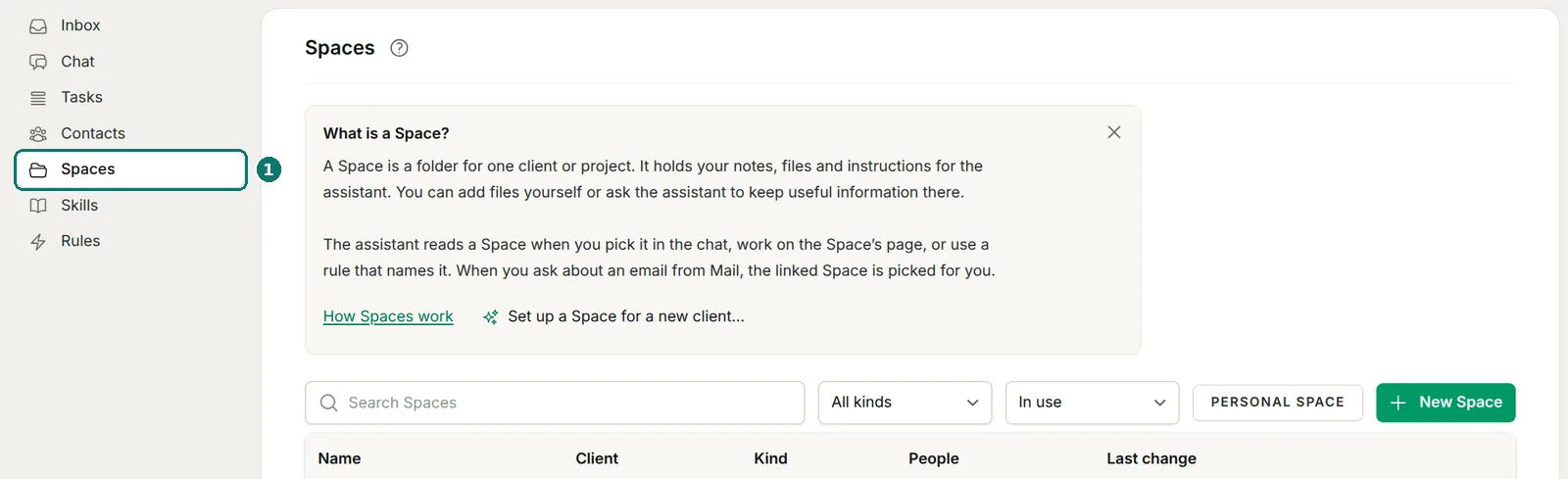
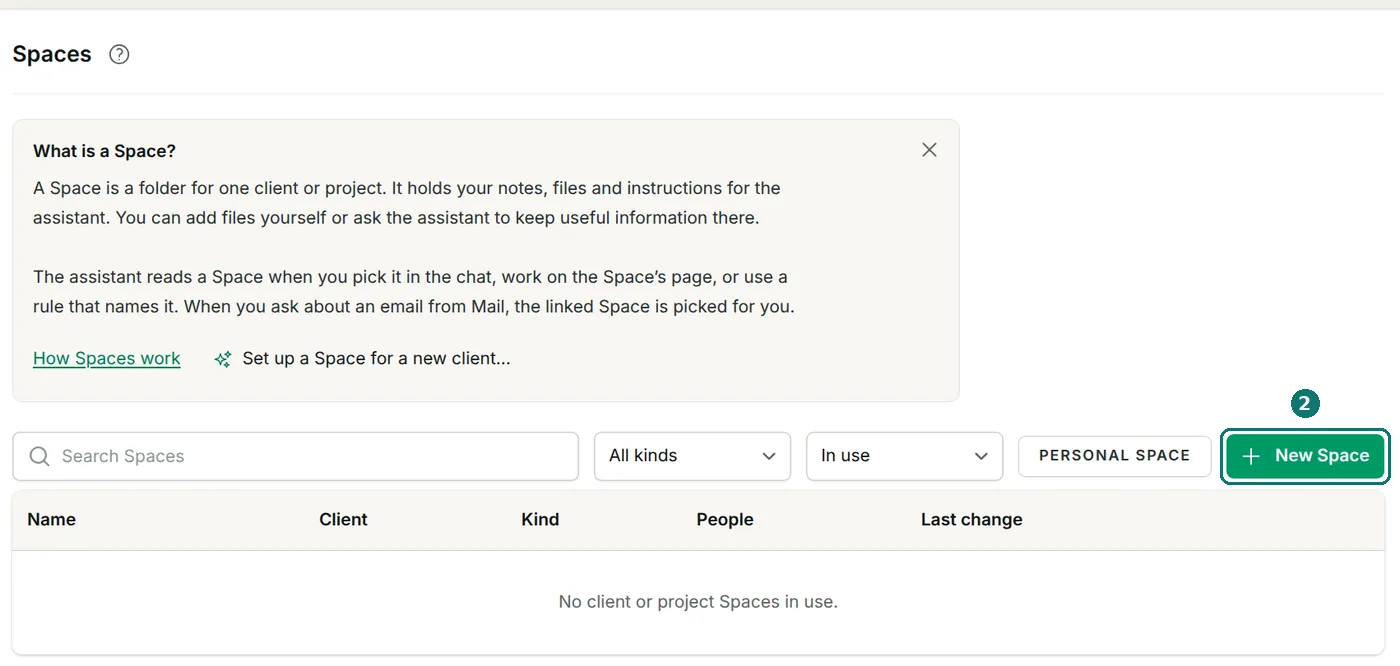
Your new Space opens with Space instructions, which the assistant reads first whenever it works in that Space. Add a few lines to guide it, for example:
Reply in English, short and friendly.
The founder decides on budget and dates.
Prices in offers are in EUR, without VAT.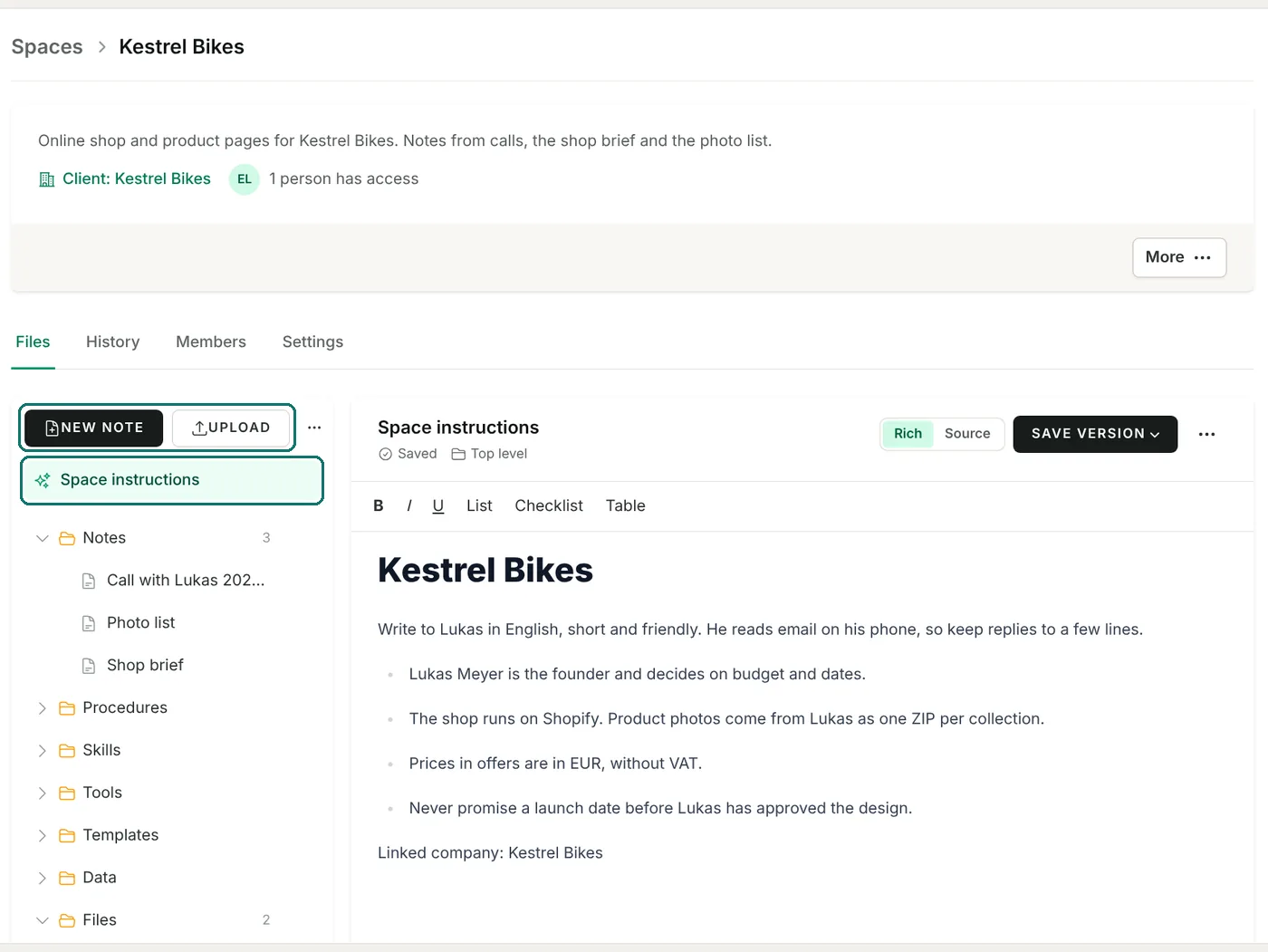
On the Free plan, you have room for three client or project Spaces. Archived Spaces and your Personal Space don’t count toward that limit. See Spaces.
Ask the assistant
The assistant checks your mail, contacts, and Spaces whenever your question needs them. For a longer job, it starts a task and keeps working in the background, even if you close the app.
- Choose Assistant in the top bar, or open Chat.
- Type your question, such as
What needs me today? - Press Enter to send.
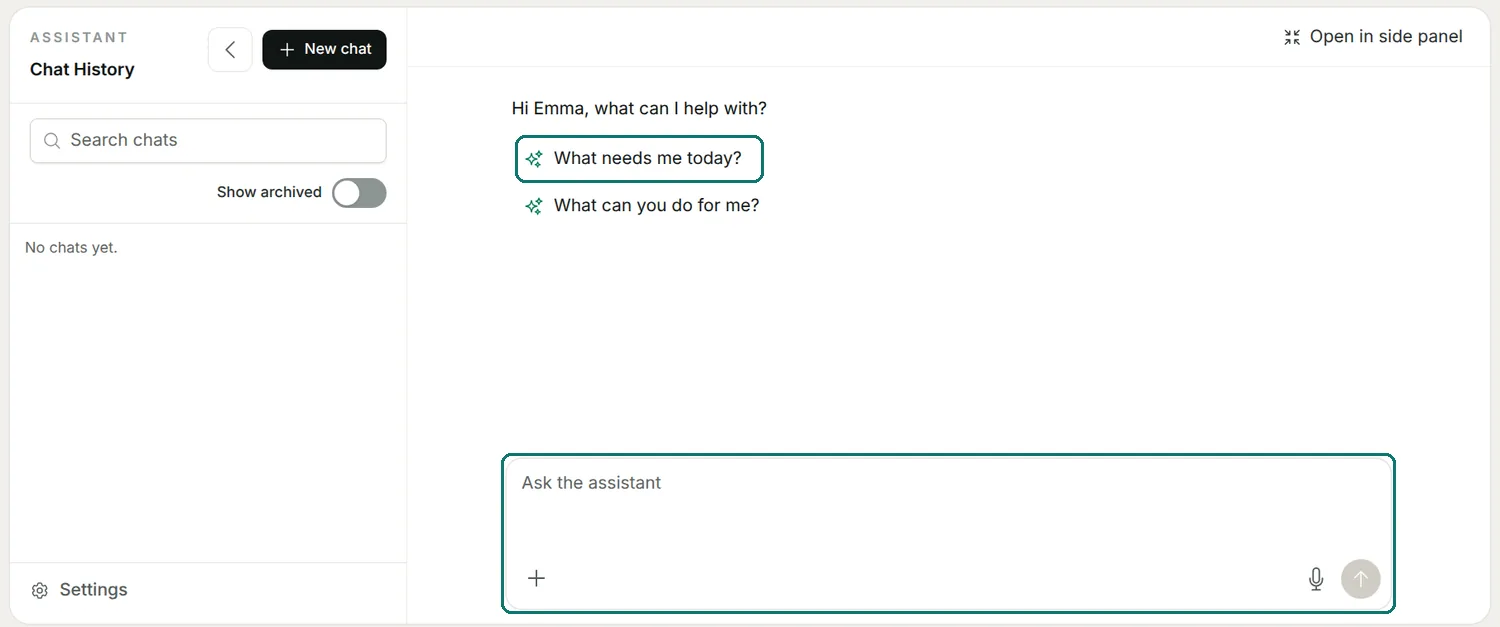
The reply appears in the chat, and any background job shows up under Tasks. To ask about a specific email, open it and choose Ask about this email….
By default, the assistant asks for your OK before sending an email or moving one to Trash. You can change this anytime in Settings, Assistant. See What the assistant may do.
What is free and what costs credits?
Reading and writing email yourself, managing contacts, and using Spaces for notes and files never use credits. Credits pay for the assistant’s answers and tasks, AI drafts in Mail, and rules that use AI. Check Credits and prices for the full breakdown and all plans.
Where do I get help?
Ask the assistant. It knows how Svanja works and where to find every setting. You can also open Help and choose Send Message, or write to support@svanja.com.