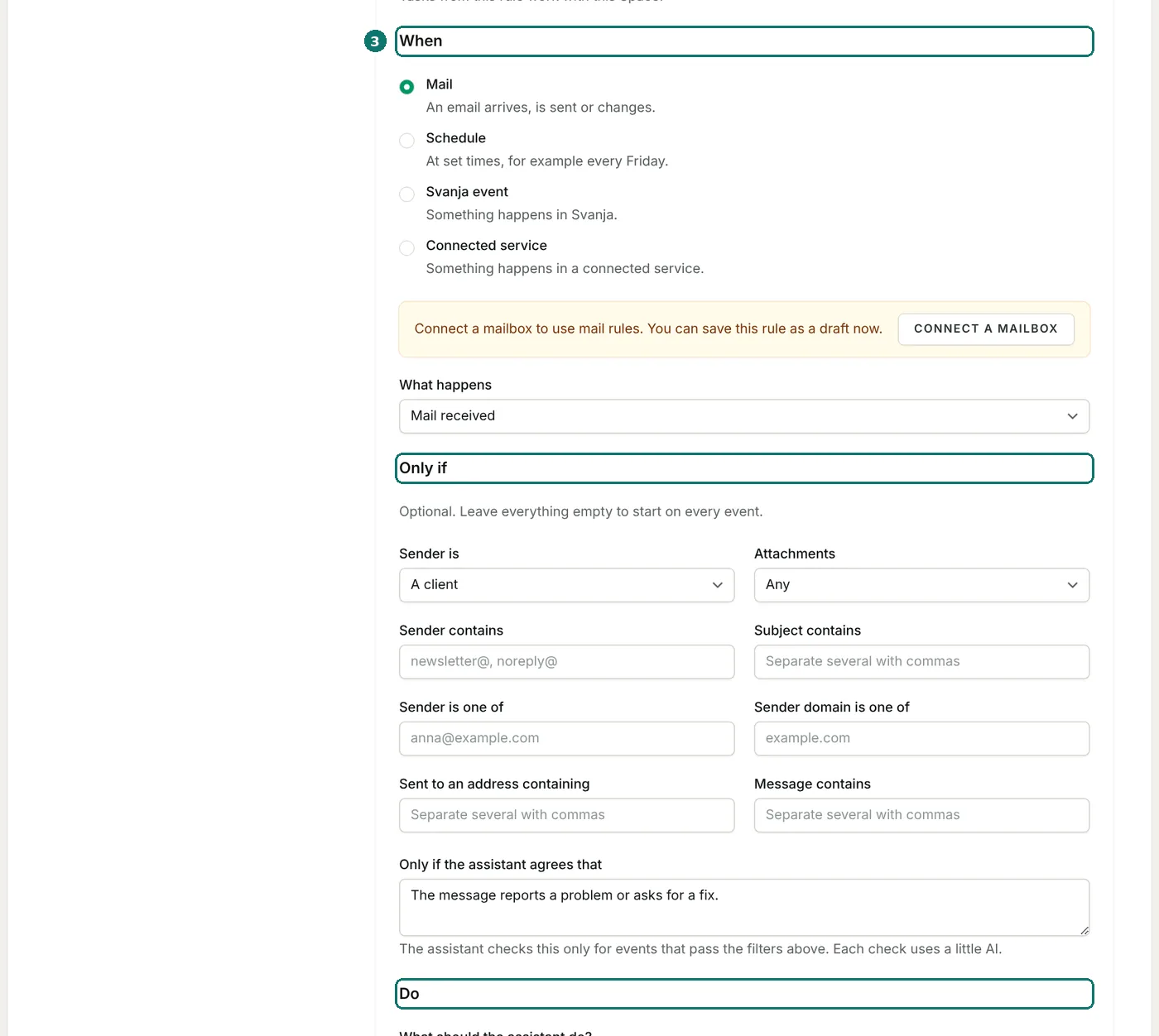
A rule runs automatically in the background. When sets what starts it, Only if narrows down which emails match, and Do says what happens next. You can use a rule to sort mail like a standard filter, or to give the assistant a job in plain words, such as drafting a reply from your notes.
Below are a few rules that work well for client email. For a full breakdown of every option, see Rules.
What should you know first?
- Rules that only sort mail don’t use AI and cost nothing. Rules that use AI spend credits each time they run.
- On the Free plan, you can have up to 3 AI rules turned on at the same time.
- Draft a reply saves a draft in the conversation and never sends it. If you want a rule to send emails, your settings in Settings, Assistant decide whether it waits for your OK.
- Moving an email or marking it as read also happens at your mail provider.
Start a rule from a sample
A sample is a ready-made draft rule, and nothing runs until you turn it on.
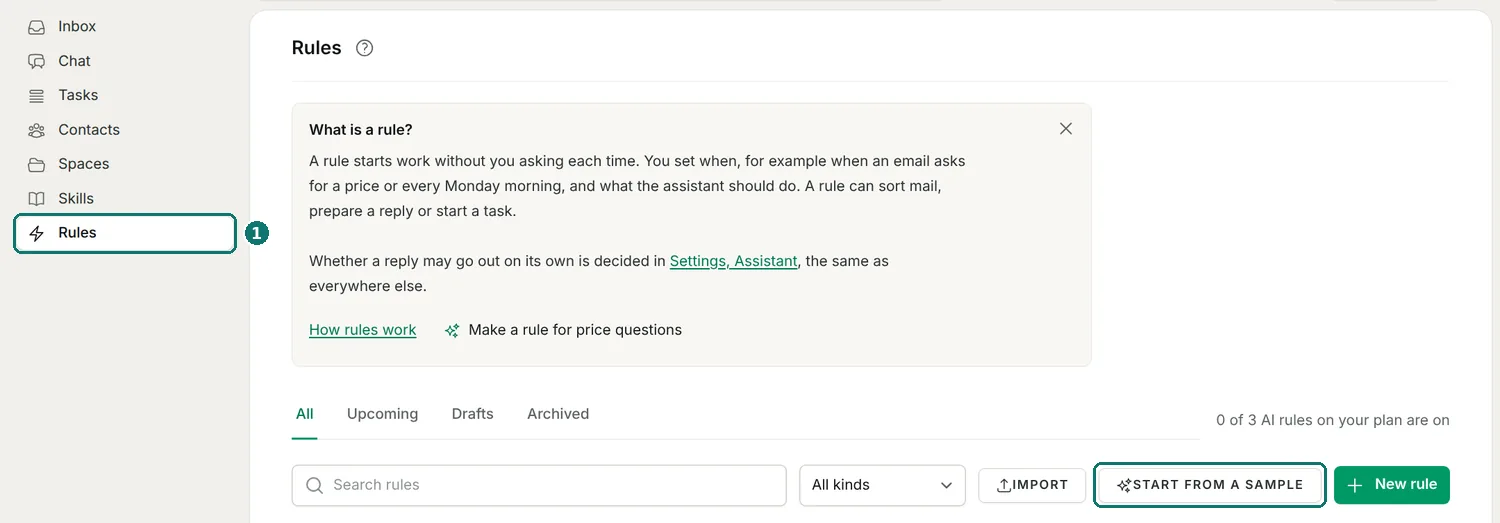
- Open Rules.
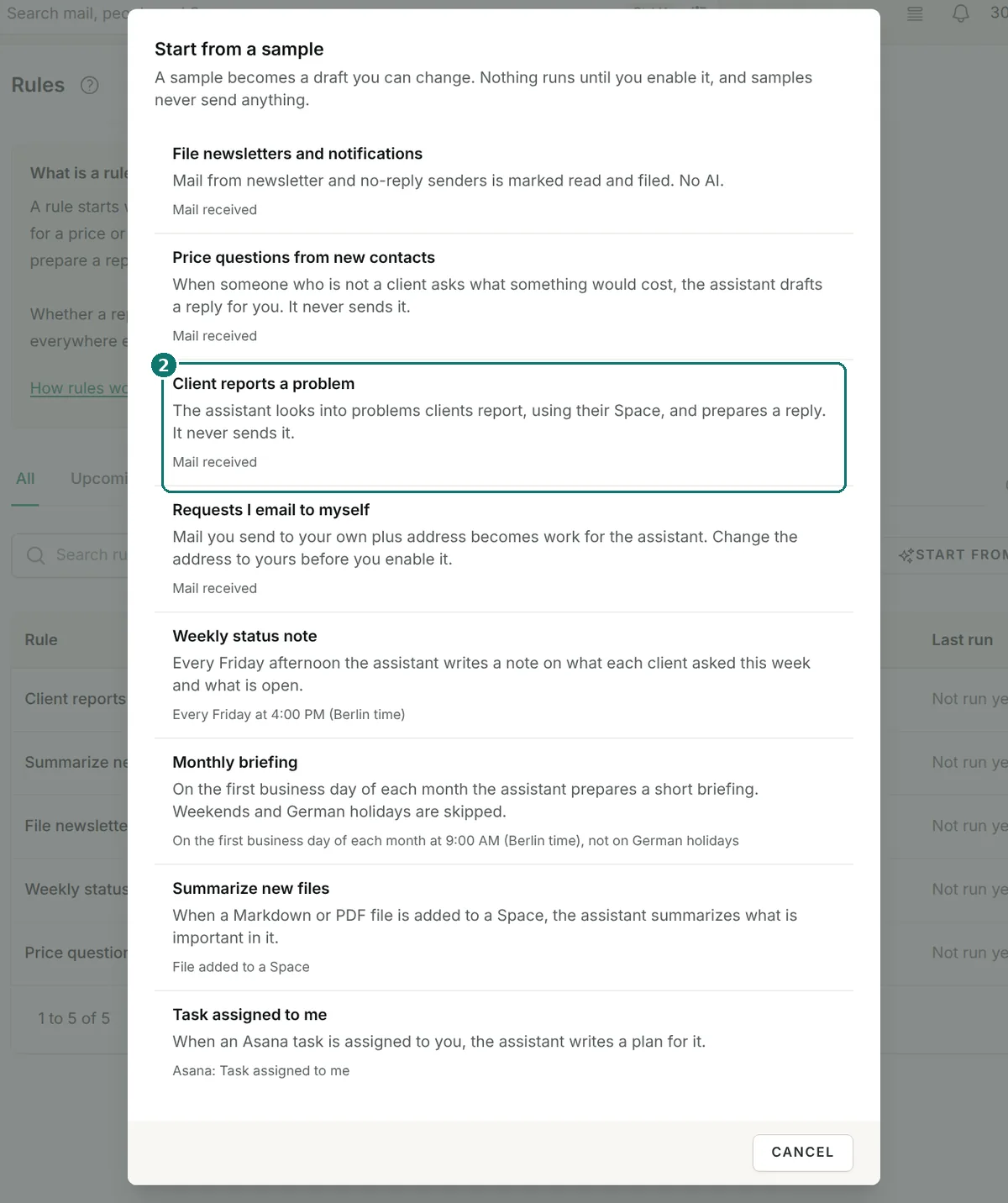
- Choose Start from a sample and pick one.
- Choose Edit and change what you need.
- Choose Test on recent events.
- Check the matches, then choose Enable.
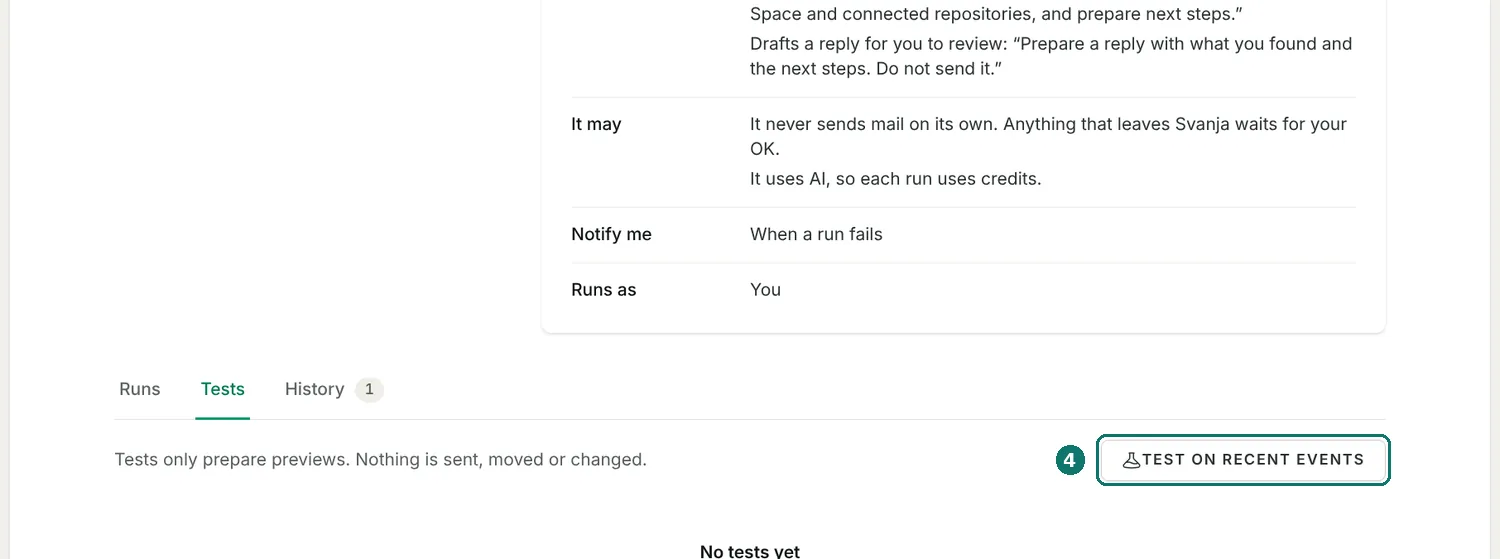
The test scans the last 30 days and prepares previews for up to 10 matches without sending or moving anything. If the rule uses AI, those previews spend a few credits. To build a rule from scratch, open New rule.
File newsletters and notifications (free)
Start from File newsletters and notifications:
| Part | Setting |
|---|---|
| When | Mail received |
| Only if | Sender contains newsletter@, noreply@, and add no-reply@ |
| Do | Organize the mail without AI: Mark as read, and a folder under Move to folder |
The sample only marks mail as read, so you will need to pick the folder yourself. After running the test, you can choose Also run on these to apply the rule to the matching emails it found.
Draft replies to price questions
Before you set up this rule, write a note in your Personal Space explaining how you answer price questions. Then start from Price questions from new contacts:
| Part | Setting |
|---|---|
| When | Mail received |
| Only if | Sender is Not a client, and Only if the assistant agrees that “the message asks what a project or service would cost” |
| Do | Draft a reply: “Use my note on price questions. Ask for the goal and the deadline. Don’t promise a start date.” |
Not a client includes leads you already know, while Someone new only matches people who aren’t in Contacts at all. The AI only checks emails that pass the sender filter first. For more on this workflow, see Answering price requests and writing offers.
Look into problems clients report
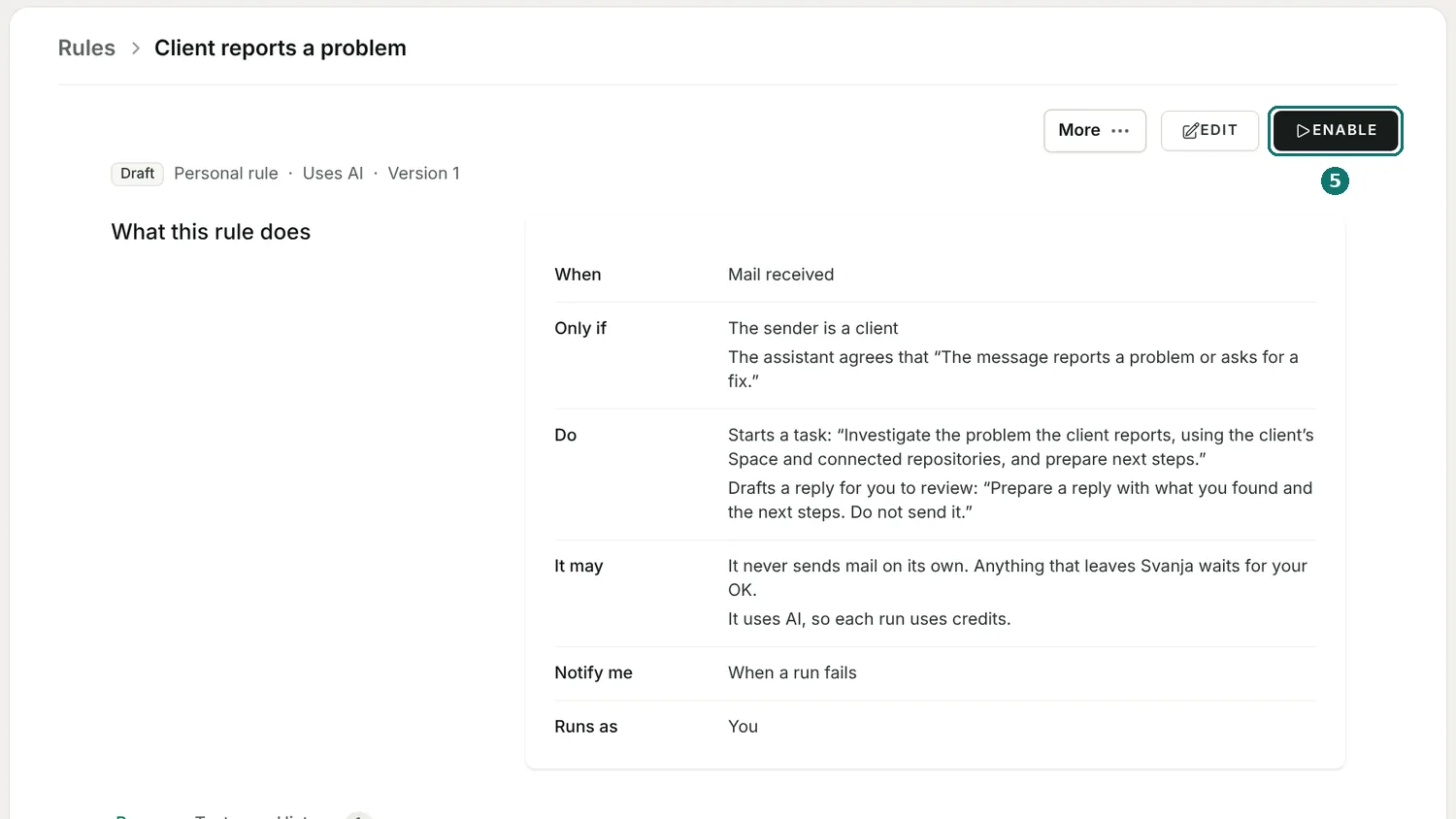
Start from Client reports a problem. Under Mailboxes, pick your support mailbox, or leave it empty to watch every mailbox you can read.
| Part | Setting |
|---|---|
| Only if | Sender is A client, and the assistant agrees that “the message reports a problem or asks for a fix” |
| Do | Draft a reply: “Prepare a reply with what you found and the next steps.” |
When triggered, the task reads the client’s Space, writes its findings on the task page, and leaves a draft reply in the email.
Write a weekly status note
The Weekly status note sample runs every Friday at 4:00 PM in your time zone. It writes a note in your Personal Space covering what each client asked and what is still open. Because it runs on a schedule, choosing Test now prepares one preview run.
Assign client mail to the account manager (Team plan)
Set Sender is to A client and Assign to to The client’s account manager (the Owner of the sender’s company in Contacts). This rule uses no AI and costs no credits. See Svanja for small agencies.
Fix a rule that picks the wrong emails
Open the rule’s Runs and choose This should not have matched on the email that shouldn’t have triggered it. The assistant adds a condition to a draft of the rule. Test the updated rule, then choose Enable changes. Keep in mind that the new condition uses AI, so a free rule will start using credits from that point on.
Keep rules cheap
Basic filters like sender or subject are free and always run first, which keeps the AI from checking emails that don’t need it. As a safeguard, if more than 25 tasks start or more than 400 credits are used within 10 minutes, new AI work for the team waits until an owner or admin lets it continue.