Contacts is Svanja’s list of the people and companies you work with. Think of it as a light CRM, without deal pipelines or sales boards. You don’t have to type everyone in by hand, because Svanja adds the people you write to automatically.
This list also helps the assistant know who is who. It shows which company a sender works for, whether they’re a client, and which Space holds their notes. A Space is the folder for one client’s notes and files (see Spaces, notes and files).
Open Contacts to see its two tabs: People and Companies.
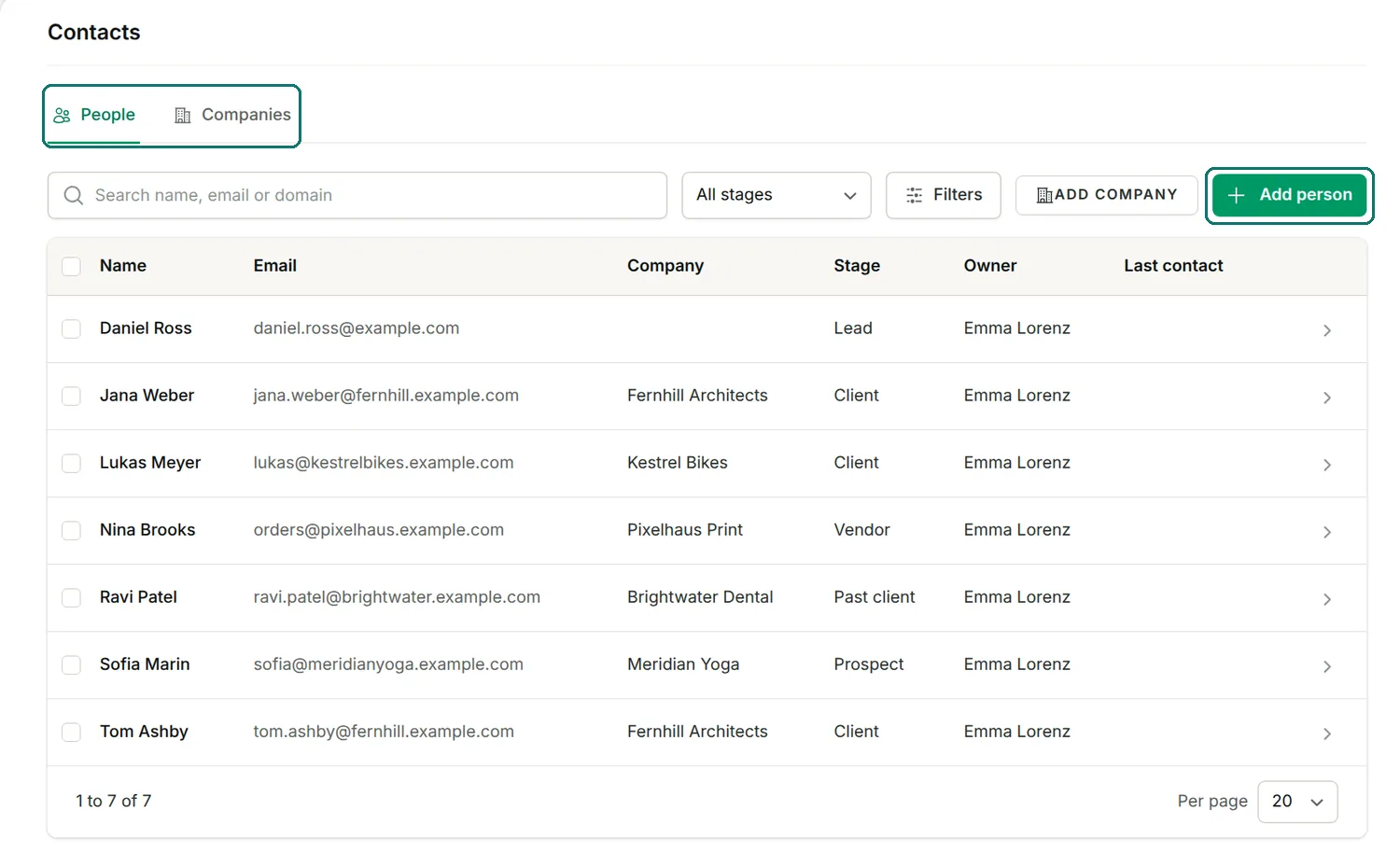
How do people get into Contacts?
When you write to someone, Svanja adds them to your list as soon as a draft is saved. This applies to the To and Cc fields, leaving out Bcc recipients and your own team’s addresses.
People who write to you aren’t added automatically, so newsletters don’t clutter your list. You can add them with one click in the Details tab next to their email (see Inbox), or enter them by hand.
In a team, only the owner and admins can add or edit contacts, while everyone else can view them.
Add a person
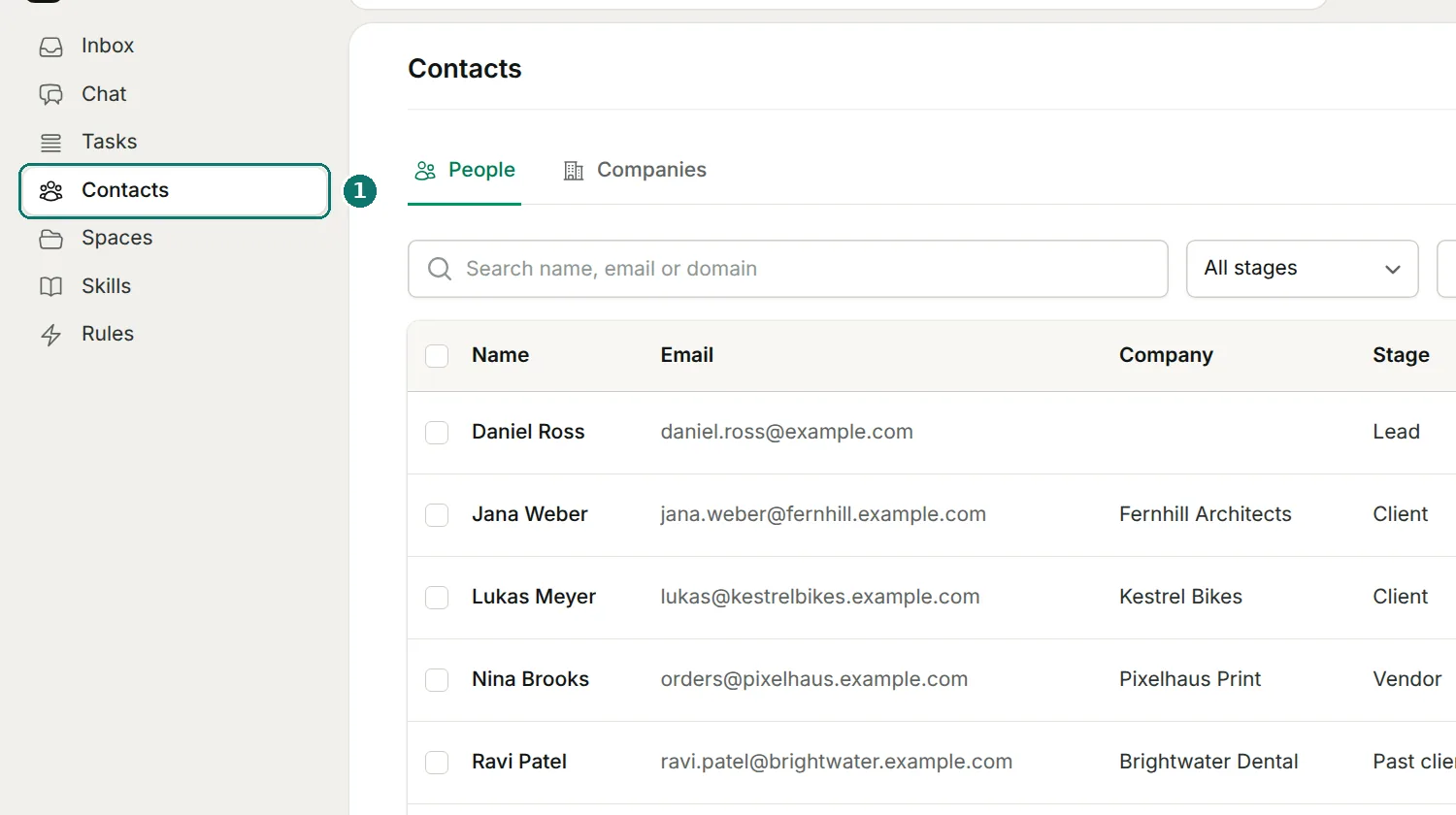
- Open Contacts.
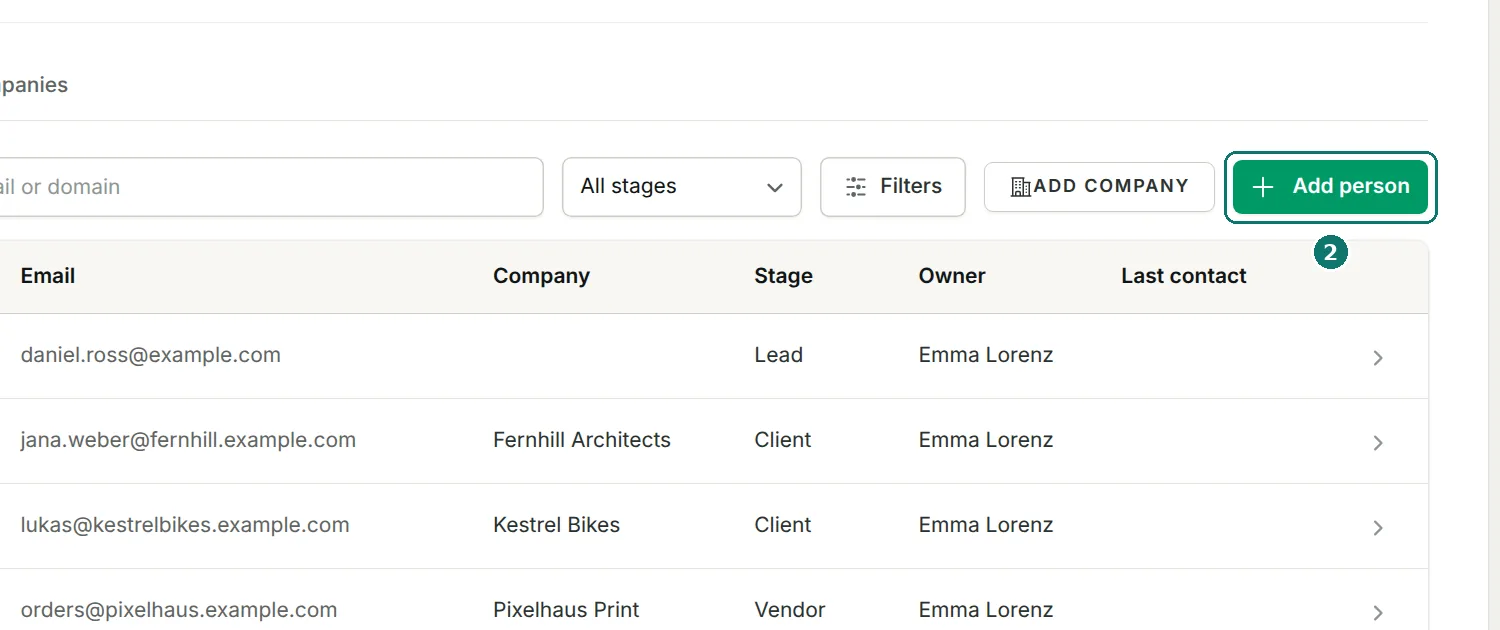
- Choose Add person.
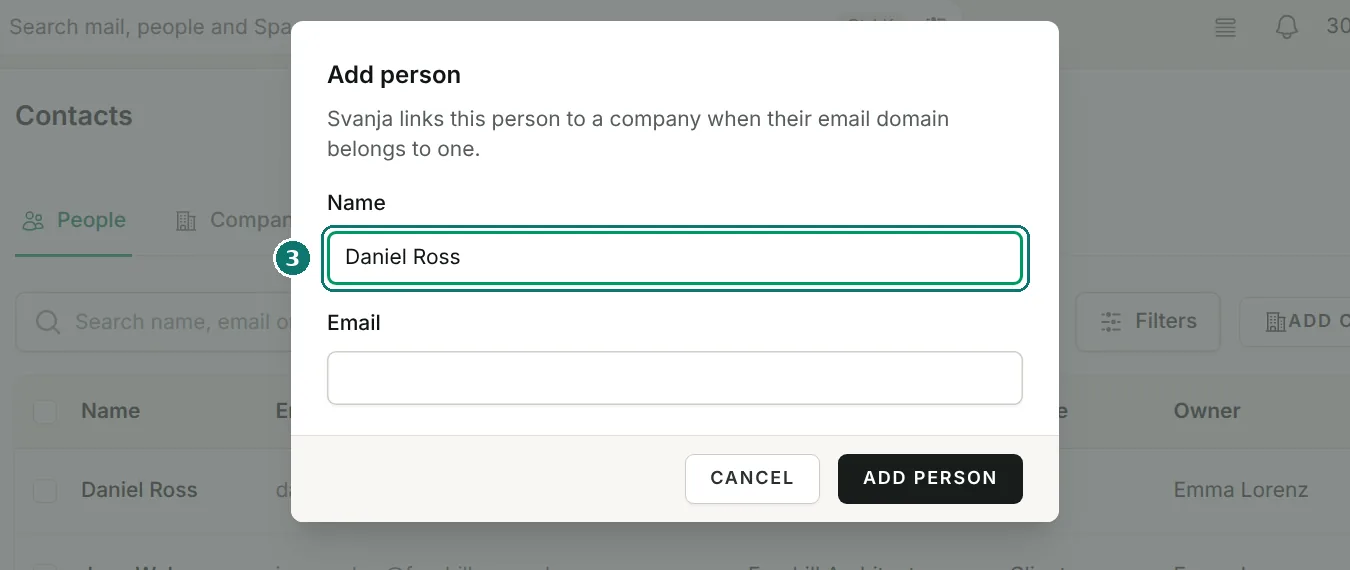
- Type the person’s Name.
- Type their Email.
- Choose Add person.
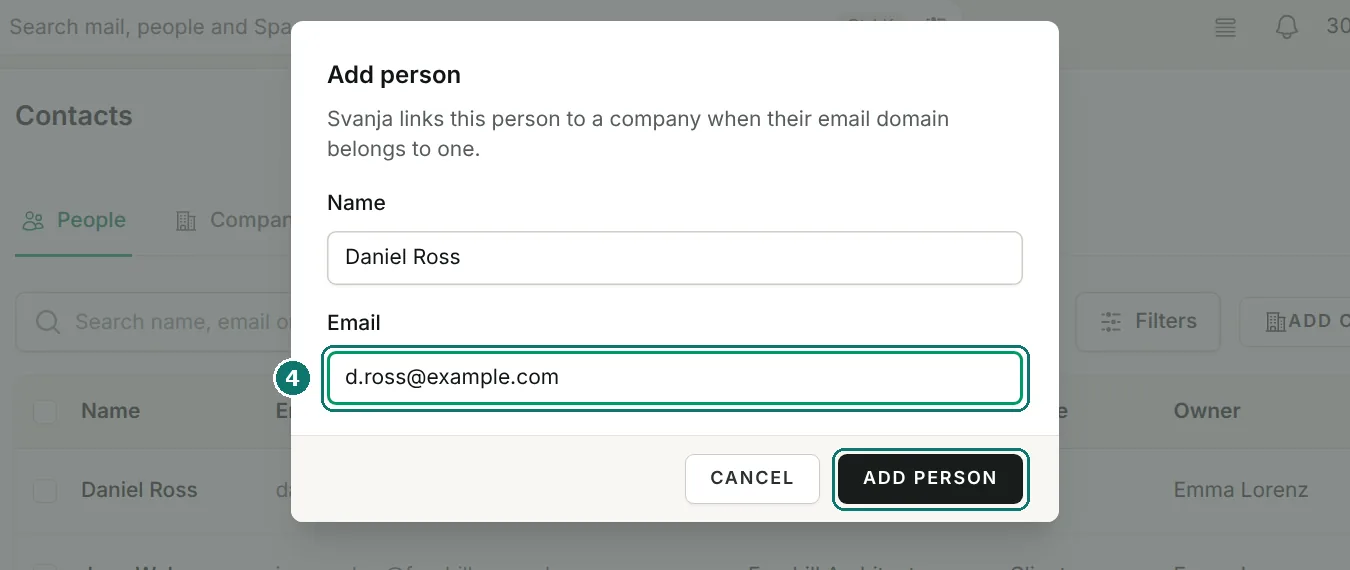
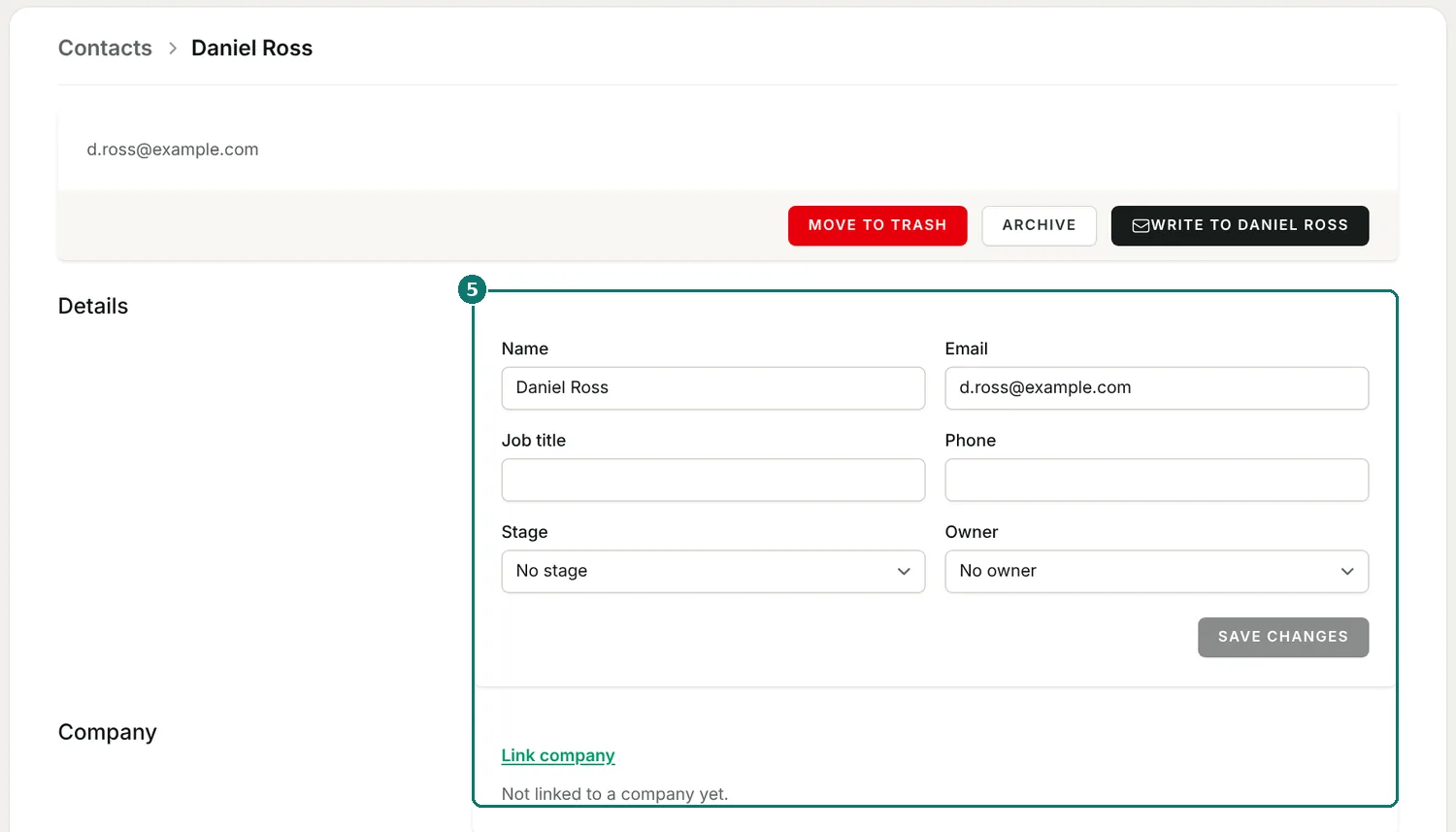
Open the new contact to add a Job title, a Phone number, a stage, and an owner, then choose Save changes. You can add extra addresses under Other email addresses.
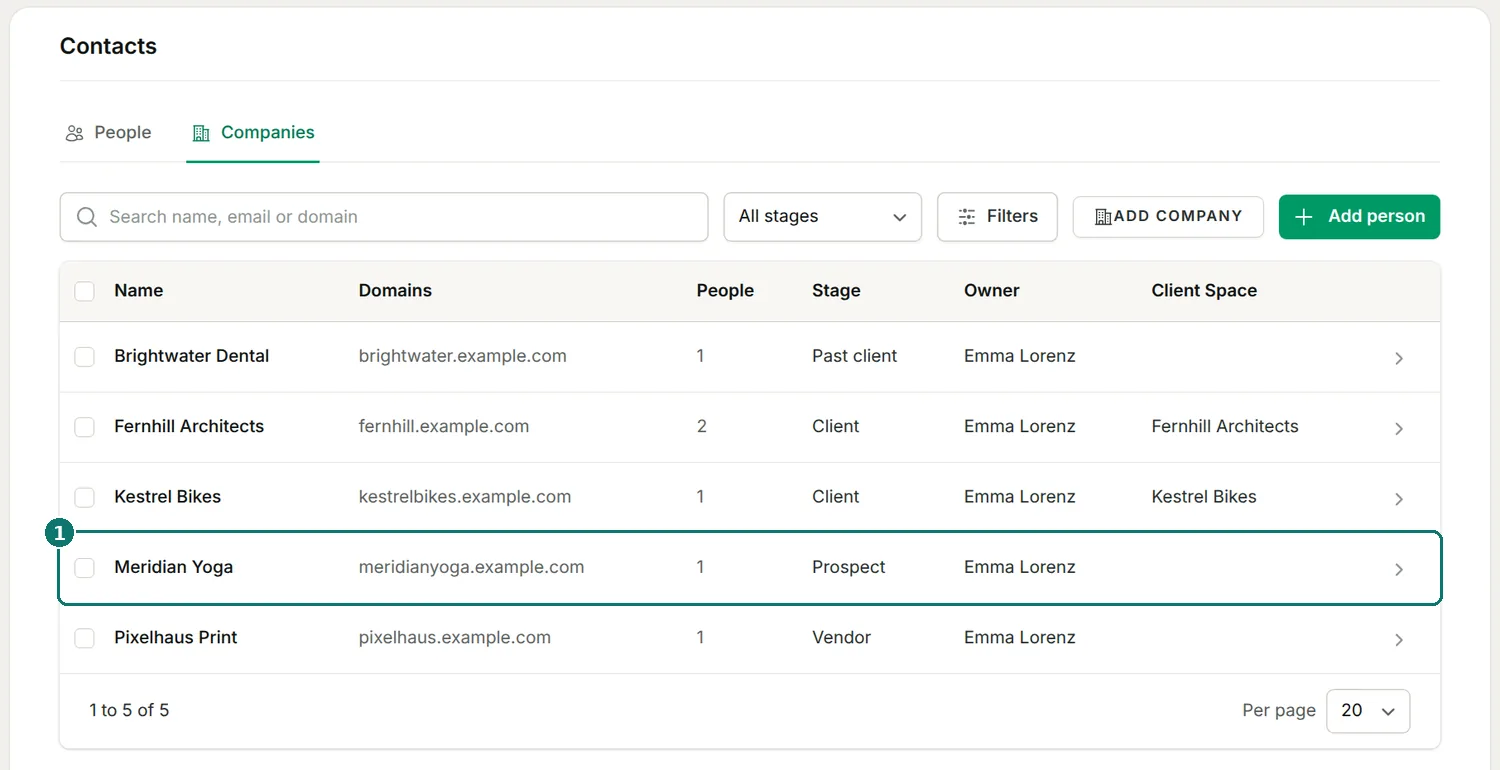
To add a company instead, open the Companies tab, choose Add company, type the Name, and choose Add company. A company groups its people together and can have its own client Space.
What is a stage?
A stage describes your relationship with a person or company.
| Stage | For example |
|---|---|
| Lead | Someone who asked about your work |
| Prospect | Someone you’re talking to about a project |
| Client | Someone you work for |
| Past client | A client from before |
| Partner | A freelancer or agency you work with |
| Vendor | A supplier, like your hosting company |
| Personal | Friends and family |
| Other | Anyone else |
You can set a stage under Stage on a person’s page or on a company’s Details tab. To update several contacts at once, select them in the list, pick a stage, and choose Set stage.
A rule can check whether a sender is a client or someone new. Even if you let the assistant send email on its own, it still asks before writing to a contact marked Personal. See What the assistant may do.
Right next to the stage, the Owner field shows which person on your team looks after that contact.
Link people to their company
Svanja links a person to a company using the domain of their email address (the part after the @). You only need to list a company’s domains once.
- Open the company from the Companies tab.
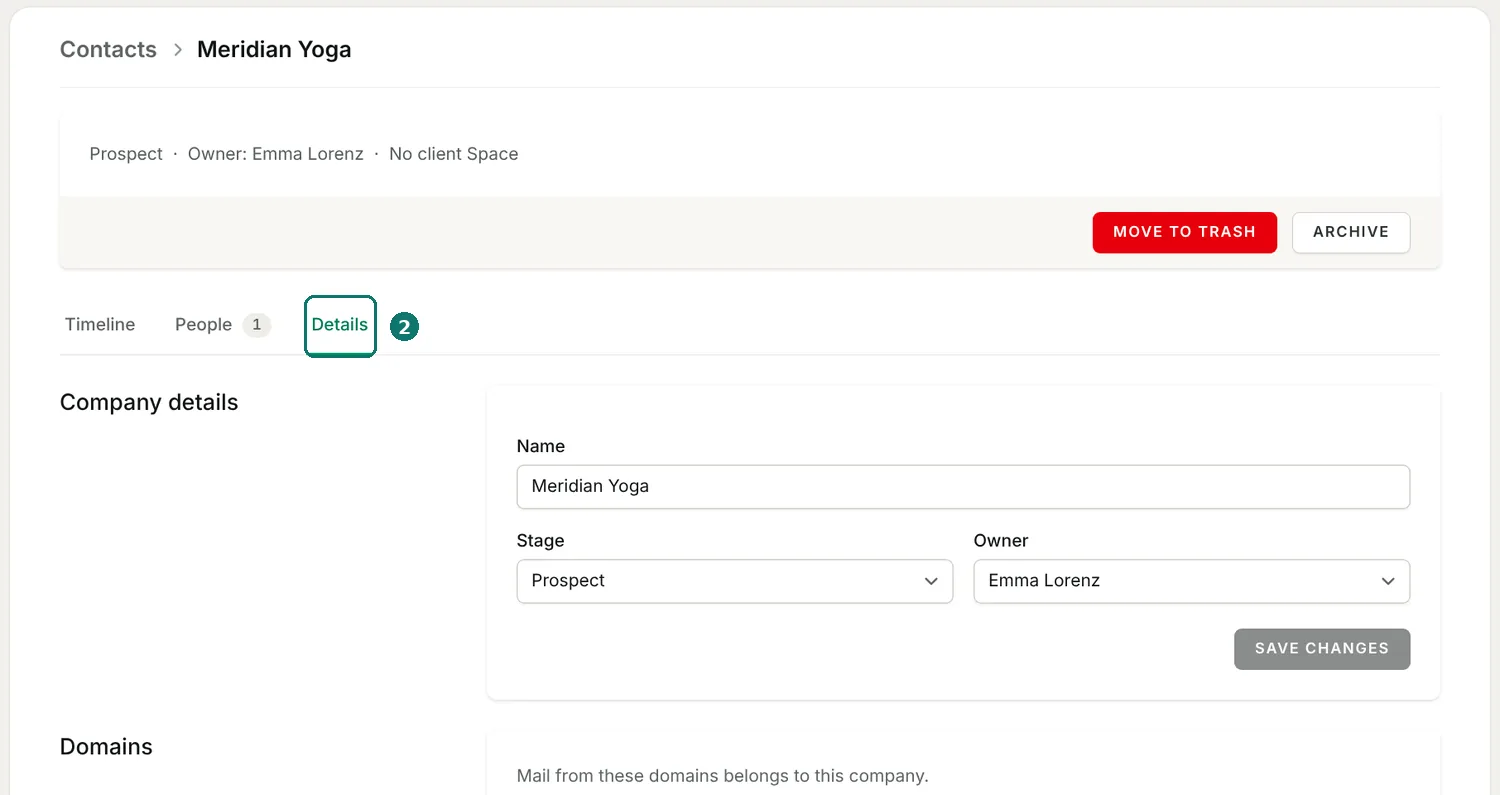
- Choose Details.
- Under Domains, type the domain, for example
example.com. - Pick what happens when someone writes from it.
- Choose Add.
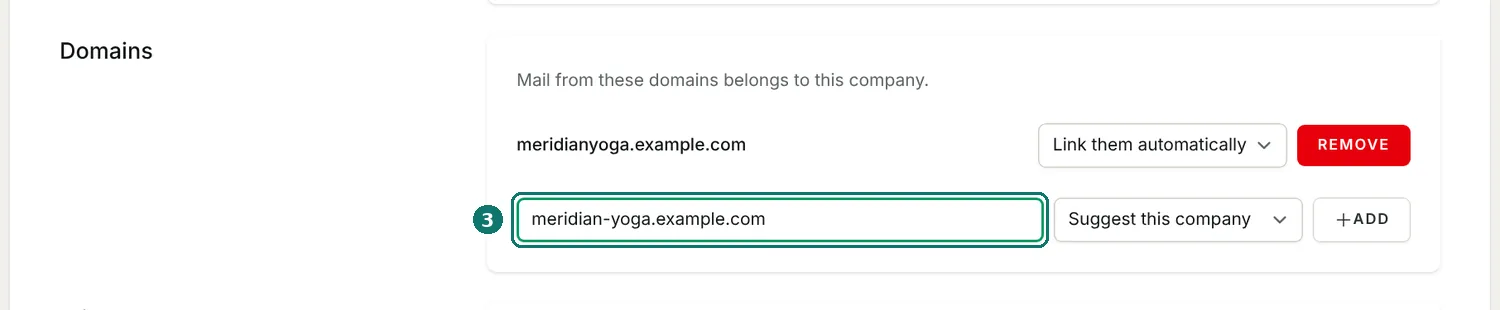
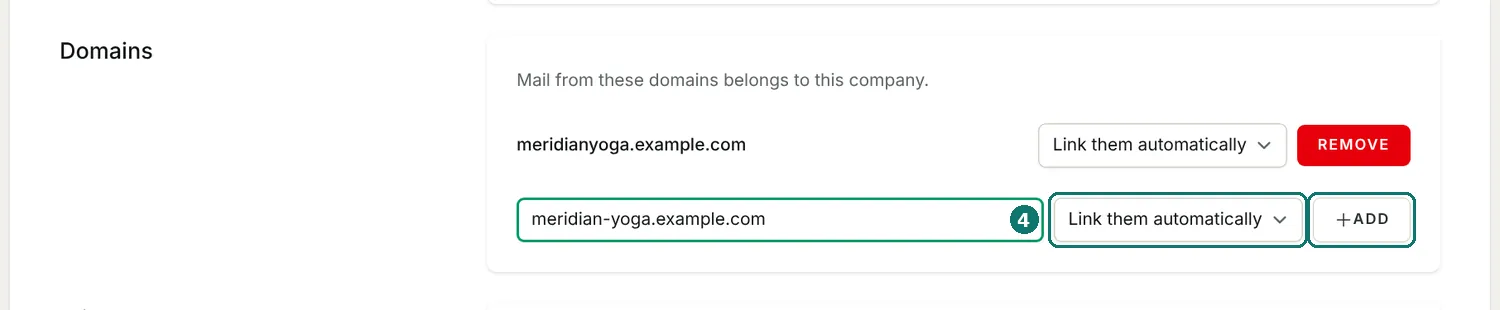
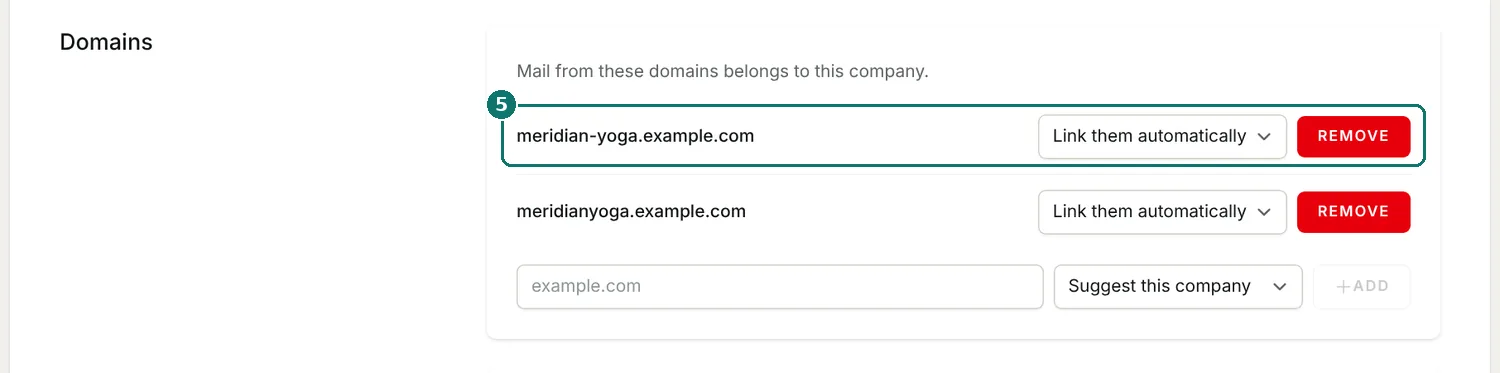
- Suggest this company: Svanja suggests the company, and you confirm it.
- Link them automatically: Svanja links the person right away, as long as they don’t have a company yet and only one company uses that domain.
Public email domains like gmail.com are never linked automatically. To change a person’s company by hand, choose Change under Company on their page.
What’s on a company’s page?
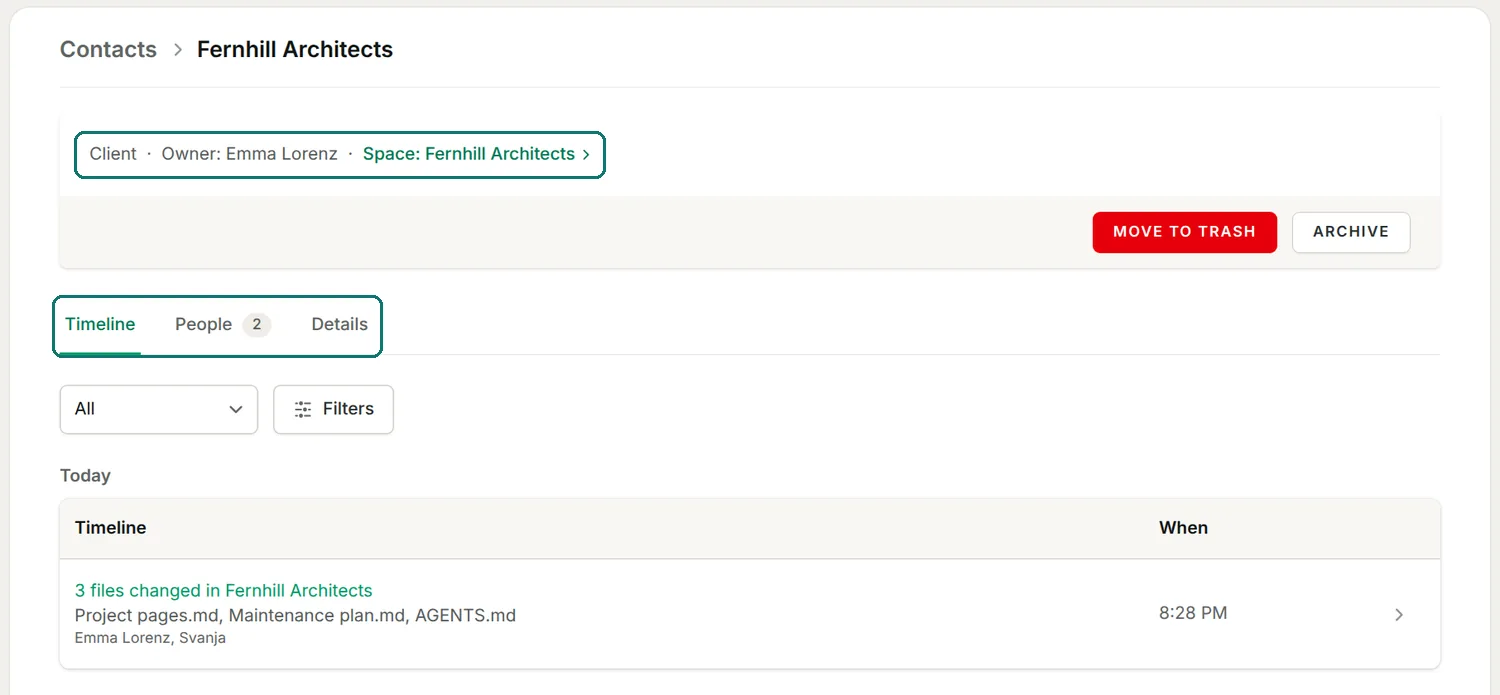
The top of the page shows the company’s stage, owner, and client Space. Below that, you’ll find three tabs:
- Timeline: Emails, tasks, changed files, documents, and shares related to the company, newest first. Open tasks appear above the timeline.
- People: Everyone who works there.
- Details: The company’s name, stage, owner, domains, client Space, custom fields, and history of changes.
Give a company a client Space
A client Space is a Space linked to one company. When you ask the assistant about an email from that company, it picks the linked Space for you.
To create one, open the company and choose Create client Space. The new Space takes the company’s name. If a project Space already holds this work, pick it on Details under Or link an existing project Space and choose Link Space. Choosing Unlink removes the connection while keeping all notes and files in the Space.
The Free plan includes 3 client and project Spaces.
Add your own fields
Custom fields let you track extra details, like a contract number. Create them on Custom fields with Create field (companies are called accounts there). You can fill in the values in the Details tab next to an email. See Shared mailboxes.
What does the assistant change?
The assistant keeps your contacts up to date on its own, such as adding a new phone number from an email signature. Every update appears in the person’s History, marked “By the assistant”, with an Undo button, and under Changes in Tasks.
The assistant always asks before deleting a contact for good. For a contact marked Personal, it also asks before changing the stage, removing an address, or deleting or merging the record.
Merge duplicates
When the same person shows up twice, you can merge the two records into one.
- In the list, select both records.
- Choose Merge.
- Pick the record to keep.
- Choose Merge.

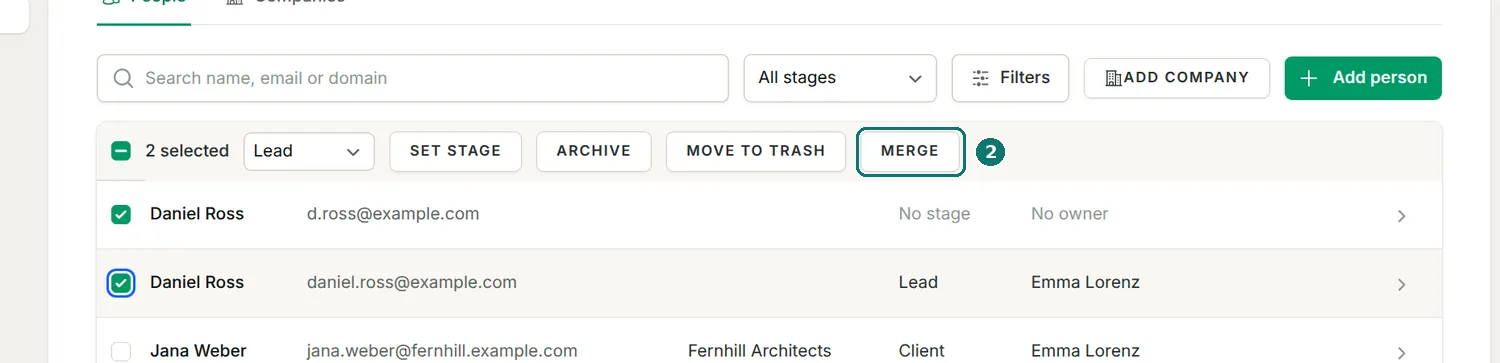
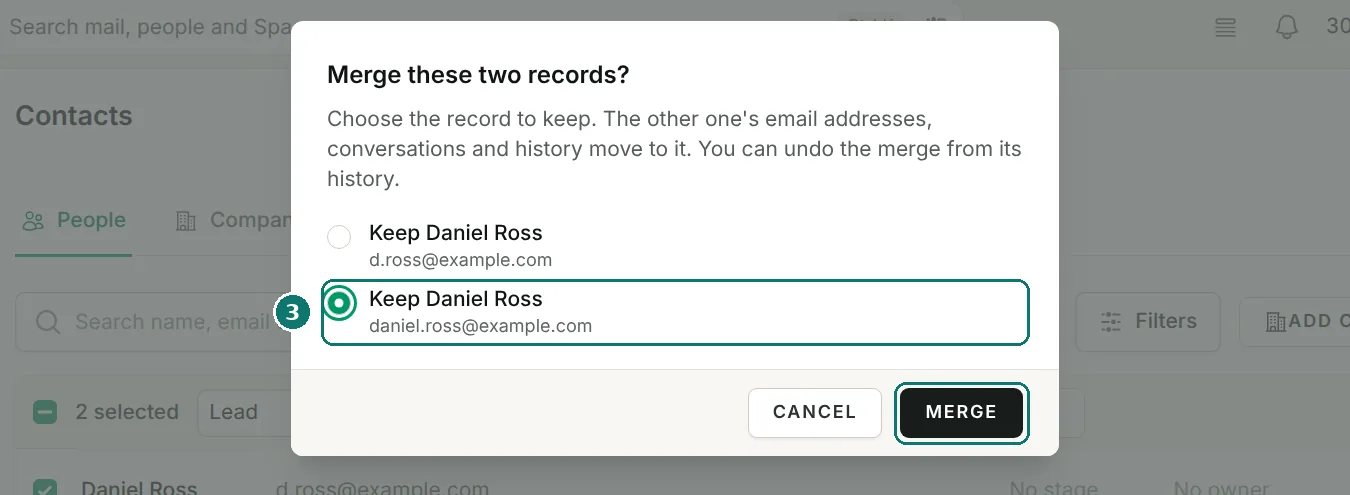
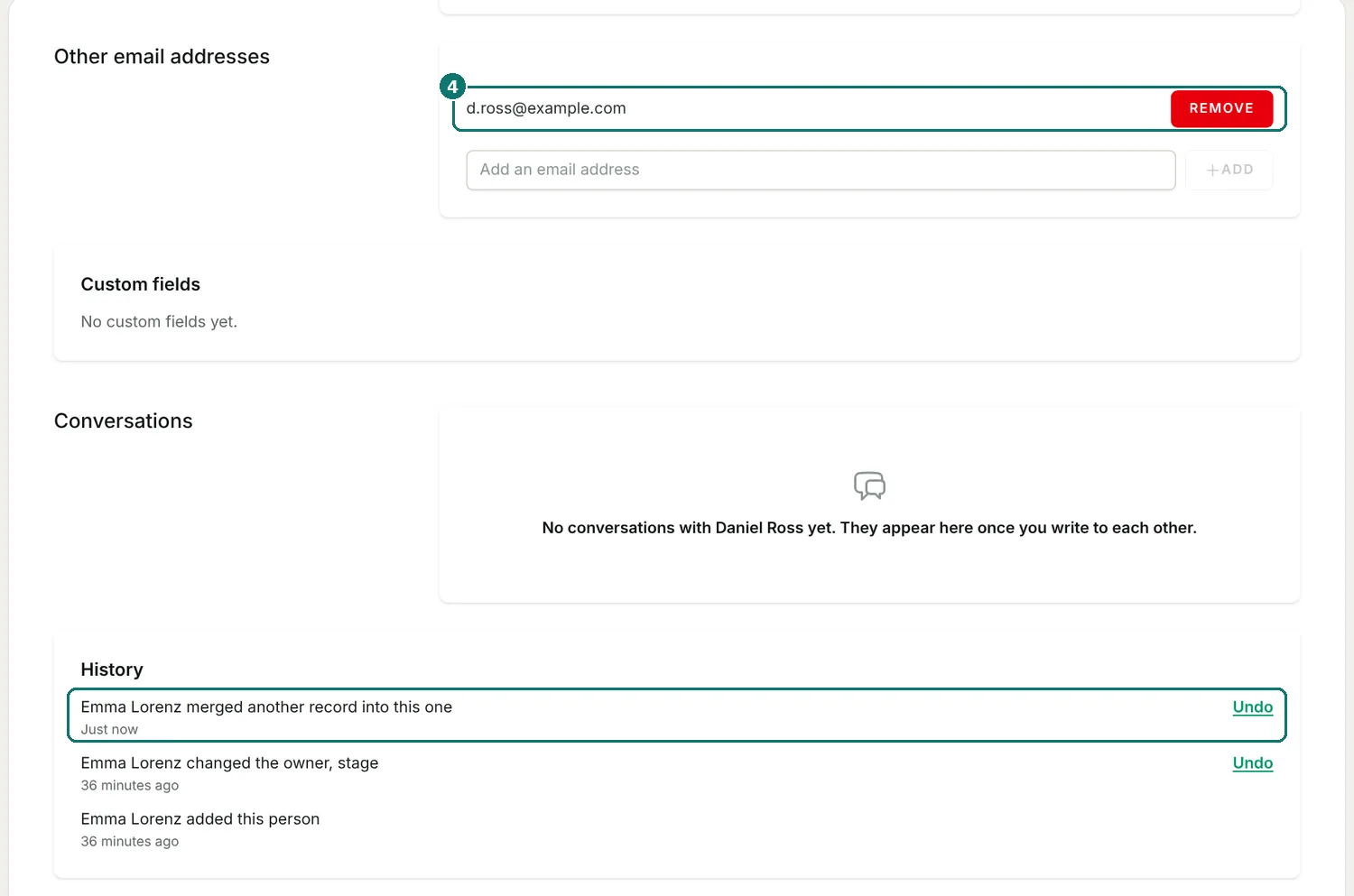
The other record’s addresses, conversations, and history move to the one you keep, and you can undo the merge from its history. Two companies that both have a client Space can’t be merged.
Archive or delete a contact
Archive contacts you no longer need day to day but want to keep. Delete anything that doesn’t belong in your list.
- Archive hides a record. Show archived under Filters displays it again, and Unarchive brings it back.
- Move to Trash deletes a record. Show Trash under Filters lists it, and Restore brings it back.
- Delete permanently, found on a record in Trash, removes it along with its addresses and history. This can’t be undone.
Your emails stay in your mailbox either way. If you delete a company, its people stay in your list without a company, and its client Space remains intact. Data and Trash in Settings also links to deleted contacts.