Svanja separates your account from your team. Your account is how you sign in. It holds your email address, password, name, and display preferences. Your team holds the work: mailboxes, Spaces, contacts, rules, your plan, and credits.
Every account starts with its own team, with you as the owner and only member. On the Free and Pro plans, a team is limited to one person. On the Team plan, multiple people can work in the same team and share its plan and credits. You can also belong to more than one team, such as your own and an agency’s that invited you.
Sign up
Svanja is in early access right now, and each new account is approved manually.
- Open Sign up.
- Enter your Full name, Email address, and a Password (at least 8 characters).
- Choose Join Waitlist.
- Open the email Svanja sends you and confirm your address.
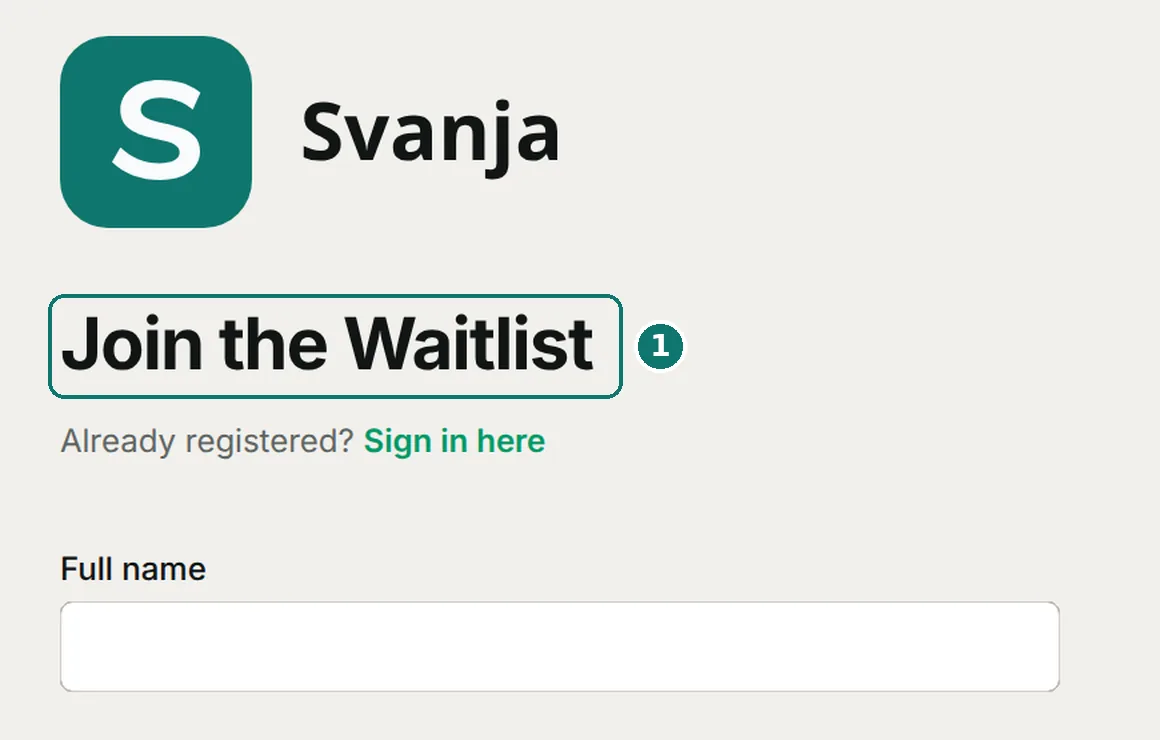
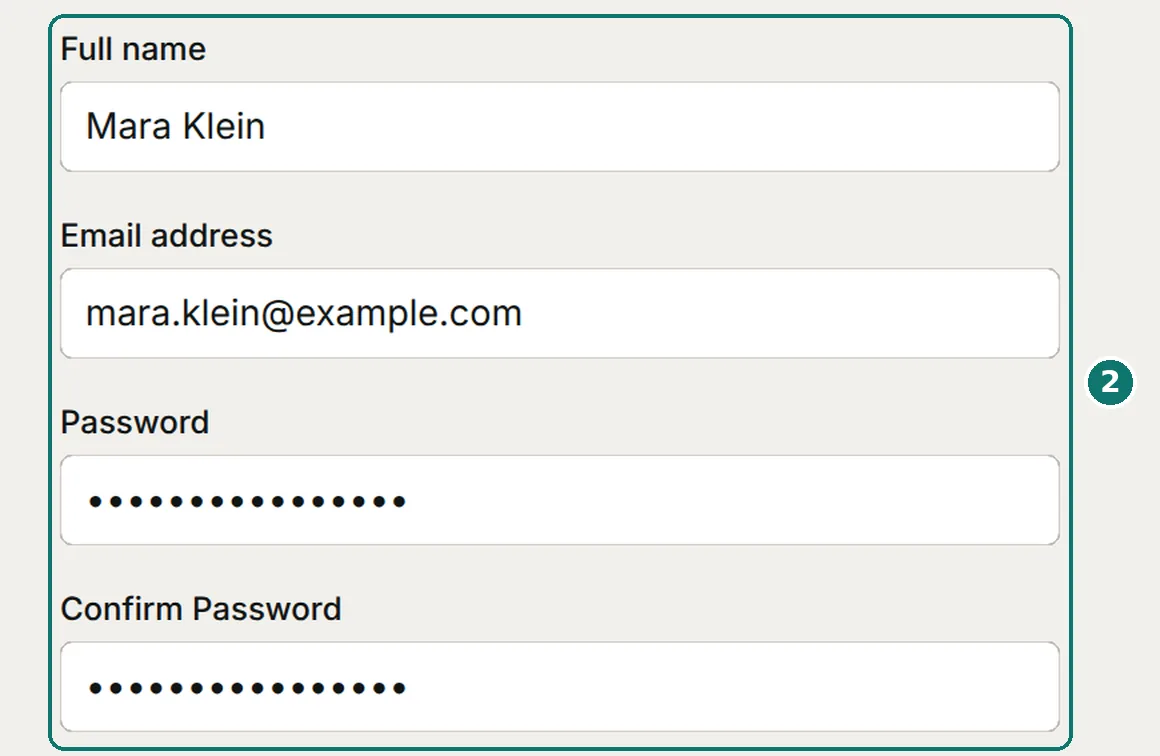
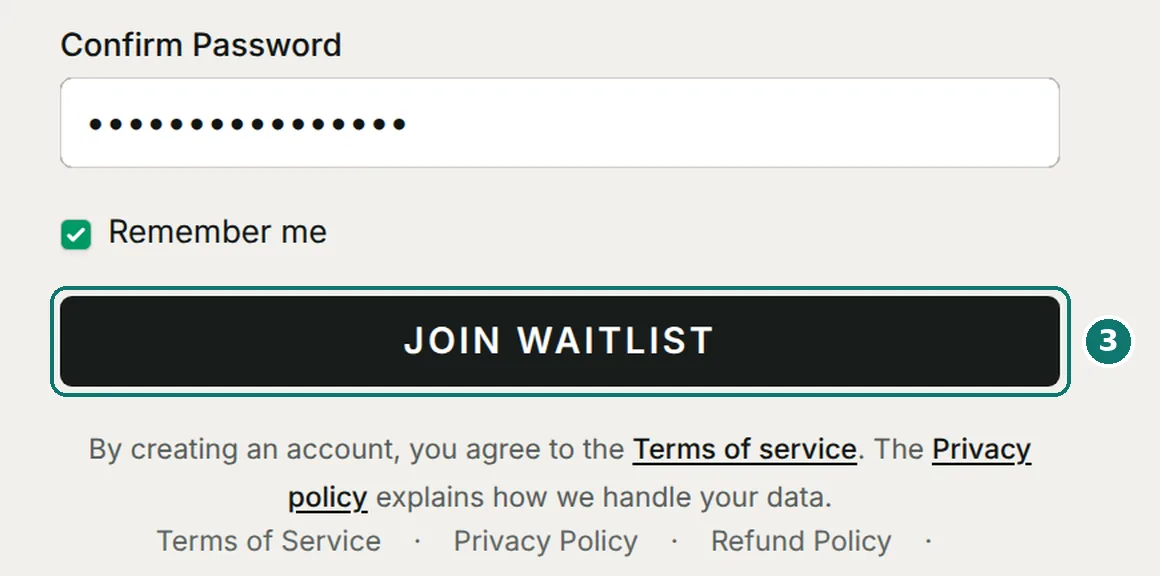
You are now on the waitlist. When your account is approved, a second email will let you know it’s ready. From there, you can sign in and connect your first mailbox. See Getting started.
Change your profile
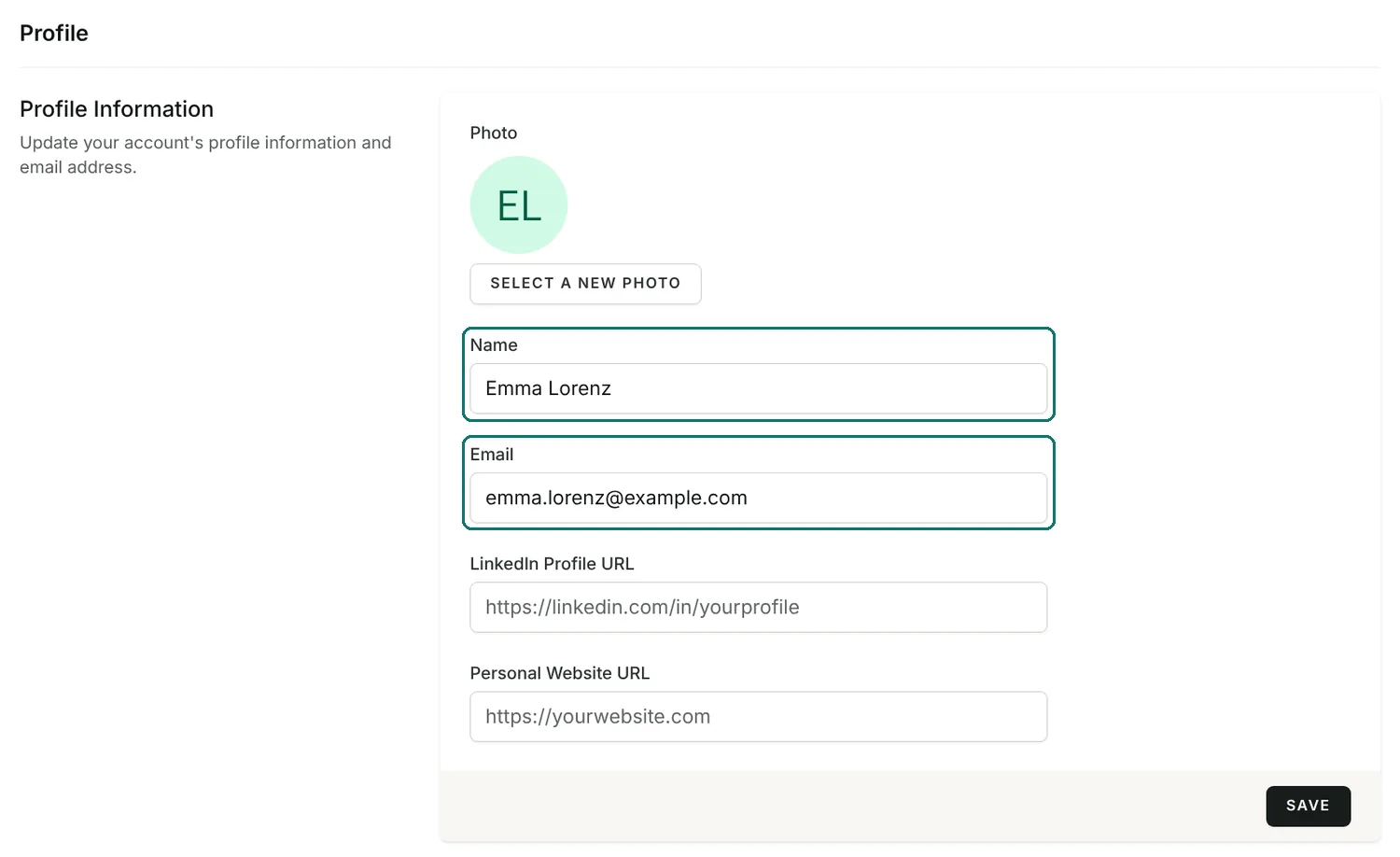
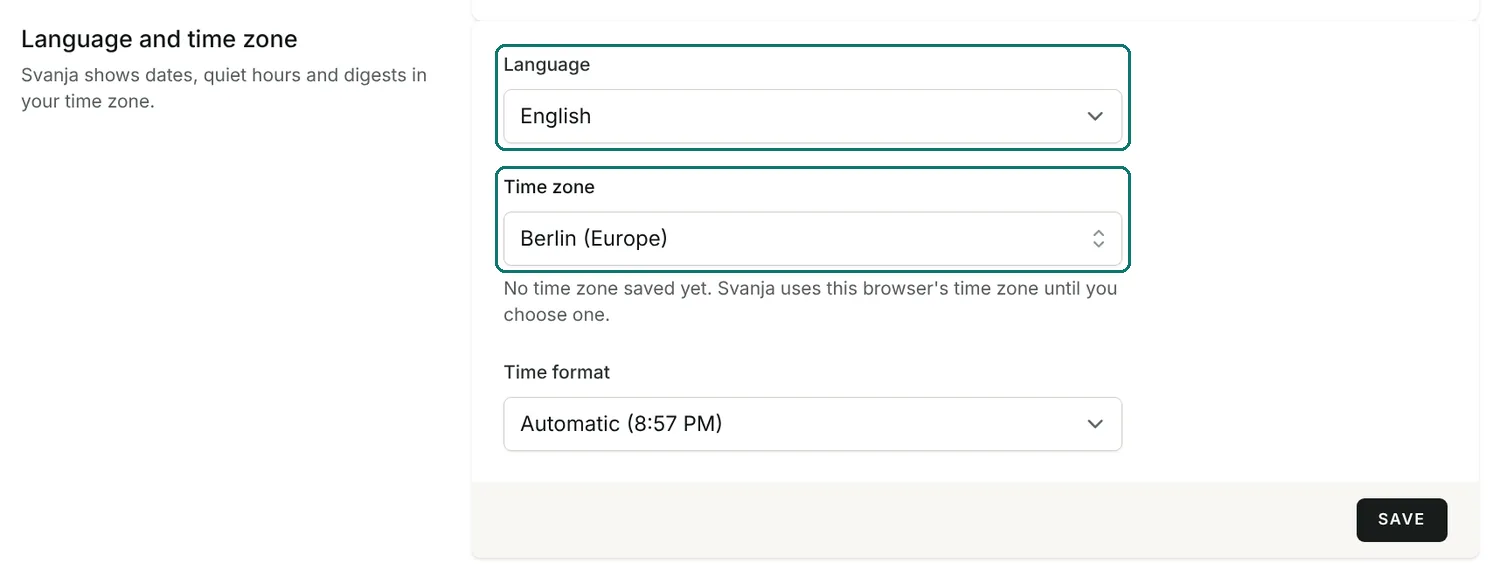
Your profile holds your name, photo, and email address, along with the language and time zone the app uses. Open it by clicking your picture at the top right and choosing Your Profile, or go straight to Profile.
- Profile Information: Update your Photo, Name, and Email, plus a LinkedIn profile and website if you want. If you change your email address, Svanja sends a link to confirm the new one.
- Language and time zone: Language switches the whole app between English and Deutsch. Time zone controls how dates, quiet hours, and digests are displayed. Until you save one, Svanja uses your browser’s time zone. Time format lets you choose Automatic, 12-hour, or 24-hour.
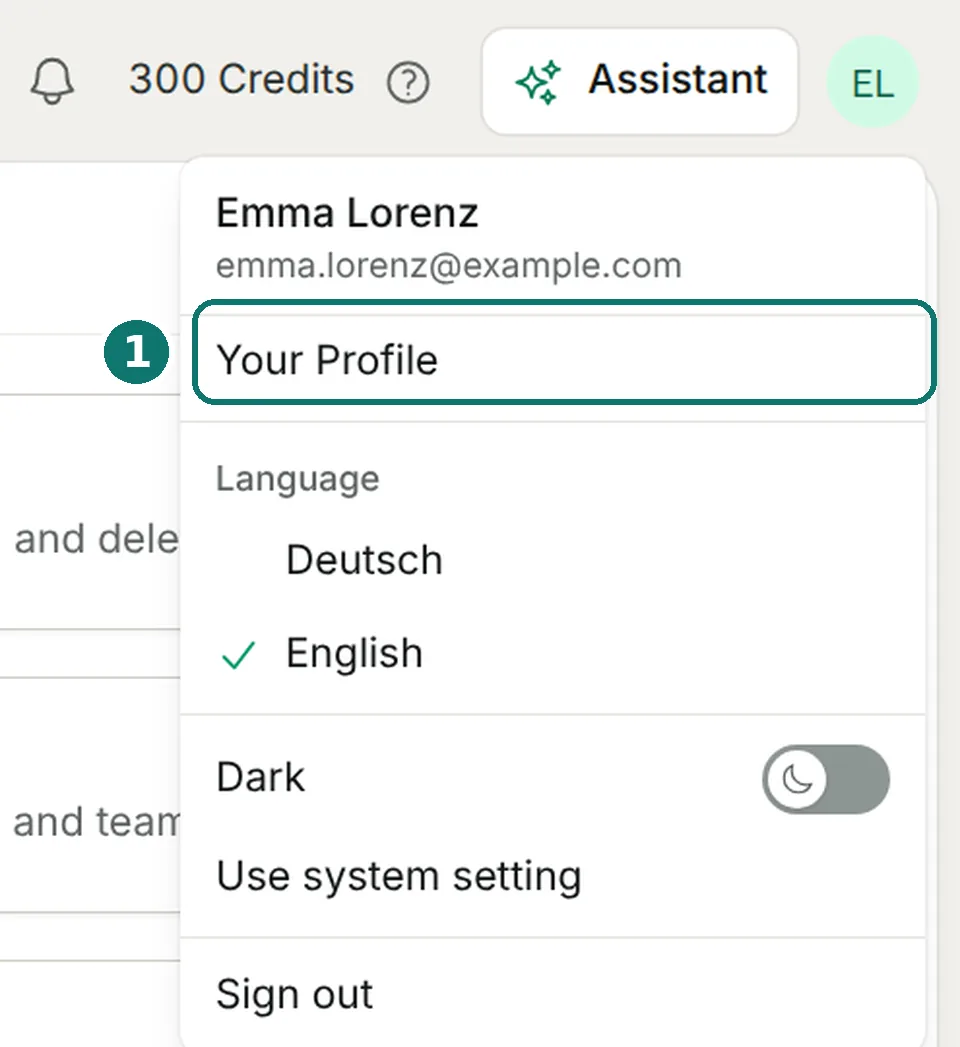
Each section has its own Save button. To turn on dark mode, use the Dark switch in the menu at the top right.
Change your password
Under Update Password on Profile, enter your Current Password, type the new password twice, and choose Save. If you forgot your password, click Forgot password? on the sign-in page, and Svanja will email you a reset link.
Login Methods on the same page shows how you can sign in. Right now, password sign-in is the only active option. Google and GitHub are listed, but they aren’t available yet, so both show Not linked.
Turn on two-factor authentication
Two-factor authentication adds an extra step when you sign in. After entering your password, you type a code from an authenticator app on your phone, such as Google Authenticator. Even if someone gets your password, they can’t sign in without your phone.
- Open Profile.
- Under Two Factor Authentication, choose Enable.
- Enter your password to confirm.
- Scan the QR code with your authenticator app, or enter the Setup Key manually.
- Type the code from your app under Code and choose Confirm.
- Save the recovery codes in a password manager.

From then on, Svanja asks for a code every time you sign in. If you lose your phone, a recovery code lets you back in. Each code works once. Choosing Regenerate Recovery Codes creates a new set and disables the old ones.
Sign out on other devices
Browser Sessions on Profile lists the browsers and devices where you are currently signed in. If you signed in on a computer that isn’t yours, choose Log Out Other Browser Sessions and enter your password. Svanja signs you out everywhere except your current browser. If you think someone else knows your password, change it too.
Change your team’s name and company
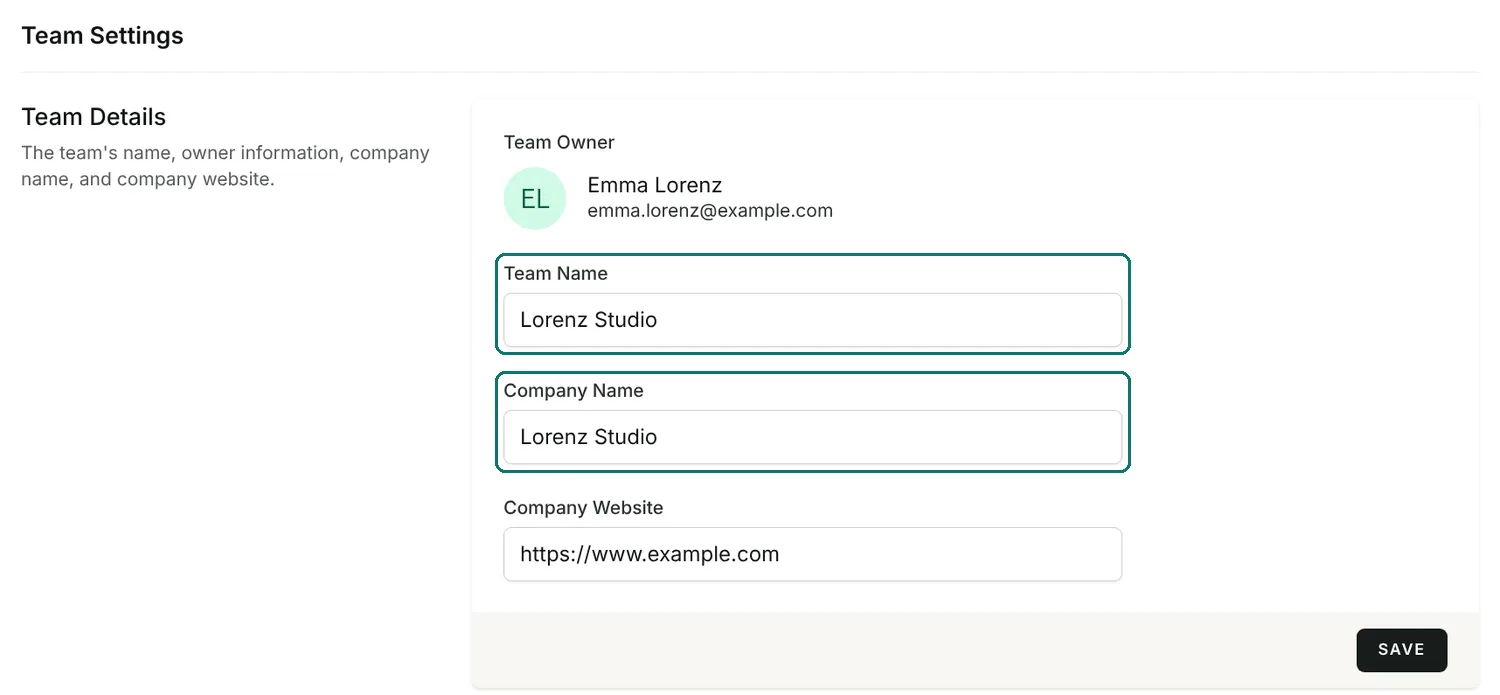
You can manage your team’s details in Team Settings. Open it by clicking the team name at the top left, or go to Settings and choose Team Settings. Under Team Details, the owner can set the Team Name, Company Name, and Company Website, then choose Save.
The name, color, and logo on your documents and shared pages are set separately under Document brand in Settings.
What can each role do?
Every team member has a role that determines what they can manage. What they can read also depends on the Spaces and mailboxes they have access to.
| Role | What they can do |
|---|---|
| Owner | Everything. Only the owner can add and remove members, change roles, and manage the plan, billing, and credits. Each team has one owner. |
| Administrator | Sees every Space and decides who can open which. Connects mailboxes and decides who can read them. Creates API keys. |
| Manager | Creates Spaces and edits the Spaces they can open. Sees the team members. |
| Member | Opens the Spaces they were given. Sees the team members. |
Owners and administrators can see every client and project Space. Mailboxes work differently: even owners and administrators need access to read a mailbox, though they can grant it to themselves. See Working together in shared mailboxes.
Invite someone to your team
You need the Team plan to invite other people. Each member takes a seat, and pending invitations count toward your seats too. On the Free and Pro plans, Team Settings shows a note about this with a See plans link.
- Open Settings and choose Team Settings.
- Under Add Team Member, enter the person’s email address.
- Choose a Role.
- Under Spaces they can open, check the Spaces this person should see.
- Choose Add.

Svanja emails the person a link to join. They need to sign in with that same email address to accept. Until they do, they appear under Pending Team Invitations, where you can choose Cancel to withdraw the invitation. If all your seats are full, add more on Plan and billing first. See Plans, credits and prices.
Change what a member can do
The owner can change a member’s role with Manage Role next to their name, or remove them from the team with Remove. To view or update which Spaces a member can open, choose Edit in their row. When someone requests access to a Space, the request appears there with Give access and Dismiss buttons.
Mailbox access is managed on the mailbox itself, in Settings under Mail management. To leave someone else’s team, choose Leave.
If a departing member owned shared tasks, those tasks appear under “Shared tasks need a new owner”. Open each one to take it over or stop it. You can set the monthly credit limit per member on Credits and usage.
Switch between teams
If you belong to more than one team, click the team name at the top left. Under Switch Teams, pick the team you want. Svanja will then show only that team’s mailboxes, Spaces, and contacts.
Delete your account
Deleting your account is permanent. It deletes any teams you own along with all their Spaces and data. Your subscription is canceled right away, and any remaining credits are lost. In teams owned by someone else, only your access is removed. Nothing is deleted at your email provider.
- Open Profile and scroll to the bottom.
- Choose Delete Account.
- Enter your password and choose Delete Account again.

Be sure to export your data before you delete your account. See Your data and privacy.