Many emails take longer than the reply itself because you first have to compare offers or dig up old details. Svanja’s assistant can take care of that work. It reads your mail, your contacts, and your Spaces, does the job you describe, and leaves a draft ready for you.
You decide how much it can do on its own. Every account starts out cautiously, with the assistant drafting and you doing the sending. This page walks you through everything from drafting a single reply to letting the assistant send emails by itself.
Start with one reply
Open an email and choose Draft a reply under the newest message. The assistant reads the thread and the client’s Space (if there is one), then puts a draft right into the email. Look it over, tweak anything you want, and send it.
When the assistant wants to send something, it shows a card with Send and Don’t send. To adjust the draft first, choose Ask for changes… on the card and tell it what to fix, like “shorter, and offer Thursday instead”.
Ask instead of searching
Instead of digging through old threads, let the assistant search your mail, contacts, and Spaces for you. Ask a question in the Chat:
- “What did this client write about the budget in July?”
- “Which offers did I send this month that got no answer?”
It replies right in the chat with what it found. See Chat and the assistant.
Give it a bigger job
Write what you need the same way you’d brief a colleague. Open the email, choose Ask the assistant, then Ask about this email…, and describe the job:
Compare the three hosting offers in this thread on price, storage
and support, and draft a short recommendation.
Quick jobs get answered in the chat. Longer ones turn into background tasks, and you can answer the assistant’s questions while it works. When it’s done, you’ll see the result in the chat and on the task’s page under Tasks. See Tasks.
If you want the assistant to look into an email and report back with next steps, without writing a reply, choose Make this a task in the same menu.
Save a job that went well as a skill
A skill is a saved set of steps for a job you do more than once. When a task turns out well, choose Save as skill on the task page. You review the steps the assistant wrote down, and it will follow them next time. All your skills live under Skills. See Skills.
What does it do without asking?
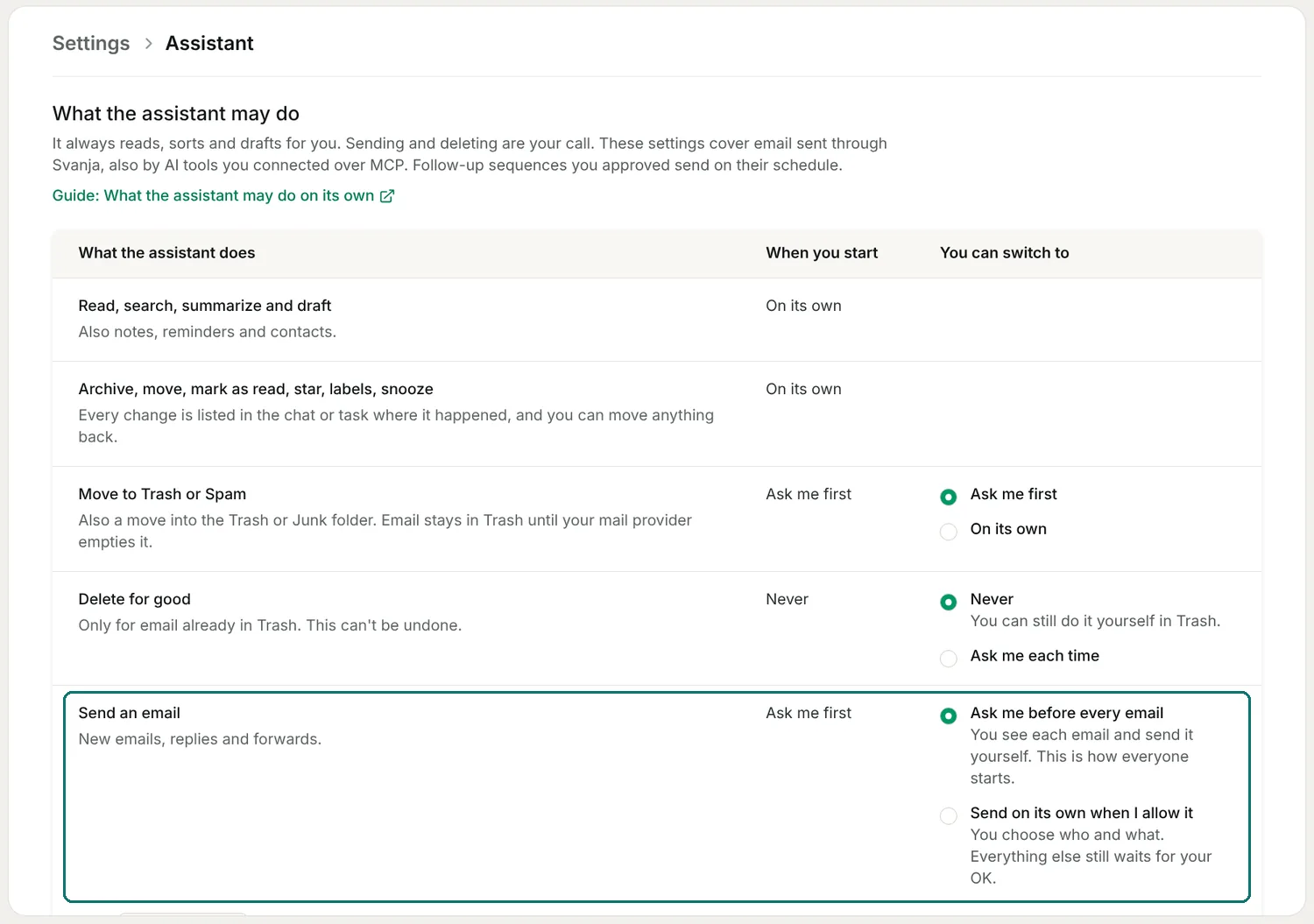
You can check what the assistant is allowed to do in Settings, Assistant. Every account starts with these defaults:
| What | Starts as |
|---|---|
| Read, search, summarize and draft, also notes, reminders and contacts | On its own |
| Archive, move, mark as read, star, labels, snooze | On its own |
| Move to Trash or Spam | Ask me first |
| Delete for good | Never |
| Send an email | Ask me before every email |
Moving and archiving sync with your mail provider, too. Every change is logged in the chat or task where it happened, so you can always move things back. See What the assistant may do on its own.
Let it send some emails on its own
Once you’re comfortable letting the assistant handle certain emails, you can allow it to send them itself.
- Open Settings, Assistant.
- Under Send an email, choose Send on its own when I allow it.
- Under May send on its own to, add the addresses or domains it may write to, like
support@shopify.com.
The page also lets you choose When I tell it to send and When my instructions say so. Some contacts stay protected by default. Always ask me first for starts with people you have emailed before, contacts marked Personal, and colleagues at your own company.
By default, the assistant sends at most 20 emails a day on its own and waits 30 seconds before each one so you have time to stop it. Every email it sends automatically includes a note explaining why it was allowed.
What does it cost?
You pay for the assistant’s work with credits. A quick reply uses a few, while a longer investigation uses more, and every task shows its exact cost. If a task is estimated at more than 200 credits, the assistant asks before starting. You can adjust that limit on Credits and usage. See Credits and prices.