A Space is a folder for one client or project. It holds your notes about that client, the files they send you, and instructions for the assistant, like “write to this client in English and keep it short”.
A Space sits right next to the client’s emails. When a client writes, you, your colleagues and the assistant can all look in the same place instead of searching through a notes app or a drive. A client Space is linked to the client’s company in Contacts, so Svanja knows which Space belongs to which sender. Every change is saved, so you can always get an earlier version back.
What kinds of Spaces are there?
| Space | What it’s for | Who can open it |
|---|---|---|
| Personal | Your own notes and drafts. Every account has one. | Only you |
| Client | One company from your contacts | The people added to it |
| Project | Work that isn’t tied to one client | The people added to it |
| Team library | Skills, templates and procedures the whole team uses. Part of the Team plan. | Everyone in the team |
Your Personal Space starts with an About me note where you can tell the assistant about your work. Open Spaces to see your client and project Spaces, or click Personal Space to open your own.
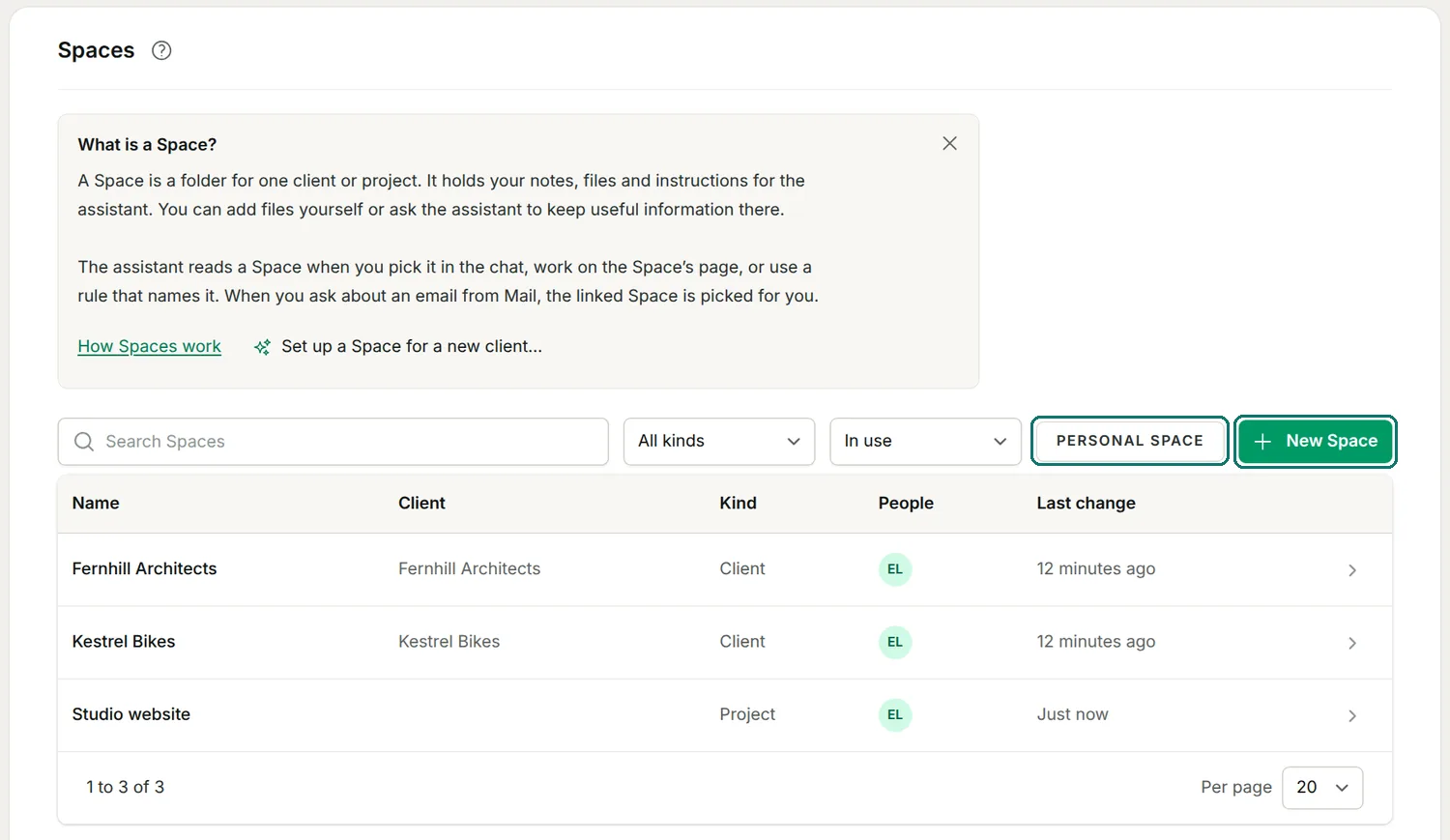
Create a Space
- Open Spaces.
- Choose New Space.
- Under What is it for?, choose A client or A project.
- For a client, pick the company under Client, or type a new name to create the company.
- Check the Name. A client Space takes the company’s name.
- Optional: add a Description and choose the Language for documents.
- Choose Create Space.
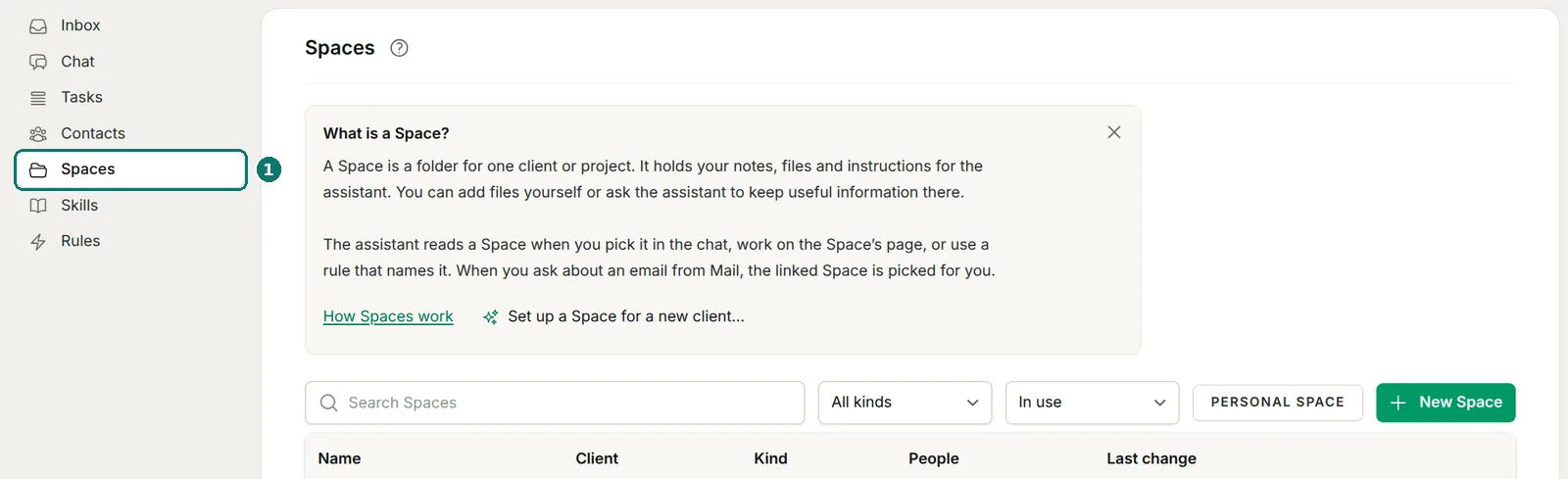
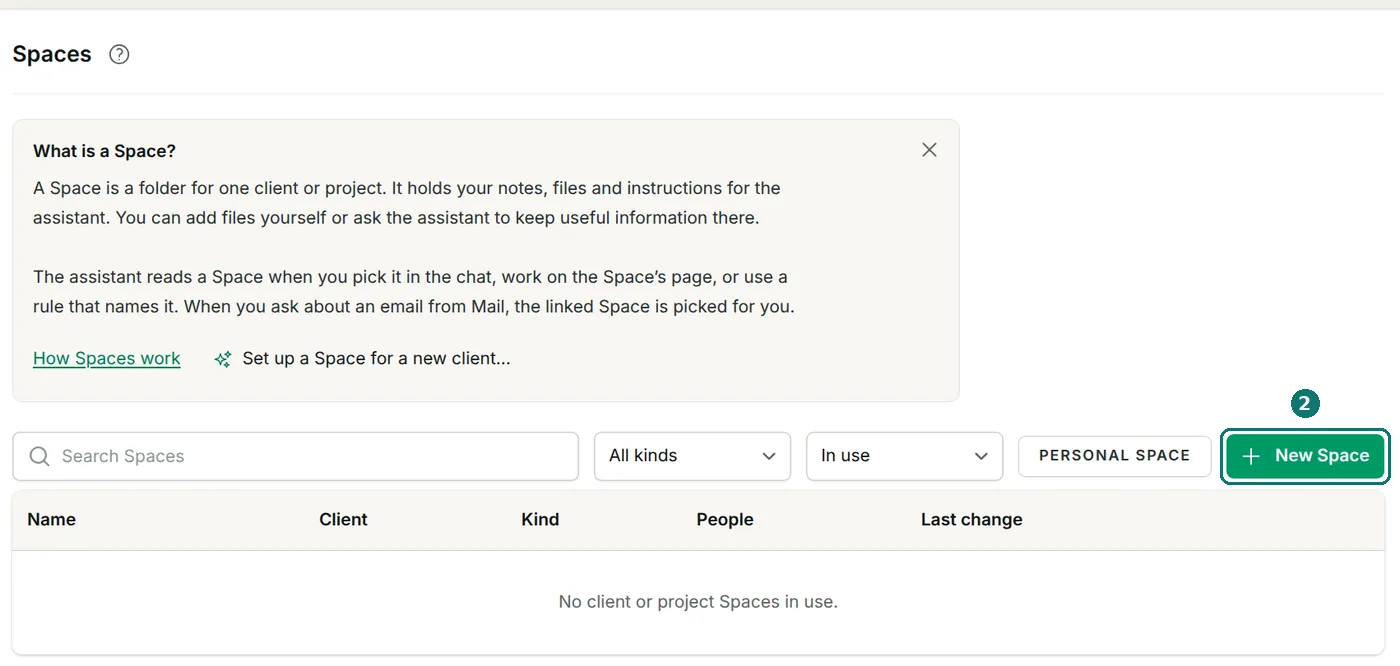
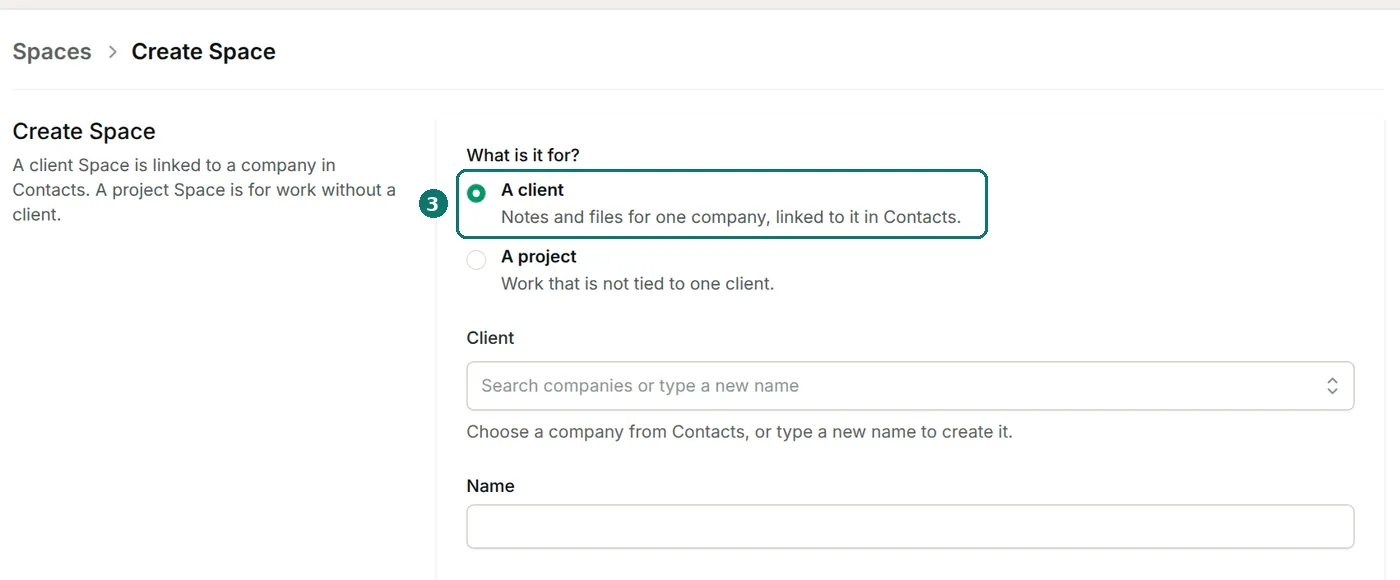
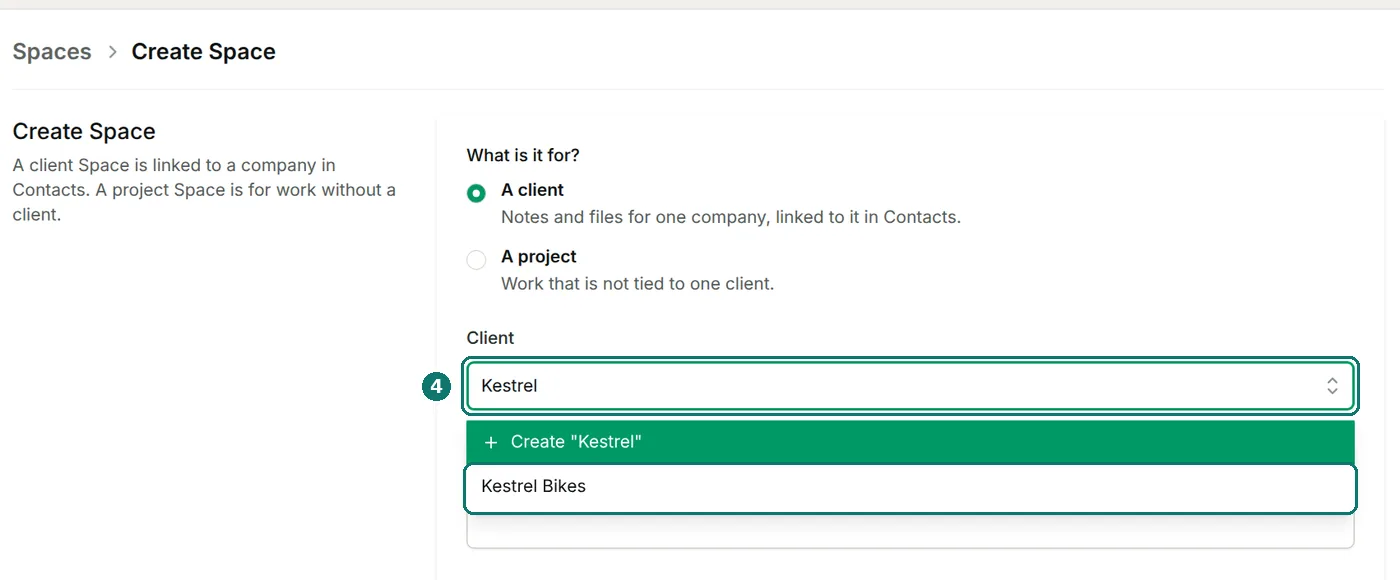
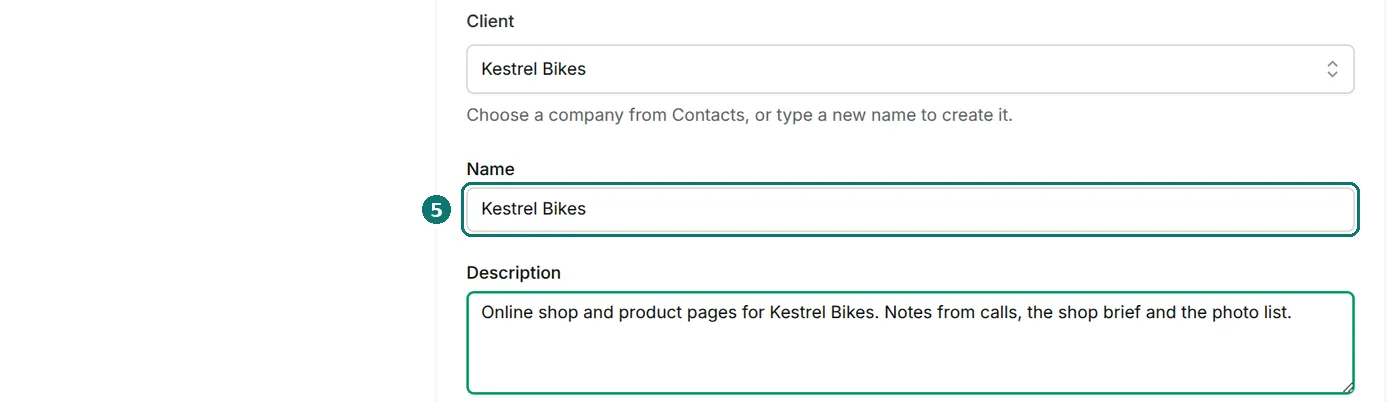
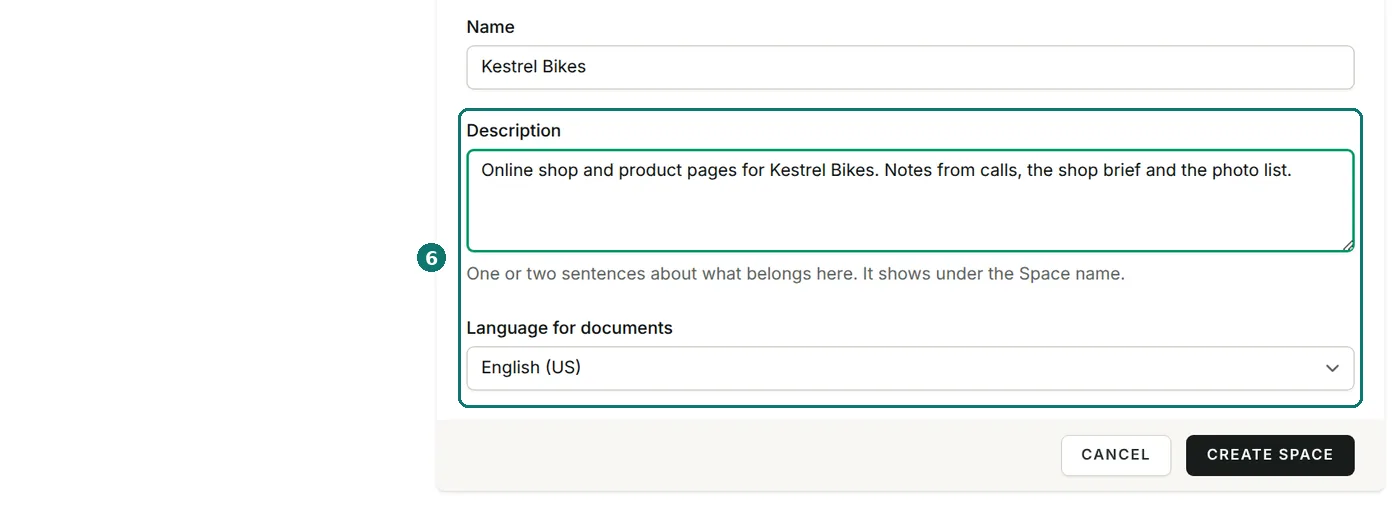
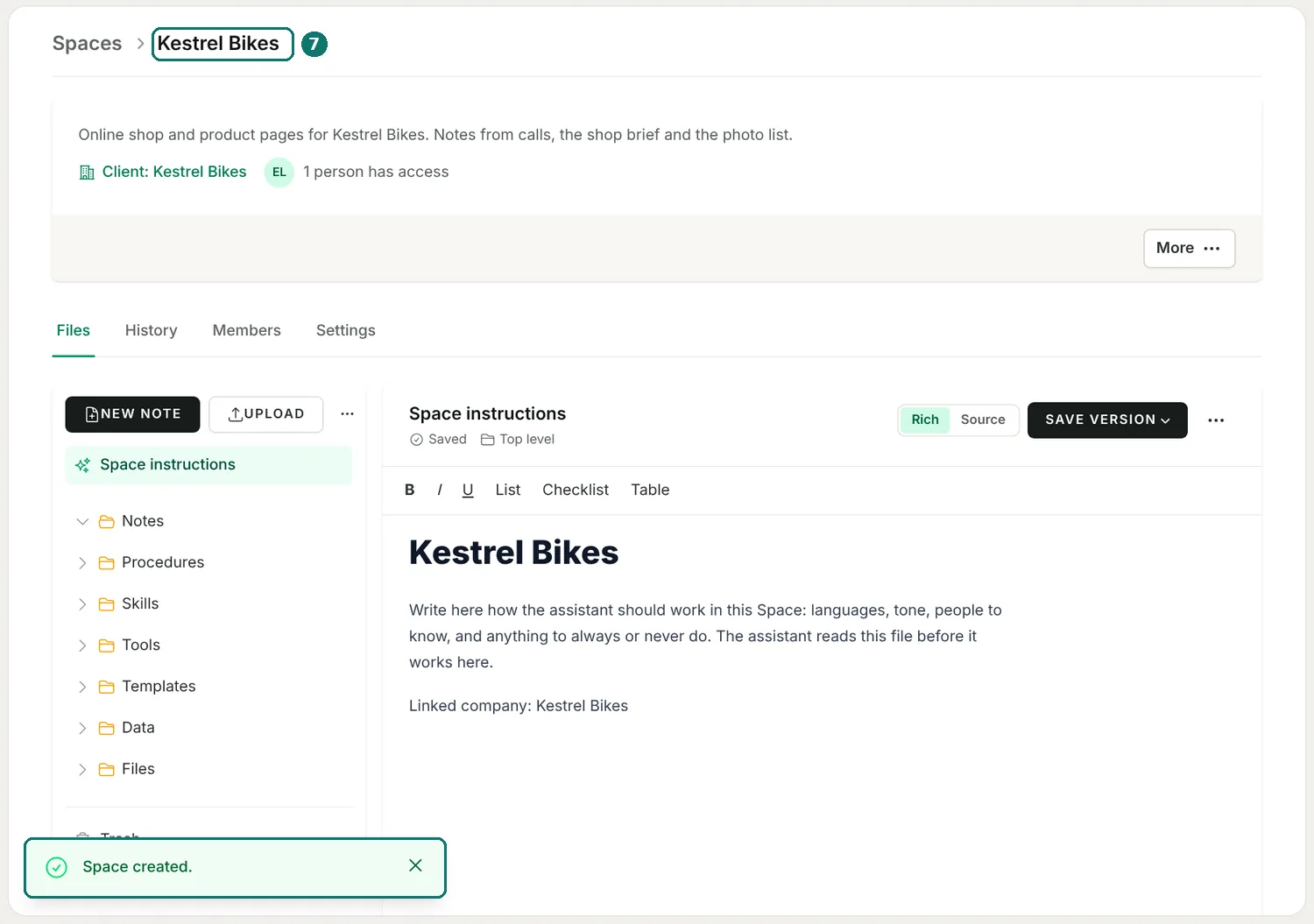
The new Space opens and sets up its files within a few seconds. The assistant uses the description and language whenever it works there. You can also create a client Space from a company’s page in Contacts by choosing Create client Space.
The Free plan includes 3 client and project Spaces in total. When you reach that limit, archive a Space or upgrade.
What’s in a Space?
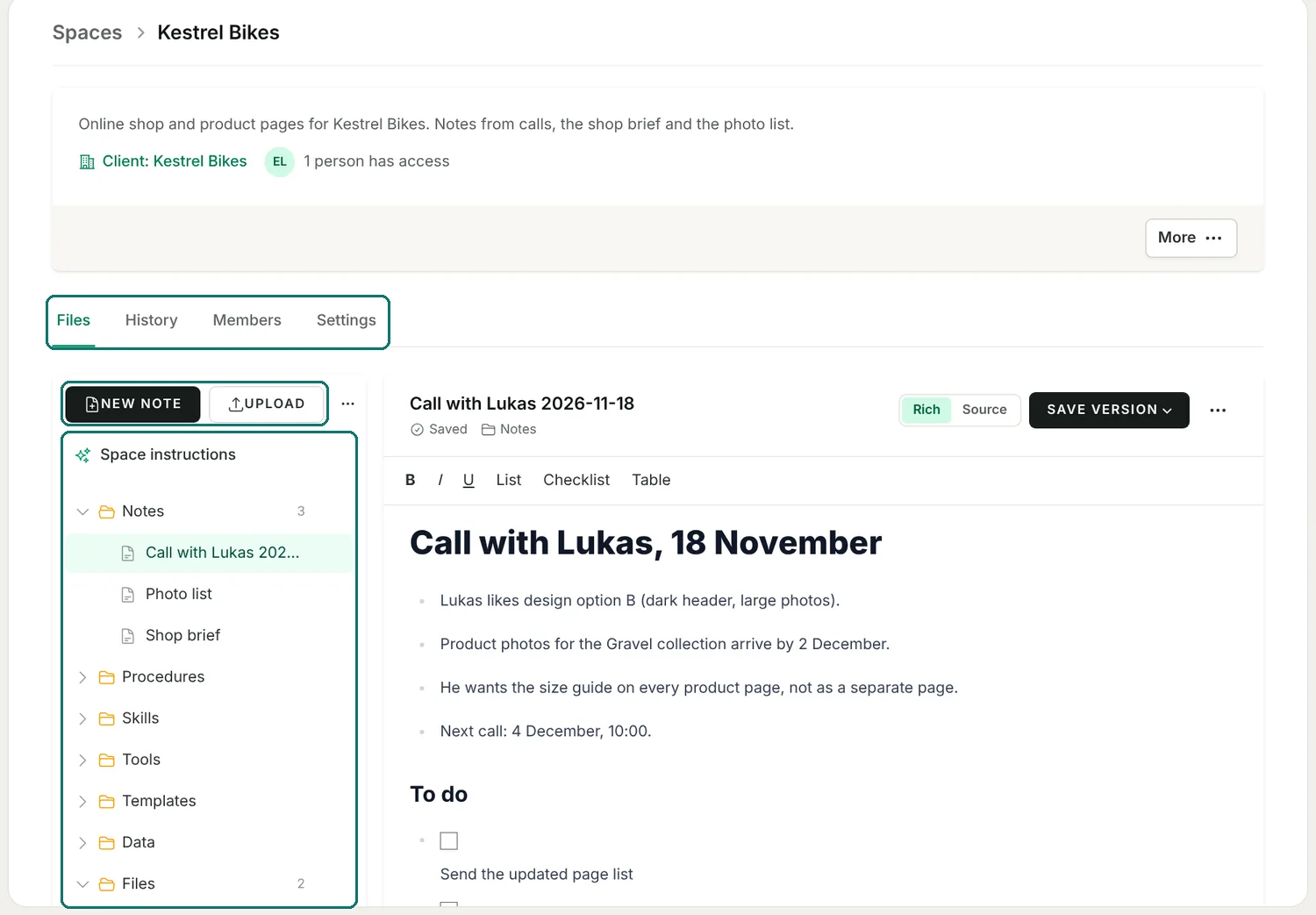
A Space’s page has four tabs: Files, History, Members and Settings. More at the top holds Export this Space, Archive and Move to Trash.
On Files, the left side lists the folders and the right side shows whatever you have open.
- Space instructions: what the assistant should know about this client.
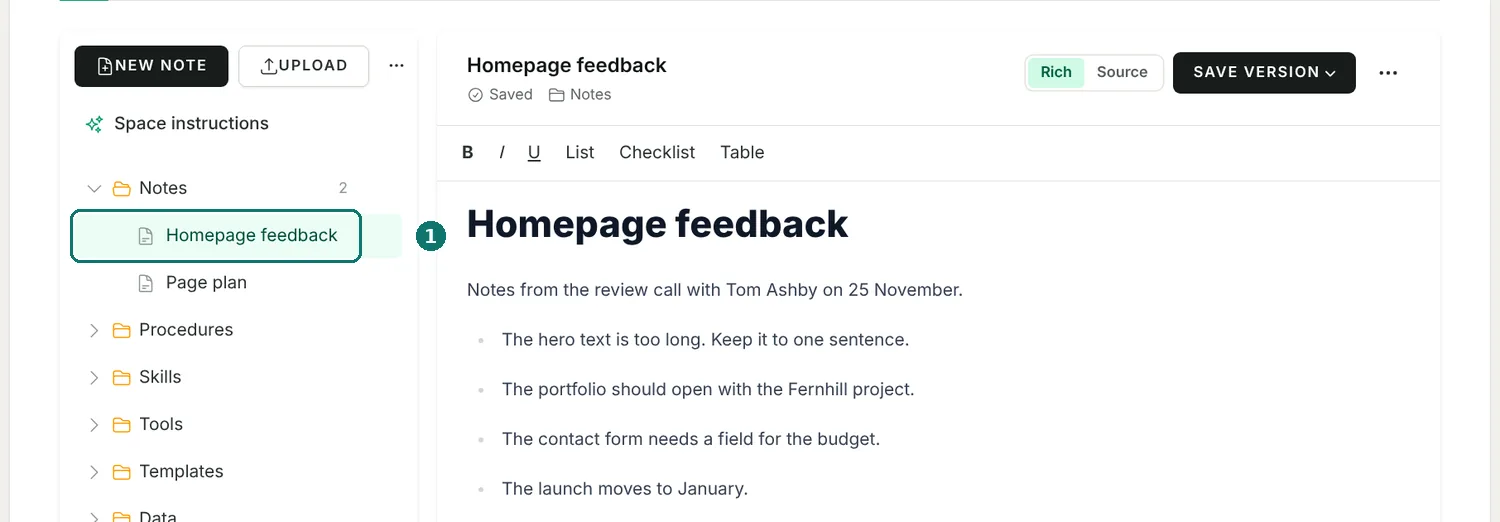
- Notes: your notes. New notes go here unless you pick another folder.
- Procedures: step-by-step how-tos.
- Skills and Tools: saved in this Space. See Skills.
- Templates: document templates, like a letter.
- Data: what templates pull from to fill documents, like a CV profile.
- Files: uploads, like PDFs and images.
- Trash: notes and files you deleted.
Tell the assistant how to work for this client
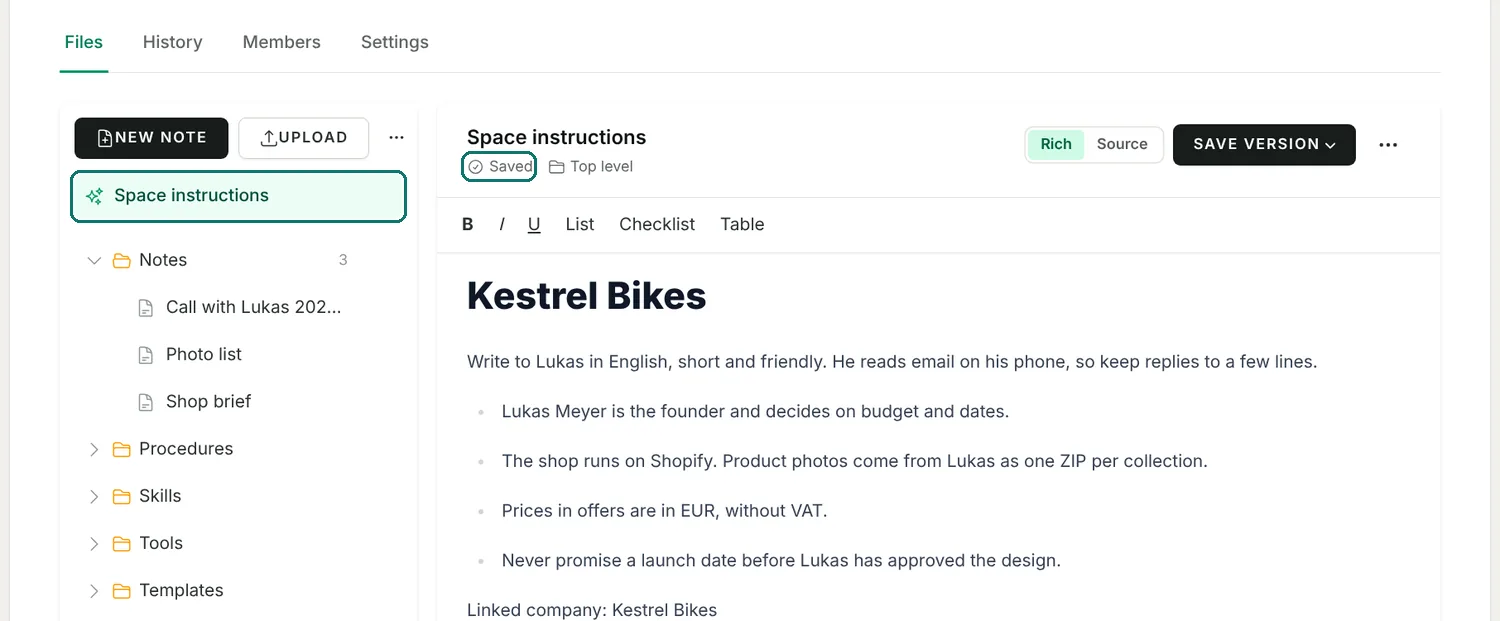
The assistant reads the Space instructions first every time it works in a Space. Write down what a new colleague would need to know: the language and tone, who makes which decisions, and anything to always or never do. For example:
Write in English, short and friendly. Keep replies to a few lines.
The founder decides on budget and dates.
Prices in offers are in EUR, without VAT.
Never promise a launch date before the design is approved.
Open the Space and choose Space instructions at the top of the folder list. Start writing, and your text is saved as you type. In a client Space, the last line names the linked company, so leave it as it is. Keep the instructions to about a page, and put longer how-tos in Procedures. Developers know this file as AGENTS.md.
Write a note
Notes hold what you know about a client, like call notes or a project brief.
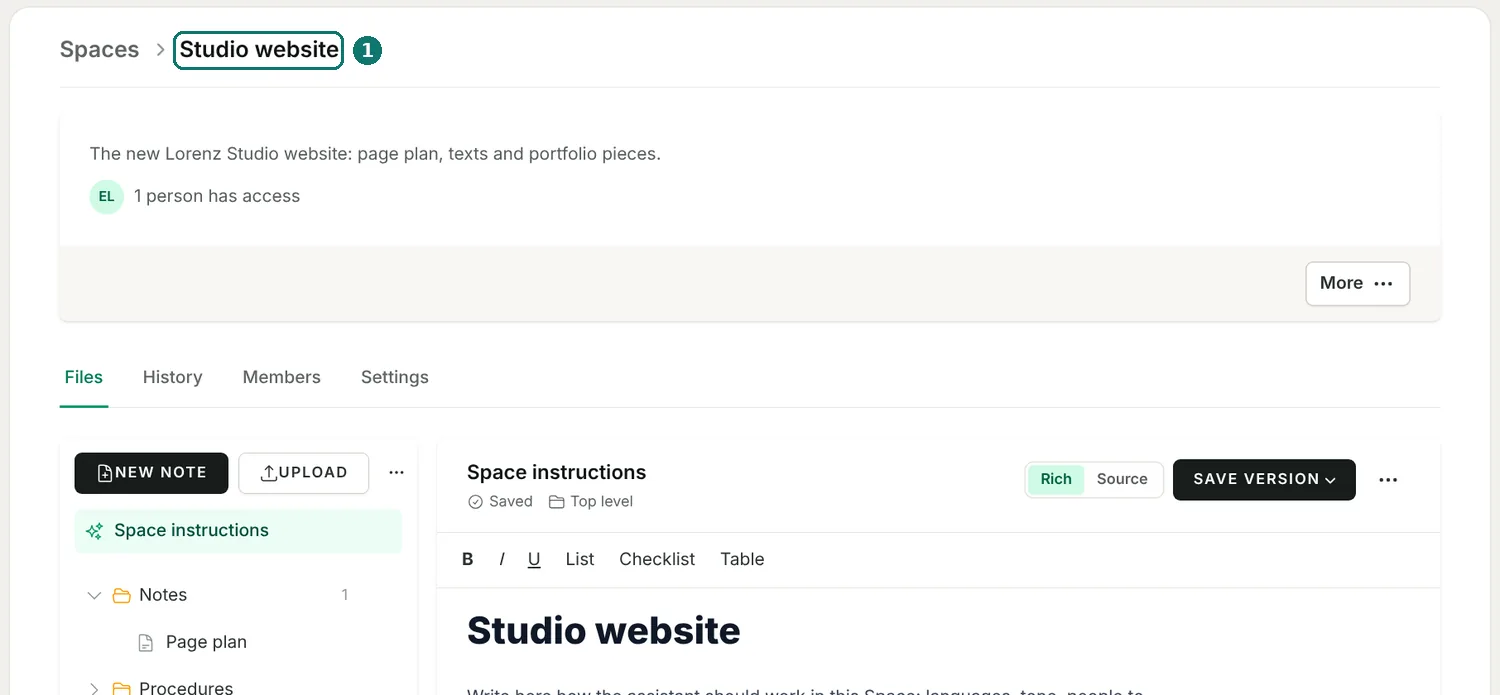
- Open the Space from Spaces.
- Choose New note.
- Type a Name for the note.
- Check the Folder. Notes is already selected.
- Choose Create note.
- Write.
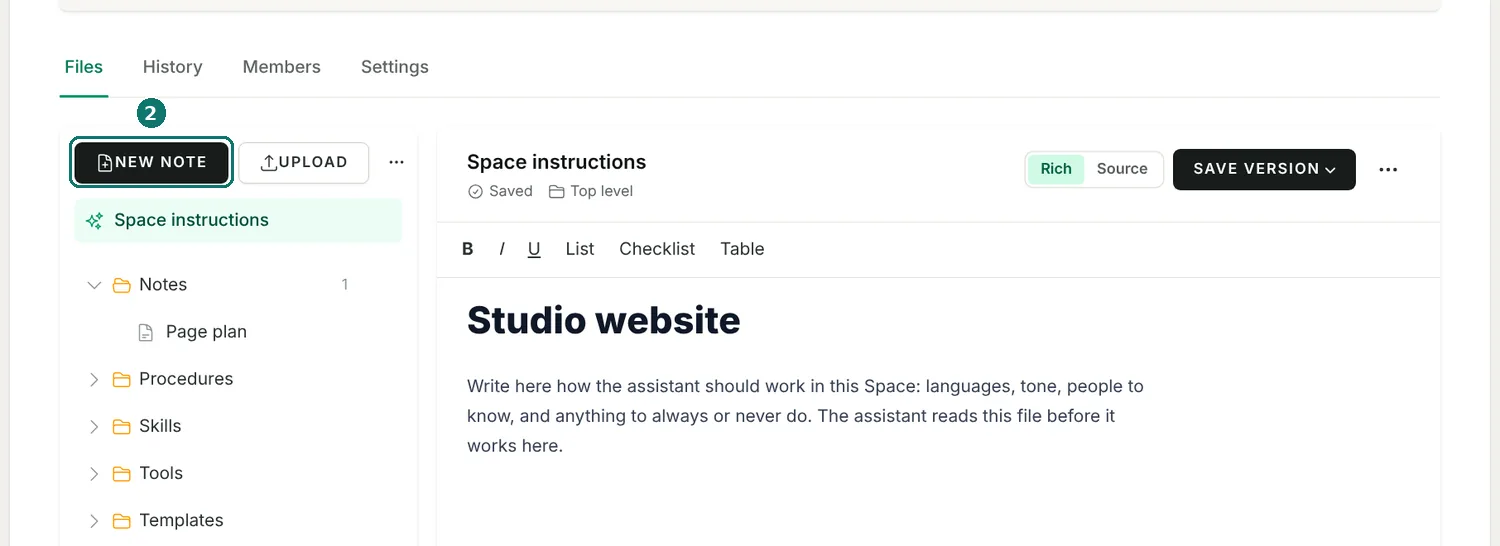
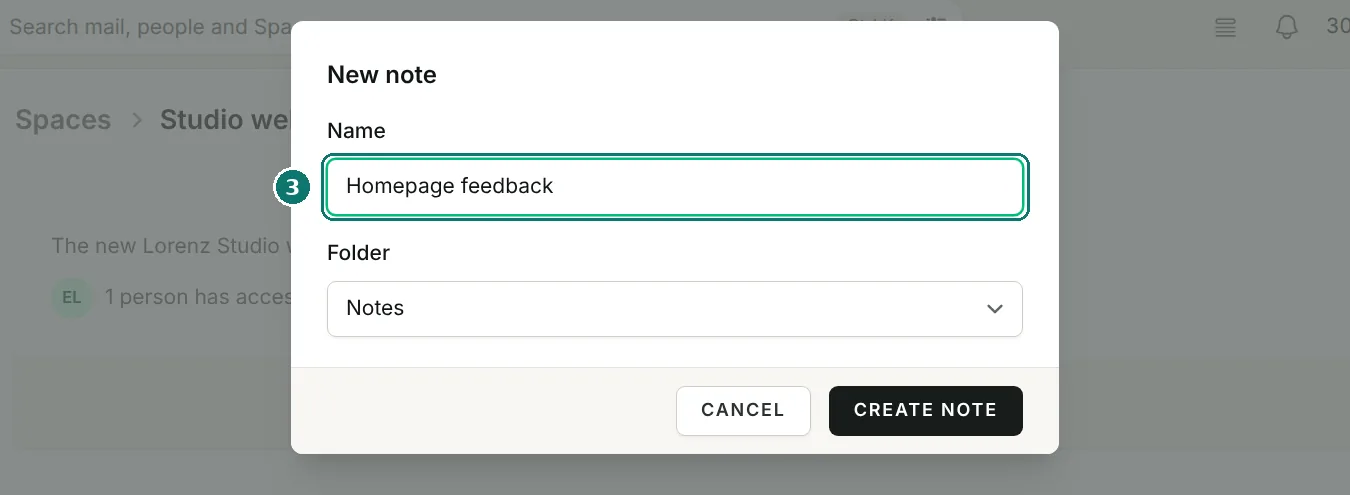
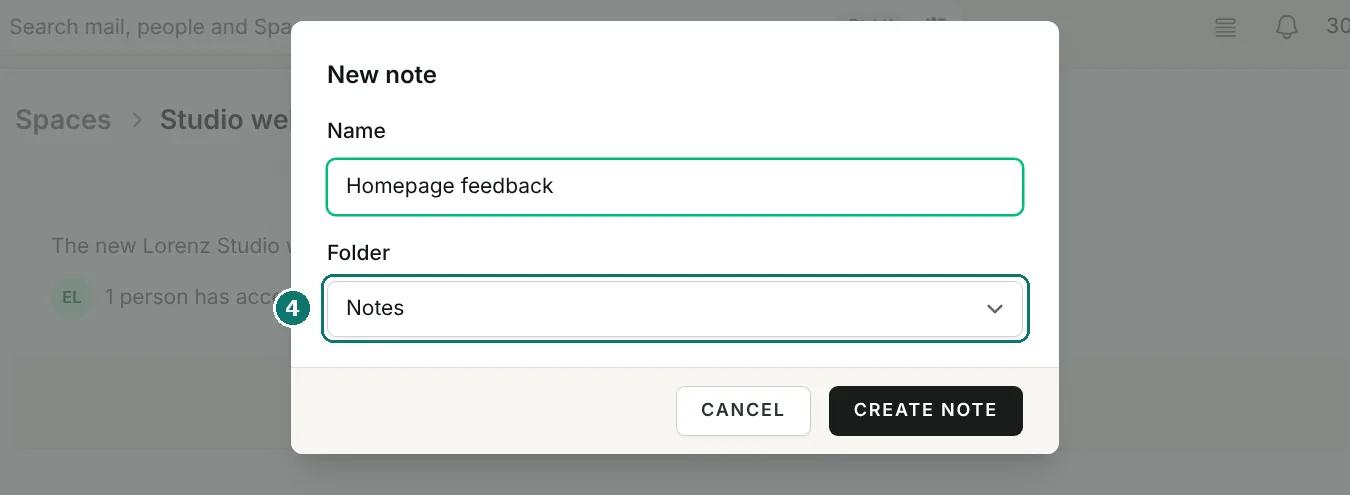
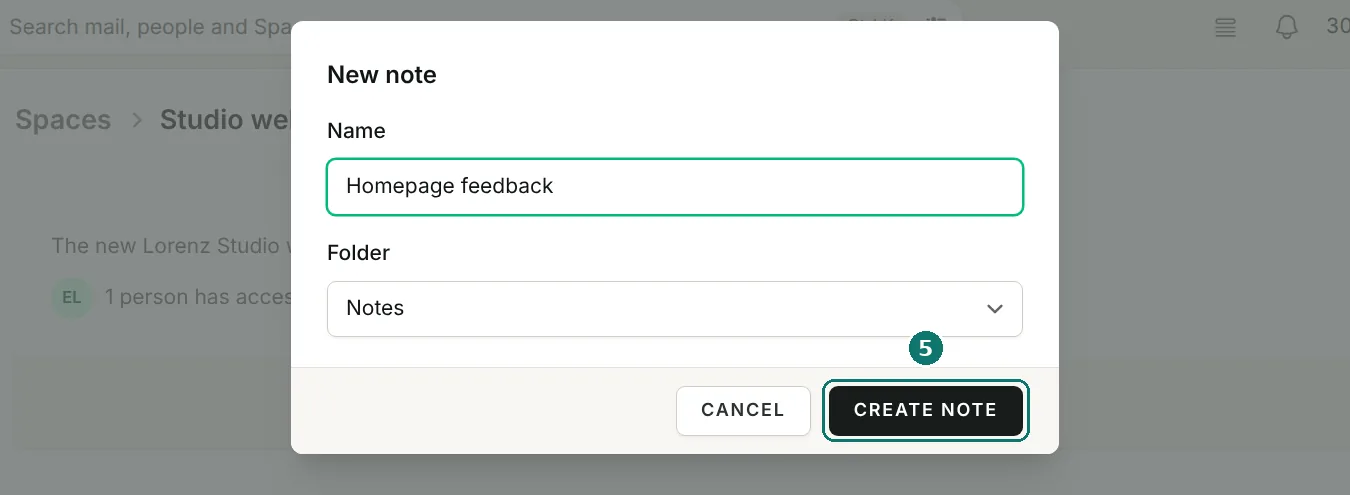
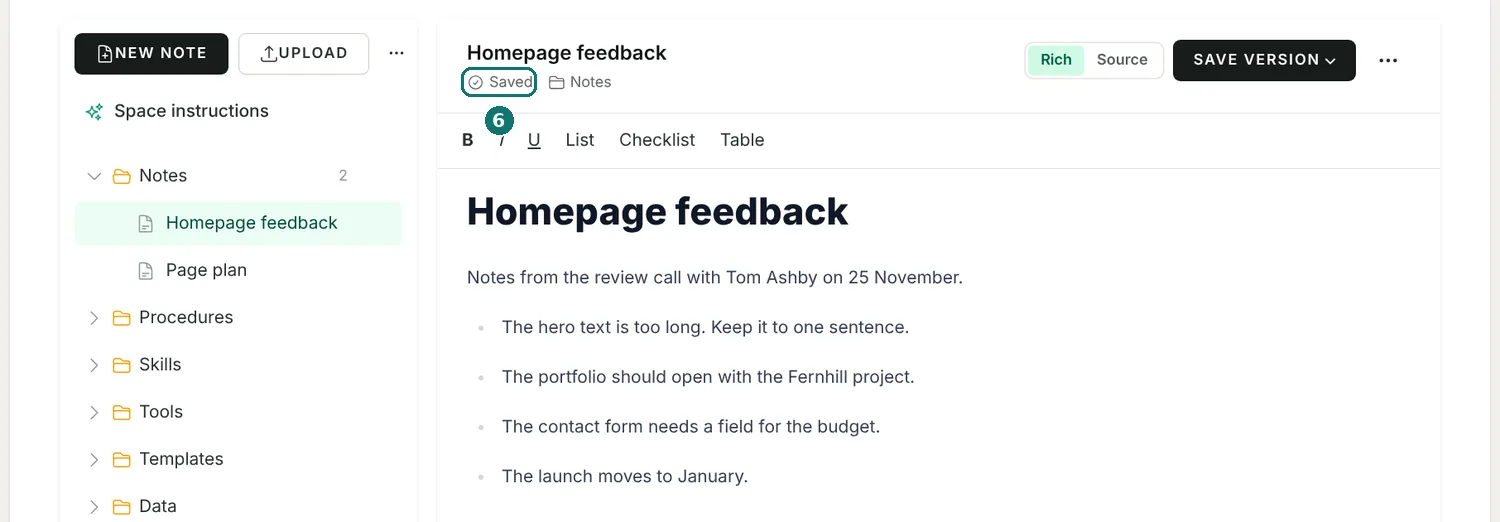
Your text is saved as you type, and the status shows Saved. The buttons above the editor add lists, checklists and tables. Each note is a Markdown file (plain text with marks like **bold**), though you don’t need to know Markdown. Rich shows the formatted text, and Source shows the plain Markdown. To link to another note, type [[ and its name.
Save version adds a named point to the history, like “Budget approved”. You don’t need it to save your work, but it makes an important state easy to find later.
Get an earlier version back
Every change is kept, including changes made by the assistant, which are marked as such.
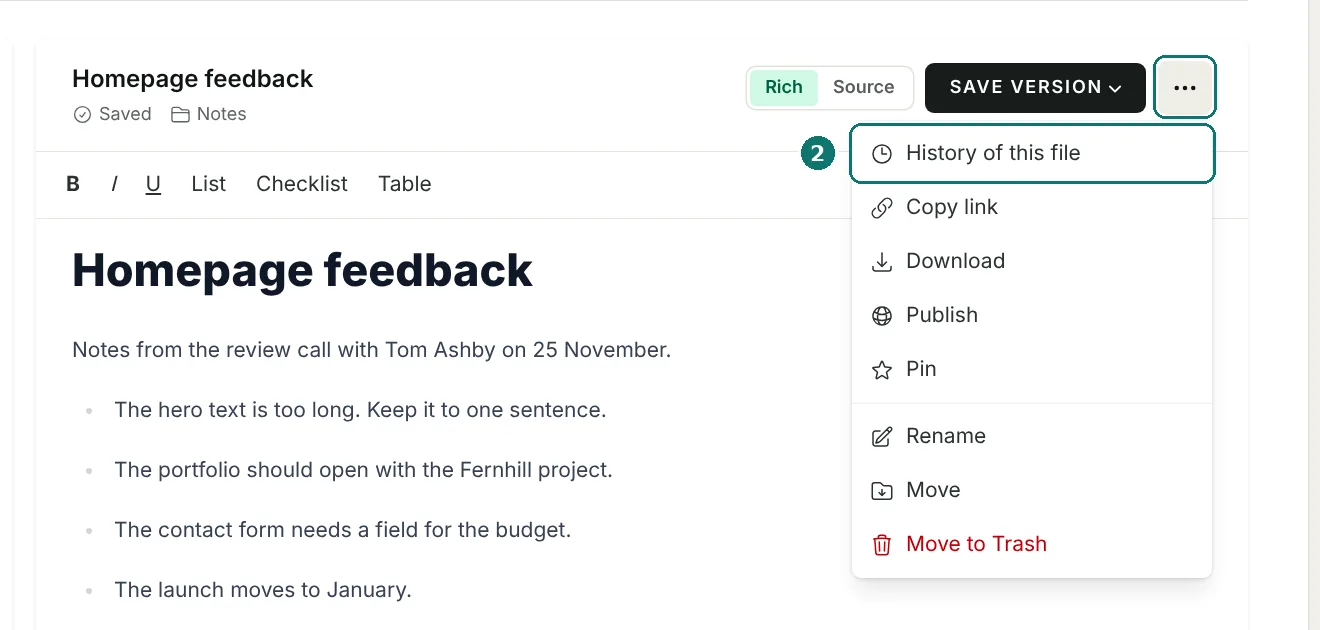
- Open the note.
- In its three-dot menu, choose History of this file.
- Choose a change to compare it with now.
- Choose Restore this version or Undo this change.
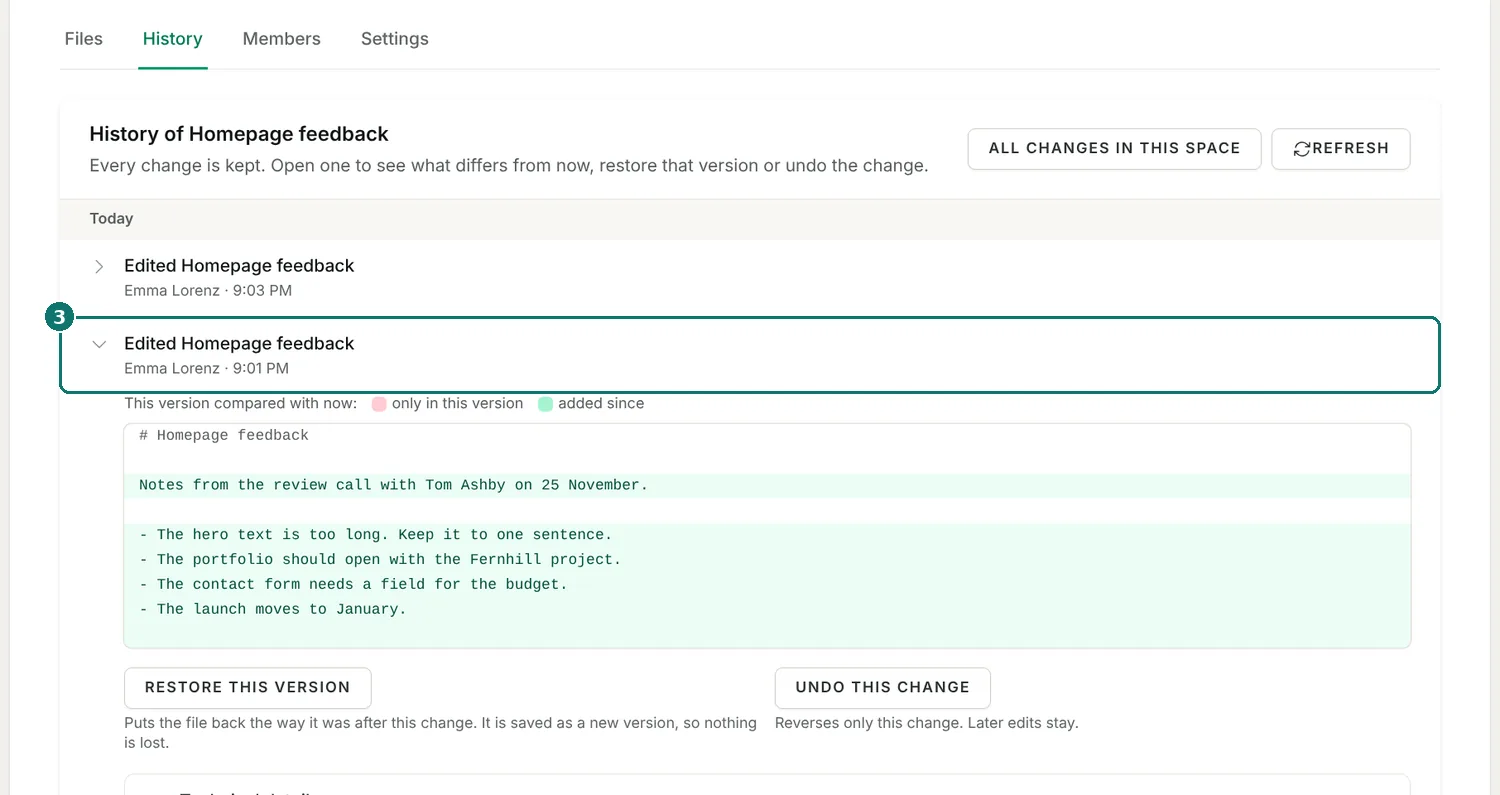
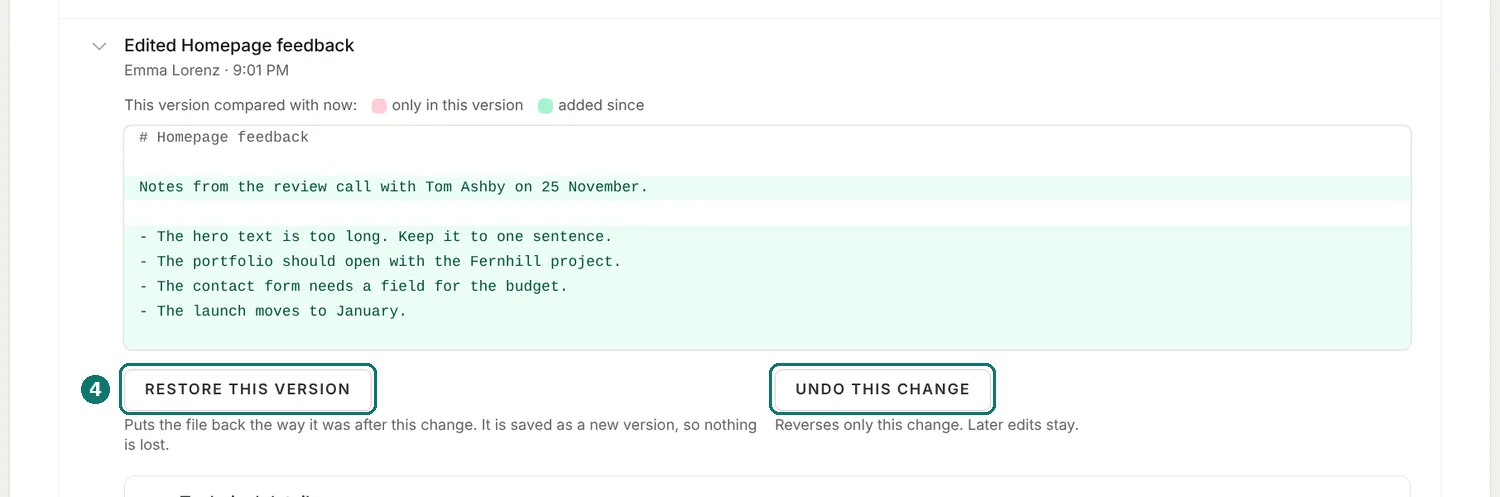
Restore this version brings the file back to that exact state. Undo this change reverses only that edit and keeps anything added later. Both save a new version. The Space’s History tab shows all changes, day by day.
Add a file
Choose Upload and pick one or more files. They go straight to the Files folder. To upload to another folder, choose Upload here in that folder’s three-dot menu.
Files can be up to 100 MB each. PDFs, images and spreadsheets open right in the browser. If a file with the same name is already there, choose Replace or Keep both. To bring in many files at once, see Import, export and Git.
How does the assistant use a Space?
The assistant works in a Space when:
- you pick the Space in the chat
- you ask it something on the Space’s page
- you ask about an email from a company with a client Space, which picks that Space for you
- a rule names the Space
It reads the Space instructions and searches that Space first. It can also write notes for you, like “add today’s call to the client’s notes”. Its changes show up in History and under Changes in Tasks, where you can undo them. See Chat and the assistant.
To keep the assistant out, turn on Hide from the assistant in the Space’s Settings. Once that’s on, it won’t search, read or change anything in that Space.
Who can open a Space?
A client or project Space is only open to the people added to it, plus the team’s owner and admins. Adding teammates is part of the Team plan: on Members, an owner or admin ticks the teammates and chooses Save access.
A teammate without access can choose Ask for access. The owner and admins then get a notification with Grant access.
Archive or delete a Space
Archive, under More, makes a Space read-only and stops it from counting toward the Free plan’s limit. To work in it again, find it on Spaces under State and choose Restore.
Move to Trash deletes a Space. You can restore it while it’s in Trash (the number of days depends on your plan, shown below) from Spaces under State or from Data and Trash. After that, it’s deleted for good. Deleted notes and files stay in the Space’s own Trash just as long, with Restore next to each one. Your Personal Space and the team library can’t be deleted.
| Free | Pro | Team | |
|---|---|---|---|
| Client and project Spaces | 3 | No limit | No limit |
| Storage, including versions | 1 GB | 50 GB | 100 GB plus 25 GB per member |
| Days in Trash | 30 | 60 | 90 |
| Teammates in a Space | No | No | Yes |
When storage is full, nothing is deleted, but new files have to wait. Credits and usage shows how much you use. See Credits and prices.