svanja is Svanja in your terminal. It calls the same REST API as the app, so you can read a client’s notes or start a task without opening a browser. Scripts and coding agents on your computer can do the same. The command line is also how you pair your own computer so tasks can run there.
This page covers installing, signing in, and the things every command has in common. The command reference has one page per group of commands, with every flag and example.
Install the command line
The app serves an installer for each system. On macOS or Linux, run this in a terminal:
curl -fsSL https://app.svanja.com/install.sh | shOn Windows, run this in PowerShell:
irm https://app.svanja.com/install.ps1 | iexThe installer downloads the right file for your system and checks it against the published checksums. Builds are available for macOS (Apple silicon and Intel), Linux (x86-64 and ARM64), and Windows (64-bit).
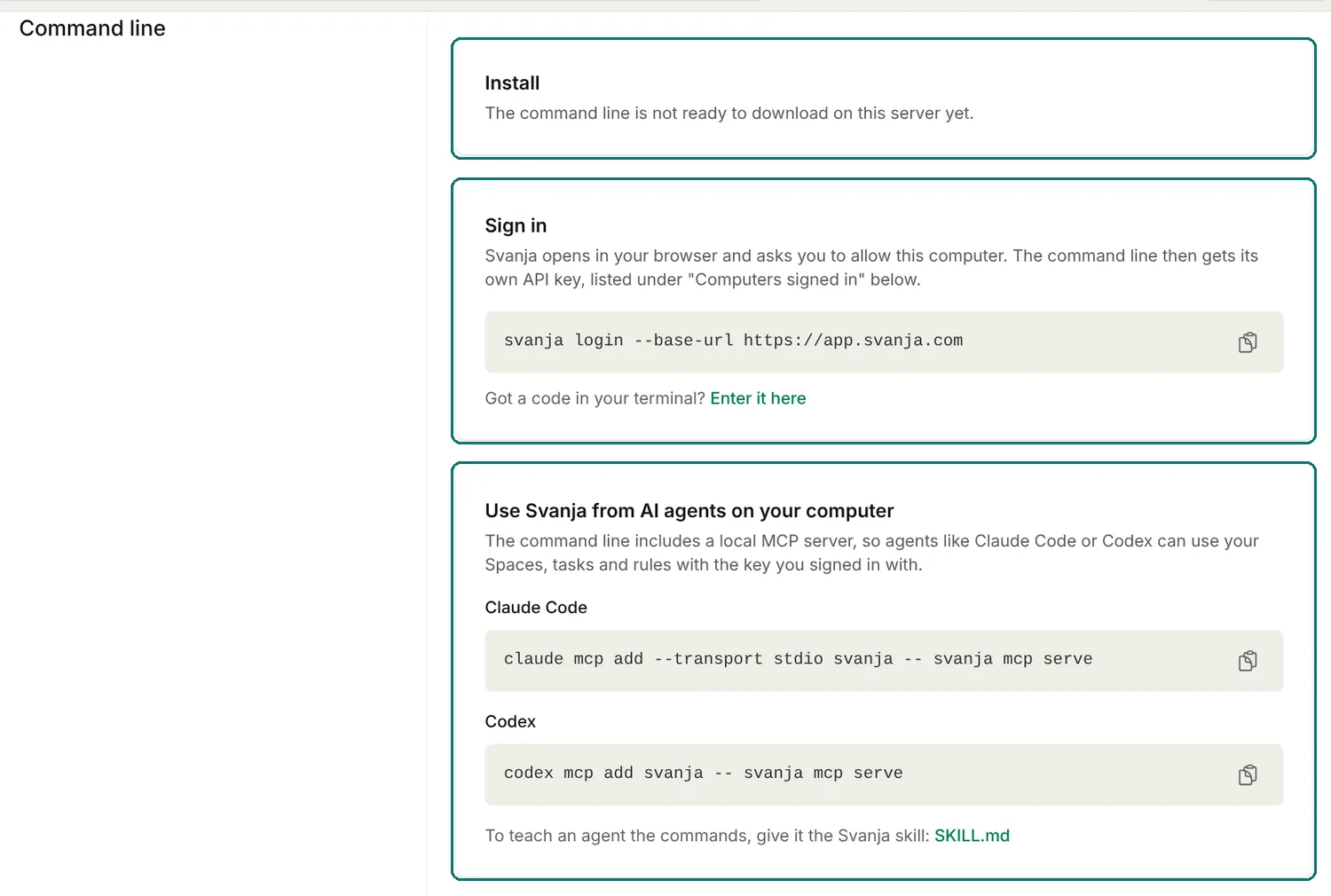
Right now, the downloads aren’t published yet. The Command line section on the API Keys page says the command line isn’t ready to download yet, and the installer stops with “Could not download”. Once that section shows the install commands, the steps on this page will work. To check, open Settings and choose API Keys.
The installer puts svanja here:
| System | Folder |
|---|---|
| macOS and Linux | /usr/local/bin when the installer can write there, otherwise ~/.local/bin |
| Windows | %LOCALAPPDATA%\Programs\svanja. If that folder isn’t on your user Path yet, the installer says so. |
If the terminal says it can’t find svanja, add that folder to your PATH (on Windows, the user Path in the environment variables). You can also run it using its full path, like ~/.local/bin/svanja or & "$env:LOCALAPPDATA\Programs\svanja\svanja.exe".
The macOS and Linux installer takes a few options:
| Option | What it does |
|---|---|
--version 0.1.0 |
Installs that version instead of the latest |
--dir ~/bin |
Installs into that folder |
--runner-setup |
On Linux, sets up what a paired machine needs, without asking |
--no-runner-setup |
On Linux, doesn’t offer that setup |
Pass them like this: curl -fsSL https://app.svanja.com/install.sh | sh -s -- --dir ~/bin. The Windows installer takes -Version and -InstallDir. To update, run the installer again.
Then check that it works:
svanja version
svanja doctor
svanja doctor checks your setup without changing anything and tells you what’s missing.
Sign in through your browser
Signing in gives the command line its own API key. An API key is the secret that proves who is calling (see The REST API). You need to be a team owner or admin on Pro or Team to create one.
-
Run this in a terminal:
svanja login --base-url https://app.svanja.com -
Svanja opens in your browser. Sign in if you aren’t already.
-
Check that the code on the page matches the code in your terminal.
-
Choose Approve.
Always pass --base-url https://app.svanja.com the first time, because the command line’s built-in address is different. The command saves it in your profile.
After you approve, the command line stores its key on your computer. The key shows up on the API Keys page under Computers signed in. If the browser doesn’t open, choose Enter it here in the Command line section of that page, or open app.svanja.com/cli/authorize, and type the code from your terminal.
Before you approve, the page shows what the new key can access. By default, it gets full access to the team and all Spaces, and expires in 90 days. If you have mailboxes in Svanja, Allow Mail access is checked for them too. Open Advanced settings to change the team, access level, Spaces, mailboxes, or expiration (90 or 30 days). Once the key expires, run svanja login again.
On the Free plan, you can’t approve the browser sign-in because it requests a full-access key, and Free only allows one read-only key. Create the read-only key in the app and sign in with it using the steps below. Read commands will work, while commands that change data will return forbidden_ability.
Sign in with a key you created
For a script, a CI job, or a key with less access, create a key on the API Keys page with only the access it needs. Then sign in with it:
svanja login --api-key --base-url https://app.svanja.comThe command prompts for the key without displaying it. You can also pipe it in, or set the SVANJA_API_KEY environment variable instead of signing in. While SVANJA_API_KEY is set, it overrides the stored key for every profile until you unset it.
These commands tell you where you stand:
| Command | What it does |
|---|---|
svanja whoami |
Shows the team and key you’re using |
svanja auth status |
Shows where the credential comes from and its state |
svanja logout |
Removes the stored key of the current profile from this computer. Revoke it in the app to turn it off. |
Work with more than one team
A profile is a saved setting for one Svanja team or address. If you work for two teams, create a profile for each and sign in to it:
svanja profile create agency --base-url https://app.svanja.com
svanja profile use agency
svanja login
Pass --profile agency to use a profile for a single command. svanja profile list shows your profiles, and svanja config path shows where the settings and stored keys live.
A few commands to start
These examples store IDs in shell variables. Copy each ID from the output of the previous command.
# Your Spaces, with their ids
svanja space list

# Read a note in a Space
SPACE_ID=paste-the-space-id
svanja notes read "$SPACE_ID" notes/meeting-2026-11-20.md

# Start a task, then fetch its events three times and stop
TASK_ID=$(svanja task start --field brief="Summarize what the client asked this month" --template '{{.task.id}}')
svanja task watch "$TASK_ID" --max-polls 3 --json
svanja task show "$TASK_ID"

# Run a skill from a Space
svanja skill run --field space_id="$SPACE_ID" --field path=skills/monthly-report/SKILL.md

# Test a rule on recent events
RULE_ID=paste-the-rule-id
svanja rule test "$RULE_ID"

# Credits left
svanja credits balance
Always give svanja task watch a number with --max-polls. Without it, the command keeps polling until you stop it, and an interrupted watch prints nothing. Run svanja help <command> to see any command’s flags in your terminal.
Get output a script can read
By default, output is formatted for people. Most commands that return data also support these flags:
| Flag | Output |
|---|---|
--json |
Stable JSON |
--plain |
Plain text that’s safe to copy |
--jq '.balance' |
A jq filter applied to the JSON |
--template '{{.balance}}' |
A Go template applied to the JSON |
--include-meta |
Adds the request ID, paging and rate-limit details under meta |
The command reference lists which flags each command supports. svanja login, for example, has no JSON output, and --include-meta only works with --json, --jq, or --template.
--no-pager turns off paging, --no-color turns off colors, and --no-ansi turns off both. --locale de switches messages to German.
Change things safely
Most commands that change data send an idempotency key automatically, so a retry inside the same command never applies a change twice. If your script runs the same change again later as a separate command, pass your own --idempotency-key and reuse it for each retry. --dry-run shows the request a command would send without signing in or contacting Svanja.
Commands that delete data, like svanja project delete, ask for confirmation first. --force or --yes answers yes automatically. --no-prompt makes the command fail instead of asking, which is what you want in CI. The raw svanja api delete command doesn’t ask.
Mail commands are stricter. Changing a draft or another existing record needs its current --revision, which the matching show command prints. Sending takes two steps, svanja mail send prepare and svanja mail send submit, and both need your own --idempotency-key. See Mail commands.
Some actions, like turning on a rule, wait for someone to approve them in the app. See Capabilities and approvals.
What the exit codes mean
| Code | Meaning |
|---|---|
| 0 | Success |
| 1 | Usage, validation, configuration or local check error |
| 2 | API or network error |
| 3 | Not signed in, or the key was refused |
| 4 | Not allowed: access, plan or Space limits |
| 5 | Not found |
| 6 | Rate limited |
Call any endpoint
svanja api get, post, patch, and delete call any API path with your key. Use them for anything that has no command of its own:
svanja api get /whoami
svanja api get /spaces --all --json
svanja api post /tasks --field brief="Check the latest export"
--all fetches every page. There’s no put; to save a note or file, use svanja files save. See Raw API commands.
Use Svanja from coding agents
The command line includes a local MCP server. MCP is the standard way AI apps connect to other services. With it, agents like Claude Code or Codex can work with your Spaces, tasks, and rules using the key you signed in with:
claude mcp add --transport stdio svanja -- svanja mcp serve
codex mcp add svanja -- svanja mcp serve
A skill teaches an agent which commands to use. Download SKILL.md, which is also linked in the Command line section, and put it at ~/.claude/skills/svanja/SKILL.md for Claude Code, or $CODEX_HOME/skills/svanja/SKILL.md for Codex. For other apps and the hosted server, see Connect AI apps over MCP.
Run tasks on this computer
svanja runner start pairs the computer you’re on with Svanja, so tasks can run commands in the folders you name:
svanja runner start --folder ~/WorkRunning those commands requires Linux. You can see paired computers and their folders in Connections. See The computer and its browser.