A shared mailbox is an address that several people answer, like support@ or hello@. In Svanja, any connected mailbox becomes shared as soon as more than one person on your team can read it. Once it’s shared, Svanja adds tools for working together on top of email, including conversation assignments, internal notes, and warnings before two people answer the same customer.
All of this stays inside Svanja, so your mail provider and your customers never see it. If you haven’t connected a mailbox yet, see Connect your mailbox.
Which plan do I need?
To work with teammates, you need the Team plan, since Free and Pro only include one member. Team costs €24 per member a month, or €240 per member a year, with a minimum of 2 members. It includes 5 mailboxes per member, and all prices exclude VAT. See Plans, credits and prices for more details, and Your account and team for how to invite people.
Share a mailbox with colleagues
Managing a mailbox and reading it are separate permissions. The team owner and admins manage every mailbox and decide who can use it, but they can’t read a mailbox until they give themselves access. The person who connected the mailbox can read it right away.
- Open Settings and choose Mail management.
- Choose the mailbox.
- Open People.
- Turn on Can read for each colleague who should work in the mailbox, and choose Save.
- Under Send from addresses, turn on the colleagues who may send from each address, and choose Save.
Colleagues with read access can now open, search, and reply in the mailbox. Sending requires read access first. If you remove someone’s read access, they lose send access too, and Svanja will ask you to confirm before saving.
Can I connect a shared Microsoft mailbox?
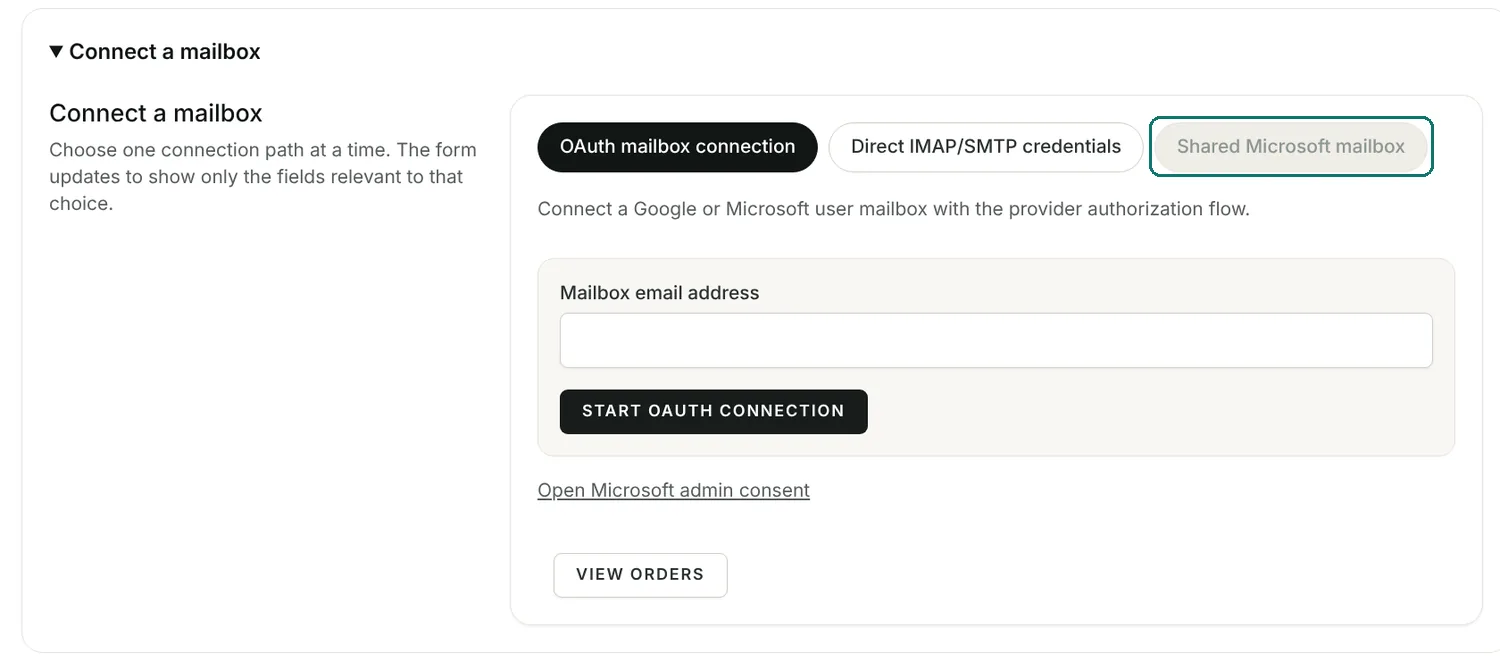
In Microsoft 365, a shared mailbox has no sign-in of its own, so people open it through their own account. Svanja connects it the same way, through a colleague who already has access, under Shared Microsoft mailbox on the Mail settings page.
This option isn’t turned on yet, and the form says so. If you need it, write to Help.
Assign a conversation
Assigning a conversation hands it to one person so the rest of the team knows it’s taken.
- Open the conversation.
- Open More and choose Assign.
- Pick a person, and a queue if you use queues.
To assign several conversations at once, select them in the list and choose Assign above it. Assigned to me in the sidebar shows your conversations, and Unassigned under More shows what nobody has picked up yet. You can also set up a rule to assign conversations automatically, for free.
What is a queue?
A queue is a shared list for one type of work, like Support or Billing. A conversation can sit in a queue and be assigned to a person at the same time: the queue shows the type of work, and the assignee shows who is handling it.
Create a queue
The team owner and admins can create queues.
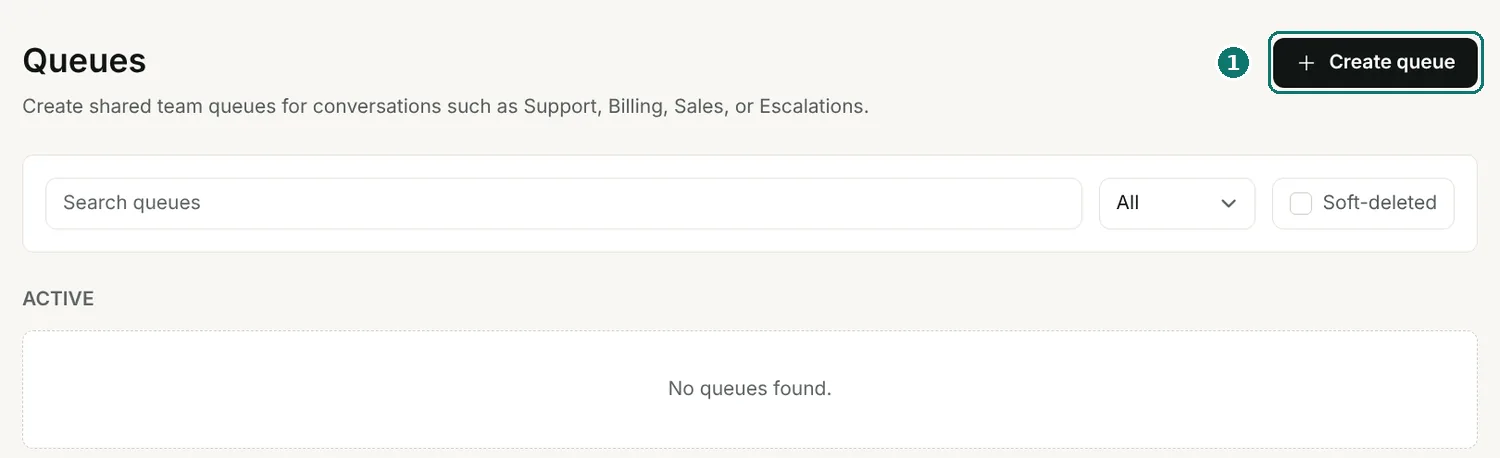
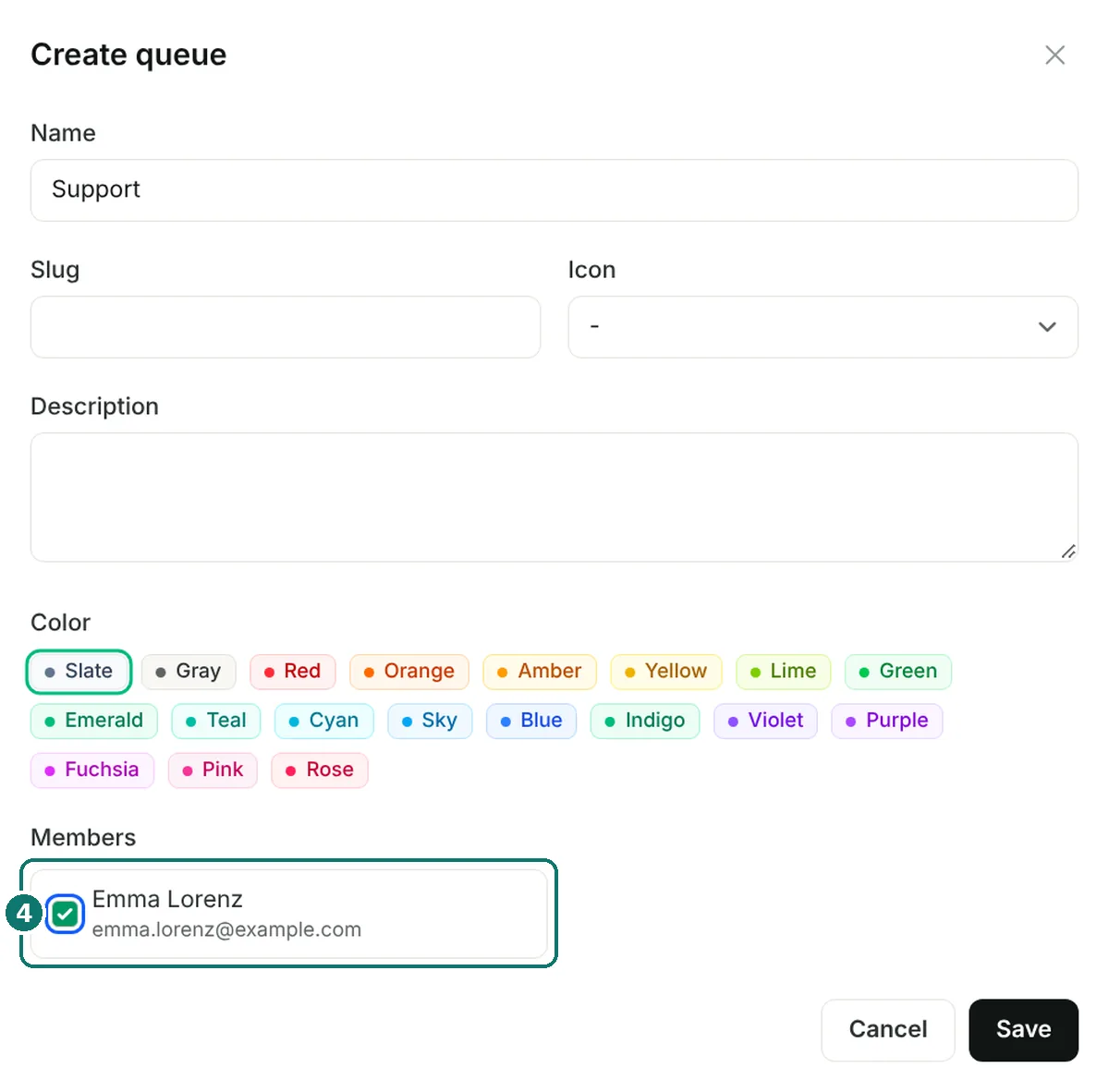
- Open Queues.
- Choose Create queue.
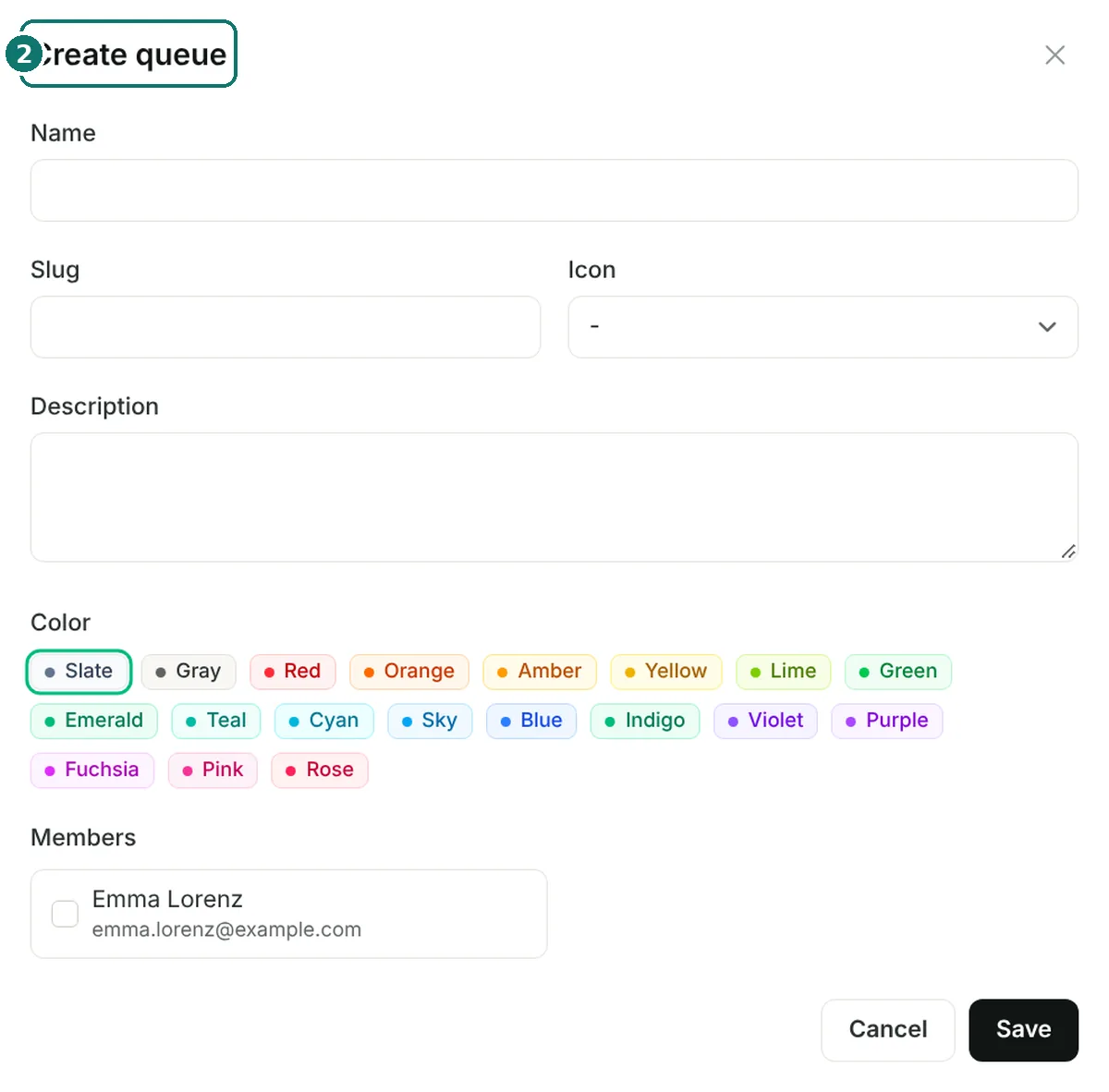
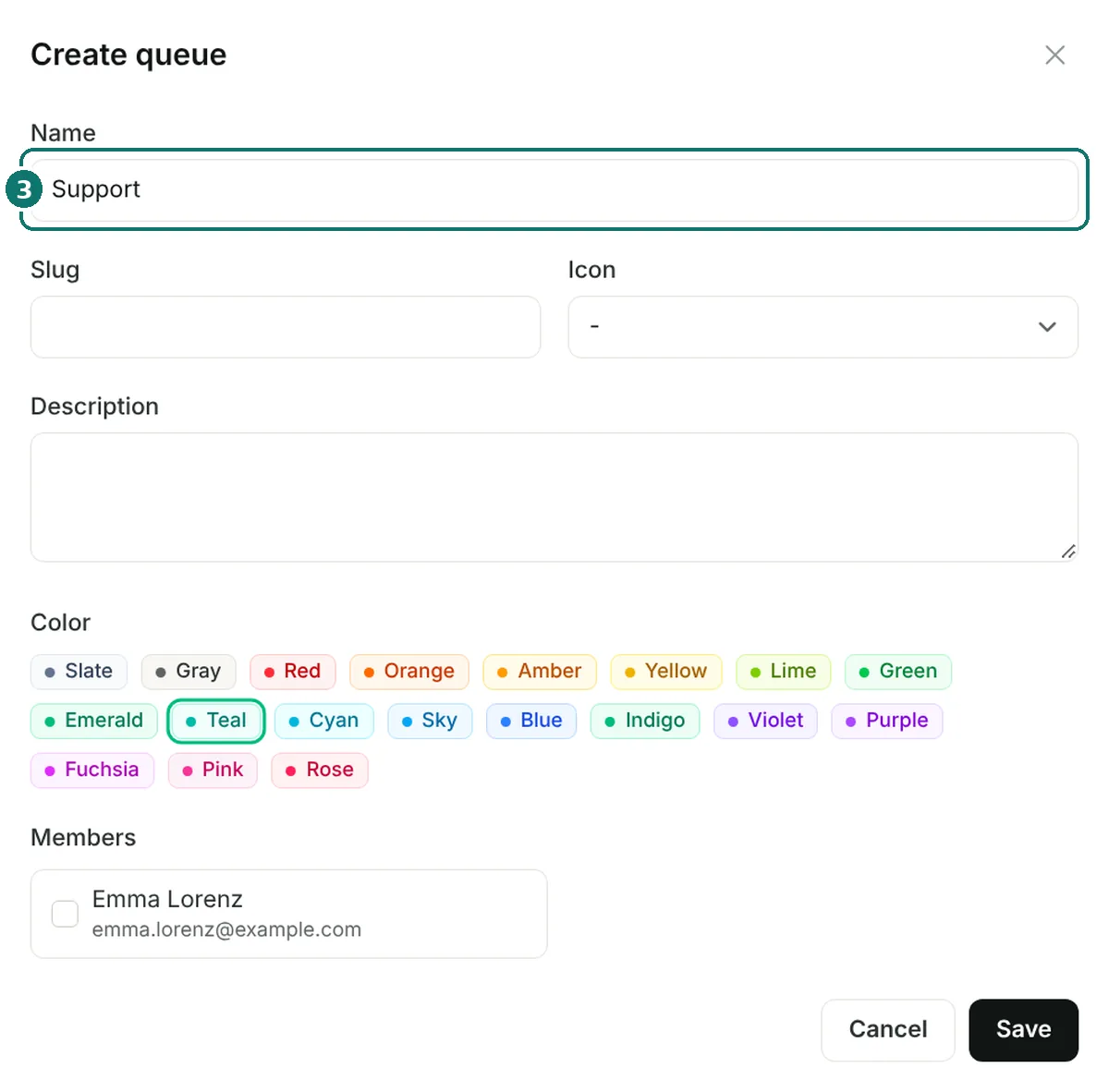
- Enter a Name. A Description, a Color and an Icon are optional.
- Under Members, tick the people who belong to the queue.
- Choose Save.
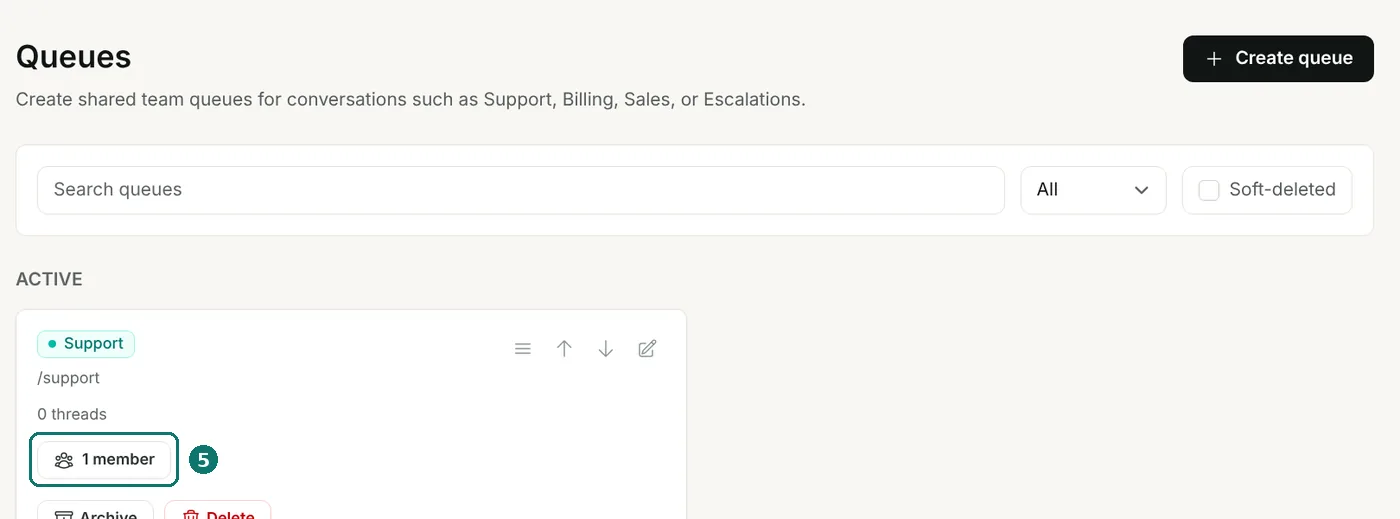
To change who belongs to a queue later, choose its member count under the queue’s name, for example 1 member.
To put conversations into a queue, use Assign on an open conversation, or Assign queue for selected rows. Clear queue takes them out again. Under More filters above the list, you can show one queue or everything with No queue.
Write a note for your colleagues
An internal note is a comment on a conversation meant only for your team. Everyone who can read the mailbox sees it, but it never goes to the customer and doesn’t change anything at your mail provider.
You’ll find notes in the Details tab next to an open email, under Notes. Choose Add note, write your message, and save. Under Attach to email, you can tie the note to a specific email in the conversation, and Jump to email takes you back to it later.
Type @ in a note to mention a colleague who can read the mailbox. They get an alert and see an unread mention on the conversation. You can also mention the assistant: choose @Assistant in the list and write what you need, for example:
@Assistant look up the order number in the client's Space and draft a replyThis starts a task that the assistant works on in the background (see Tasks).
Follow a conversation
Following keeps you updated on a conversation someone else is handling. Open More and choose Follow to get updates on new replies, notes, and changes like a new assignee. Choose Unfollow to stop. You can choose which updates reach you and how they’re delivered in Notifications and channels.
How does Svanja stop two people answering the same email?
In the Details tab, Activity shows who else has the conversation open and who is replying under Here now. You’ll see the same indicator on the row in the mail list.
Before an email goes out, Svanja checks the conversation again. If something has changed, Send anyway? lists what happened, such as:
- Another reply was already sent or scheduled on this conversation.
- Another teammate is currently replying to this conversation.
- A new reply arrived after you opened your draft.
- The assignment or the queue changed.
Choose Review draft to go back, or Confirm and send to send it anyway.
Add your own fields
A custom field stores information Svanja doesn’t track on its own, like an order number on a conversation or a contract end date on a company. The team owner and admins can create them.
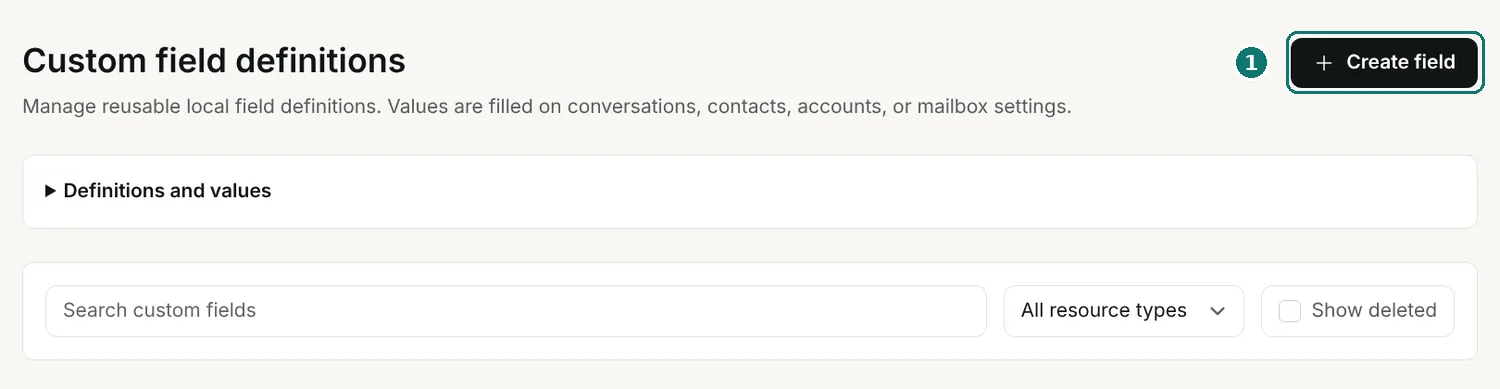
- Open Custom fields.
- Choose Create field.
- Enter the field’s name and pick a Field type, like Text, Number, Date or Single select.
- Under Where values appear, tick Conversations, Contacts, Accounts (companies) or Mailboxes.
- Choose Save.
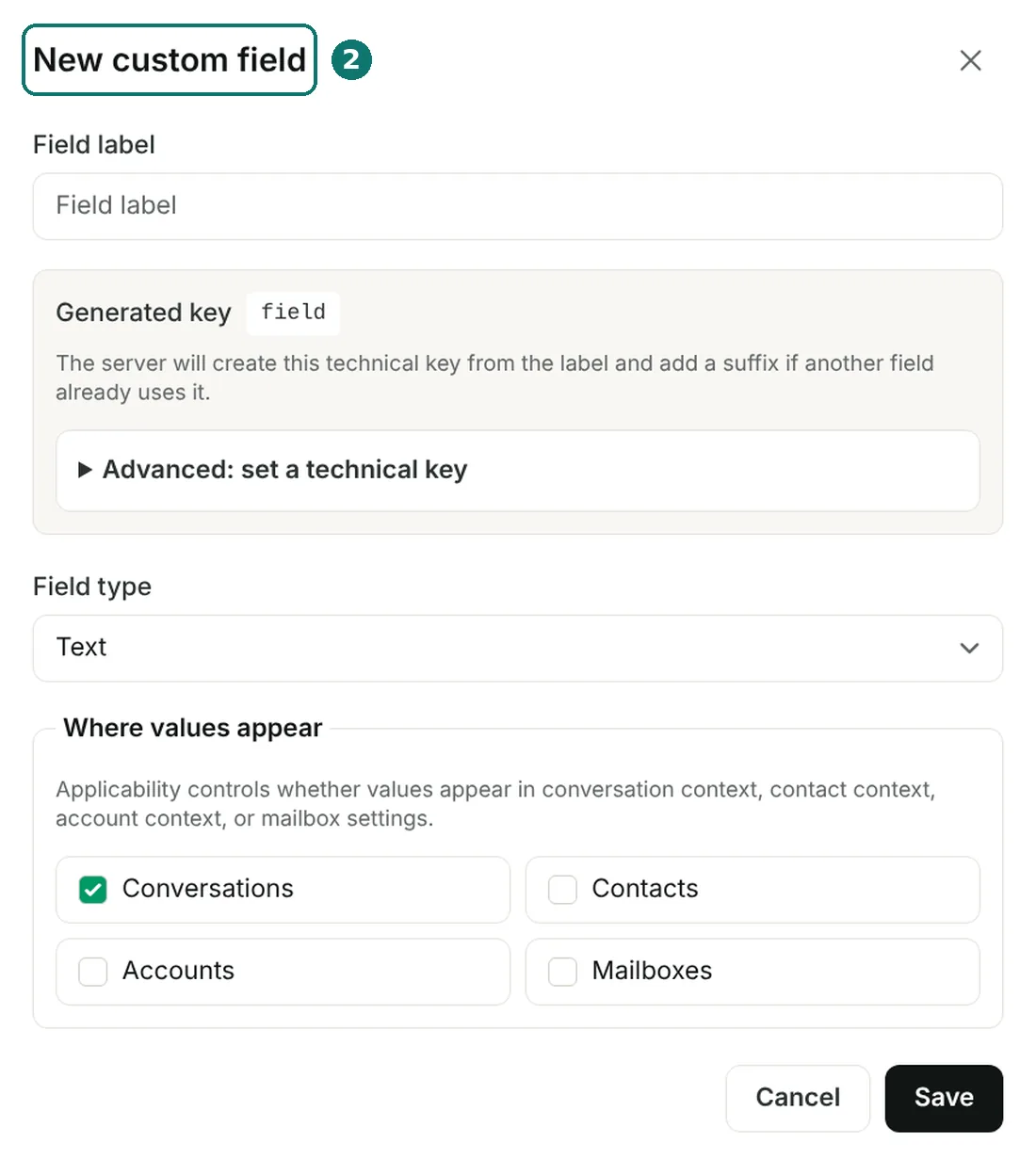
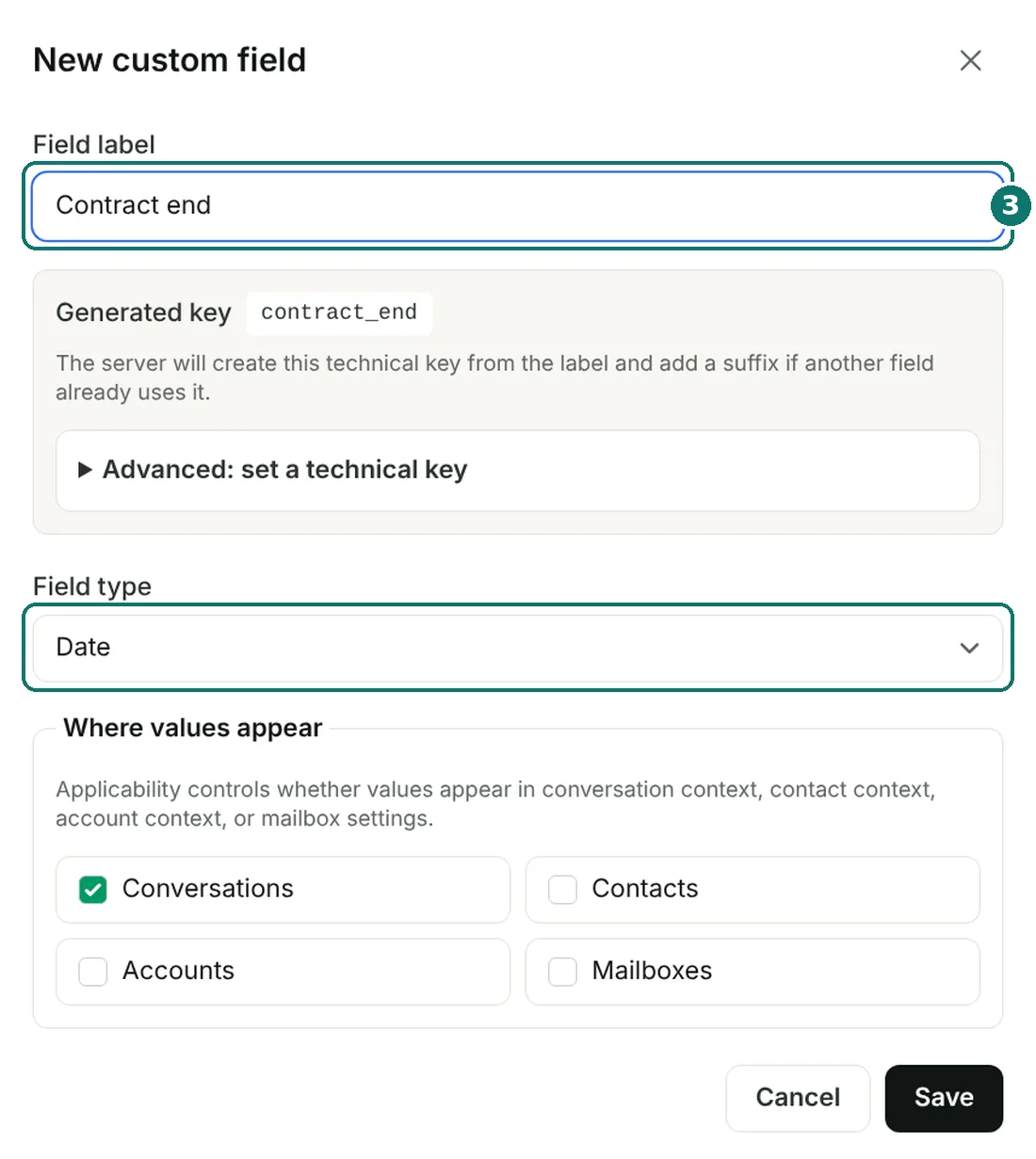
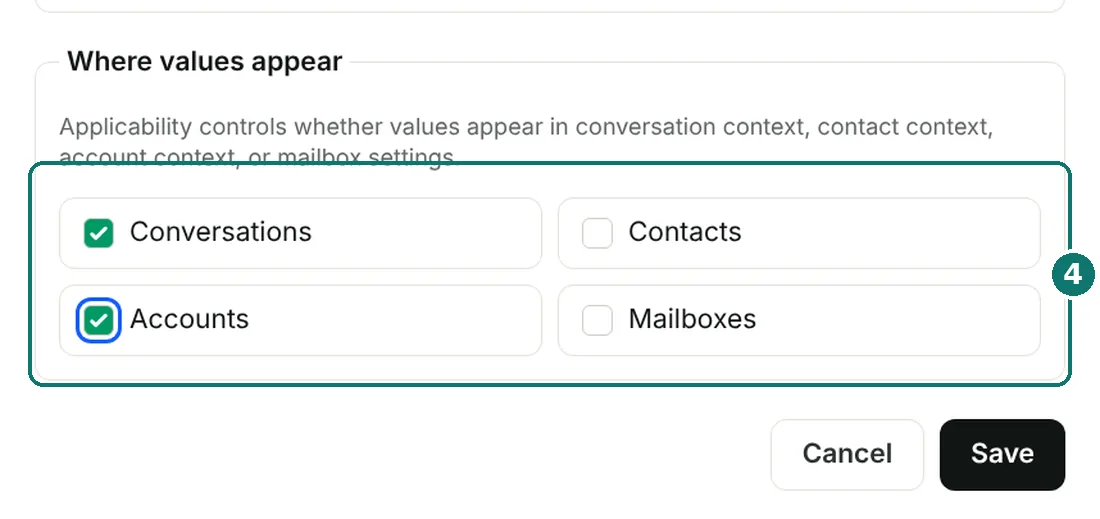
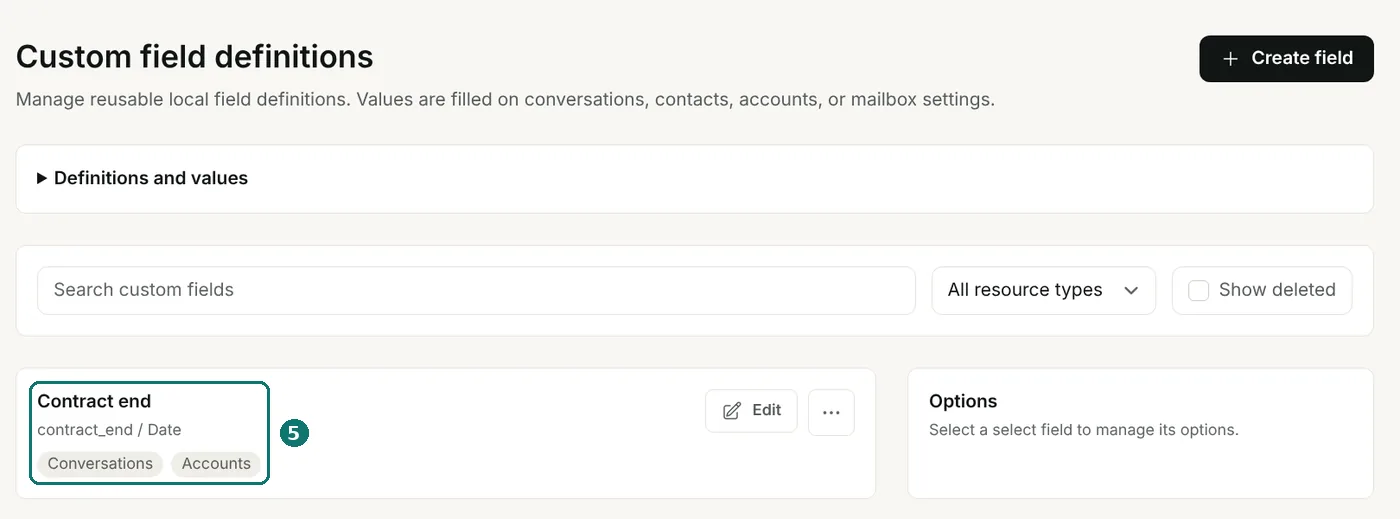
The field now appears wherever you enabled it: in the Details tab on a conversation, or under Custom fields on a person or company page. You can filter the mail list by custom field values using More filters. Keep in mind that you can’t change the field type or technical key after creating it.
What does the assistant see in a shared mailbox?
The assistant only has the access of the person using it, so it can only read a shared mailbox for teammates who have read access themselves. See What the assistant may do on its own.