A price request is often the first email of a new project. Usually, you reply with a few questions about the scope, send over an offer, and wait for an answer.
Svanja handles the routine parts for you. You write down how you answer and what you charge once. From there, a rule drafts the first reply to each new request, the assistant turns your offer template into a PDF, and a follow-up checks in if nobody answers. You still review and send everything yourself.
Write down how you answer
The assistant pulls from your notes when it writes a draft. A note is a page in a Space, and your Personal Space is the one only you can see.
- Open your Personal Space.
- Choose New note and name it “Price questions”.
- Write down what you’d tell a new colleague.
For example:
Never name a price in the first reply. Ask what the goal is, which features they need from the start, and by when. Offer a 20-minute call.
Next, add a second note called “Prices” for the offer itself. Whenever a rate changes, you only have to update it in one place.
Website, up to 5 pages: from 2,400 EUR. Changes after launch: 90 EUR per hour. All prices without VAT. Offers are valid for 30 days.
Let a rule draft the first reply
Rules run automatically in the background, so you don’t have to ask the assistant each time. Svanja comes with a sample rule for price requests:
| Part | Setting |
|---|---|
| When | Mail received |
| Only if | Sender is Not a client, and the assistant agrees that the message asks what a project or service would cost |
| Do | Draft a reply using your note on price questions. It is never sent. |
- Open Rules and choose Start from a sample.
- Choose Price questions from new contacts. Svanja adds it as a draft.
- Under Mailboxes, choose the mailbox new clients write to.
- In How to draft the reply, write: “Use my note Price questions in my Personal Space. Do not send it.”
- Choose Test on recent events and read the previews.
- If the drafts look right, choose Enable.
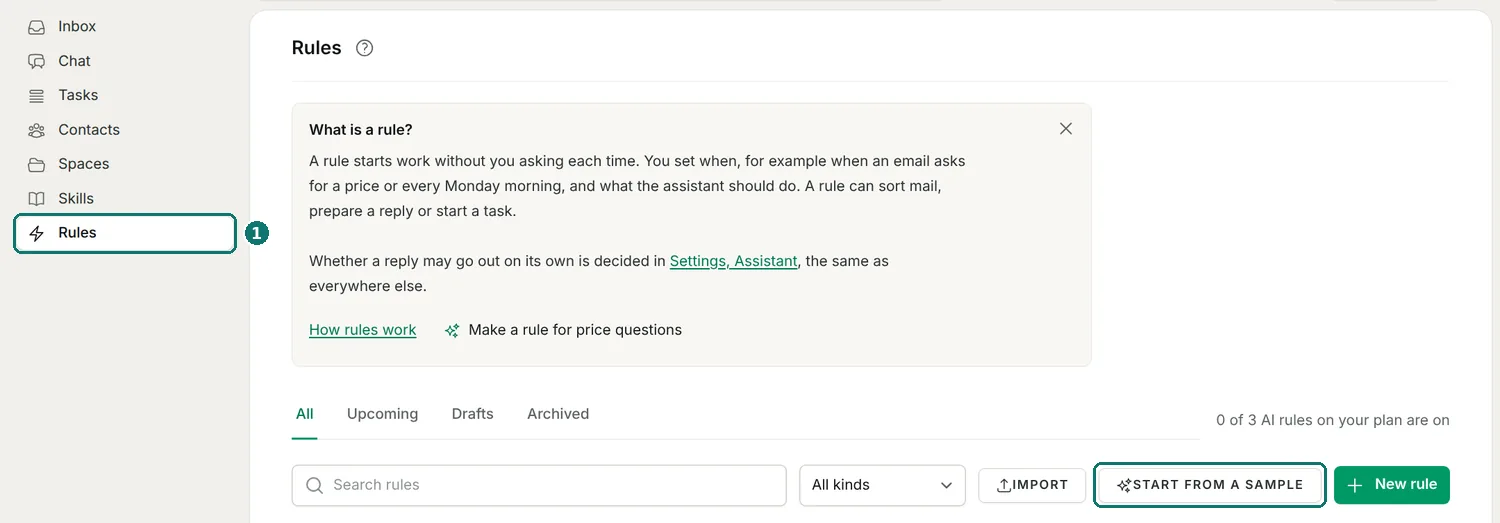
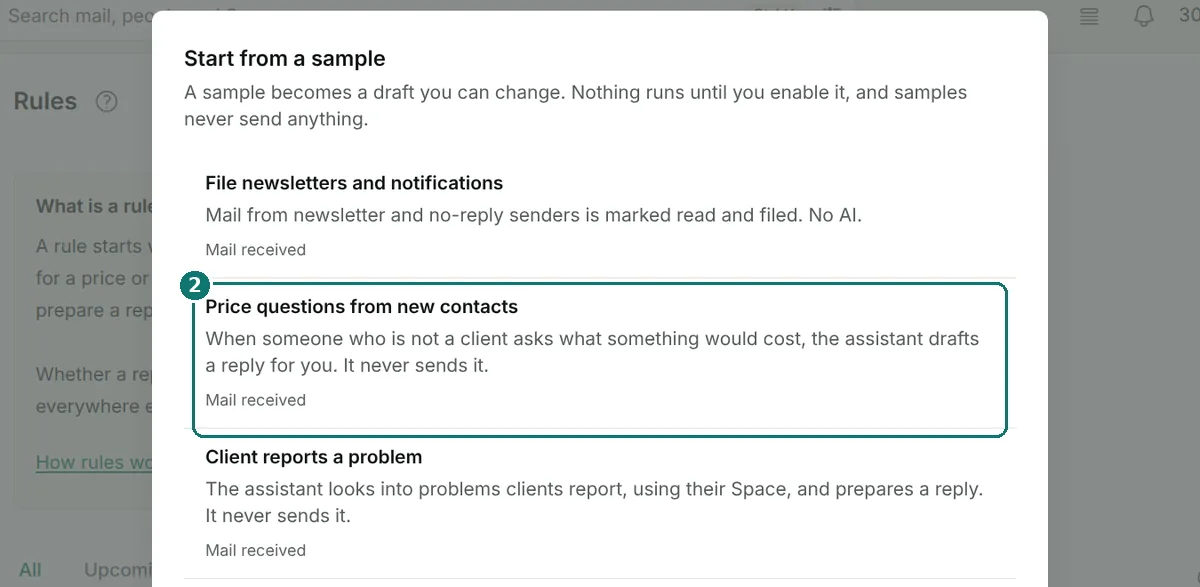
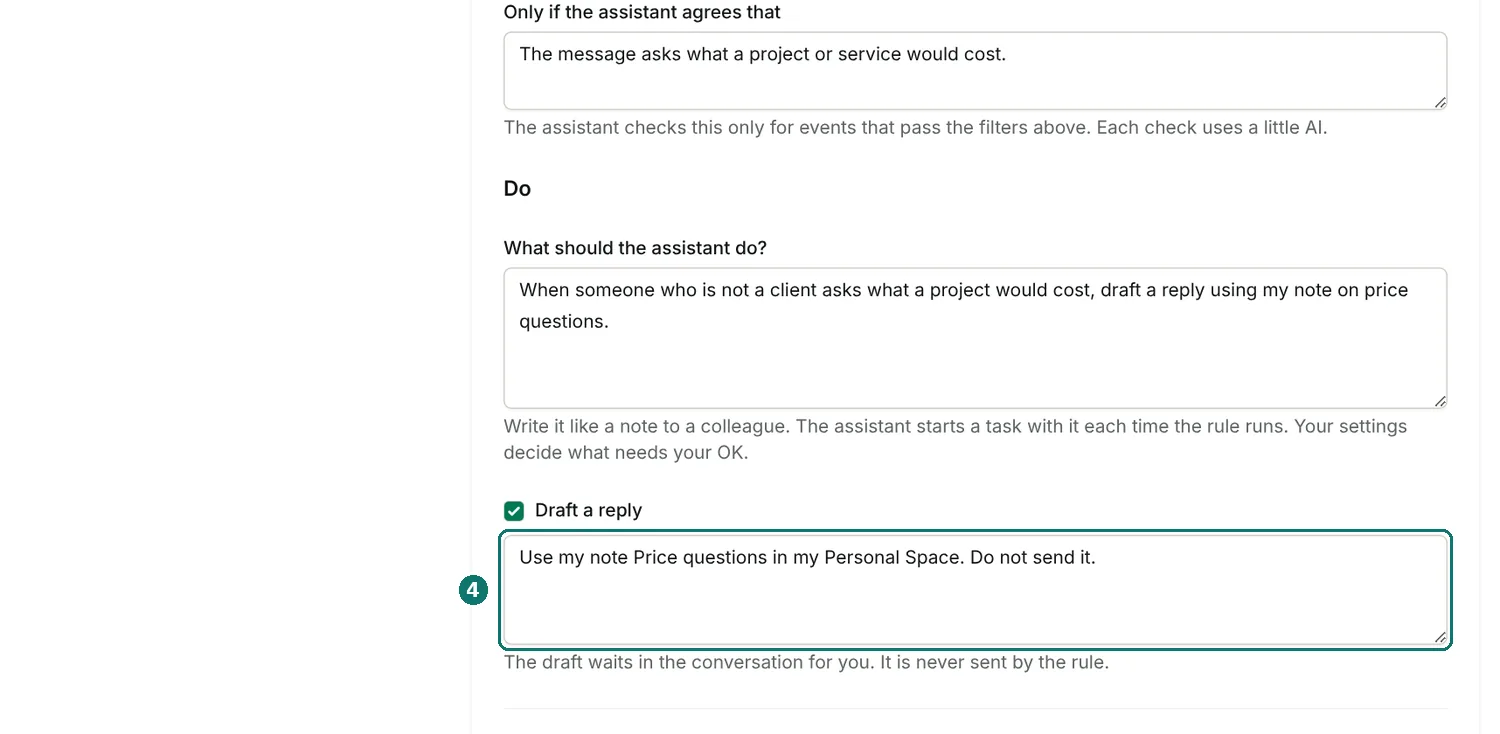
When a matching email arrives, you’ll see Reply ready in the Inbox, with the draft waiting inside the conversation.
Each email that passes the sender filter uses a small amount of AI to check the message, and each draft uses a bit more. On the Free plan, you can have 3 rules with AI turned on at the same time. See Rules and Credits and prices.
Make the offer from a template
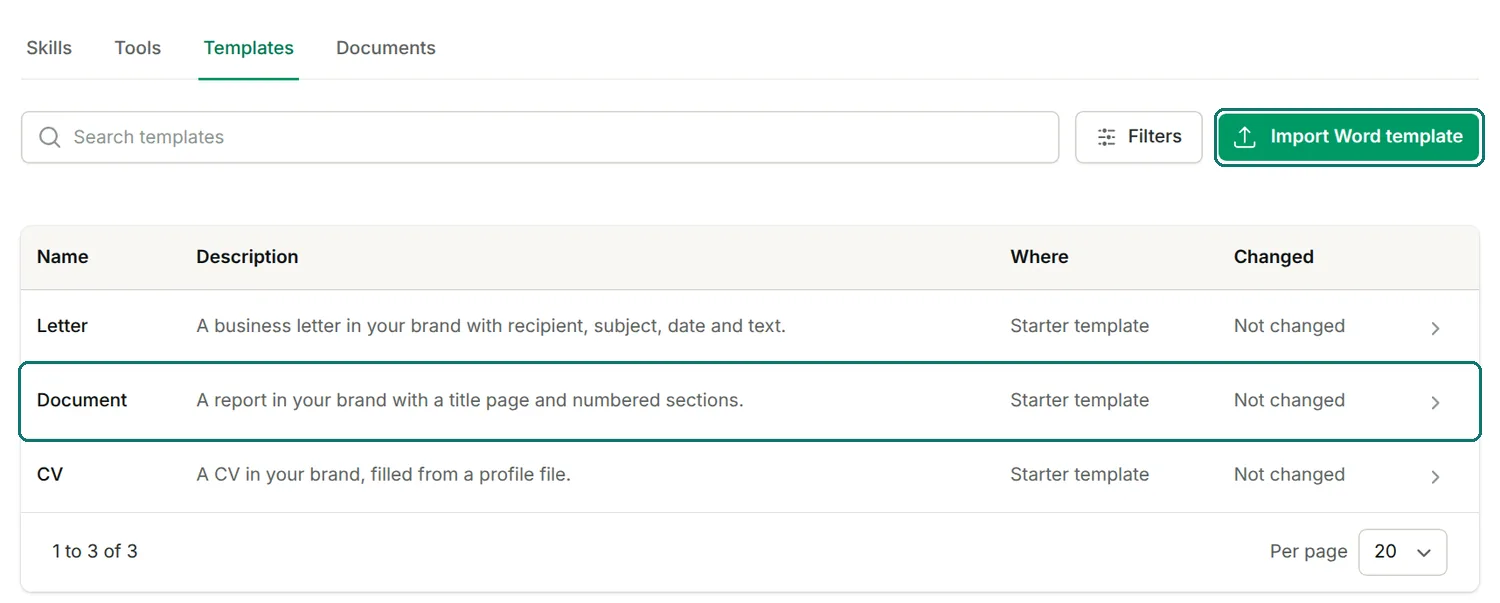
A template turns a few project details into a branded PDF. The starter template called Document, which includes a title page and numbered sections, works well for offers. You can also upload your own Word template.
- Open Skills on the Templates tab.
- Open the starter Document and choose Add to Space, or choose Import Word template.
- Once the client replies, open the conversation and ask the assistant: “Write an offer with my offer template, the prices from my note Prices and the answers in this thread.”
The assistant builds a PDF, which costs 1 credit. If you want to adjust anything, choose Ask for changes. When it looks good, choose Attach to reply to add it to a reply draft, and Save to Space to file it with the client. Your name, color, and logo come from the Document brand card in Settings. See Skills.
Add a follow-up before you send
Before you send the offer, choose Add follow-up in the reply draft. Set the delay and message for each step, then choose Save follow-up. The sequence starts as soon as the offer goes out and stops automatically if the client replies. See Following up when nobody answers.
When the lead becomes a client
Once they accept, open the person in Contacts, set their Stage to Client, and create a client Space from their company’s page. From then on, Svanja treats their emails as client mail, so the price rule leaves them alone.