Much of client work is waiting for an answer. Svanja has three tools for an email you need to come back to:
| You want to | Use |
|---|---|
| Get an email out of the way until a set time | Snooze |
| Get reminded about a conversation, maybe only if nobody replied | A reminder |
| Have Svanja write again if nobody replied | A follow-up |
Snooze and reminders stay inside Svanja, so your mail provider never sees them. Follow-ups send real emails from your mailbox. To know when to stop, Svanja tracks what comes back after you send an email. You’ll see these results listed as sent outcomes.
Snooze an email
Snoozing hides a conversation until the time you pick. Then it returns to your Inbox, sorted by the date of its last email.
- Open the conversation, or tick one or more rows in the list.
- Choose the clock (Snooze).
- Pick Later today, Tomorrow or Next week. For another time, use Custom date/time and choose Apply snooze.
Snoozed conversations wait under Snoozed in the sidebar. If the other side replies first, the conversation comes back right away. You can also bring it back early with Remove snooze. In the Inbox, press H to snooze a conversation until tomorrow.
Set a reminder
A reminder is a note that comes due at a set time, either for you or for everyone in the mailbox.
- Open the conversation.
- Choose the clock, then Follow-up reminder.
- Choose Add reminder.
- Choose Shared reminder or Private reminder.
- Choose Always or If no reply.
- Pick Later today, Tomorrow, Next week or Custom, and choose Save.
A private reminder is only for you. A shared reminder is for everyone in that mailbox, and it also snoozes the conversation until it’s due. An If no reply reminder only goes off if nobody has answered by then.
When a reminder is due, you get a notification, and the conversation shows up under More, Reminders due. From its menu, you can Reschedule, Dismiss, or Delete it.
Add a follow-up
A follow-up is one or more emails that Svanja sends for you when nobody answers. Each email is a step with its own wait and text, such as a nudge after 3 days and another a week later. You can add a follow-up while writing your email, as soon as it has a sender and a recipient.
- Choose the arrow next to Send.
- Choose Send with follow-up.
- Under Delay, set how long to wait, in minutes, hours or days.
- Under Type, choose One-time, or Recurring with Maximum sends or Repeat until.
- Write the text under Body, and check the Sender.
- For another email, choose Add step and repeat.
- Choose Save follow-up, then send the email.
The first step counts from when your original email goes out, and each later step counts from the one before it. The composer then shows a summary like “Follow-up: 2 steps, first in 3 days if no reply”. A follow-up has 1 to 10 steps and sends at most 10 emails, all within 180 days.
For an email you already sent, open its menu and choose Set up follow-up.
When does a follow-up stop?
| What comes back | What the follow-up does |
|---|---|
| A person replies | It stops completely. |
| An automatic reply, like a ticket confirmation | Nothing. It goes on. |
| An out-of-office reply | It pauses until the person is back, then goes on. |
| A bounce | That recipient is removed. With no one left, it stops. |
A reply from any one recipient stops the follow-up for everyone on the email.
Change or stop a follow-up
The Details tab of the conversation shows the Follow-up sequence card, including its next date, its recipients, and the Send history. From there you can:
- Pause it, until a date or indefinitely, and Resume it later.
- Reschedule the next step, or Edit step to change its text.
- Remove recipient or Change sender.
- Cancel it, which stops all future follow-ups.
The conversation shows the follow-up’s state, such as Follow-up active or Follow-up blocked. Blocked means it can’t go on without you, and the card explains why. You can be notified when that happens. See Notifications.
The assistant can set up follow-ups too, for example “follow up in a week if she doesn’t answer”. It asks for your OK once, and then the emails go out on schedule. See What the assistant may do.
Did they answer?
For each email you send, Svanja tracks what came back. It recognizes automatic replies by their headers and typical subjects. Each email shows one outcome:
| Outcome | What it means |
|---|---|
| Awaiting reply | Nobody has answered yet. |
| Human replied | A person wrote back. |
| Auto-replied | An automatic reply came back, like a ticket confirmation. |
| Out of office | An out-of-office reply came back. |
| Bounced / failed | The email didn’t reach a recipient. |
| Needs attention | Delivery had a temporary problem. |
To list emails by outcome, open Search options at the right end of the search field and pick a Sent outcome. If you save that search as a view, you can keep a running list of every offer still waiting for an answer. See Search and views.
If Svanja gets a reply wrong, open the conversation’s Details. The Sent outcome card lists each recipient. Choose Apply correction, pick the message and whether it is A person’s reply, an Automatic reply, or a Bounce, and choose Apply correction again. Follow-ups and reminders will update to match your correction.
What are automatic reply rules?
Many automatic replies look the same every time. When Svanja sees the same one from a sender domain twice, it turns it into a rule using a phrase or subject opening that marks an automatic reply. From then on, Svanja recognizes those replies right away. Your corrections count too. Marking a reply as a person’s reply creates an exception for that address.
- Open Settings and choose Mail management.
- Under Automatic reply rules, choose View rules.

You can also go straight to Automatic reply rules. Each row shows the pattern, the senders it applies to, what it marks the reply as, and how often it matched. Click a rule to see those emails.
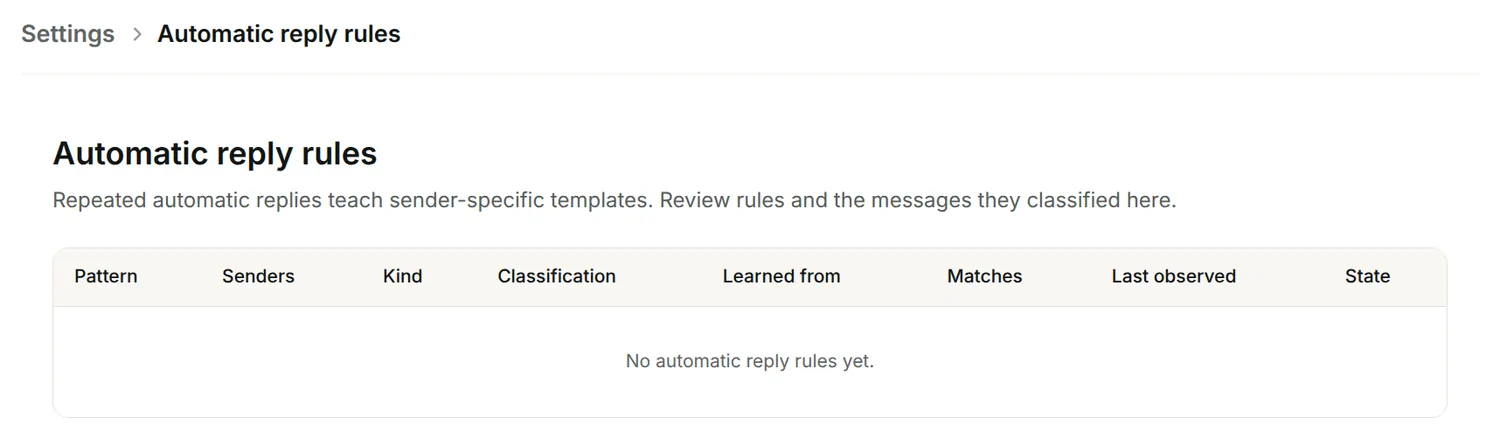
The team’s owner and admins can choose Switch off to stop a rule, or Switch on to use it again. A rule for All senders stays a candidate until they choose Activate for all senders, which requires replies from at least two sender domains.