Some jobs take the assistant longer than a quick answer, like comparing three hosting offers. For these, the assistant starts a task, which runs on Svanja’s servers in the background. You can keep chatting or close the app while it works. If it needs an answer or your OK, it waits for you. Once it finishes, the result comes back to the chat where you asked.
Start a task
Most tasks start in the chat. When a job needs more time, the assistant starts a task on its own. You can also choose Run in background in the input’s + menu before you send.
To start one from the task list:
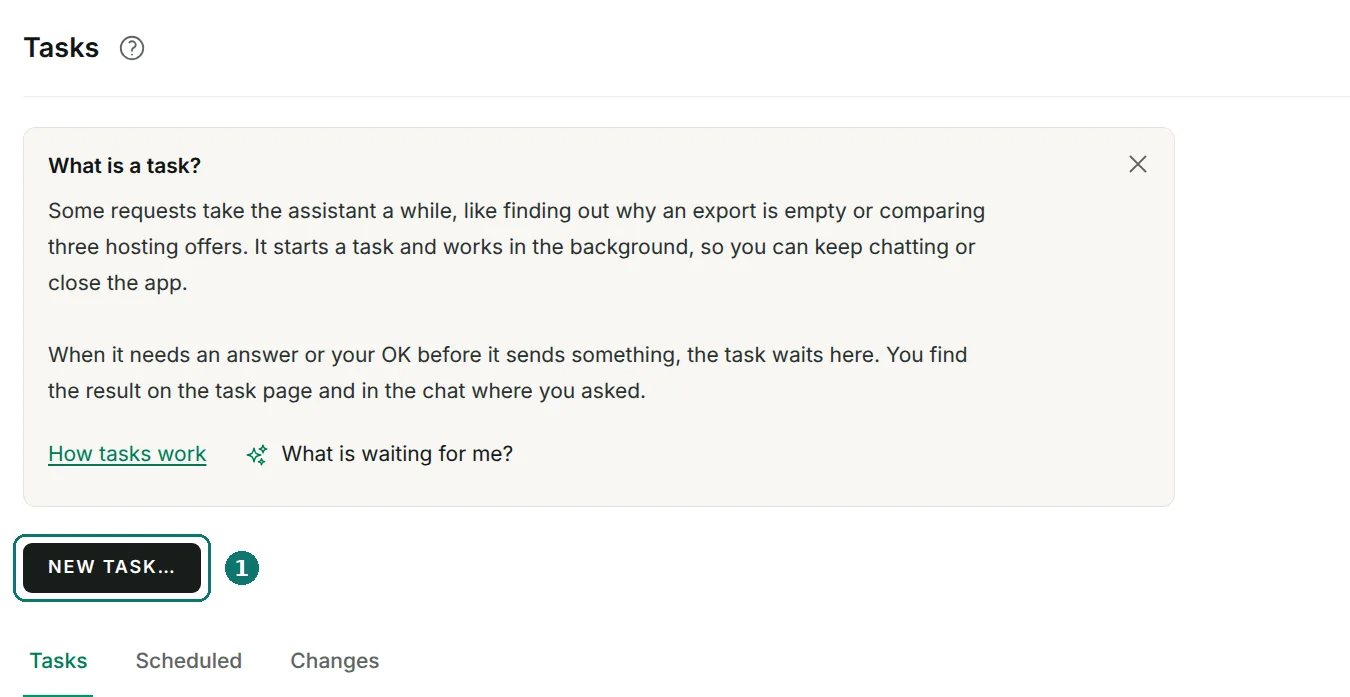
- Open Tasks in the sidebar.
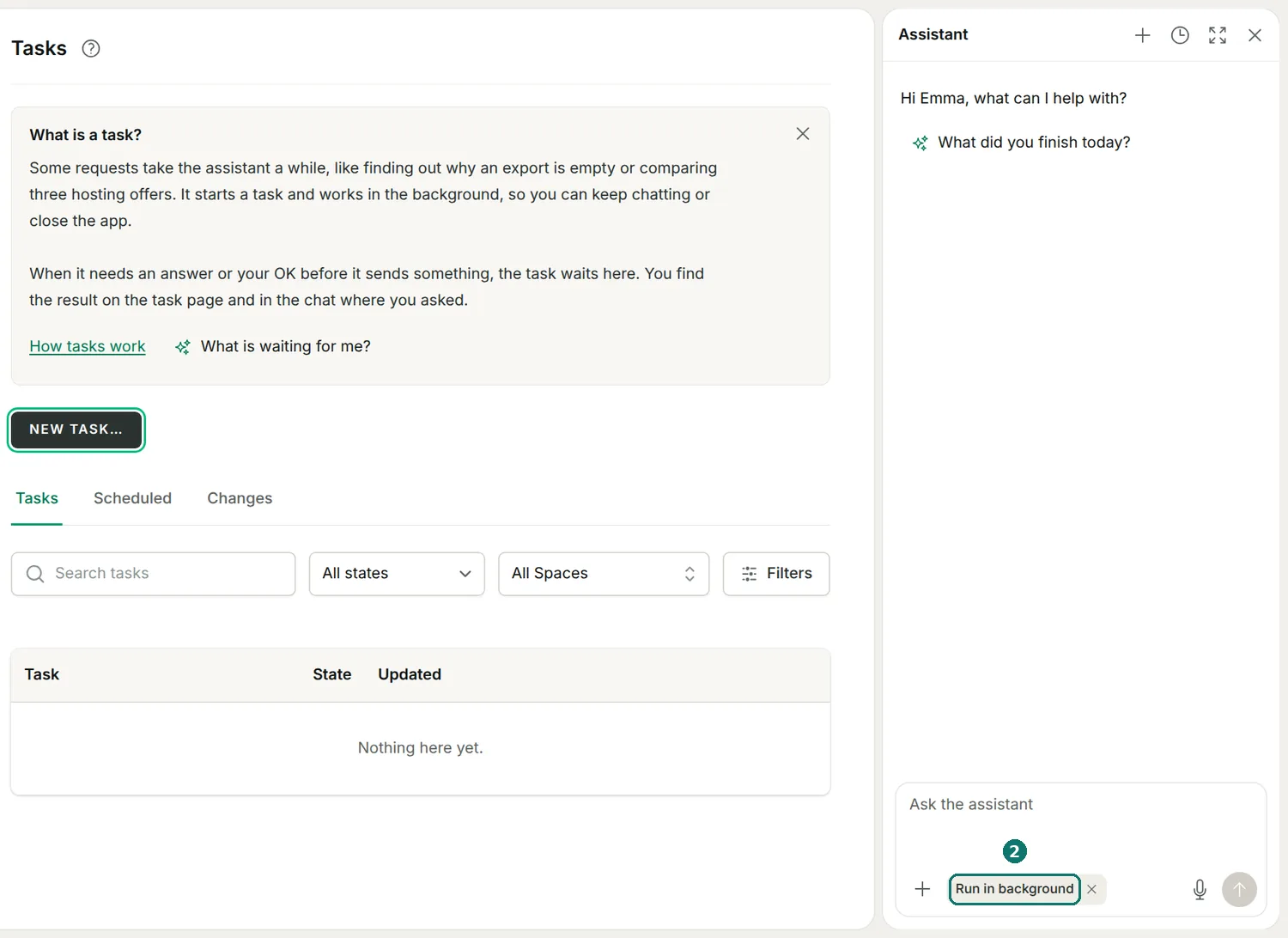
- Choose New task…. The assistant’s input opens with Run in background already turned on.
- Write what you want the assistant to do.
- Press Enter.
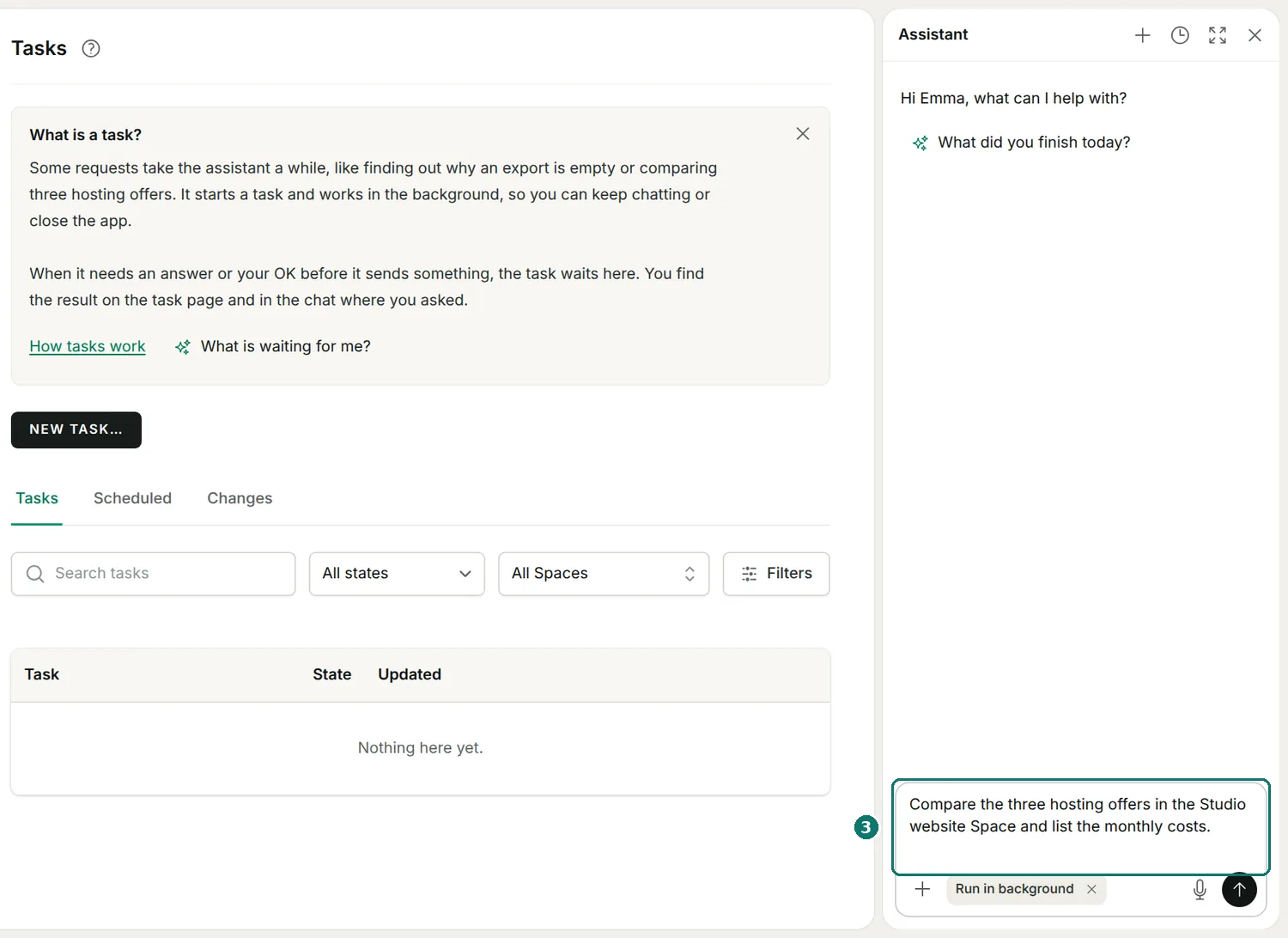
The task shows up in the list as Working, and a card in the chat tracks its progress.
Tasks can also start from other places:
- from an open email, with Make this a task
- from a rule you turned on
- when you run a skill
- when you write @Assistant in a note on an email
Where do I see my tasks?
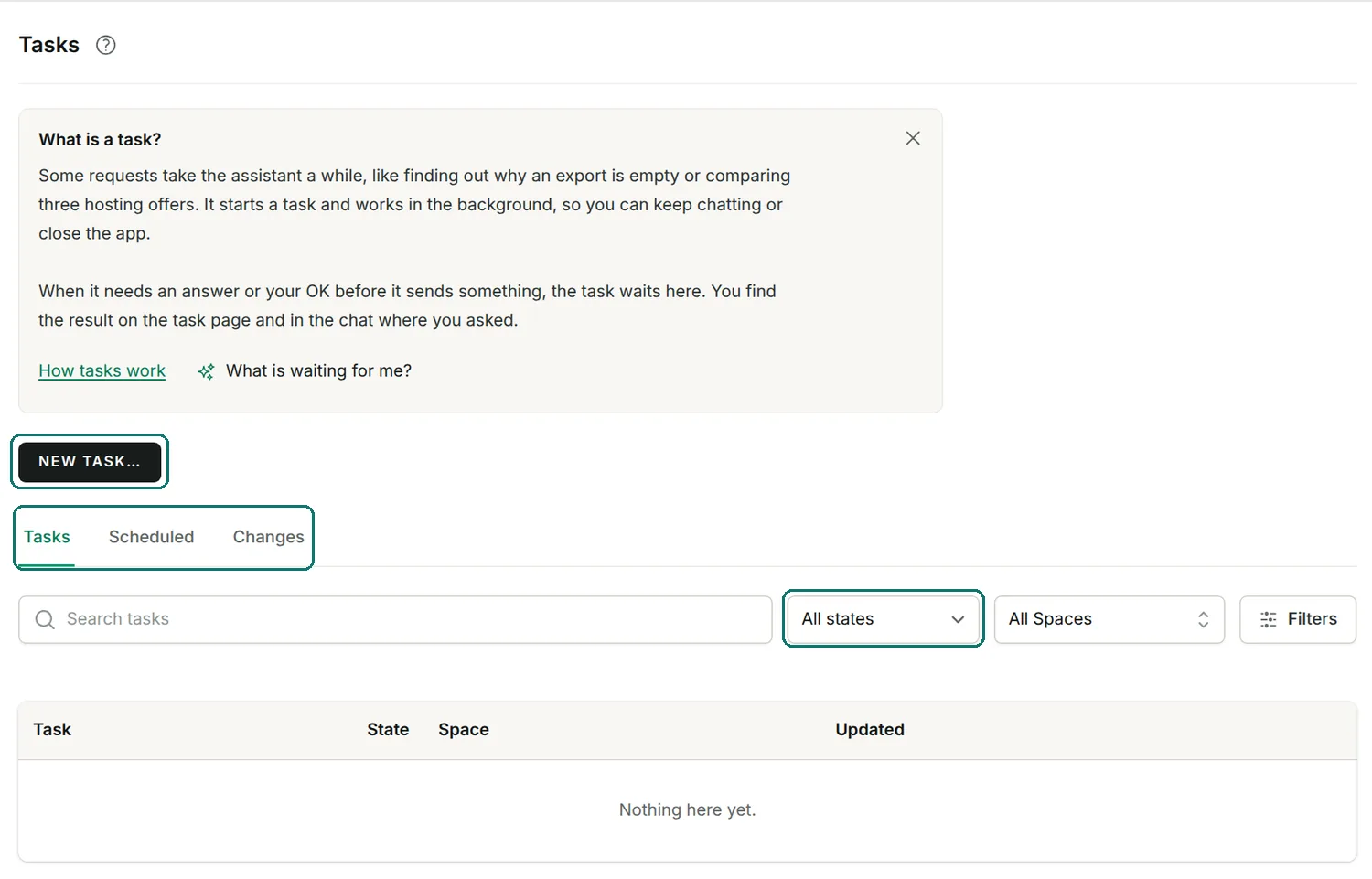
Tasks lists all your tasks along with their state, Space, and last update. Use State and Space to narrow the list. Under Filters, Started from shows only tasks from one source, like Rules.
| State | What it means |
|---|---|
| Working | The assistant is working on it. |
| Waiting | It needs something from you or is waiting its turn. The reason appears next to it. |
| Paused | You paused it. Nothing runs until you resume it. |
| Done | It finished. |
| Failed | It couldn’t finish. |
| Stopped | You stopped it. Any finished work is kept. |
The page has two more tabs:
- Scheduled lists tasks set to continue later, along with the next runs of your rules. Continue now starts a task early.
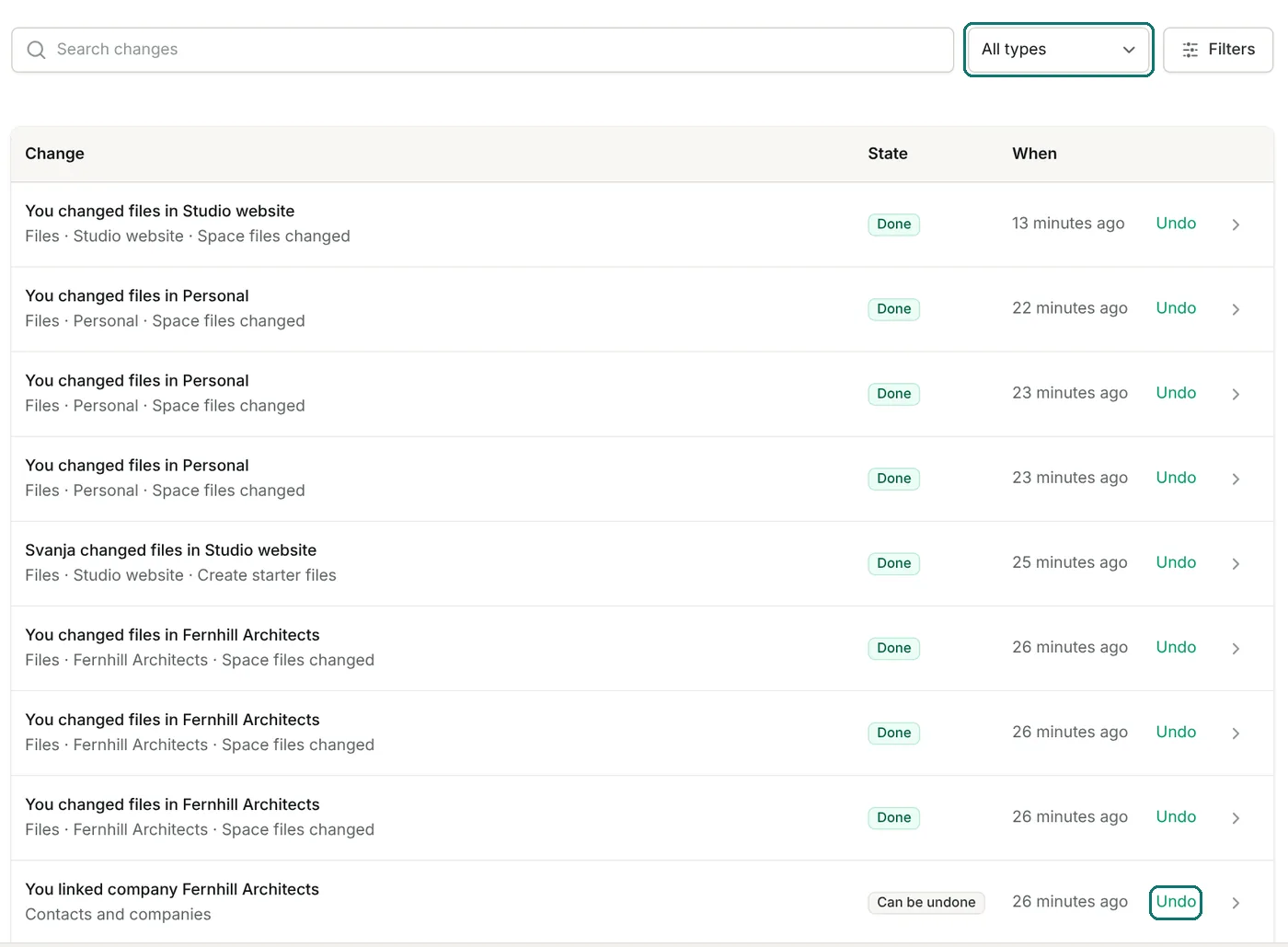
- Changes lists everything you or the assistant changed in Svanja and did in other services, newest first. A change shows Undo when it can be taken back.
Answer a waiting task
A task that needs your input shows Waiting along with the reason. The top bar shows how many tasks are waiting for you, and you get a notification. Under Settings, Notifications, you can turn on these alerts for email or your phone too.
| Reason | What to do |
|---|---|
| Waiting for your answer | The task asked a question. Answer it on the task page or in the chat. |
| Waiting for your OK | The task wants to do something that needs your permission, like sending an email. Choose Approve or Decline. If you decline an email, nothing is sent. |
| Sign-in needed | A website wants you to sign in. See The computer and its browser. |
| Needs to be reconnected | A connected service needs a fresh sign-in under Connections. |
| Allowance used | The task reached its credit limit, or your credits or computer minutes are used up. Choose Raise the limit, or wait for the task to continue when your credits renew. |
| Waiting for a free slot | Your plan runs only a few tasks at once. This one starts when another finishes. |
| Waiting for the computer | Your own paired machine is offline. Run svanja runner start on it again. |
| Continues later | It is set to continue at a later time. |
Steer, pause or stop a task
While a task runs, you can write to it on its page, like “Only compare the two cheaper offers”. The assistant reads your message at its next step.
- Pause saves the progress and waits until you choose Resume.
- Stop ends the task. Finished work and files stay, though emails or messages already sent can’t be taken back.
- Try again on a failed task runs the same request again. It checks what already went out so an email isn’t sent twice.
- Continue on a finished task picks up from its results, like “also add the totals per month”.
- Continue later picks the task up again at a time you choose.
The task’s More menu also has Save as skill, Make a rule from this, and Share.
Where do the results go?
The task page shows the result at the top, or the results so far. A result can be text or a file, like a summary or a PDF offer. Depending on what it is, choose Open, Download, or Save to Space to keep it with the client. The result also comes back to the chat where you asked.
Below the result, Changes and actions lists what the task changed in Svanja and did in other services. Undo all takes back all its changes in Svanja at once.
What does a task cost?
A task uses credits, like any answer from the assistant, and the task page shows what it has cost so far.
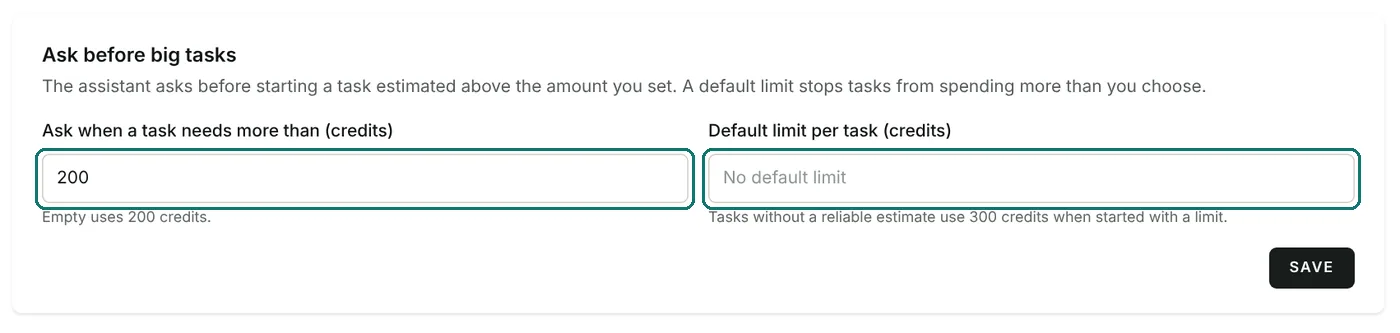
Before starting a task that will likely need more than 200 credits, the assistant shows an estimate and waits for your go-ahead. You can change this threshold on Credits and usage under Ask before big tasks. The same page sets a Default limit per task. A task that reaches its limit waits until you raise it. Tasks started by your rules don’t wait for an estimate.
| Plan | Tasks at the same time |
|---|---|
| Free | 1 |
| Pro | 3 |
| Team | 3 per member, up to 30 |
If more than 25 tasks start or more than 400 credits are used within 10 minutes, Svanja pauses new AI work for the team in case a rule runs out of control. An owner or admin can resume it.
Finished tasks are kept for 90 days on Free and for a year on Pro and Team.