Offers, invoices, and client questions often need a second email before you get an answer. Svanja can send that email for you, remind you to write it yourself, or bring the conversation back on a day you pick. It also tracks what came back for every email you sent, so you can see who hasn’t answered yet.
Follow-ups go out from your own mailbox. Reminders and snooze stay inside Svanja, so your mail provider never sees them.
Which one do I need?
| You want to | Use |
|---|---|
| Send another email if they don’t answer | A follow-up |
| Be reminded, and decide then what to write | A reminder, set to If no reply |
| Get the conversation out of the way until later | Snooze |
All three react when someone replies. A follow-up stops, an If no reply reminder is cleared, and a snoozed conversation comes back early.
Add a follow-up to an email
A follow-up is one or more emails that Svanja sends after a delay, as long as nobody has replied. You set it up in the composer before you send.
- Fill in the sender and at least one recipient.
- Choose Add follow-up.
- Set the delay for the first step, such as 3 days, and write the message.
- Add more steps if you want. Each delay counts from the step before it.
- Choose Save follow-up, then send the email.
If anyone replies, the follow-up stops for every recipient. Automatic replies, like ticket confirmations, don’t count. An out-of-office reply pauses the follow-up until the person is back. Each follow-up can send up to 10 emails over 180 days.
Forgot to add one? Open the sent message and choose Set up follow-up from its menu. To pause, edit, or cancel a follow-up, open the conversation’s Details tab. See Snooze, reminders and follow-ups.
Get a reminder instead
Some follow-ups are better written by hand. A reminder tells you when it’s time and leaves the writing to you.
- Open the conversation and its Details tab.
- Choose Add reminder and pick a time.
- Choose If no reply.
- Choose Private reminder, or Shared reminder if everyone in the mailbox should see it.
If they answer before then, the reminder is cleared. If not, you get a notification and the conversation appears under More, Reminders due in the sidebar.
To snooze instead, select the conversation, choose Snooze, and pick a time. If someone replies, it comes back early.
See who hasn’t answered yet
You can create a saved view that lists every sent email nobody has answered, making it easy to check once a week.
- Open Sent in the Inbox.
- Under More filters, Sent outcomes, choose Awaiting reply, Auto-replied, and Out of office.
- Choose Save as custom view and name it.
Let the assistant or a rule follow up
On any open email, you can ask the assistant: “Follow up in a week if there’s no answer.” It sets up the follow-up and asks for your OK once. After that, the emails go out on schedule, as noted at the top of Settings, Assistant.

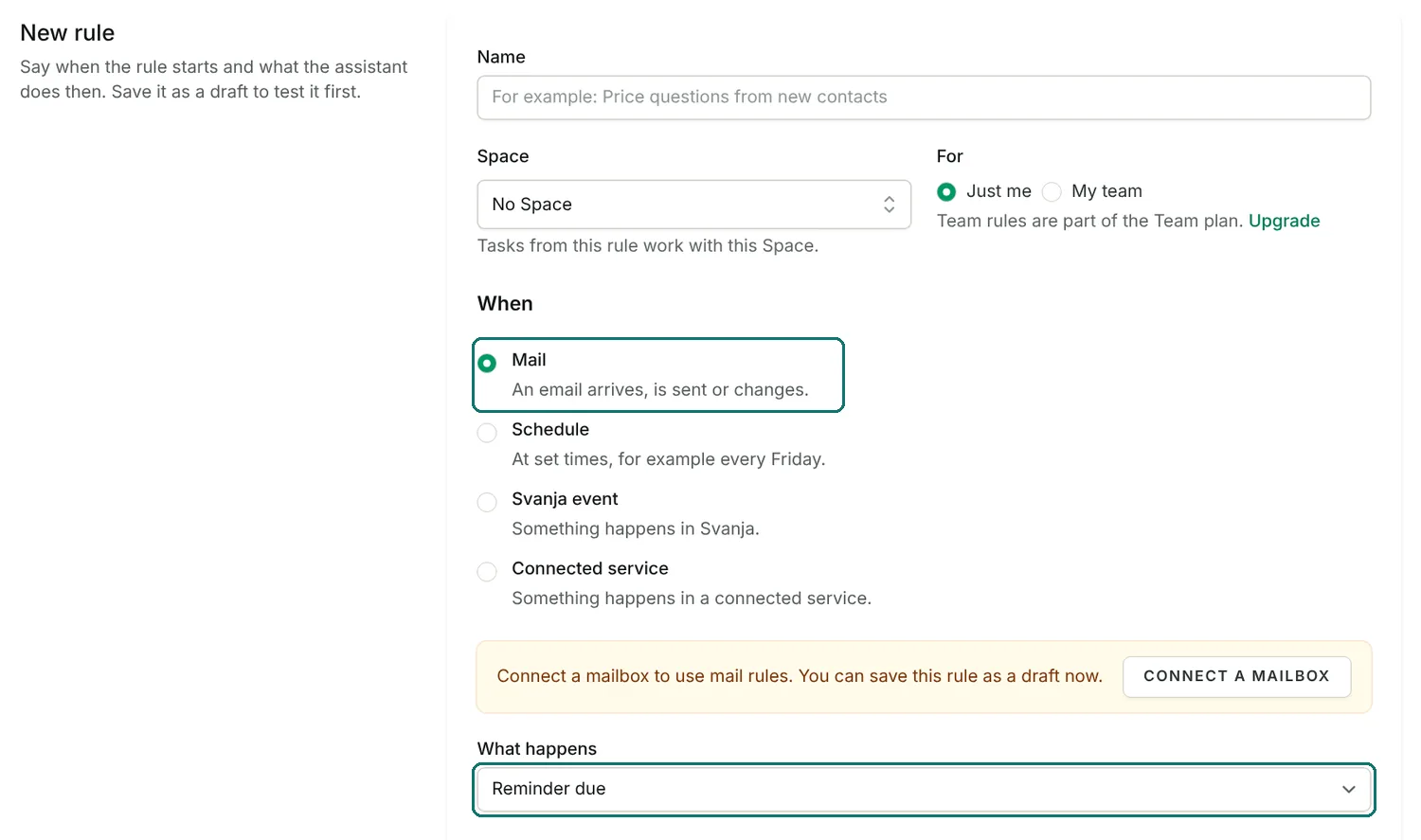
For follow-ups that need a bit of judgment, you can trigger a rule when a reminder comes due. Open New rule, choose Mail and then Reminder due, and write a job like “Check whether the client answered in another conversation. If not, draft a short reminder. Do not send it.” The draft will wait for you in the conversation. See Rules.