You don’t have to start from scratch in Svanja, and your notes are never locked in. You can bring existing notes and files into a Space, like an Obsidian vault or a folder from your computer. You can also download a Space, or all your data, as a zip file whenever you like.
Behind the scenes, each Space is a Git repository. Git is a tool developers use to store files along with their full history. If you use Git, you can copy a Space to your computer, edit it there, and send your changes back.
Bring files into a Space
Importing copies notes and files into a Space. You can review what comes in before anything is added.
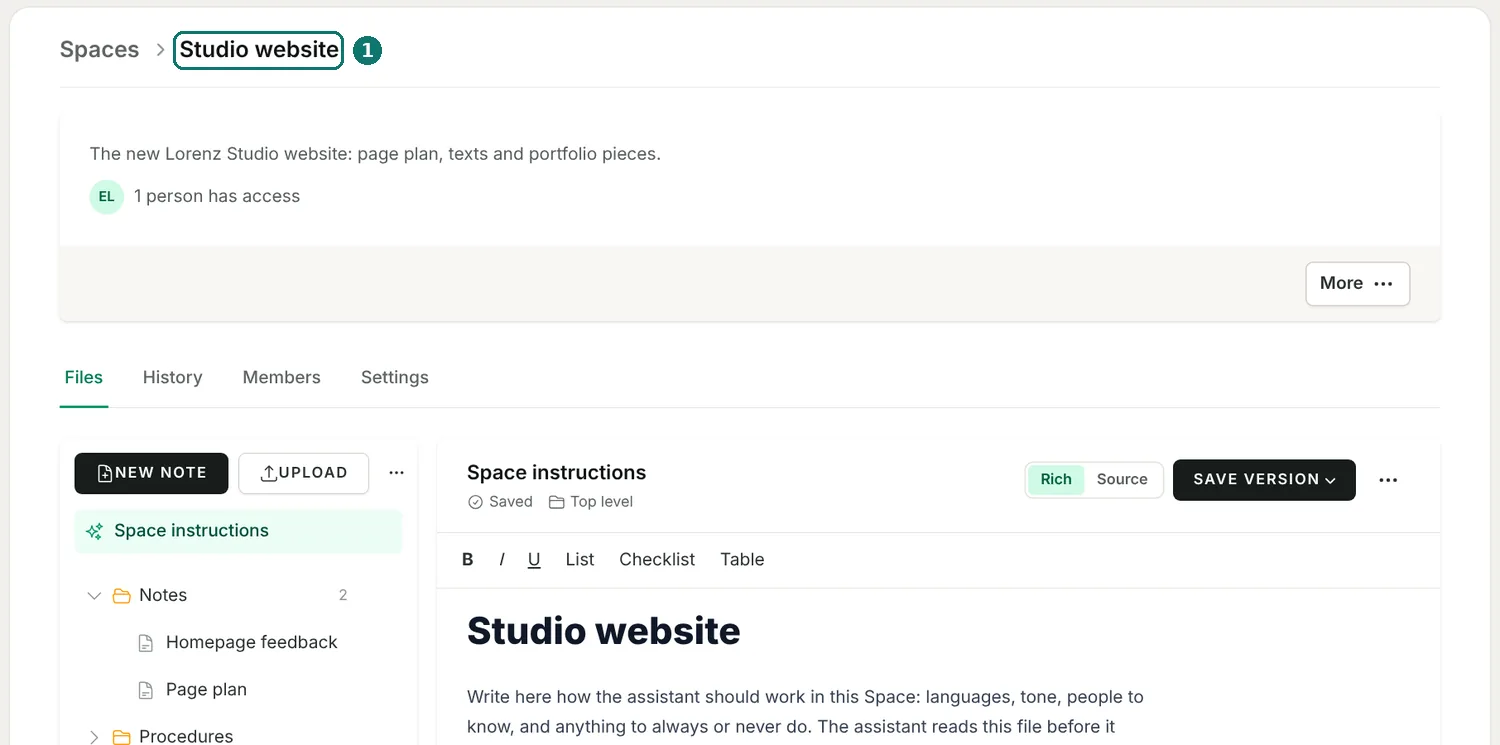
- Open the Space from Spaces.
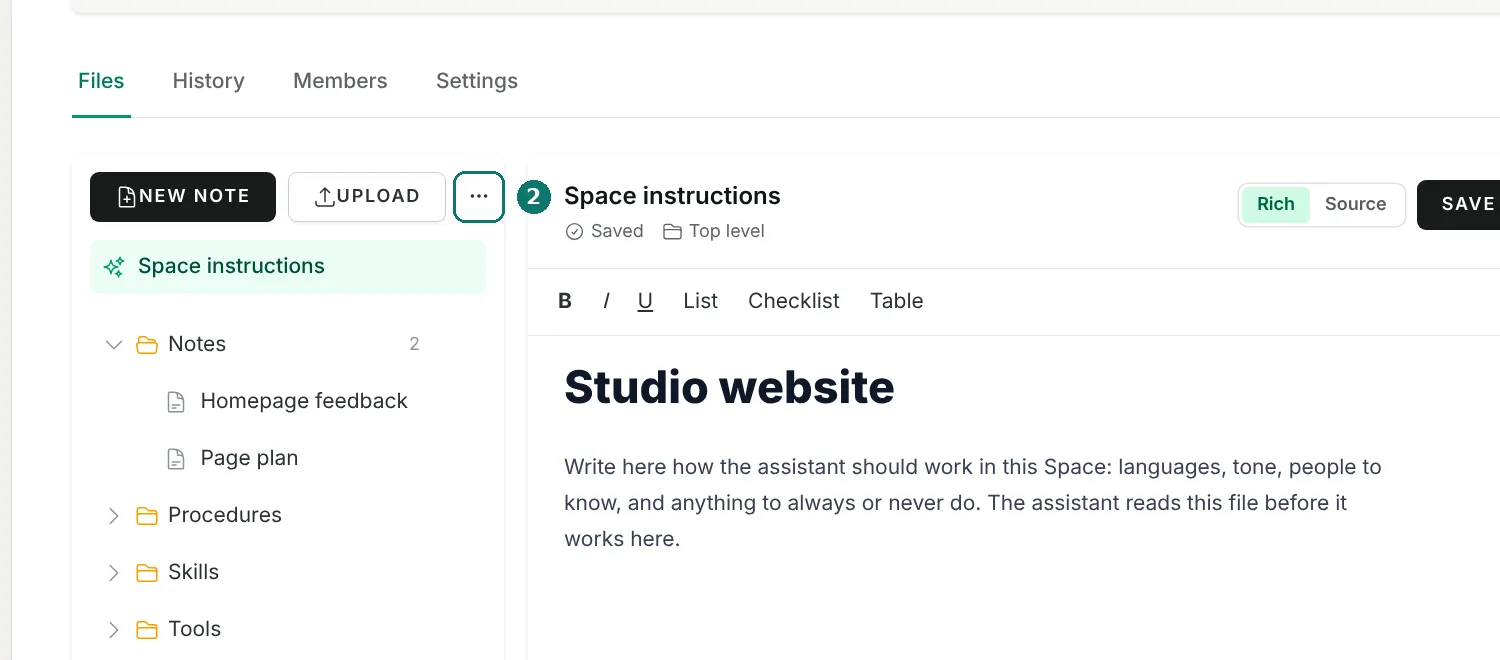
- Next to New note and Upload, open the three-dot menu.
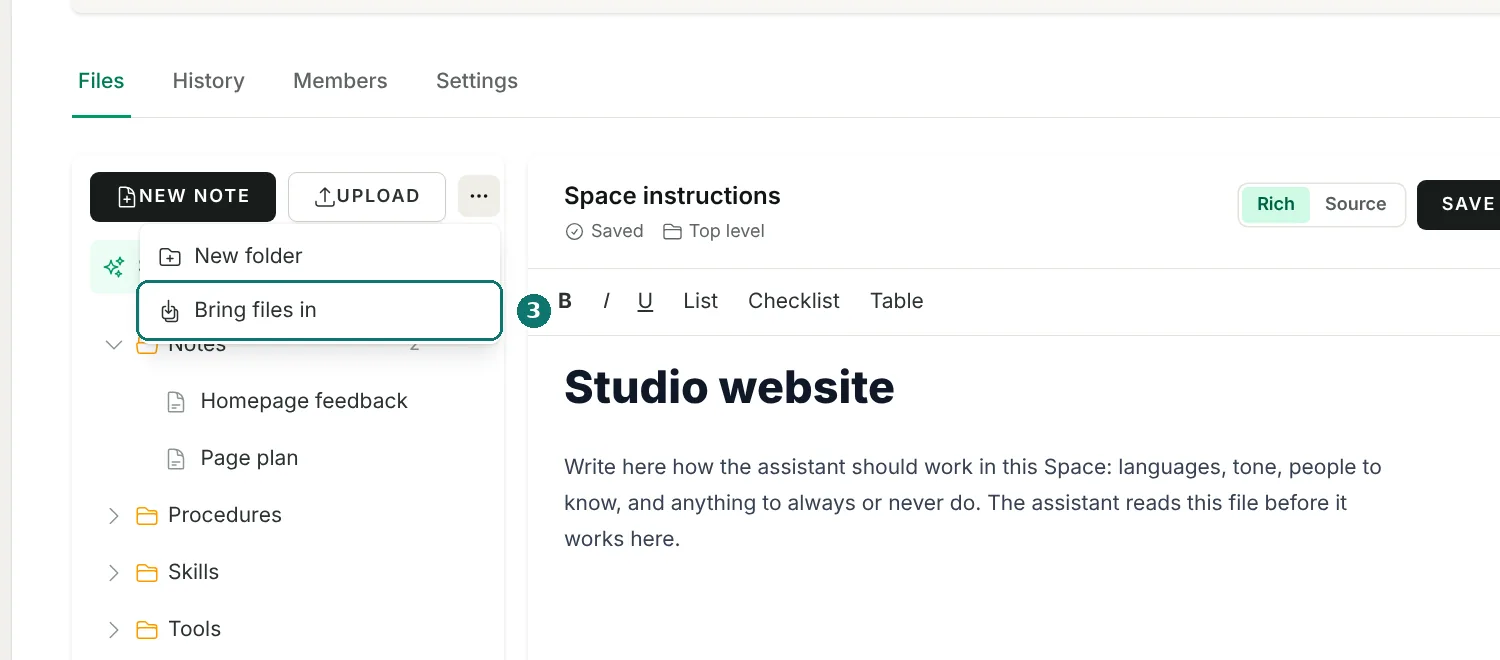
- Choose Bring files in.
- Under Where from, choose the source.
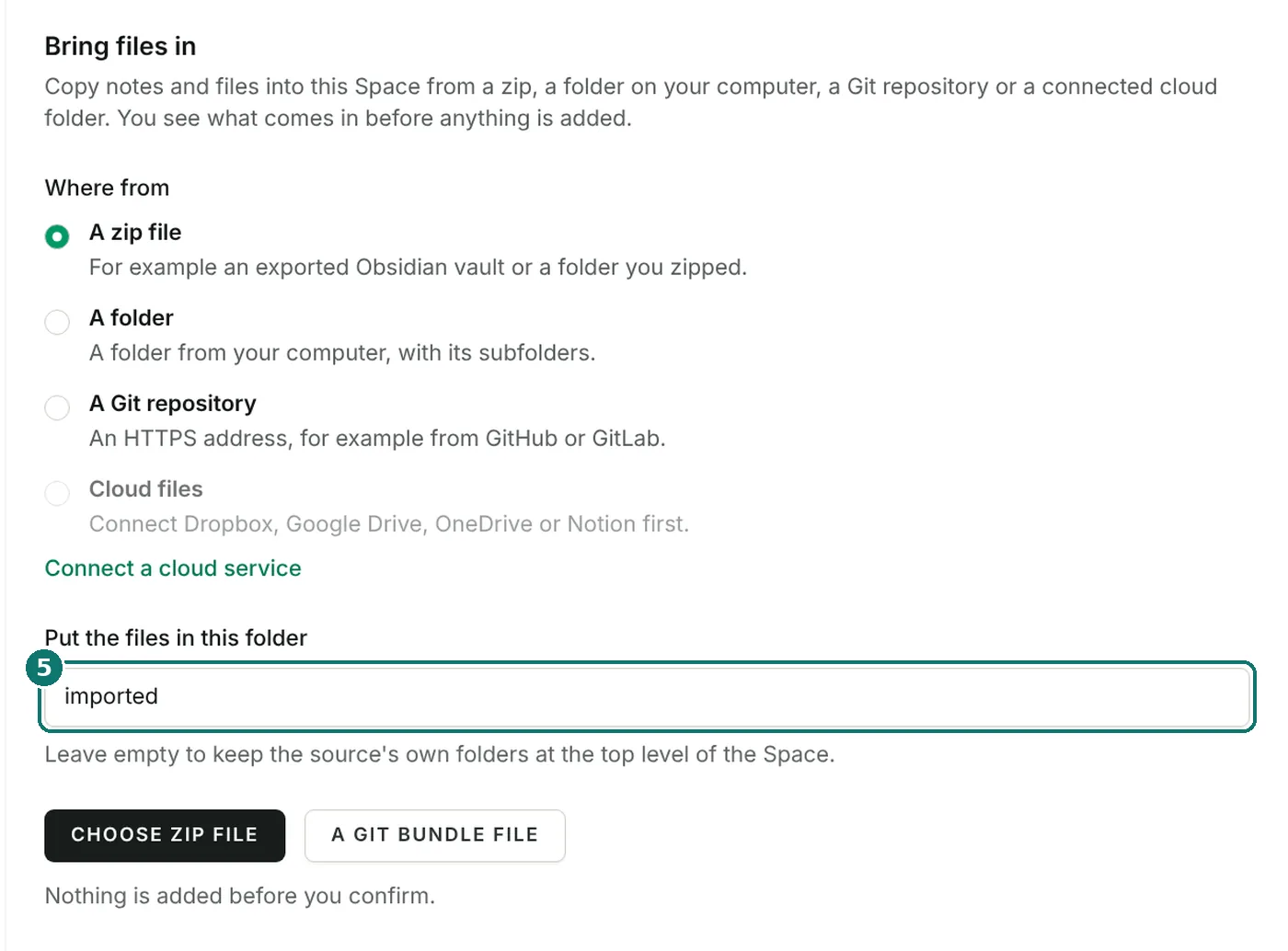
- Optional: under Put the files in this folder, choose a folder. Leave it empty to keep the source’s own folders at the top level.
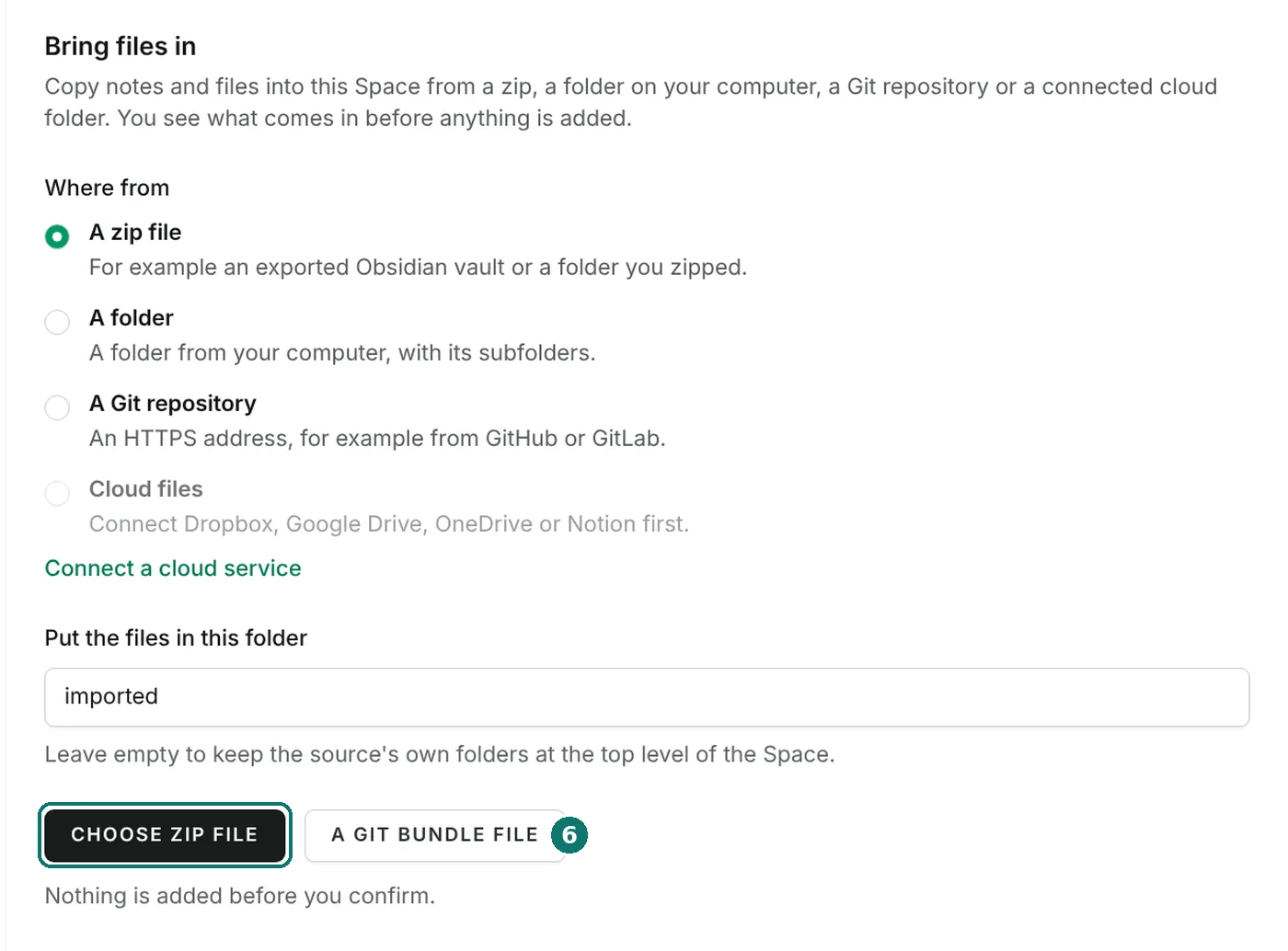
- Choose Choose zip file or Choose folder and pick it. For a Git repository, enter the Repository address and choose Check files.
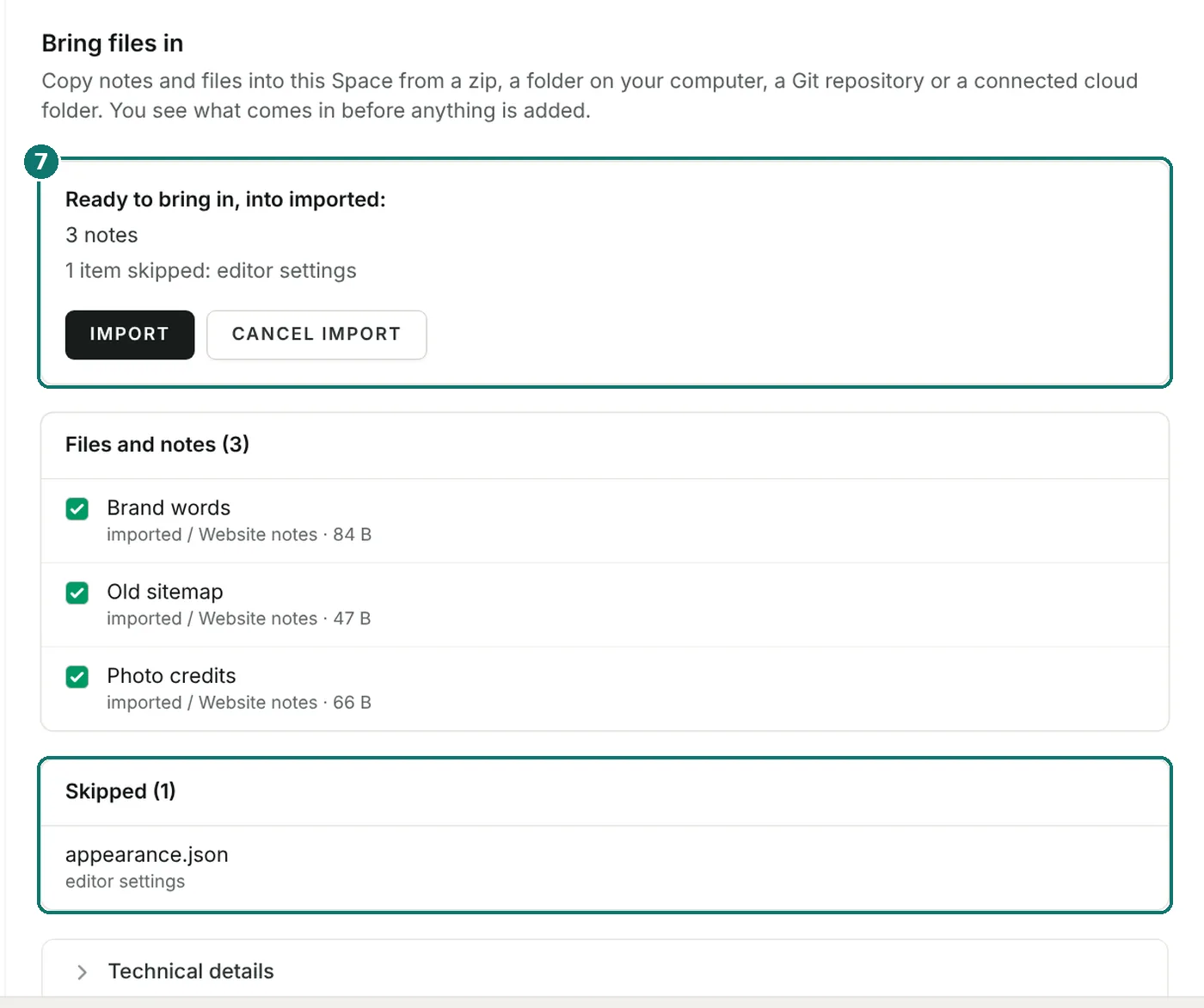
- Check the list of what comes in.
- Choose Import.
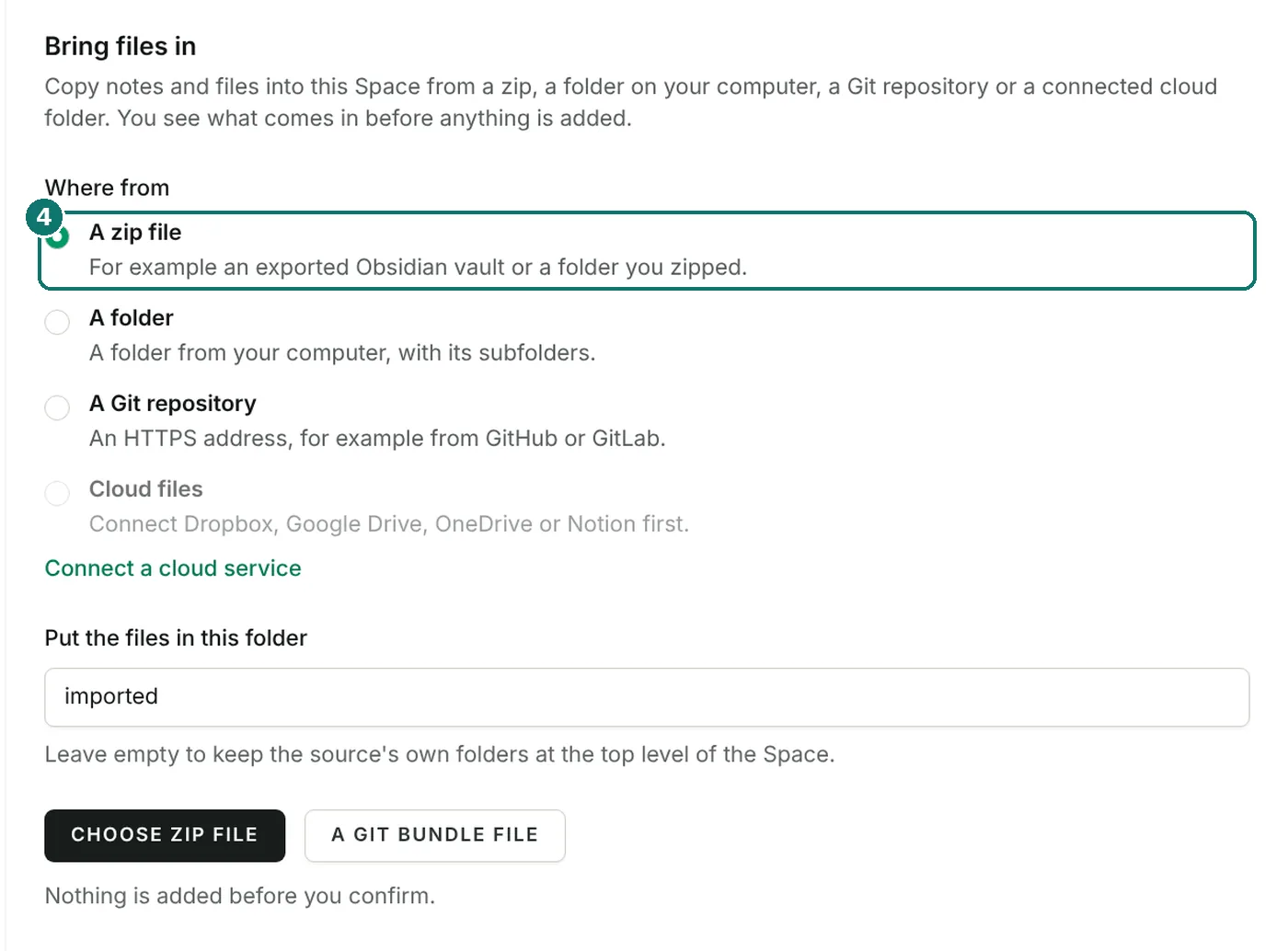
Here are the sources you can import from:
| Source | For example |
|---|---|
| A zip file | An exported Obsidian vault, or a folder you zipped |
| A folder | A folder from your computer, with its subfolders |
| A Git repository | An HTTPS address from GitHub or GitLab |
| A Git bundle file | A whole Git repository in one file. The link is below the other sources. |
An import can be up to 100 MB. For a private Git repository, open More options and add an Access token. You can also pick a Branch or tag there. Svanja uses the token for this import only and doesn’t store it.
What does the check show?
The check counts what it found: notes, files, skills, tools, rules, and templates. Rules come in as drafts, so none of them run until you turn them on in Rules.
Files that are already in the Space are listed under Already in the Space. For each one, choose Skip, Keep both, or Replace. The check also flags links that point to something the import doesn’t include.
Some files are left out on purpose, and the check explains why:
- files that look like a secret, like a
.envfile with passwords - editor settings, like Obsidian’s own folder
- Git internals and system files
- files that are too large
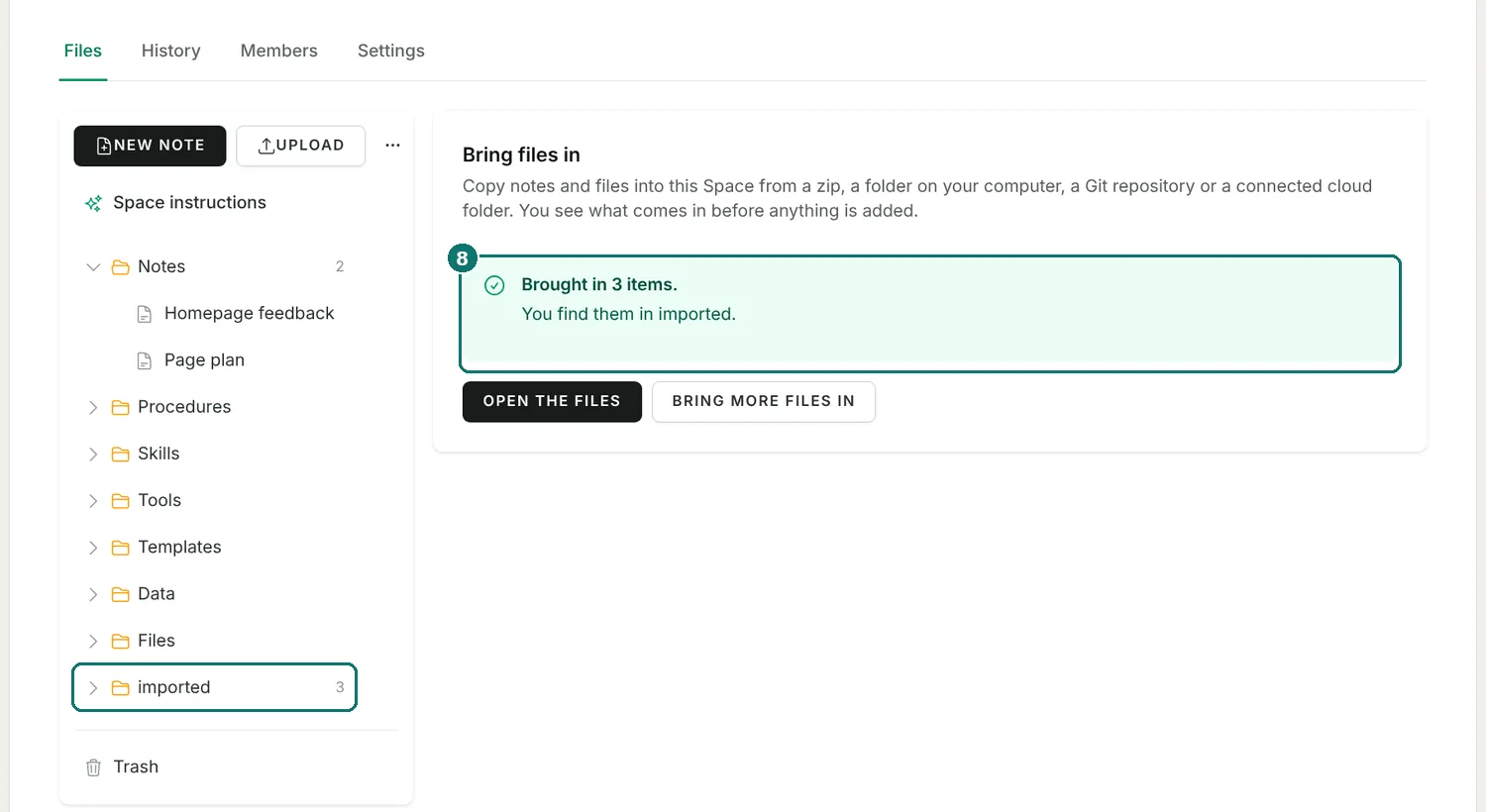
When the import finishes, Svanja tells you which folder the files are in. Any skills it brought in are ready in Skills. If a tool needs details from you, the message links straight to it.
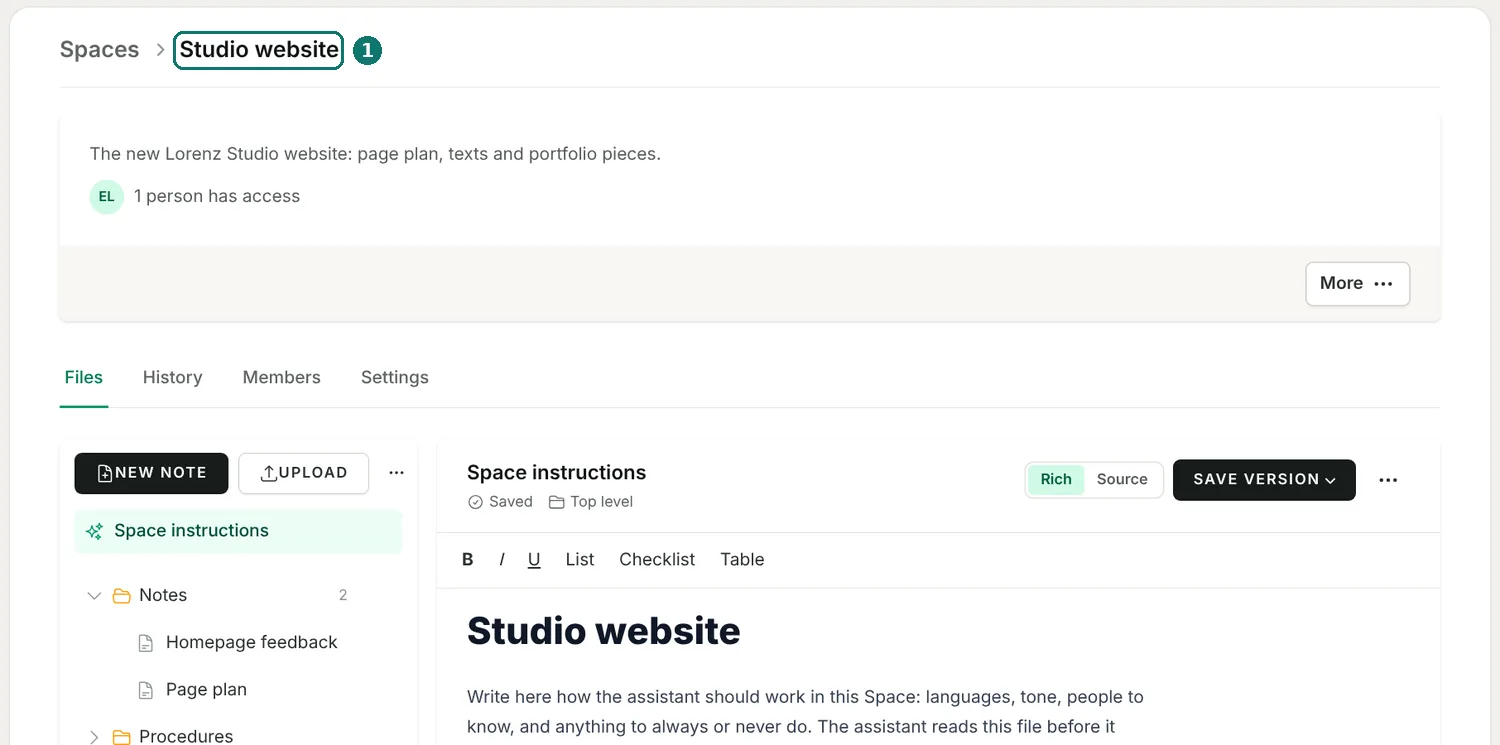
Export one Space
- Open the Space from Spaces.
- Choose More.
- Choose Export this Space.
- Choose Current files or Files with their history.
- Choose Prepare export.
- Choose Download when the zip is ready.
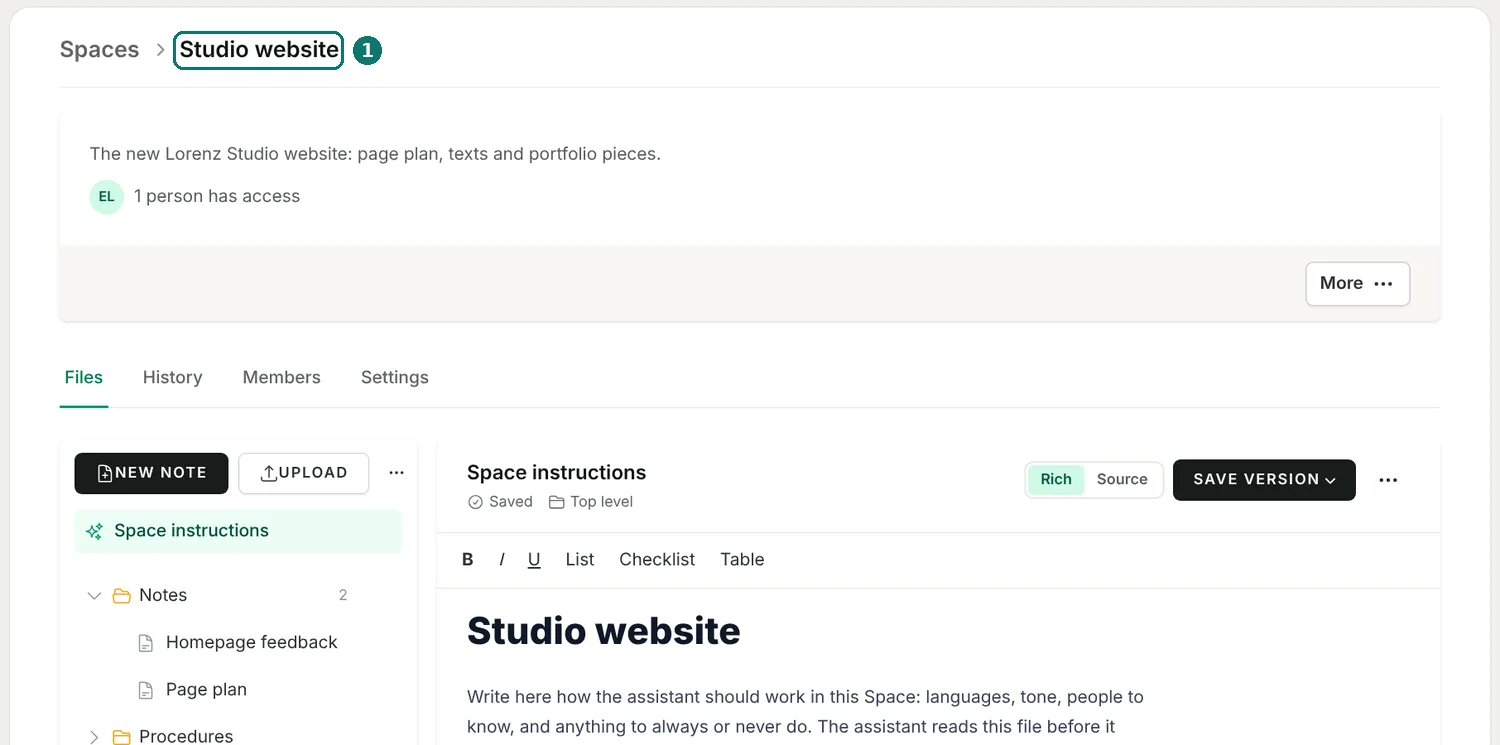
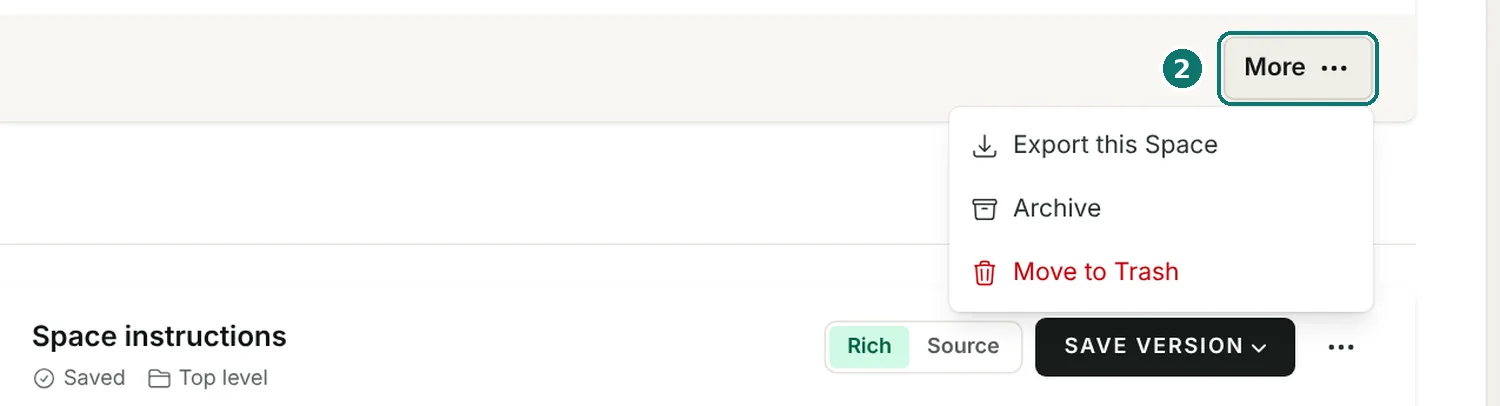
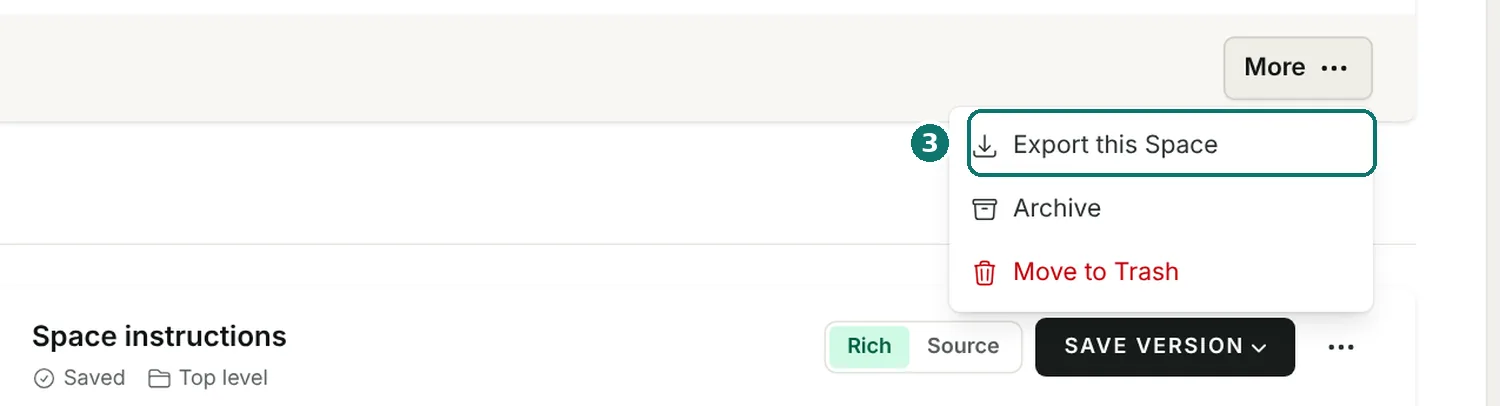
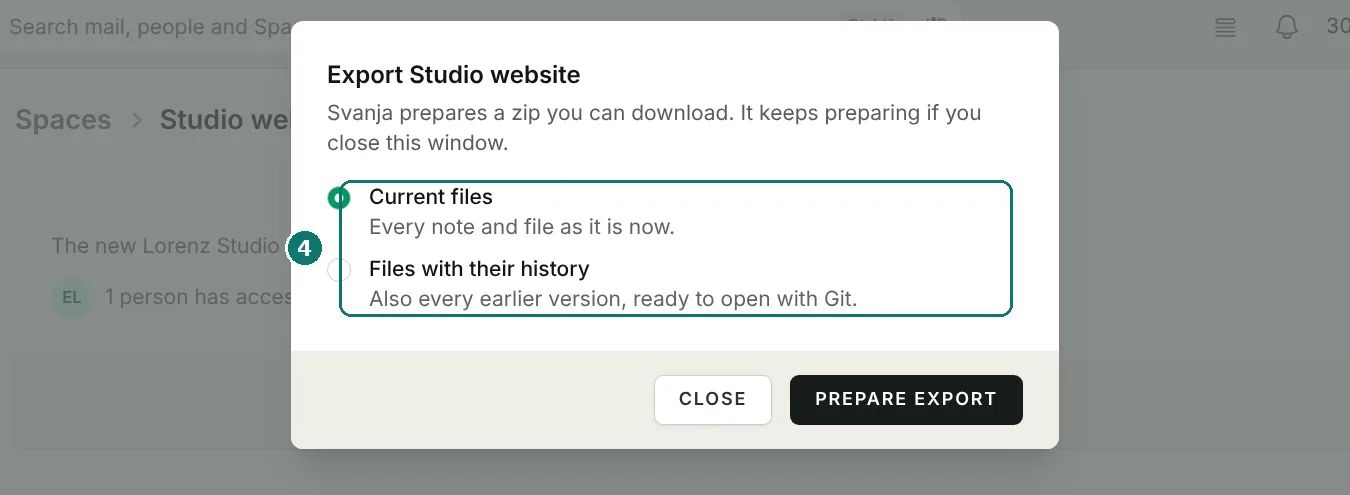
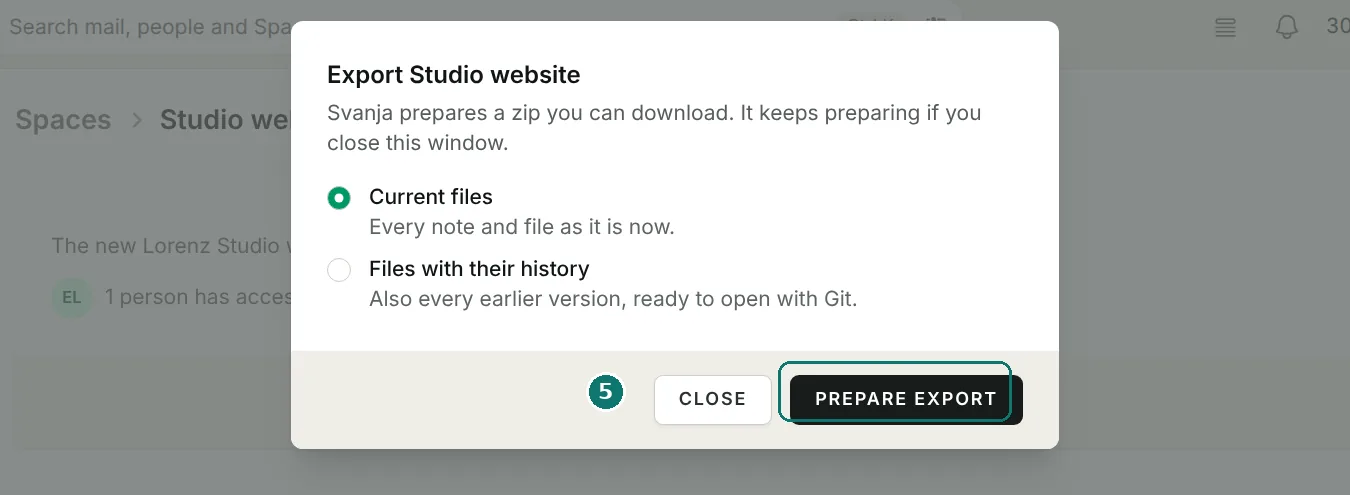
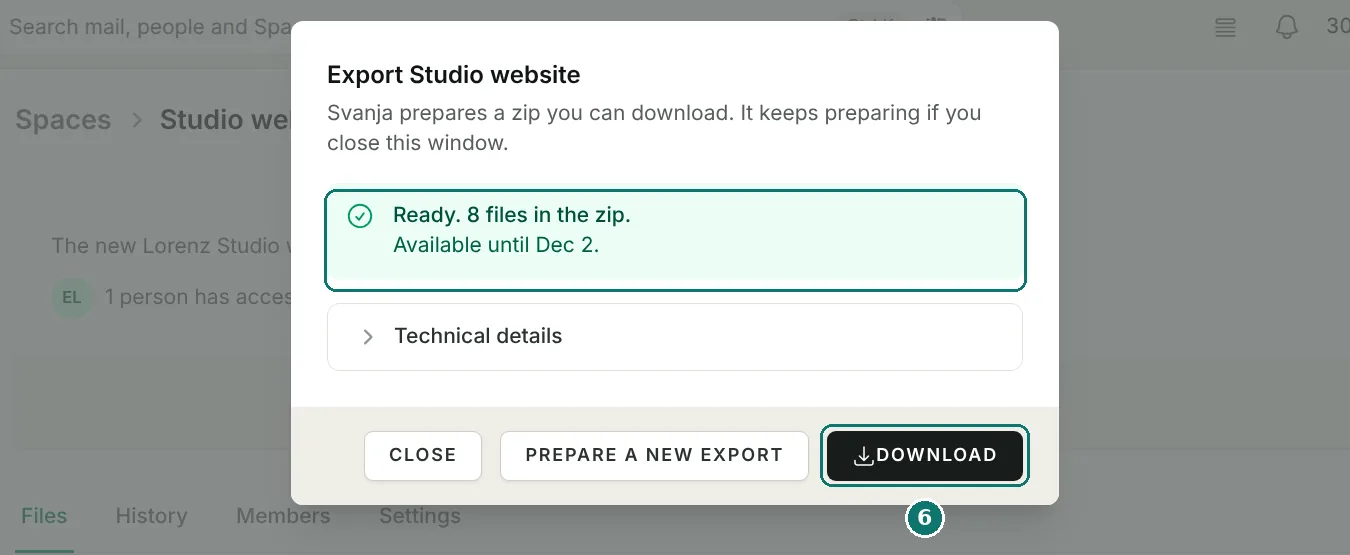
Current files includes every note and file as it is now. Files with their history also includes every earlier version, ready to open with Git. You can close the window while Svanja prepares the zip, and the download stays available for 7 days. If the history can’t be included safely, the export lets you know and includes the current files only.
Export everything
Export everything creates one archive of what you can open in the current team. Use it as a backup or to move your data elsewhere.
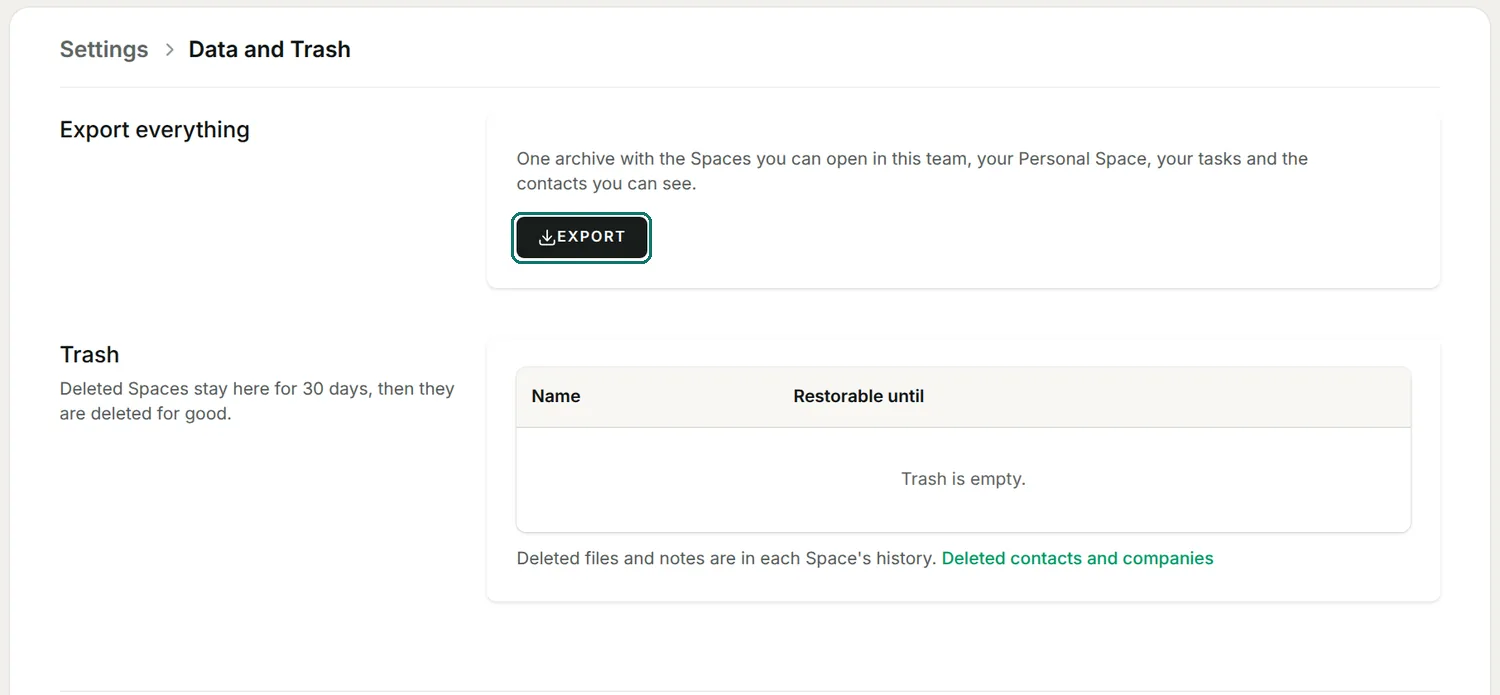
- Open Data and Trash in Settings.
- Under Export everything, choose Export.
- Choose Download when the archive is ready.
The archive holds the current version of each file, without the history. The download stays available for 7 days.
| In the archive | What it holds |
|---|---|
spaces/ |
One folder per Space you can open in this team, plus your Personal Space |
crm/ |
Your contacts and companies, as JSON and CSV |
tasks/ |
Your tasks, as JSON and CSV |
rules/ |
The rules you can see |
artifacts/ |
The documents the assistant made |
Your email isn’t in the archive because it stays with your mail provider. You can bring a Space’s folder from the archive back into a Space with Bring files in. For more on what Svanja keeps, see Your data and privacy.
Work on a Space with Git
With Git, you can open a Space in a code editor like VS Code, in Obsidian, or with a coding agent, and send your edits back. You need an access token, which acts as your password.
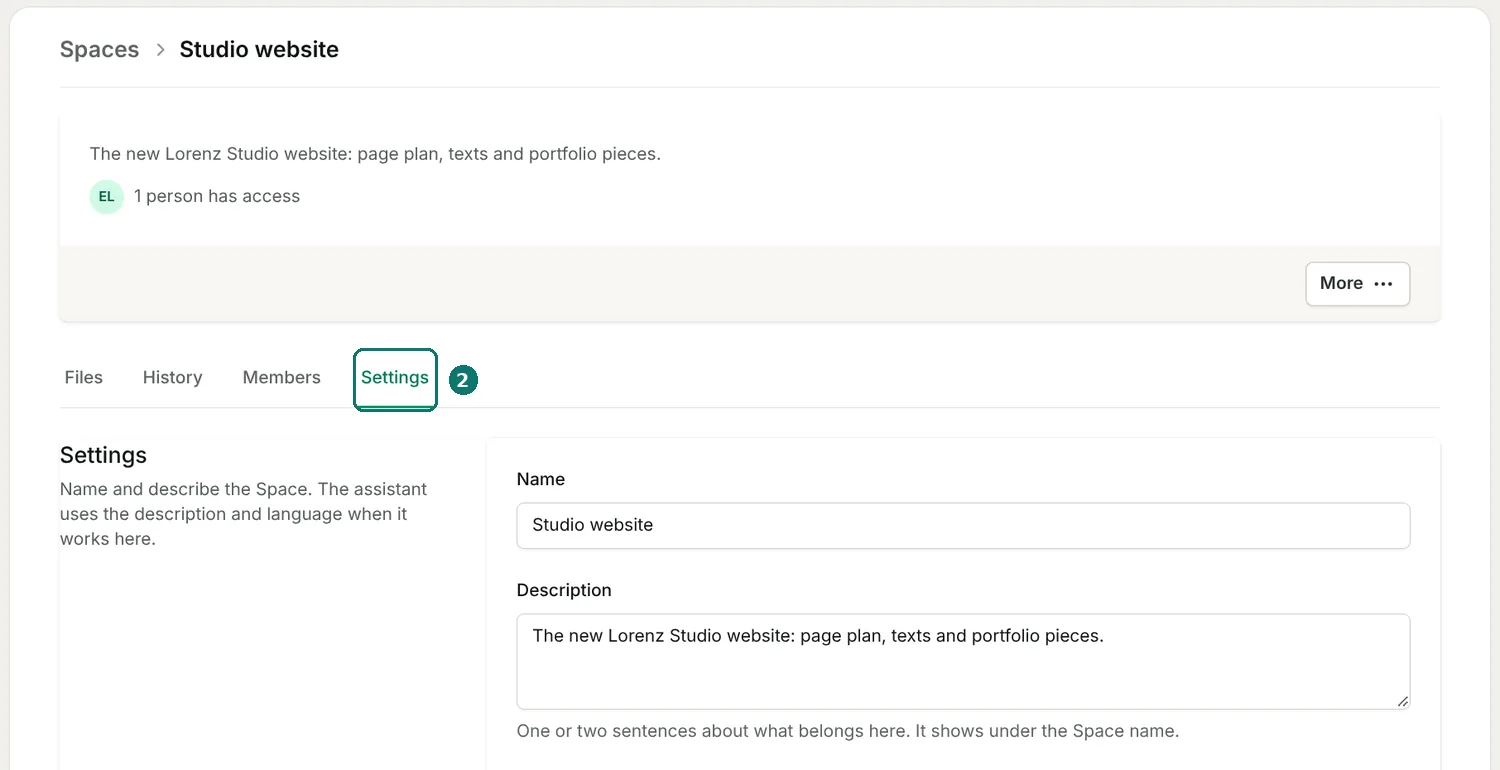
- Open the Space from Spaces.
- Choose Settings.
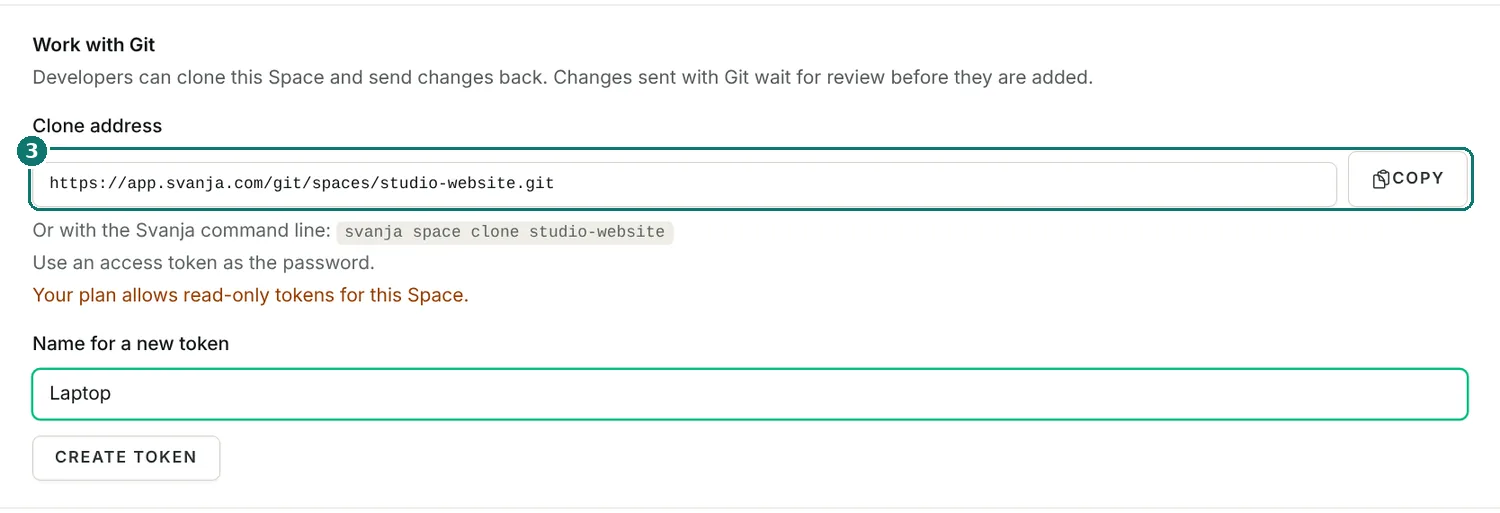
- Under Work with Git, copy the Clone address.
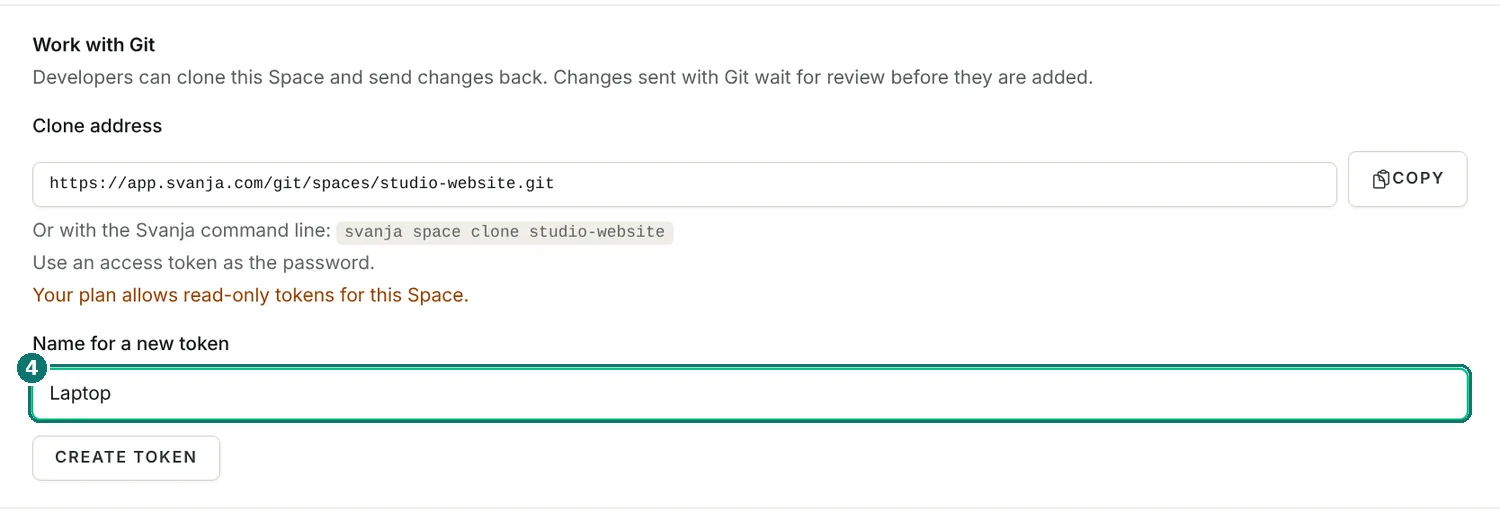
- Type a Name for a new token, for example “Laptop”.
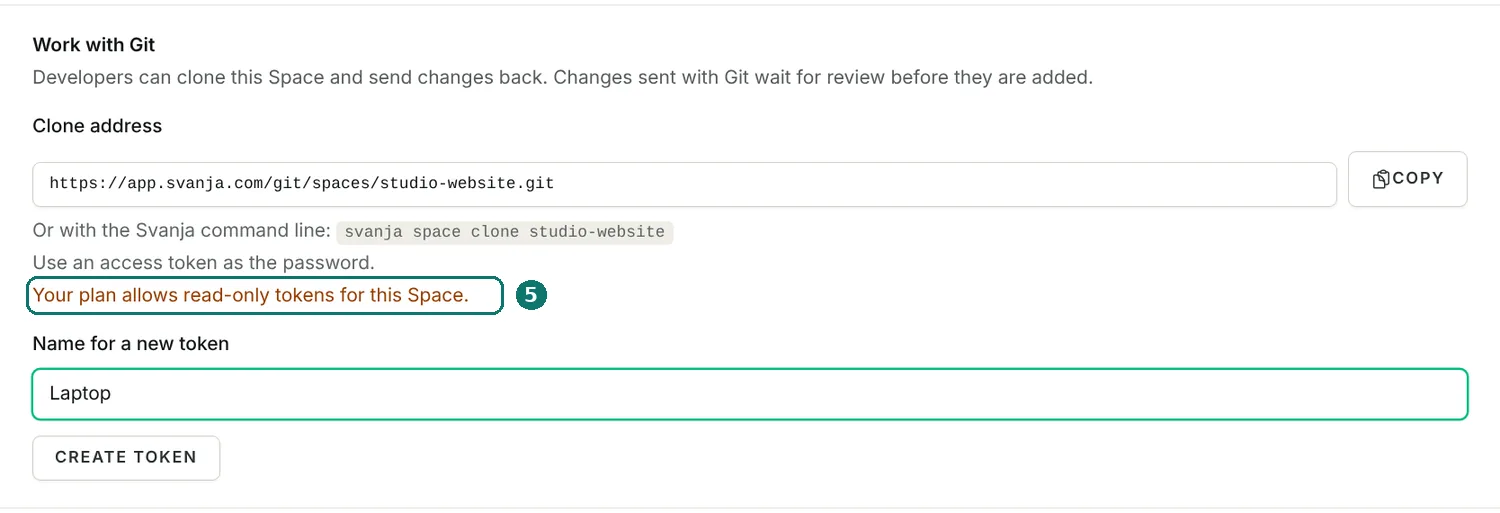
- Tick Allow sending changes with Git if you want to push changes back. This isn’t available on the Free plan.
- Choose Create token.
- Copy the token. It’s shown only once.
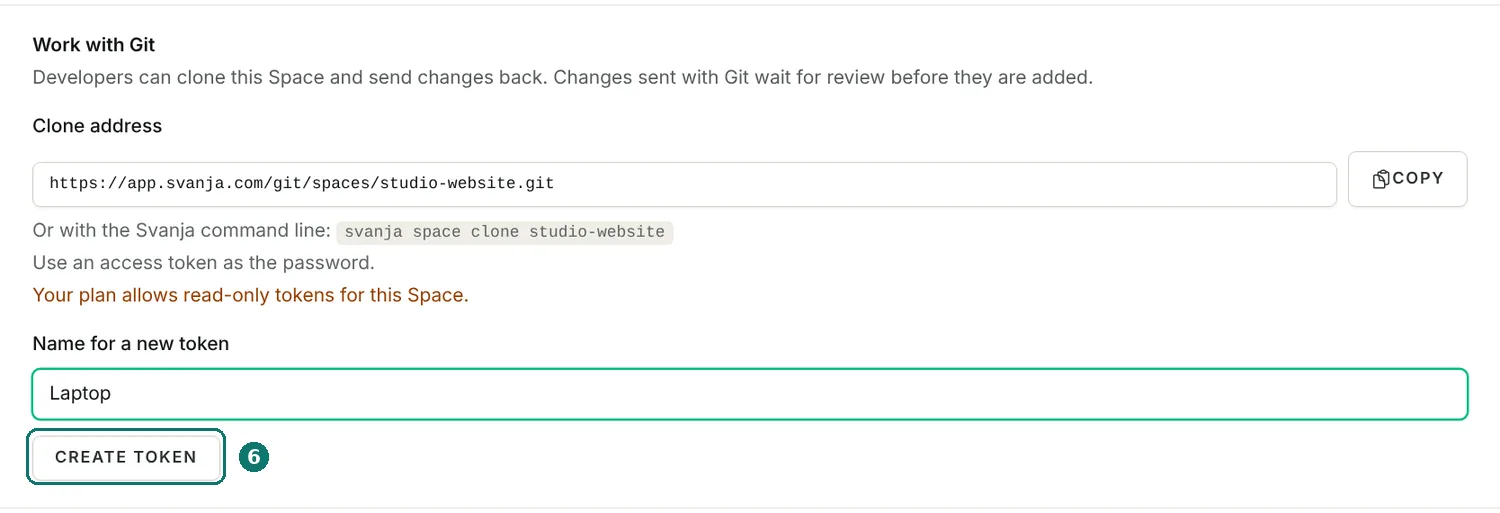
Then clone the Space to your computer:
git clone https://app.svanja.com/git/spaces/<space-address>.gitWhen Git asks for a password, paste the token. Any username works.
Changes you push don’t go straight into the Space. They wait under Changes sent with Git on the Space’s Settings tab until someone with permission to edit the Space chooses Add to the Space or Reject. That way, a push can’t overwrite what a colleague or the assistant wrote in the meantime. If the changes overlap with newer edits, you review the conflicts first.
On the Free plan, tokens are read-only, which is enough to clone the Space. Choosing Revoke next to a token stops it right away, though copies you already cloned stay where they are.