Without a rule, the assistant only works when you ask it to. A rule does the asking for you. You set when it starts, such as when an email asks for a price or every Friday afternoon, and what should happen next. From then on, it runs on its own, even while you’re away.
A rule can sort mail without any AI. It can also draft a reply that waits for you, or start a task. A task is a job the assistant works on in the background (see Tasks). You’ll find your rules under Rules in the sidebar.
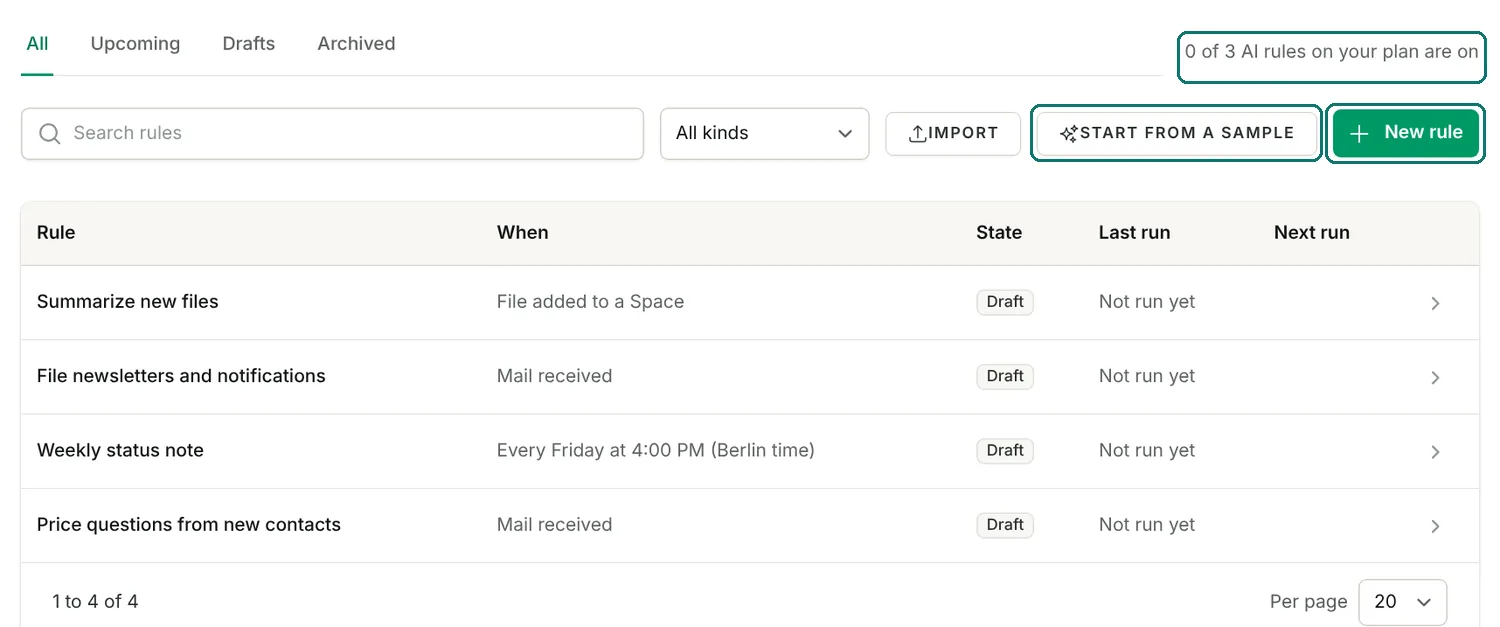
What is a rule?
A rule has three parts:
- When says what starts it.
- Only if narrows it down. This part is optional.
- Do says what happens.
For example: when mail arrives, only if the sender is not a client and asks for a price, draft a reply using my note on price questions.
At the bottom of the form, In plain words sums up the rule in a few sentences. It tells you whether the rule uses AI and what it can do without asking you.
What can start a rule?
Under When the rule starts, you pick one of four kinds. Under What happens, you pick the exact event.
| Kind | Starts when | For example |
|---|---|---|
| An email arrives, is sent, or changes | Mail received, Snooze ended, Reminder due | |
| Schedule | At set times | Every week, First business day of the month, Once |
| Svanja event | Something happens in Svanja | File added to a Space, Task finished |
| Connected service | A connected service sends an event | Webhook received, from a Custom API connection |
Mail rules need a connected mailbox. Until you have one, you can only save them as drafts. A schedule runs in the time zone you choose, and Skip public holidays leaves out German or US holidays.
Start from a sample
A sample is a ready-made rule. Starting from one gives you a draft you can edit. Nothing runs until you enable it, and samples never send anything.
- Open Rules.
- Choose Start from a sample.
- Pick a sample.
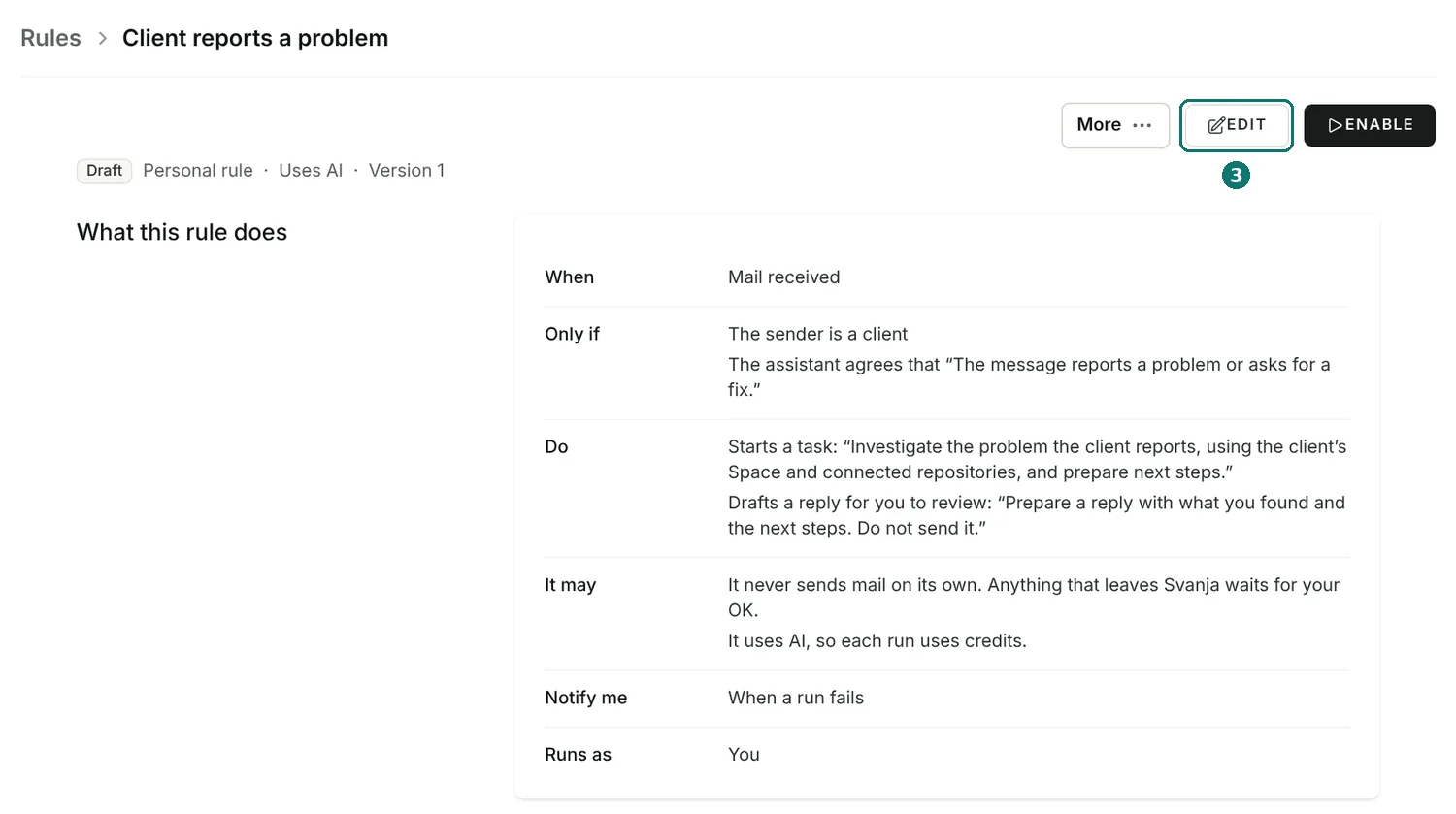
- On the new draft, choose Edit and change what you need.
- Choose Save as draft.
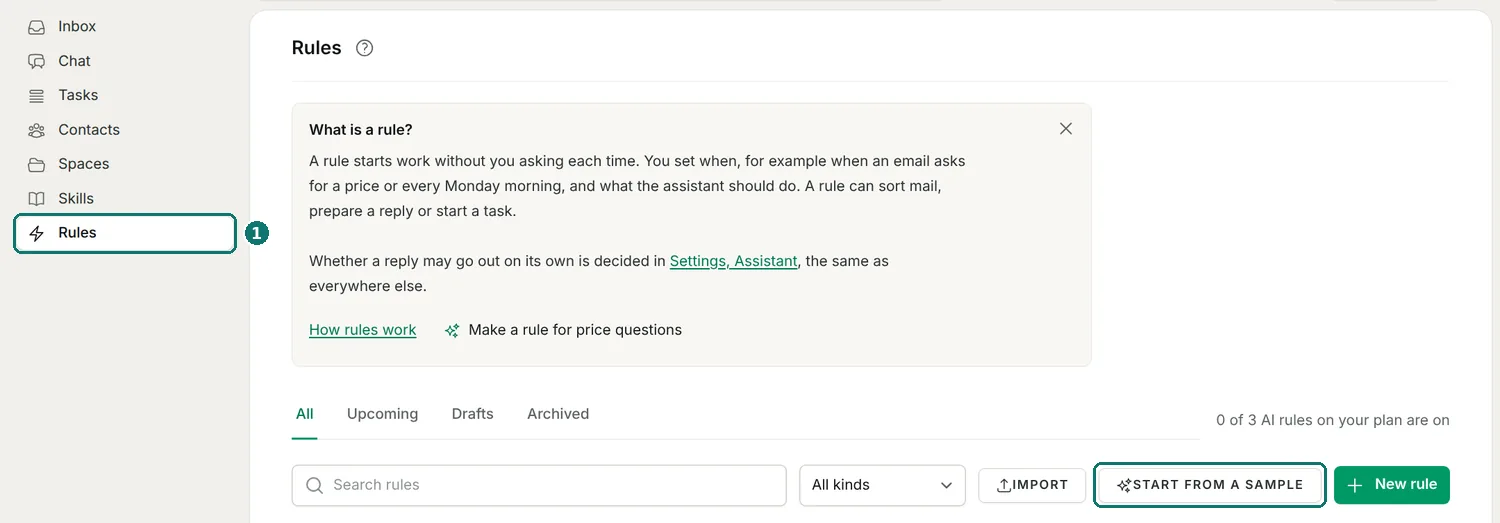
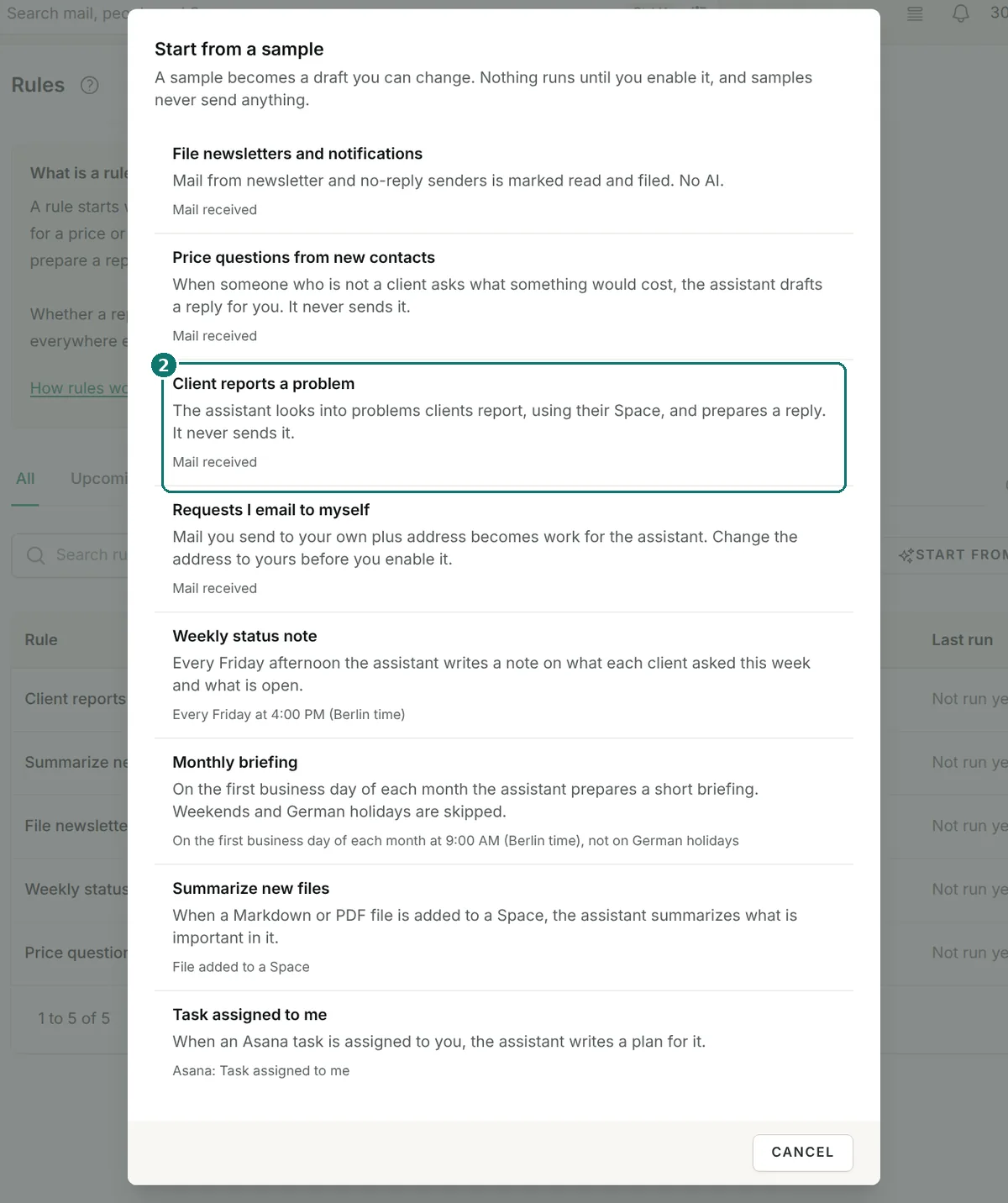
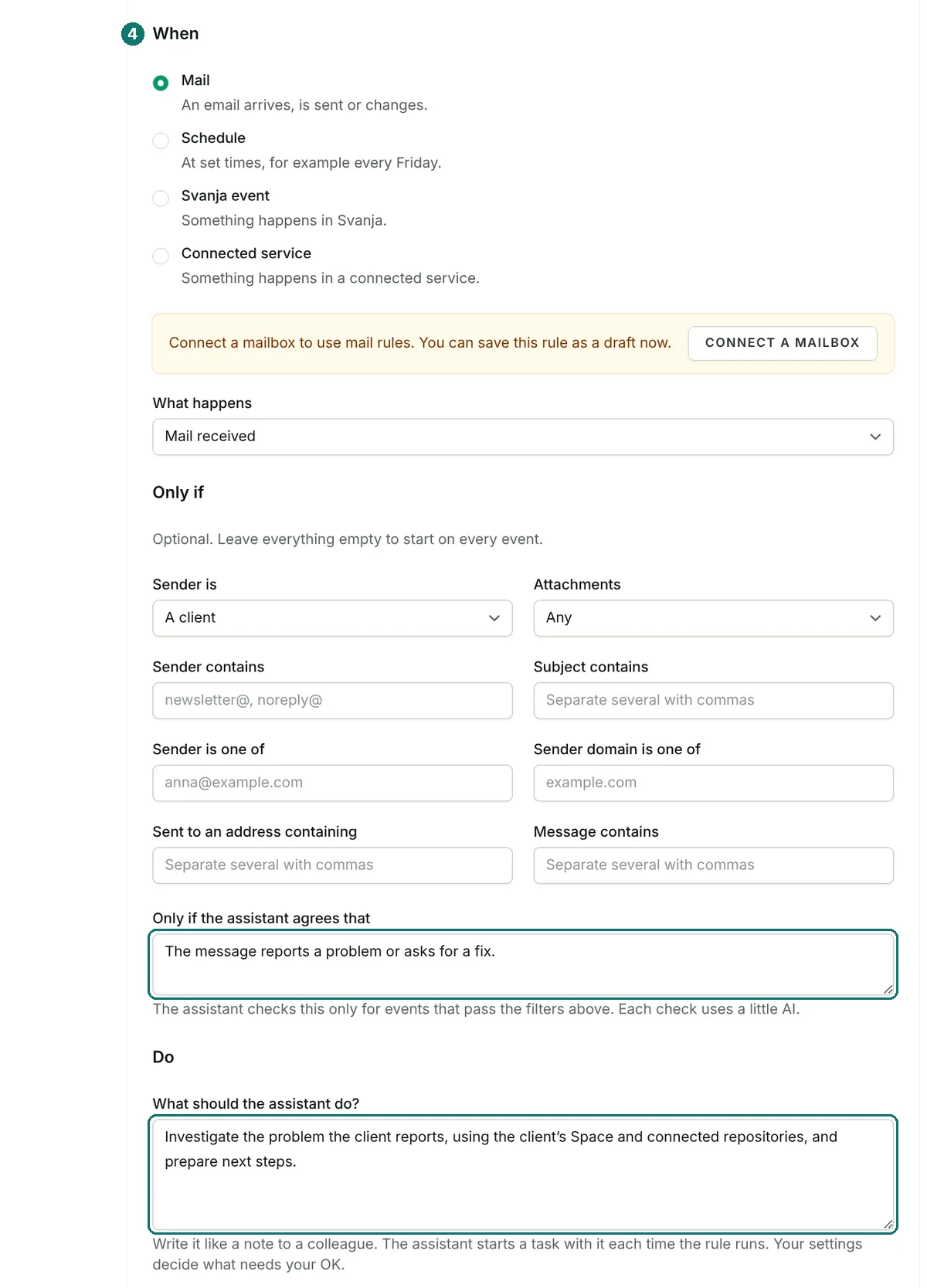
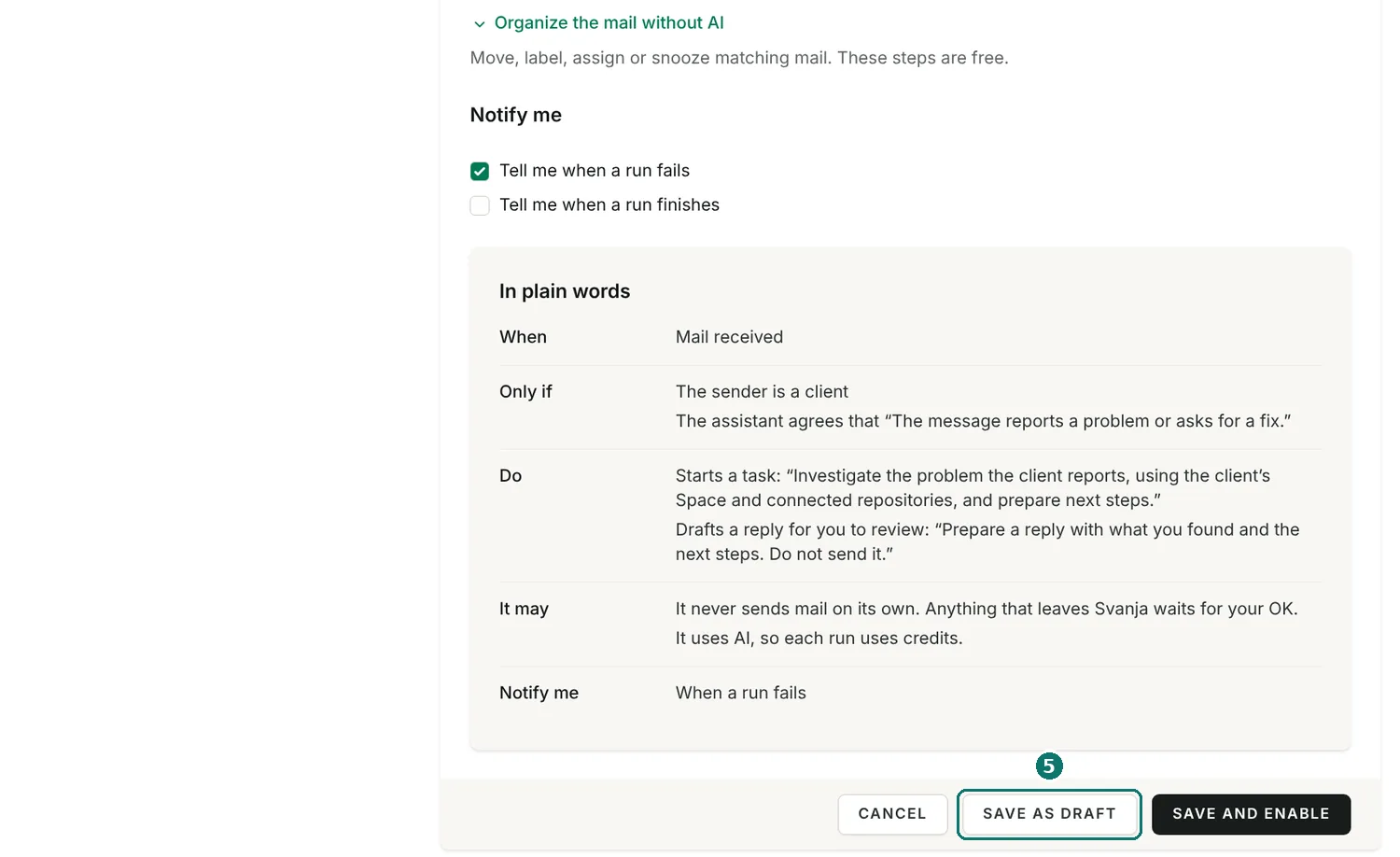
The eight samples are:
- File newsletters and notifications (no AI)
- Price questions from new contacts
- Client reports a problem
- Requests I email to myself (put in your own address first)
- Weekly status note
- Monthly briefing
- Summarize new files
- Task assigned to me (needs Asana, which can’t be connected yet)
Make your own rule
Choose New rule to open an empty form. Along with the three parts above, fill in:
- Name: so you can find the rule again.
- Space: the client Space the rule’s tasks work with (see Spaces).
- For: Just me, or My team on the Team plan.
Under Only if, filters check simple facts, like Sender is or Subject contains. Only if the assistant agrees that takes a condition in your own words.
Under Do, choose what happens:
- What should the assistant do? Write it like a note to a colleague. Each run starts a task with it.
- Draft a reply: the draft waits in the conversation for you.
- Organize the mail without AI: move, label, assign, or snooze. These steps are free.
Test a rule before you turn it on
A test shows what the rule would have done without changing anything.
- Open the rule.
- Under More, choose Test on recent events. For a schedule, it’s Test now.
- Choose Test.
The assistant checks events from the last 30 days and prepares previews for up to 10 matches. The Tests tab shows what matched and what the rule would have done. Nothing is sent, moved, or changed. The previews use a few credits. When the results look right, choose Enable.
What happens after you turn it on?
Each run shows up on the Runs tab, with a link to its task. If a rule caught an email it shouldn’t have, choose This should not have matched on that run, and the assistant adds a condition to a draft of the rule. Changes apply to new events only. The History tab keeps every saved version.
A rule never sends email on its own. When its task writes an email, your settings under Settings, Assistant decide whether it goes out or waits for your OK. See What the assistant may do.
What do rules cost?
Credits are how you pay for the assistant’s work. A rule that only organizes mail costs nothing. Every other rule uses AI, so each run uses credits. That includes a rule whose only AI part is an Only if the assistant agrees that condition. When your credits run out, these rules skip their runs, and you can run the missed ones later. See Credits and prices.
The Free plan lets you have 3 AI rules turned on at once. Rules that only organize mail don’t count toward that limit. Pro and Team plans have no limit.