As a freelancer, most of your client work runs through email. Writing a good reply means pulling up what you know about the client, like the brief or the last offer. Svanja keeps those notes and files right next to your email, and its assistant reads both when you ask for a reply or a bigger job.
This guide walks you through setting up Svanja for one person with a handful of clients, step by step.
What do you need?
You need a Svanja account and a mailbox. Sign up at app.svanja.com. Because Svanja is in early access, each new account is approved by hand.
The Free plan is enough to get started. It includes one mailbox, 3 Spaces, and 300 credits a month, which cover the assistant’s work. Pro costs €29 a month and gives you more mailboxes, unlimited Spaces, and 3,000 credits. See Credits and prices.
Connect your mailbox
- Open the Inbox.
- Choose Microsoft for Outlook and Microsoft 365, or Other provider for any mailbox with IMAP and SMTP.
- Sign in, or enter your mailbox’s server details.
Svanja loads the last 90 days of email. Your mail stays with your provider, and anything you archive or move in Svanja changes there too. See Connecting your mailbox.
Give each client a Space
A Space is a folder for one client. It holds your notes, files, and Space instructions, which is a note the assistant reads first whenever it works for that client. Each client Space belongs to the client’s company in Contacts, where Svanja adds everyone you write to.
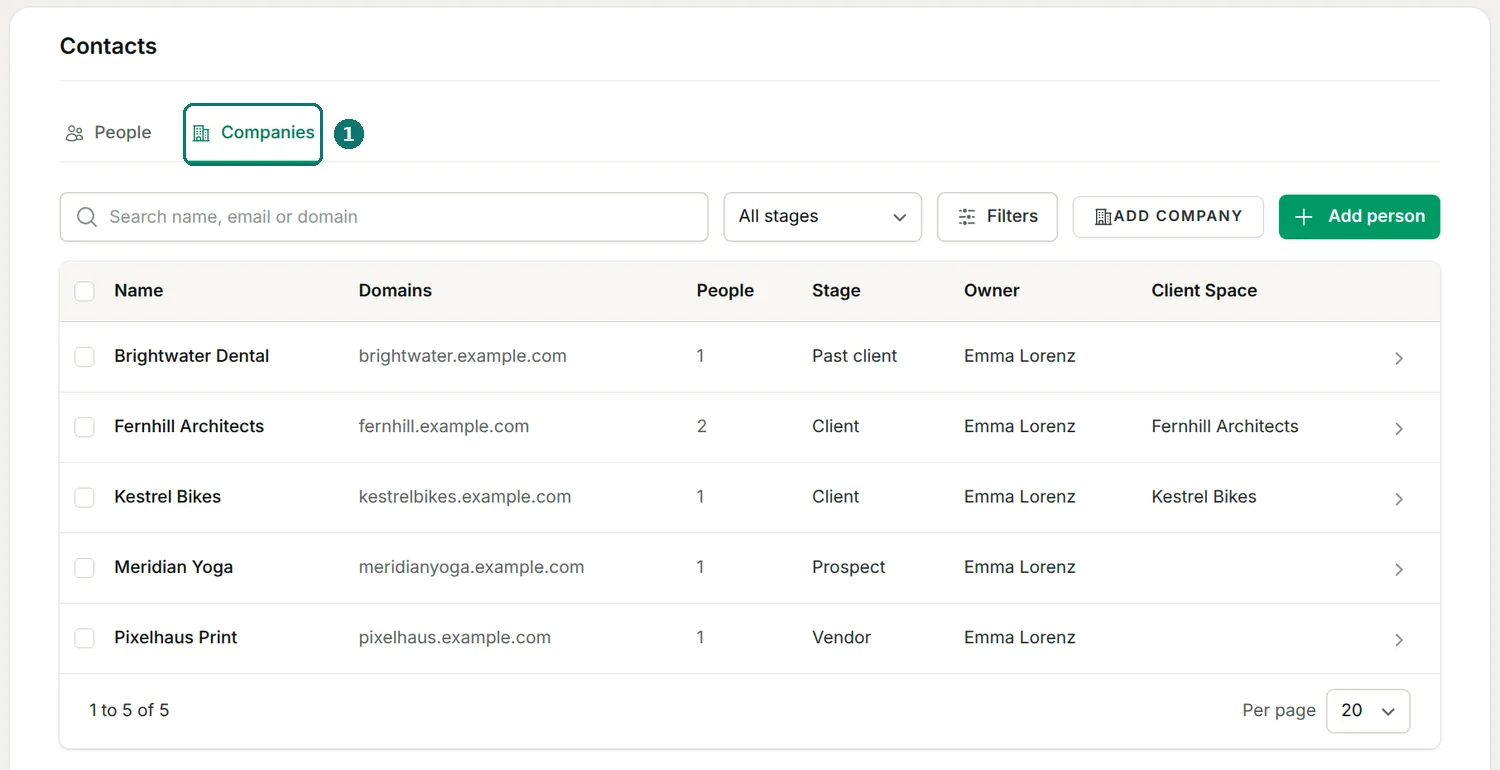
- Open Contacts on the Companies tab.
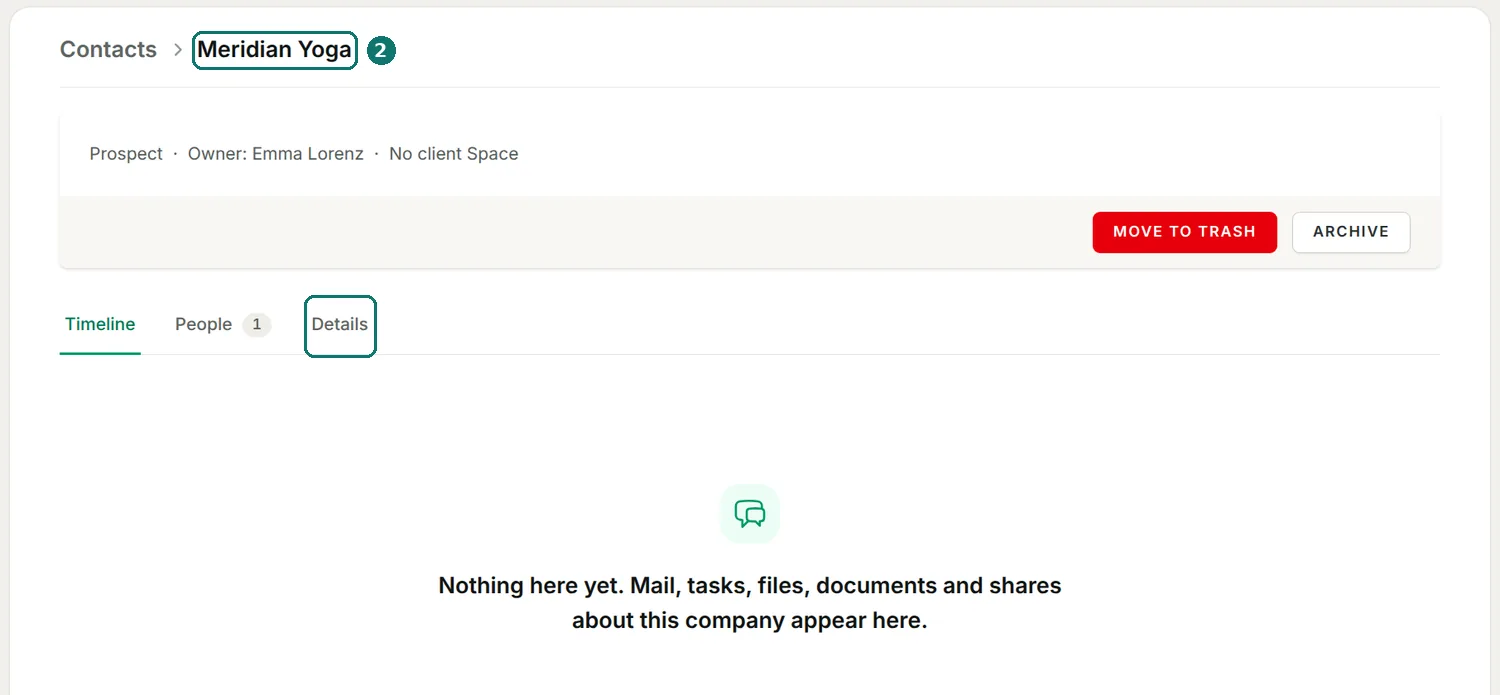
- Open the client’s company.
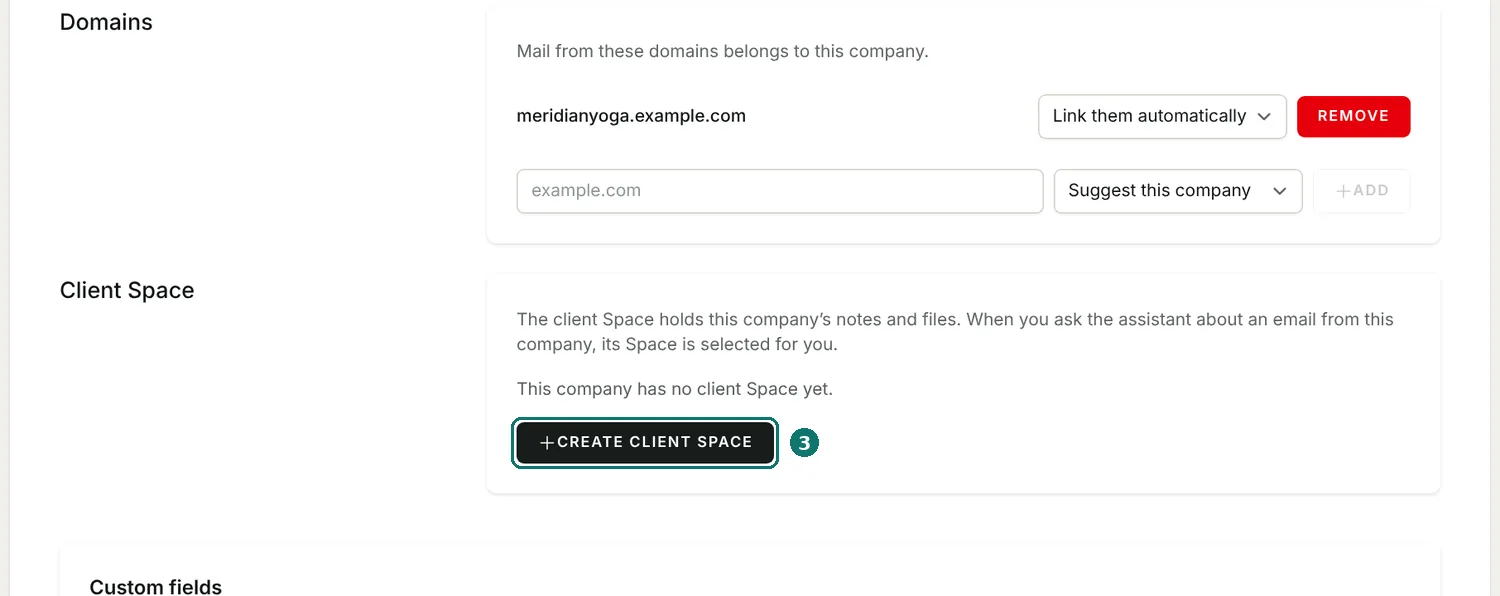
- Open Details and choose Create client Space.
- In the new Space, open Space instructions and write what a new colleague would need to know.
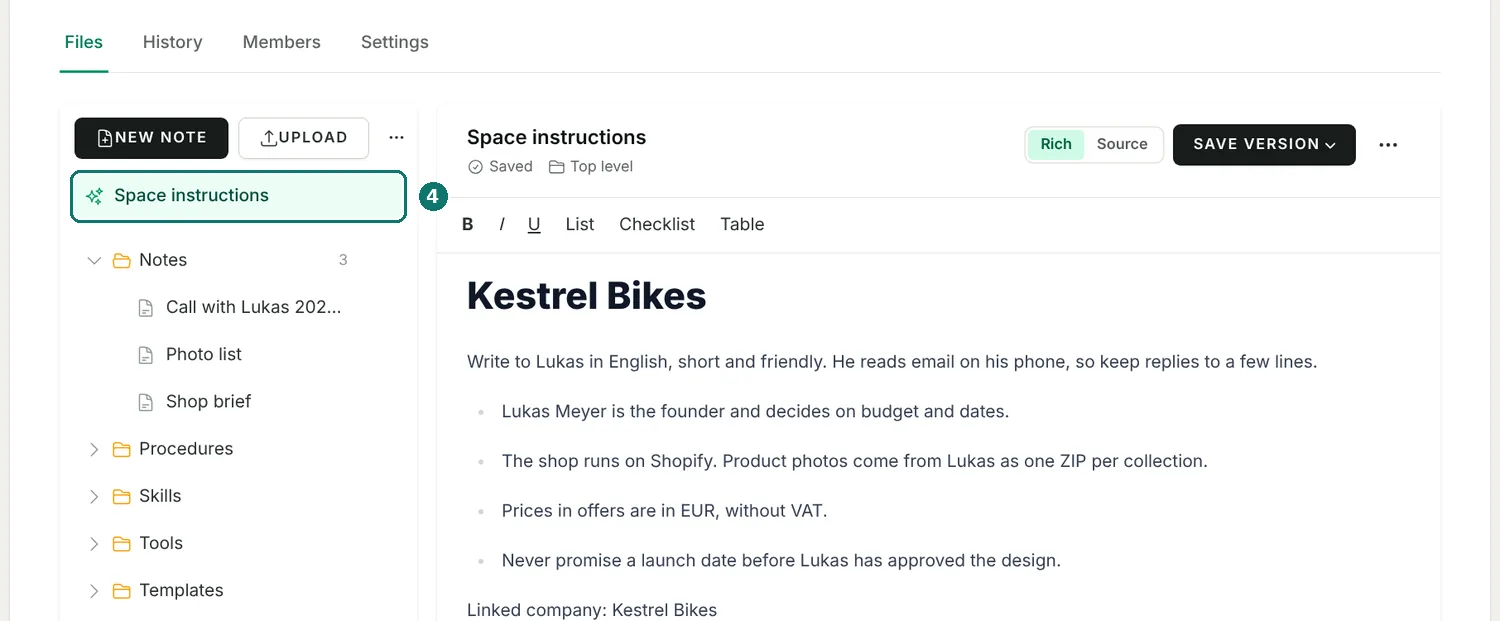
Space instructions can be short:
Write in German and use "du".
The founder decides on budget and dates.
Never promise a launch date in an email.
Next, upload the files you look up most and choose Pin on them so they show up next to the client’s emails. On the Free plan, client and project Spaces together count toward your limit of 3. See Spaces and Contacts and companies.
Let the assistant draft your replies
Open an email and choose Draft a reply under the newest message. The assistant reads the conversation and the client’s Space, then puts a draft into the email for you to review and send yourself.
To make drafts sound more like you, let Svanja learn a writing style from your sent mail. You can create one in Mail AI styles using Create from samples. See Snippets and writing styles.
Every account starts with Ask me before every email turned on in Settings, Assistant. See What the assistant may do on its own.
Hand over the bigger jobs
When an email takes some prep work first, like comparing three offers, ask in Chat. Longer jobs become tasks that run in the background under Tasks.
If a task goes well, choose Save as skill on its page. A skill saves the steps for a job so you can review them and have the assistant follow them next time. See Tasks and Skills.
Add rules for the routine
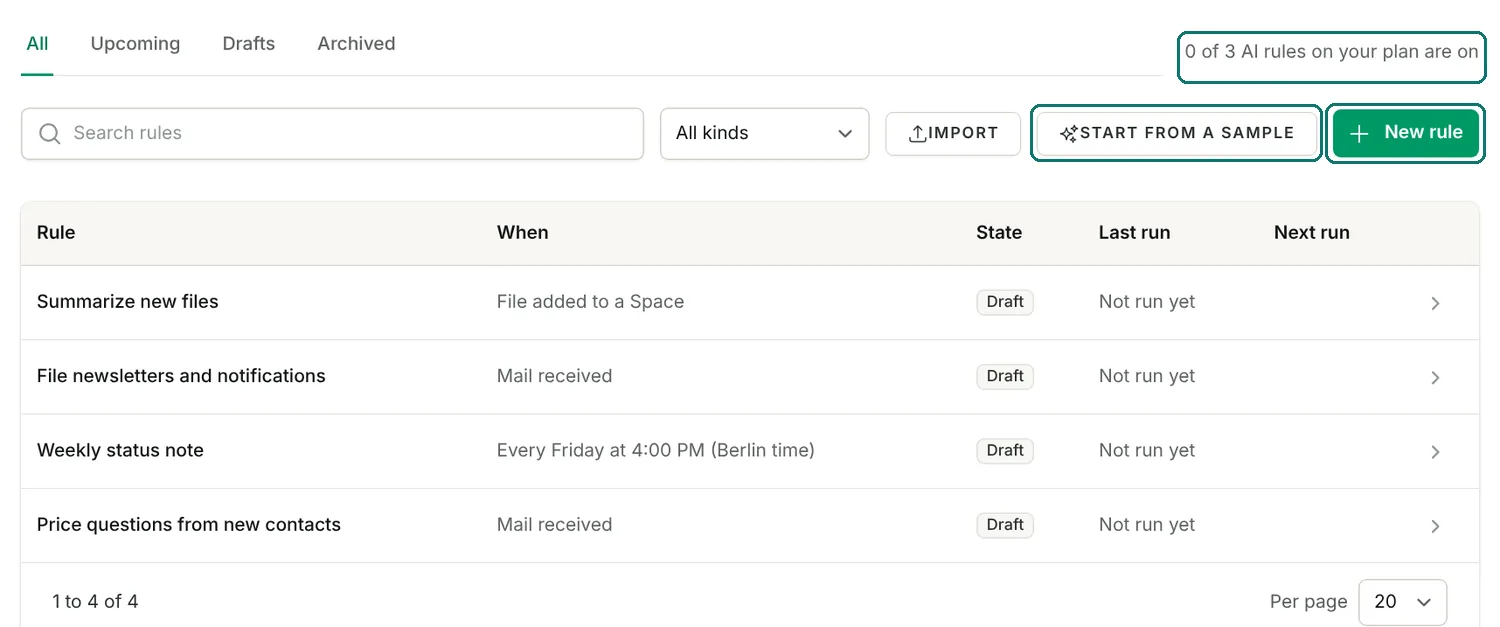
A rule lets work start without you asking. Open Rules and choose Start from a sample. Two samples are especially useful for freelancers:
| Sample | What it does | Cost |
|---|---|---|
| File newsletters and notifications | Marks mail from newsletter@ and noreply@ as read. Pick a folder under Move to folder to file it too. |
Free |
| Price questions from new contacts | When someone who isn’t a client asks for a price, drafts a reply using your note on price questions. It never sends. | Credits per run |
A client is any contact with the stage Client, set either on the person or their company. Choose Test on recent events before you turn a rule on. On the Free plan, you can have up to 3 rules with AI active at the same time. See Email rules and automation.
Follow up on an offer
When you send an offer, choose Add follow-up in the composer, write your message, and set a delay such as 3 days. If the client replies first, it isn’t sent. See Snooze, reminders and follow-ups.