MCP (Model Context Protocol) is a standard way for AI apps to talk to other services. When you connect Svanja to an AI app over MCP, the app can read notes in a client’s Space, start a task, or save its findings as a note. If you grant mail access, it can also search your email and write drafts.
Svanja offers two MCP servers: a hosted server that runs at Svanja, and a local server that runs on your own computer as part of the svanja command line. Below, you’ll find the general setup for each server, followed by the steps for specific apps.
Which server should I use?
| Hosted MCP server | Local MCP server | |
|---|---|---|
| Address | https://app.svanja.com/mcp |
svanja mcp serve, on your computer |
| Sign-in | Sign in to Svanja in your browser and approve what the app can access | The key you signed in with on the command line |
| Needs installing | Nothing | The svanja command line |
| Access | What you approve on the consent screen, for up to 30 days | Whatever the key is allowed to do |
| Tools | One per area, each covering the main operations of that area | One per command, more than 300 |
| Who can connect | Team owners and admins | Anyone with a key |
| Works with | ChatGPT, Claude, Claude Code, Codex | Claude Code, Codex, Cursor, Claude Desktop, VS Code, and other apps that start a local command |
You can see the full list of tools for both servers on the MCP tools page. The local server requires the command line, and its downloads aren’t published yet. Until they are, use the hosted server. See The svanja command line.
Connect to the hosted server
Every app that uses the hosted server follows the same steps:
-
In the app, add a custom connector or MCP server with this address:
https://app.svanja.com/mcp -
The app sends you to Svanja. Sign in if you aren’t already.
-
On the consent screen, open Advanced settings if you want to choose permissions yourself. The next paragraph explains your options.
-
Choose Approve.
Only team owners and admins can approve a connection. If you approve right away, the app gets access to all your Spaces, your credits, and the areas checked by default, but no mail. Under Advanced settings, you can pick the team, Spaces, and areas yourself. For email, turn on Your mail and choose the mailboxes. Read messages and Write drafts are checked by default, while Prepare sending is left off. Access lasts up to 30 days, after which the app asks you to sign in again.
Connect to the local server
Every app that uses the local server runs the same command: svanja mcp serve. Install the command line and sign in first. The server uses the key from your current profile and can never do more than that key allows, so don’t put API keys into config files. If the app passes a SVANJA_API_KEY to the server, that key takes priority over your profile.
If an app can’t find the command, use its full path. You can find it by running command -v svanja. Keep in mind that the server lists its tools before checking your key, so an app might show Svanja as connected even if its first call fails. Run svanja whoami in a terminal to verify your key.
To give an agent less access, create a key with only the areas it needs and sign in with svanja login --api-key --base-url https://app.svanja.com. See The REST API.
Use Svanja in ChatGPT
ChatGPT uses the hosted server. In a Business or Enterprise workspace, an admin may need to allow custom apps first.
- In ChatGPT, open Settings and then Apps. If you can’t add your own app there, turn on developer mode under Advanced settings.
- Create a new app, name it Svanja, and paste the server address.
- If ChatGPT asks how to sign in, choose OAuth.
- Approve on the consent screen.
If ChatGPT doesn’t use Svanja on its own, select it from the tools or apps menu next to the message box.
Use Svanja in Claude
Claude on the web uses the hosted server, and once connected, it also works in the Claude desktop app. You need a Claude plan that allows custom connectors.
- In Claude, open Settings, then Connectors, and choose Add custom connector.
- Name it Svanja and paste the server address.
- Choose Connect.
- Approve on the consent screen.
On a Claude Team or Enterprise plan, an owner adds the connector once in the organization’s settings, and members choose Connect under Settings, Connectors. In a chat, turn the connector on in the tools menu if needed.
Use Svanja in Claude Code
Claude Code works with either server. For the hosted server, run this in your project folder:
claude mcp add --transport http svanja https://app.svanja.com/mcpThen type /mcp in Claude Code and choose svanja, or run claude mcp login svanja, and approve on the consent screen.
For the local server:
claude mcp add --transport stdio svanja -- svanja mcp serveWith the full path:
claude mcp add --transport stdio svanja -- "$(command -v svanja)" mcp serveBy default, Claude Code adds a server for the current project only. Add --scope user to make it available in every project. If you add both servers, give the local one a different name, like svanja-local.
A skill teaches Claude Code the svanja commands. Download SKILL.md and place it at ~/.claude/skills/svanja/SKILL.md, or inside a single project at .claude/skills/svanja/SKILL.md. Each Space is also a Git repository you can clone next to a client’s code. See Import, export and Git.
Use Svanja in Codex
Codex works with either server too. For the local server:
codex mcp add svanja -- svanja mcp serveWith the full path:
codex mcp add svanja -- "$(command -v svanja)" mcp serveCodex starts servers with only part of your environment. If you use SVANJA_API_KEY instead of svanja login, configure Codex to pass it through, then restart Codex.
For the hosted server:
codex mcp add svanja --url https://app.svanja.com/mcpIf Codex doesn’t open Svanja in your browser, or if sign-in didn’t finish, run codex mcp login svanja.
For the skill, place SKILL.md at $CODEX_HOME/skills/svanja/SKILL.md, or inside a single repository at .agents/skills/svanja/SKILL.md.
Use Svanja in Cursor
Cursor uses the local server only. Add Svanja to its MCP settings, either for all projects in ~/.cursor/mcp.json or for one project in .cursor/mcp.json:
{
  "mcpServers": {
    "svanja": {
      "command": "svanja",
      "args": ["mcp", "serve"]
    }
  }
}
On Windows, the full path is usually C:\\Users\\YOUR-NAME\\AppData\\Local\\Programs\\svanja\\svanja.exe, with double backslashes as required by JSON. Cursor will then list the Svanja tools in its MCP settings, where you can turn on the ones the agent is allowed to use.
Use Svanja in other apps
Any app that can start a local command (a “stdio” server) works with the local server. The hosted server only works with apps that sign in with OAuth and PKCE and redirect to claude.ai, chatgpt.com, or a local address on your computer.
Claude Desktop, in claude_desktop_config.json (Settings, Developer, Edit Config):
{
  "mcpServers": {
    "svanja": { "command": "svanja", "args": ["mcp", "serve"] }
  }
}
VS Code, in .vscode/mcp.json in your project:
{
  "servers": {
    "svanja": { "type": "stdio", "command": "svanja", "args": ["mcp", "serve"] }
  }
}
Windsurf, in ~/.codeium/windsurf/mcp_config.json:
{
  "mcpServers": {
    "svanja": { "command": "svanja", "args": ["mcp", "serve"] }
  }
}
For a different team, create a profile and sign in to it:
svanja profile create agency --base-url https://app.svanja.com
svanja --profile agency login
Then use "args": ["--profile", "agency", "mcp", "serve"].
See and revoke connected apps
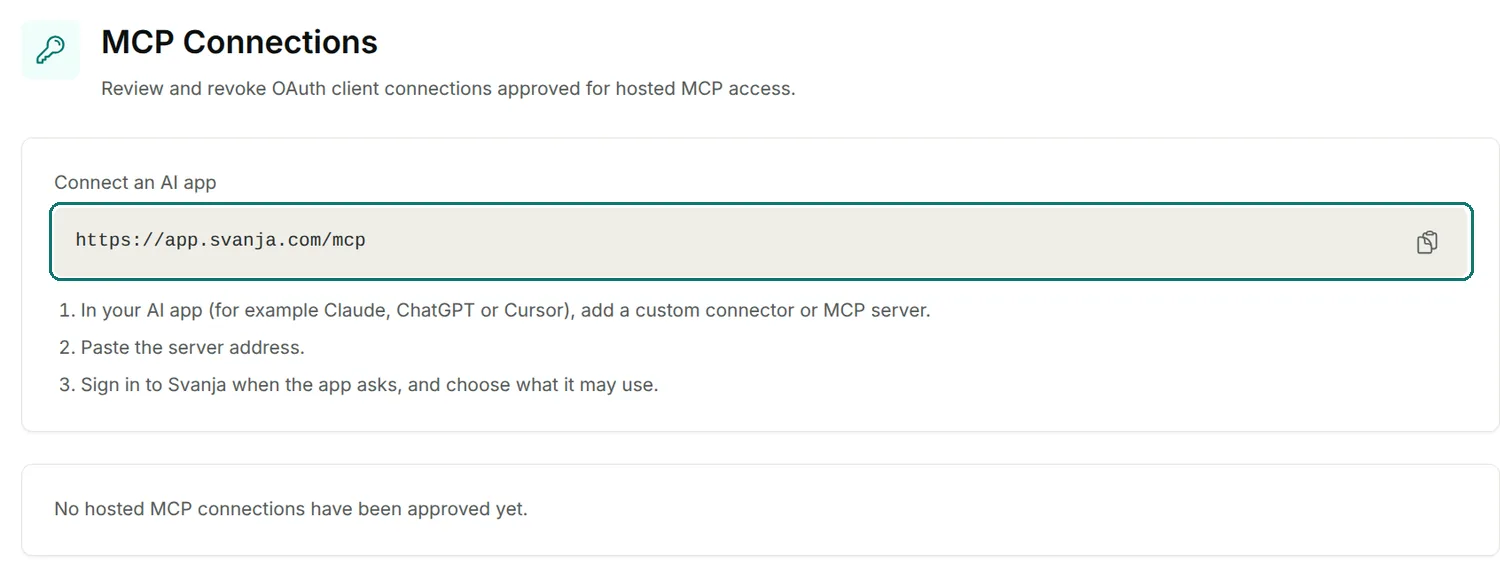
MCP Connections shows every app connected to your team and what it can access.
- Open Settings and choose API Keys.
- Choose MCP Connections.
To disconnect an app right away, choose Revoke next to it.
Mail and sending
An app can only read the mailboxes you approved, and any draft it writes never goes out on its own. Svanja controls what the app is allowed to do, though not how the app interprets the text of an email.
- On the hosted server, sending follows your send settings, just like the assistant. By default, every email waits for your approval in Svanja. See What the assistant may do on its own.
- On the local server, the app sends using your API key, like a script. That requires a key with the Mail sending area, approved by its owner, and every send must be confirmed.
Other actions, like turning on a rule, also wait for a person’s approval in the app. See The REST API.
Limits
The hosted server accepts up to 120 calls a minute per access token and per IP address, with requests up to 1,048,576 bytes (1 MB). The local server calls the REST API, where a key can make 60 requests a minute, and 20 a minute for mail requests that reach the provider.