Svanja doesn’t replace your mailbox. Your email stays with your mail provider, and Svanja connects to it. You keep your address and don’t have to move any mail. When you archive or move an email in Svanja, the same happens in your mailbox, so your phone’s mail app stays in sync.
Set up a mailbox first, since the Inbox, mail rules, and the assistant’s work on your email all depend on it.
Which mailboxes work?
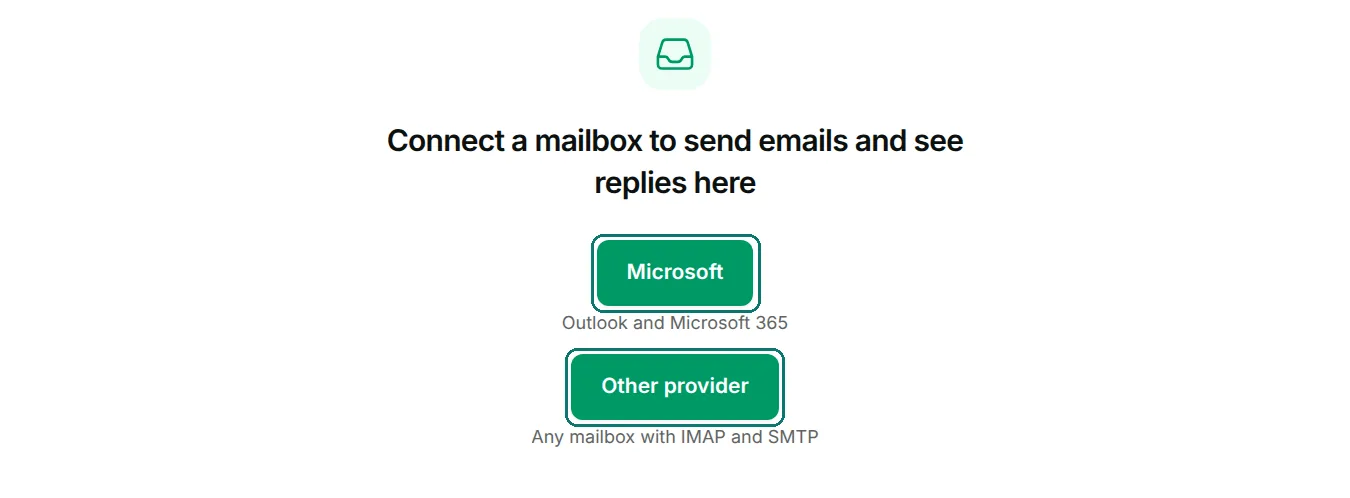
Until you connect a mailbox, the Inbox offers two choices.
| Choice | For | What you need |
|---|---|---|
| Microsoft | Microsoft 365 work or school mailboxes | Your Microsoft sign-in |
| Other provider | Any mailbox with IMAP and SMTP, like IONOS, Strato, GMX, Fastmail or iCloud | The server details and the mailbox password |
IMAP and SMTP are the standard ways mail programs read and send email, and almost every provider supports them. Personal Microsoft addresses like outlook.com, hotmail.com, and live.com don’t work right now. For Gmail, choose Other provider and use the Gmail over IMAP preset.
Connect a Microsoft 365 mailbox
With Microsoft, you sign in at Microsoft and give Svanja permission to use the mailbox. You don’t need to enter any server details.
- Open Inbox.
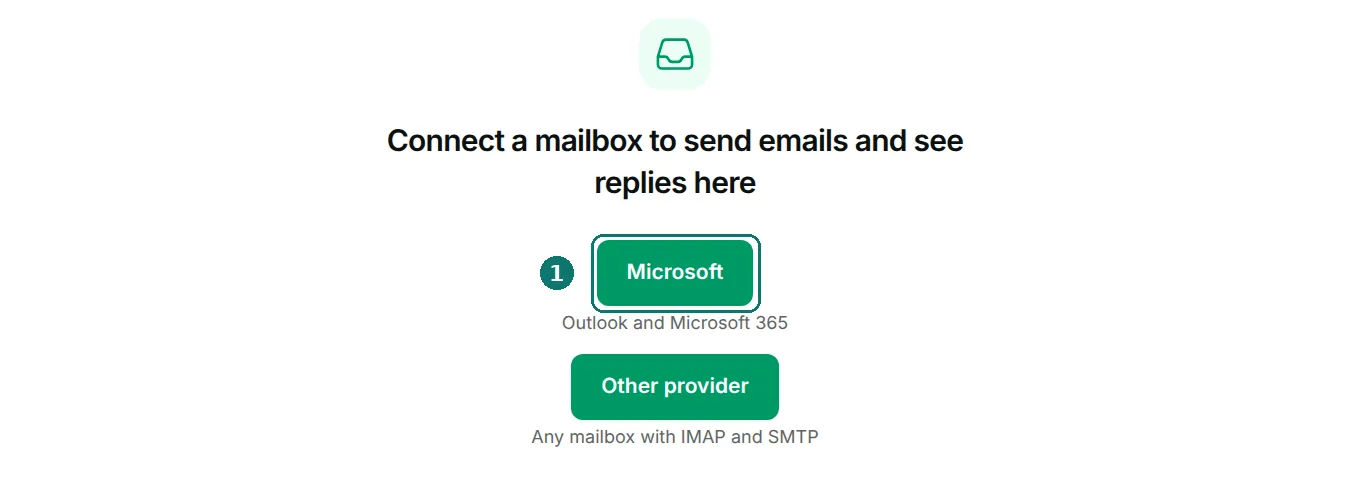
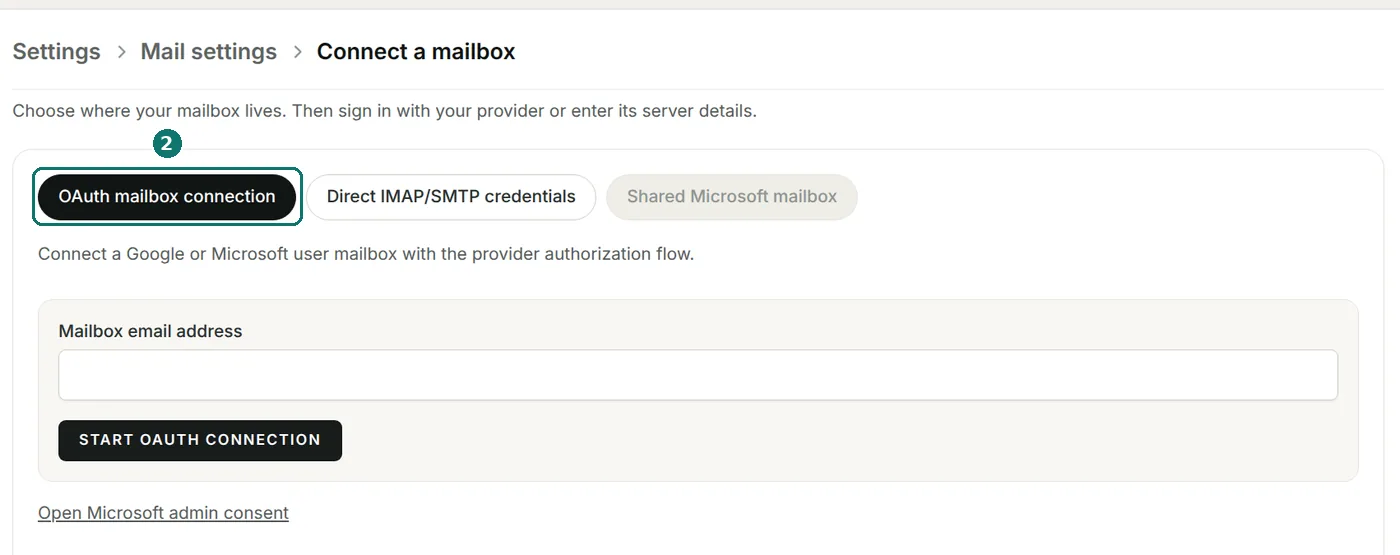
- Choose Microsoft. The Connect a mailbox page opens with OAuth mailbox connection selected.
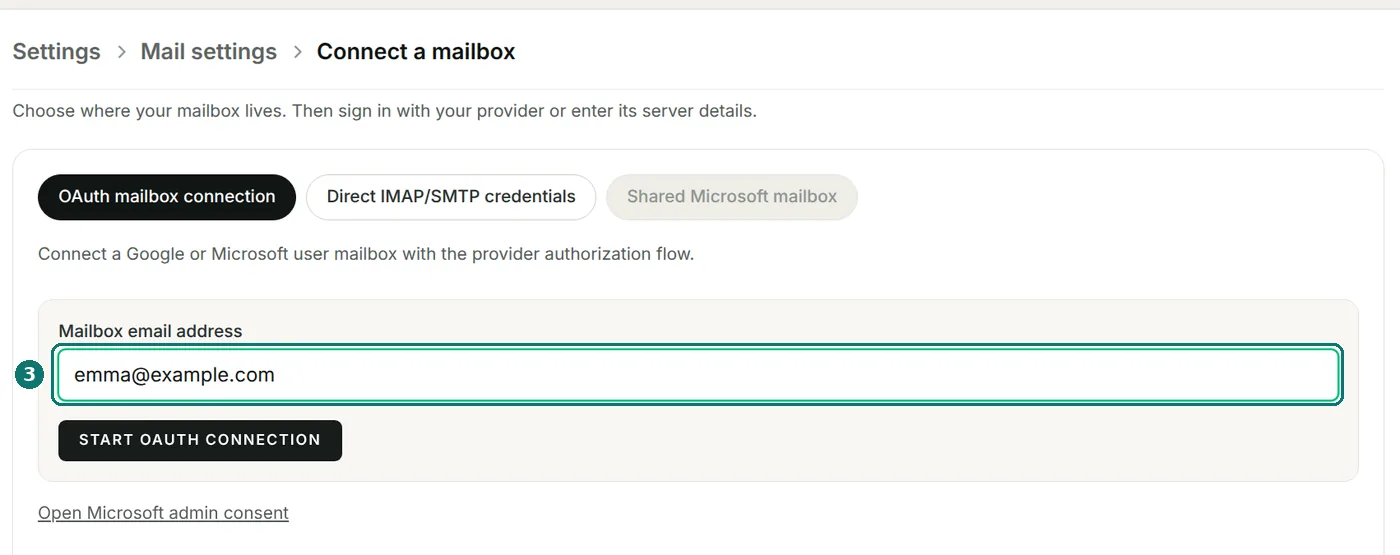
- Under Mailbox email address, enter your address.
- Choose Start OAuth connection.
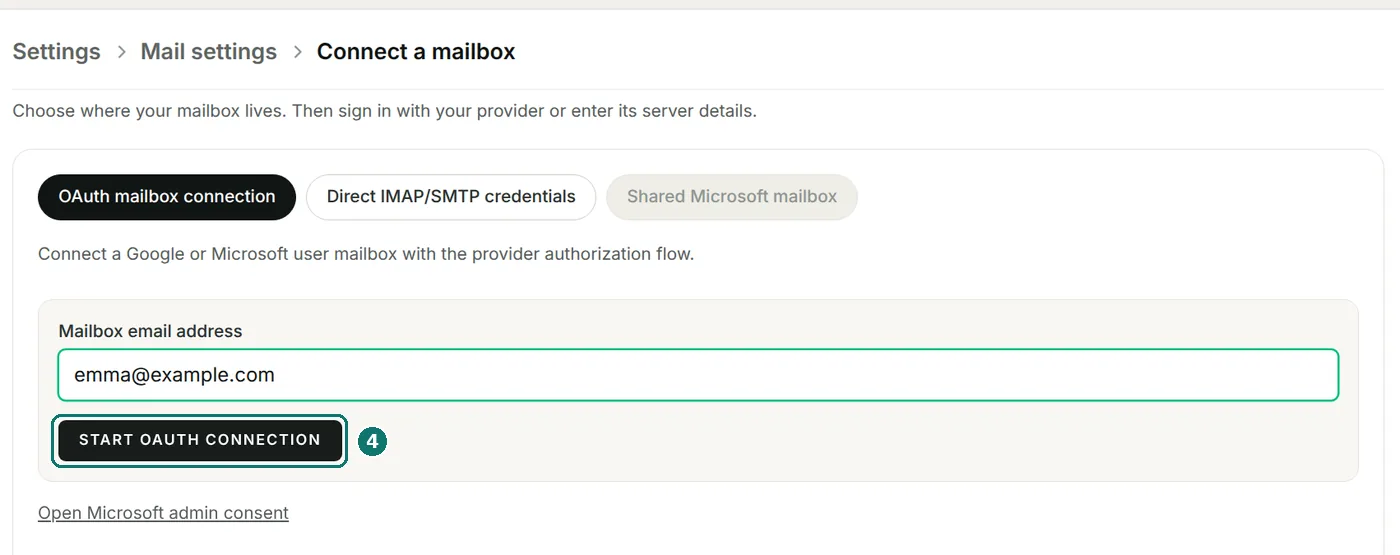
Microsoft’s sign-in page opens. Sign in and allow Svanja to use the mailbox. You’ll return to the Inbox, and Svanja will start loading your email. If you decline at Microsoft, nothing gets connected.
Some companies only allow apps that an administrator has approved, so Microsoft may ask for admin approval. Below the form, the connect page has a link called Open Microsoft admin consent. Send it to your Microsoft 365 administrator, and connect again once they’ve approved Svanja.
Connect a mailbox with IMAP and SMTP
With Other provider, you enter the details for two servers: the IMAP server Svanja reads your mail from, and the SMTP server it sends through. For many providers, Svanja fills these in for you.
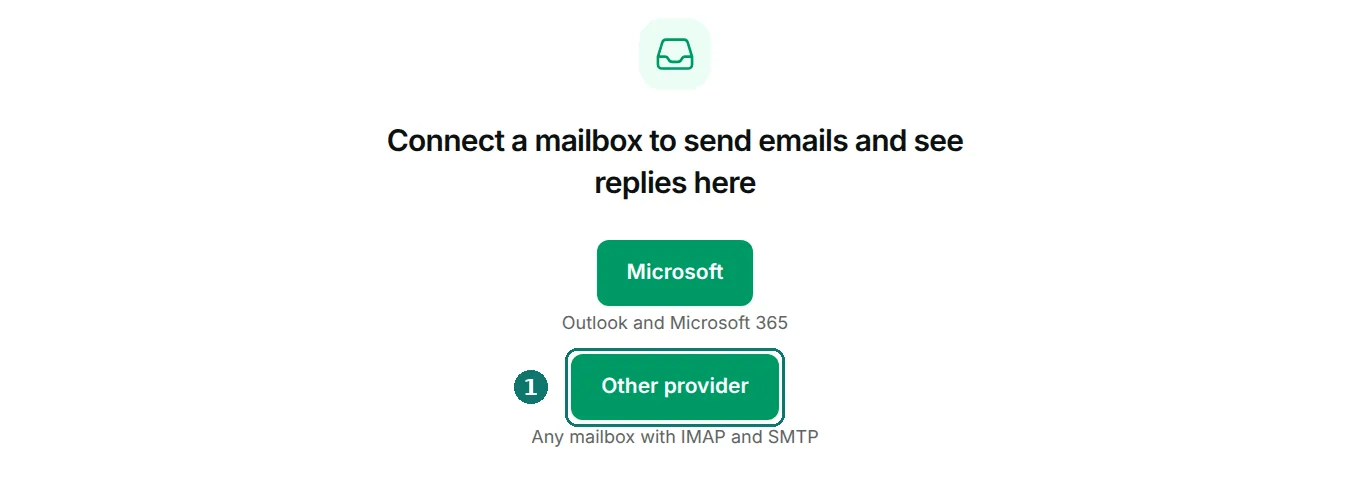
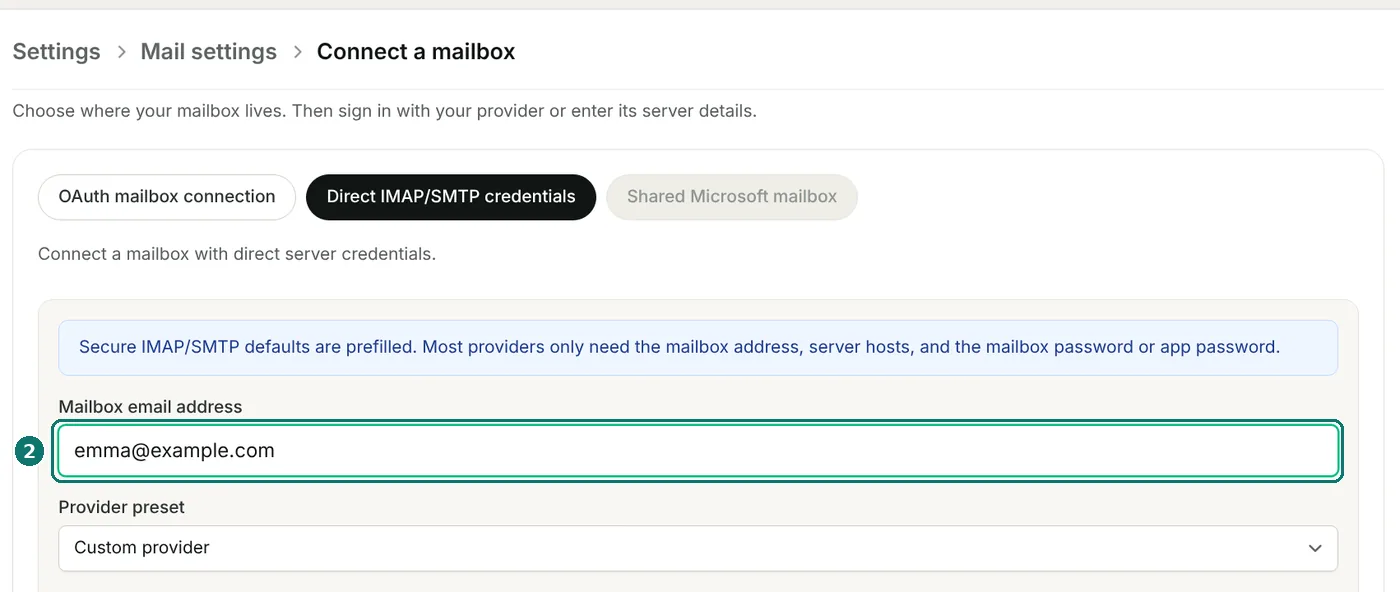
- Open Inbox and choose Other provider. The Connect a mailbox page opens with Direct IMAP/SMTP credentials selected.
- Under Mailbox email address, enter your address.
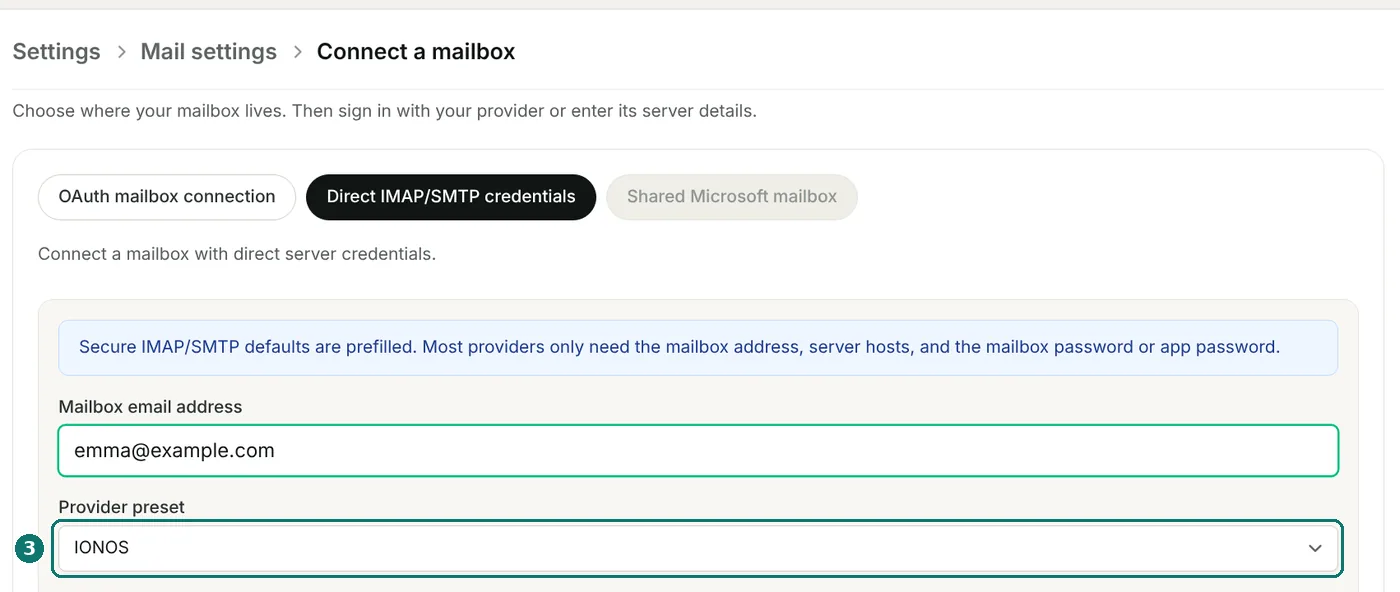
- Under Provider preset, choose your provider. If it isn’t listed, keep Custom provider.
- Under Incoming mail (IMAP), check IMAP host and IMAP port, and enter the IMAP password.
- Under Outgoing mail (SMTP), check SMTP host and SMTP port, and enter the SMTP password.
- Choose Connect with credentials.
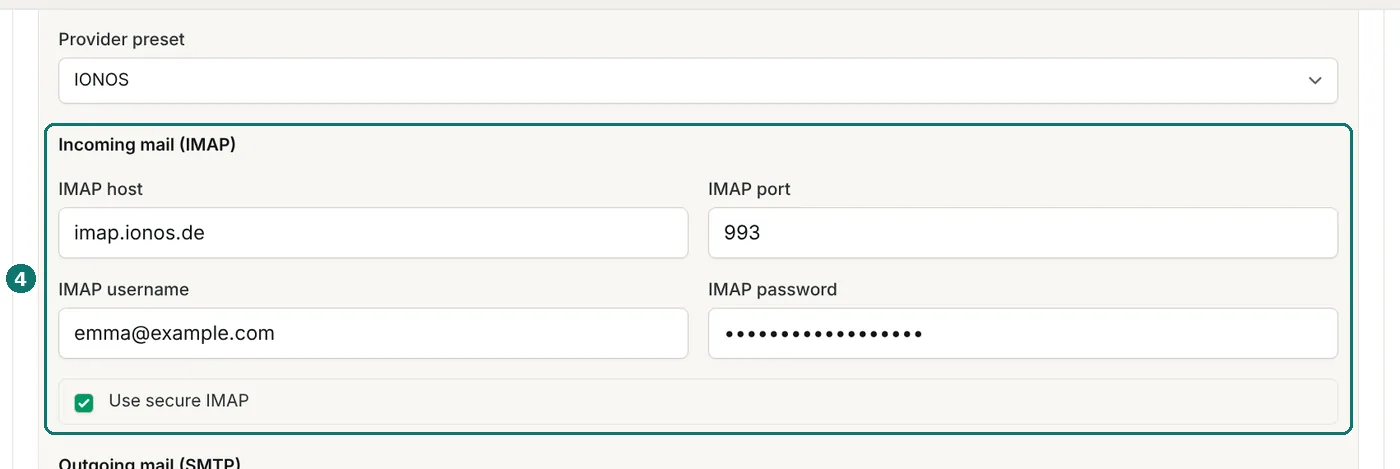
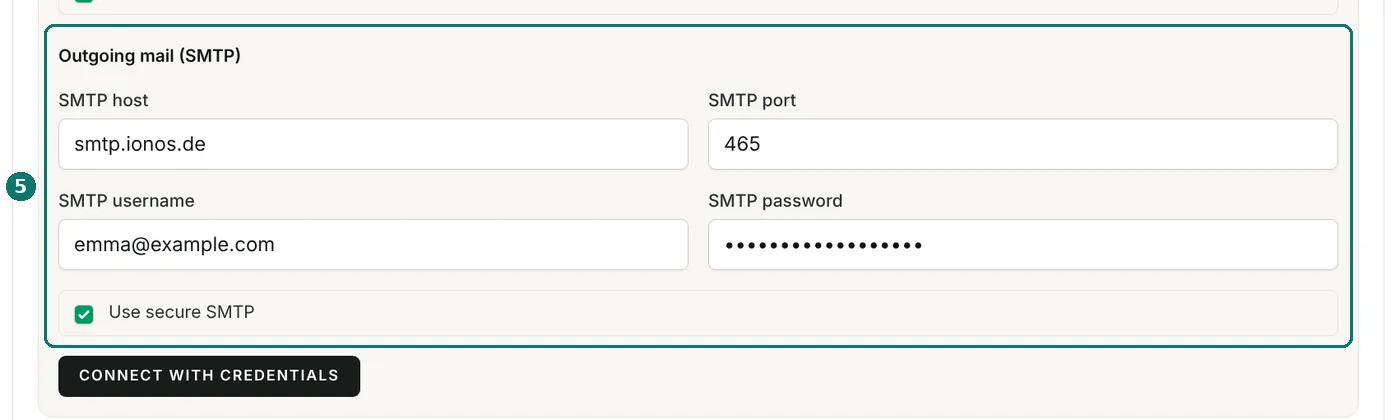
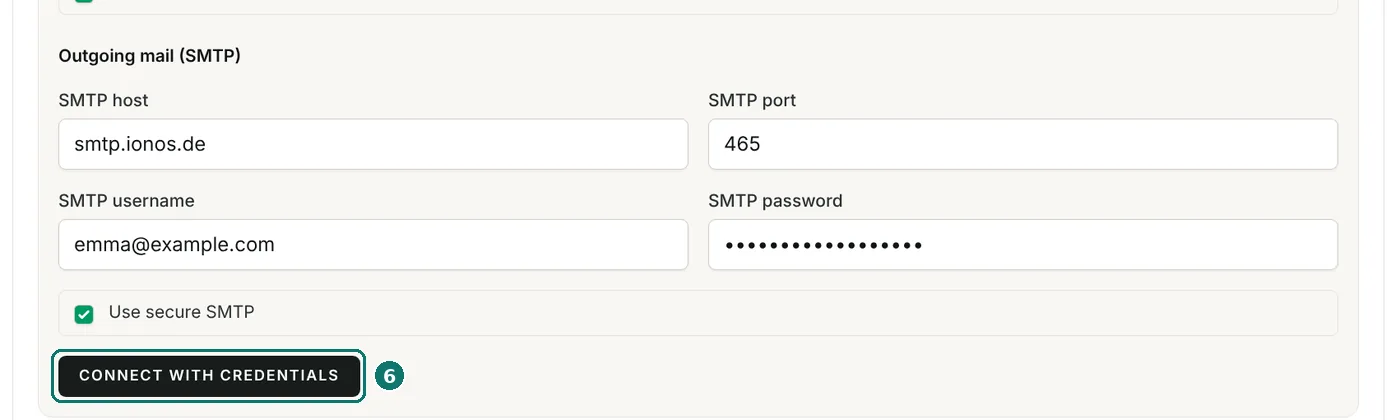
A few things to know about the form:
- Presets are available for all-inkl, IONOS, Strato, Fastmail, Posteo, mailbox.org, GMX, WEB.DE, iCloud, Yahoo, and Gmail over IMAP. For other providers, check their help pages for the server details.
- Usernames, ports, and security settings are filled in automatically. Only change them if your provider gives you different values.
- At all-inkl, each account has its own server names. Enter the ones shown in KAS, which usually look like
w0123456.kasserver.com. - iCloud, Yahoo, and Gmail require an app password instead of your regular password. This is a separate password for a single app, which you create in your provider’s account settings.
Svanja tests the login on both servers first. If that fails, the form shows “The provided mailbox credentials were rejected.” and nothing is added. Otherwise, you land in the Inbox and your mail starts loading.
What happens after you connect?
Svanja loads your email from the last 90 days, skipping Trash and Spam. This happens in the background, and how long it takes depends on how much mail you have. While it runs, the Inbox shows Importing recent mail along with the progress, and you can start working with what’s already there. Once the import finishes, new email shows up shortly after it arrives.
The full message text and attachments stay with your provider. Svanja fetches them when you open an email, and search also looks there to find older messages.
Loading mail doesn’t change anything in your mailbox. Until you change the setting in Settings, Assistant, the assistant asks before it sends or deletes email. The Inbox explains what syncs back to your provider and what stays in Svanja.
Where do I manage my mailboxes?
All of your team’s mailboxes live on one page. Only the team owner and admins can manage them. If you’re on your own account, that’s you.
Open Settings and choose Mail management. This opens the Mail settings page:
- Connect a mailbox gives you three options. OAuth mailbox connection is the same as Microsoft in the Inbox, and Direct IMAP/SMTP credentials is the same as Other provider. Shared Microsoft mailbox connects a Microsoft 365 shared mailbox through someone who has access to it (see Shared mailboxes). If an option is grayed out, it isn’t available for your account.
- Connected mailboxes lists each mailbox and its status, such as Connected, Setting up, or Needs attention. Choose Manage mailbox to open the mailbox’s own page, or Open mailbox to view it in the Inbox.
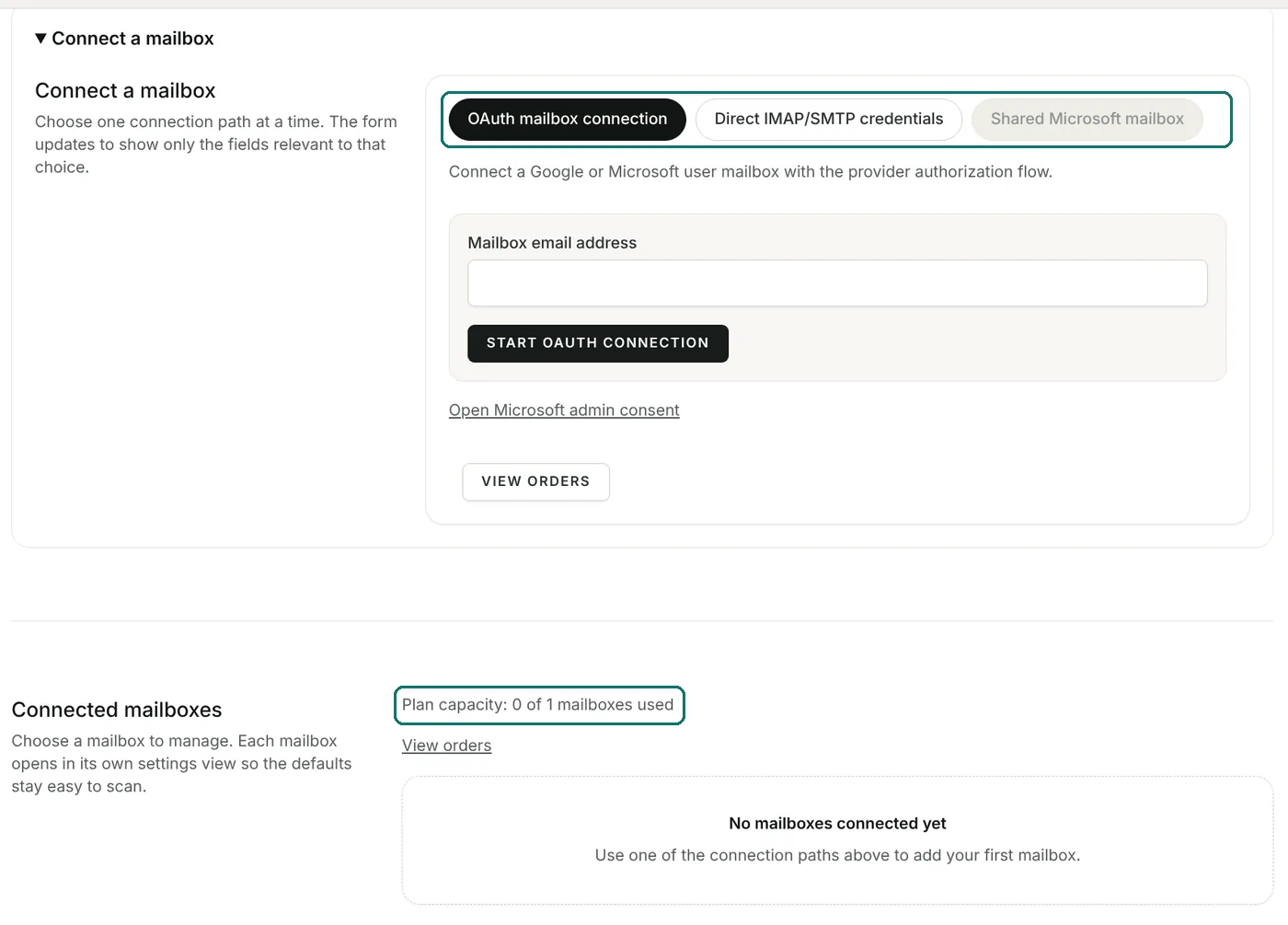
A mailbox’s own page has four tabs: Overview, People, From addresses, and Connection. People controls who else can read and send mail (Shared mailboxes). From addresses holds your sending addresses and signatures (Writing email).
How many mailboxes can I connect?
Under Connected mailboxes, Plan capacity shows how many of your plan’s mailboxes you’re using.
| Plan | Mailboxes |
|---|---|
| Free | 1 |
| Pro | 5 |
| Team | 5 for each member |
On Pro and Team, 5 extra mailboxes cost €10 a month. Plan changes aren’t available right now (Credits and prices). When all slots are full, the connect page shows Mailbox limit reached. A disconnected mailbox doesn’t count toward your limit, and each mailbox can belong to only one Svanja team.
What if a connection breaks?
Passwords change, sign-ins expire, and providers occasionally go down. When that happens, Svanja marks the mailbox as Needs attention, and the Inbox shows a banner with a Reconnect button.
- Open Settings and choose Mail management.
- Under Connected mailboxes, choose Manage mailbox next to the mailbox.
- Open the Connection tab to see what went wrong.
- Choose the button it offers.
| What the Connection tab says | The button |
|---|---|
| Sign in again | Sign in again |
| Retry the provider connection | Retry connection |
| Repair this mailbox | Repair mailbox |
| An IMAP password changed | Update login details |
| Setup appears stuck | Restart setup |
| Mailbox is turned off | Turn mailbox back on |
None of these actions delete your settings or loaded email. For a Microsoft mailbox, only the person who connected it can sign in again. You can also use Ask assistant on the mailbox page for a plain-language explanation of the problem. The assistant sees the address and status, but never your email content or passwords. For more help, see Troubleshooting.
Remove a mailbox
To stop using a mailbox in Svanja, disconnect it. Nothing is deleted at your provider.
- Open the mailbox’s page from Settings, Mail management, Manage mailbox.
- Open the Connection tab.
- Choose Disconnect mailbox.
- Confirm with Disconnect.
Svanja stops loading and sending email for that mailbox, and any messages waiting to be sent are canceled. Email that was already loaded stays in Svanja until the team is deleted (Your data and privacy). To use the mailbox again later, choose Turn mailbox back on on the same tab.