Svanja lets you know when something needs your attention, such as when the assistant needs your OK before sending an email. These messages are called alerts. Every alert shows up in the app behind the bell in the top bar, newest first, and you can also get them on your phone or by email.
There are two kinds of alerts. Svanja alerts cover your work with the assistant, like tasks and connections. Mail alerts cover conversations, like mentions in a note or replies in a conversation you follow. Channels are separate from alerts. They let you reach the assistant outside the app, such as in Slack, and can deliver your alerts there too.
Which alerts does Svanja send?
| Alert | When it comes |
|---|---|
| A task is done | A task finished. |
| A task waits for you | A task has a question for you. |
| The assistant needs your OK | It wants to do something that needs your permission, like sending an email. |
| A sign-in is needed | A website asks the assistant’s browser for a sign-in. |
| A connection has a problem | A connected service needs to be connected again. |
| Rule summaries | What your rules did. |
| Credits running low | Your team used most of its credits. |
| A member reached their limit | A team member used their monthly credit limit. |
| You are mentioned | Someone mentioned you. |
| A task is handed to you | A colleague handed a task over to you. |
| Your computer was rebuilt | The assistant’s computer was set up again. |
| Restoring data needs you | Svanja needs your decision to restore something. |
Choose where alerts reach you
Alerts in the app are always on. For each one, you can also send it to your phone or your email.
- Open Settings, Notifications.
- For each alert, tick Phone, Email or both.
- Choose Save.
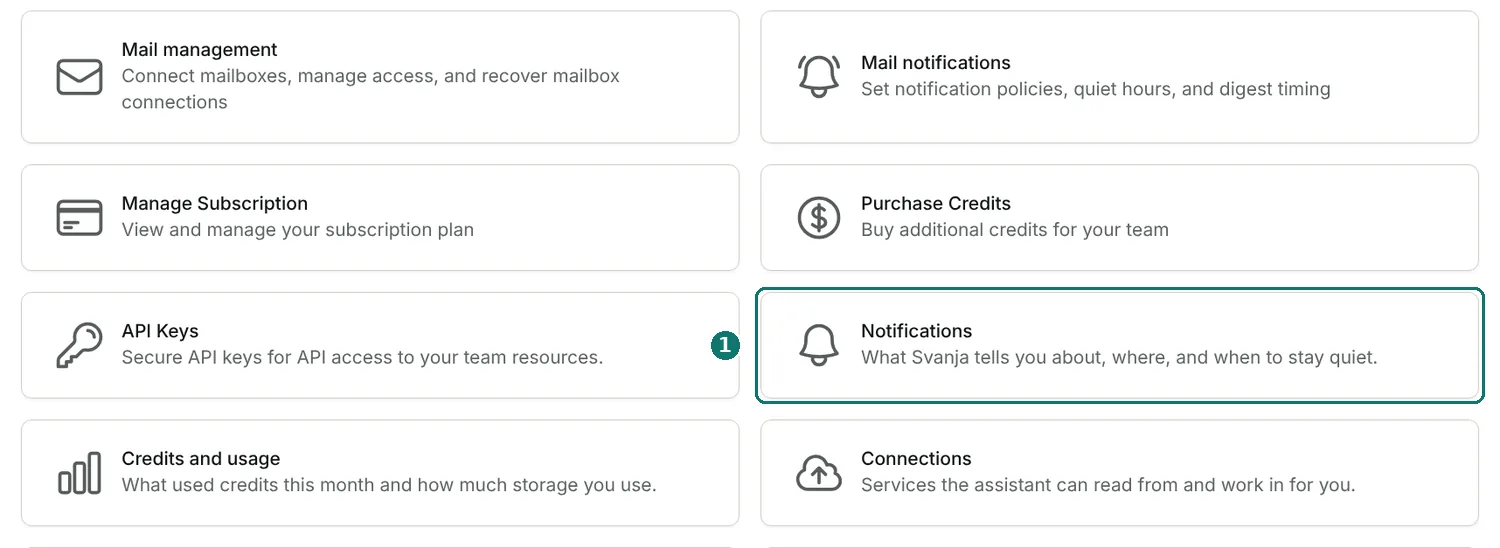
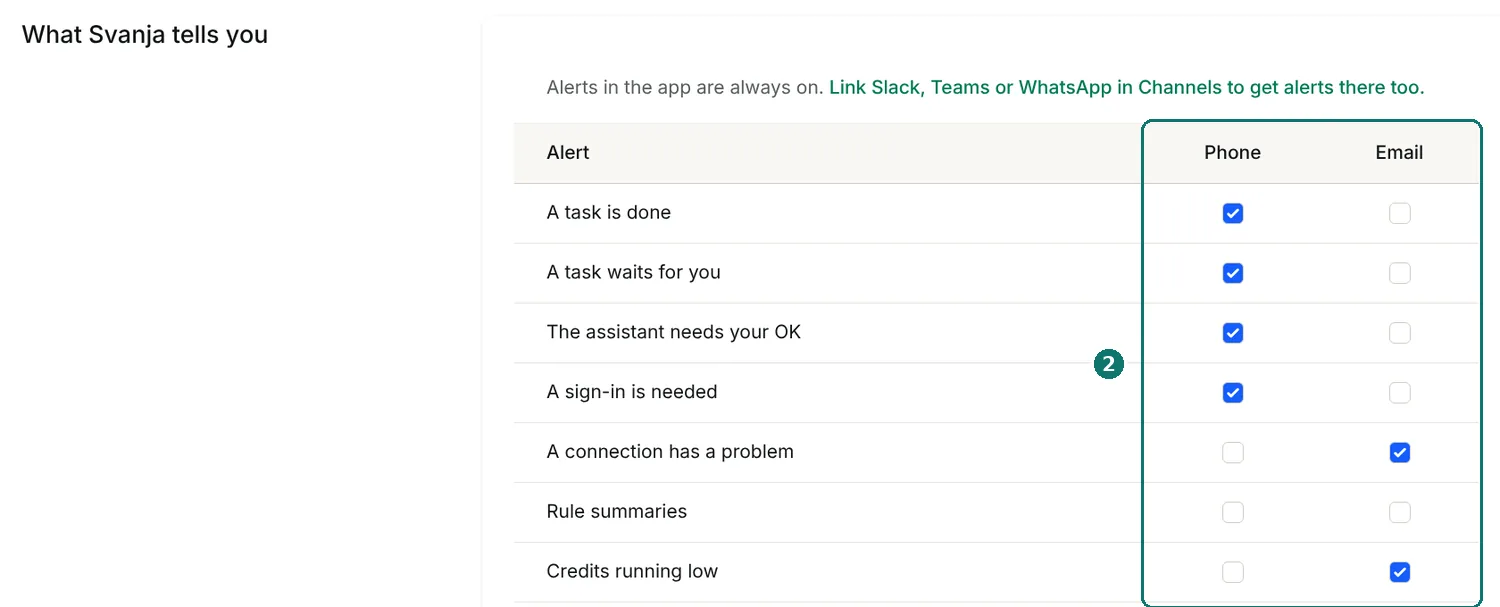
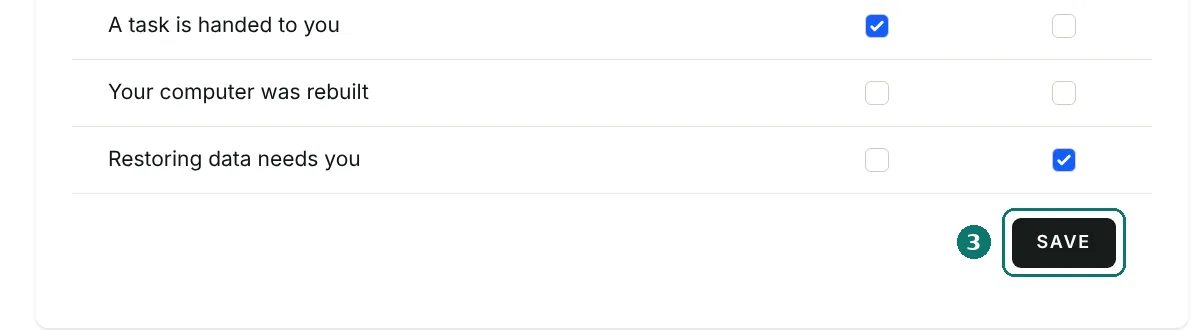
Email alerts go to your account’s email address. Phone alerts take one extra step, since you turn them on for each device (see the next section). Once you link Slack or Microsoft Teams, a column for it appears in the table too.
Turn on alerts on your phone or computer
Push alerts are the pop-up notifications your phone or computer shows, just like any other app’s. You turn them on for each device in its browser.
- On the device, open Settings, Notifications.
- Under Alerts on this device, choose Turn on for this device.
- Give the device a name if you like, such as My phone, and choose Turn on.
- Allow notifications when your browser asks.
The device then appears in the list along with the time of its last alert. Choose Remove to take it off again.
On an iPhone or iPad, add Svanja to the Home Screen first: open app.svanja.com in Safari, tap Share, then Add to Home Screen. Open Svanja from there and follow the steps above. If the page says your browser blocks notifications, allow them for app.svanja.com in your browser’s settings.
Set up mail alerts
Mail alerts have their own page. Each kind of alert gets one of three settings:
- Immediate shows the alert in the app right away.
- Digest only collects it for one summary email (see below).
- Muted turns it off.
- Open Mail notifications. It’s also the Mail tab in Settings, Notifications.
- Check the Timezone and choose Save. It uses the same time zone as your Profile.
- Under Categories, pick a setting for each kind of alert.
- Choose Save.
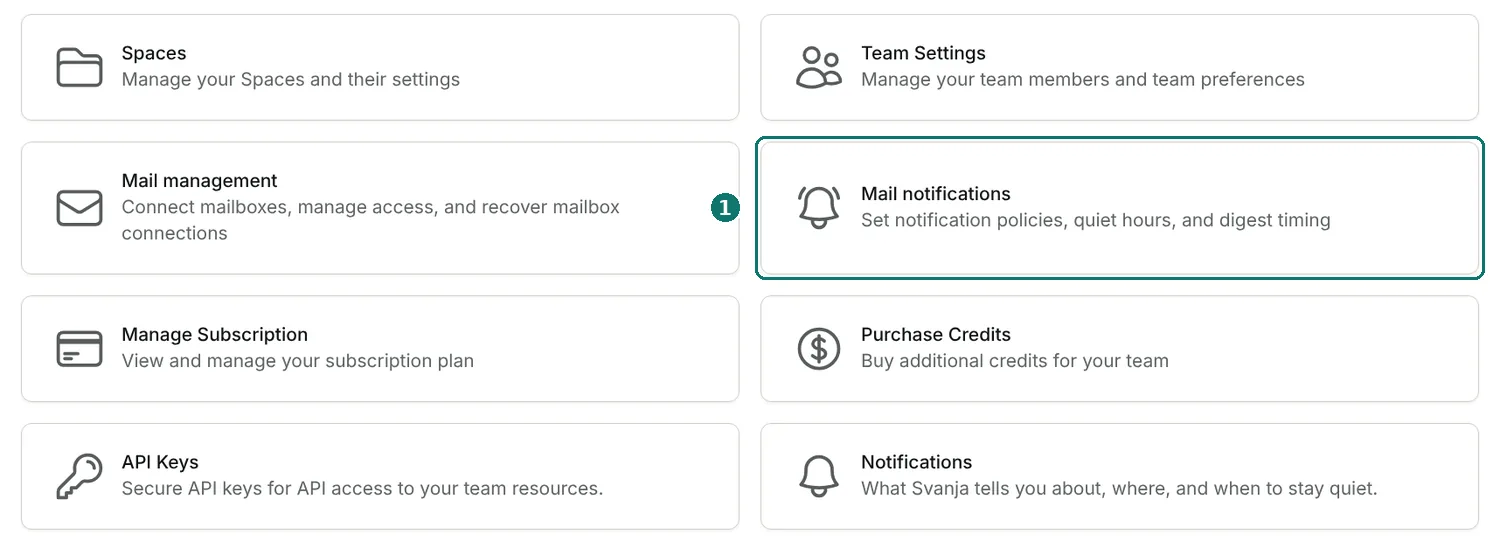

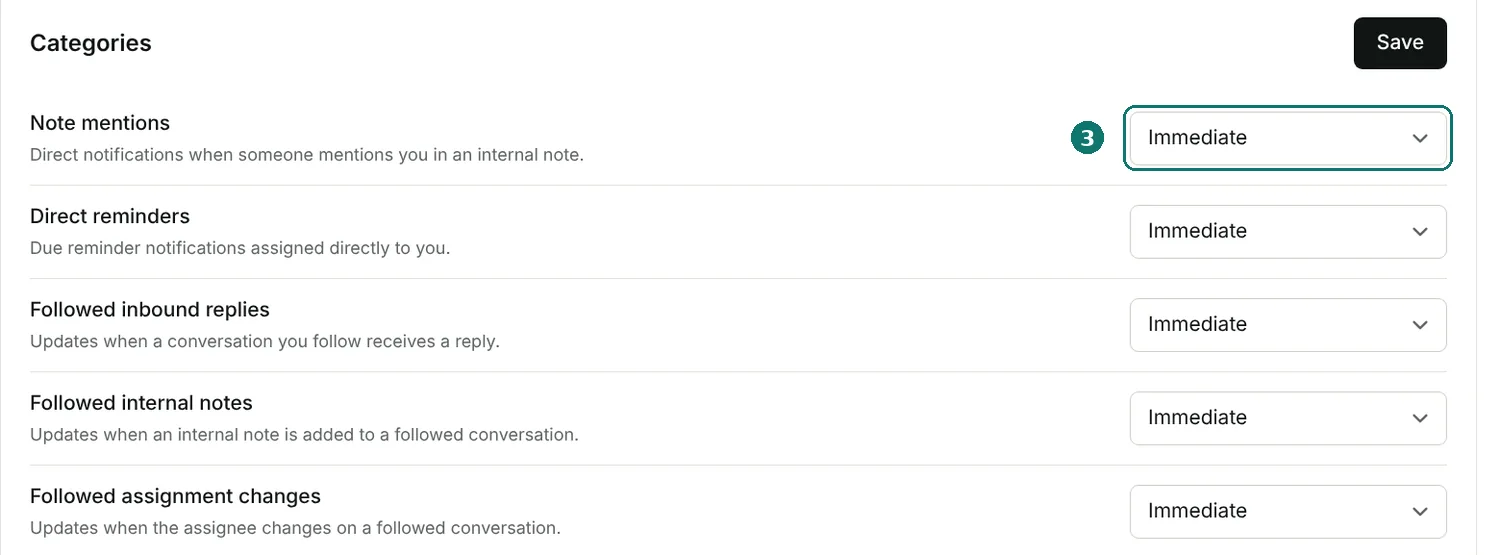

Here are the main categories:
| Category | What it’s about |
|---|---|
| Note mentions | Someone mentions you in an internal note. |
| Direct reminders | A reminder for you is due. |
| Followed inbound replies | A conversation you follow gets a reply. |
| Followed internal notes | Someone adds a note to a conversation you follow. |
| Followed assignment changes | A conversation you follow gets a new assignee. |
| Send failure outcomes | An email you track failed or bounced. |
Other categories cover queue, tag, and status changes on conversations you follow, as well as follow-ups that were blocked, failed, paused, or stopped. You can read more about following conversations in Shared mailboxes.
Set quiet hours
Quiet hours hold mail alerts back during times you choose, such as evenings or weekends. Any alerts from that period arrive once the window ends.
- On Mail notifications, tick Quiet hours.
- Choose Add window.
- Pick the Day, the Start and the Duration.
- Choose Save.
Times go in 15-minute steps, and you can add up to 14 windows.
Get a digest
A digest is a single email that collects every mail alert you set to Digest only, with a link to each conversation. To set one up, tick Digest schedule, pick Daily or Weekly under Frequency, choose the Send time (and the Day for weekly), and choose Save. Digests go to your account’s email address.
Without a digest schedule, alerts set to Digest only don’t reach you at all.
What is a channel?
A channel lets you reach Svanja from outside the app. You can manage them in Channels. Channels only ever reach you, never your contacts.
| Channel | What it lets you do |
|---|---|
| Phone and push | Get alerts on your phone and open Svanja from the Home Screen. Set up takes you to the device steps above. |
| Voice | Speak to the assistant in the chat instead of typing. You see the text before the assistant acts on it. Speaking costs 1 credit a minute. |
| Slack | Ask the assistant in a direct message or with @Svanja in a channel, approve its actions there, and get your alerts in a private chat. |
| Microsoft Teams | Chat with the assistant, approve its actions on cards, and get your alerts in a private chat. |
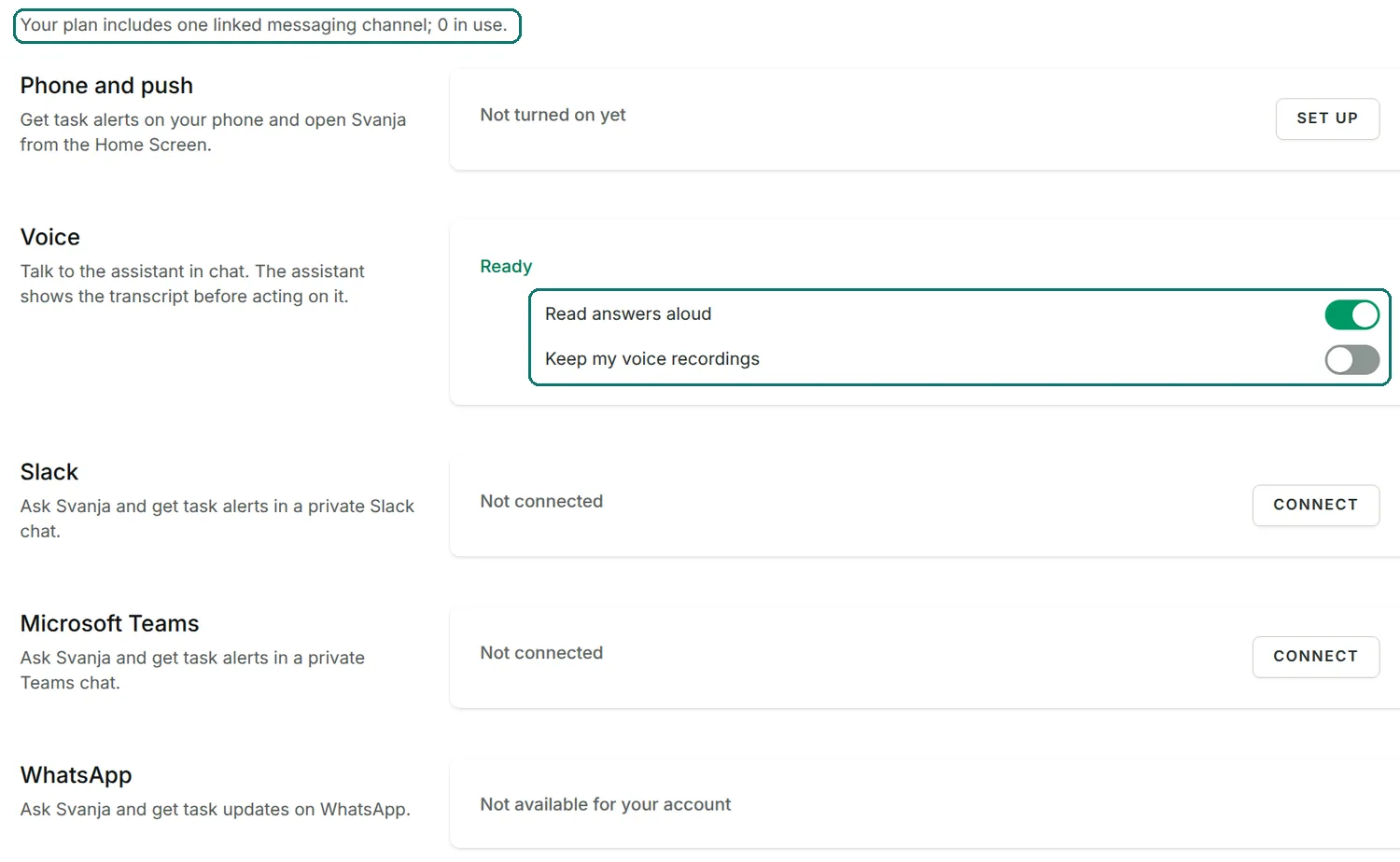
Voice has two switches. Read answers aloud lets the assistant speak its replies. Keep my voice recordings saves the audio of what you said. It’s off by default, so Svanja doesn’t store your recordings unless you turn it on.
Link Slack or Microsoft Teams
The Free plan includes one linked messaging channel, Slack or Teams. Pro and Team have no limit.
- Open Channels.
- Choose Connect next to Slack or Microsoft Teams. In Connections, sign in with your own account.
- Back in Channels, choose Link.
Svanja then confirms your private chat with it. Until that finishes, the channel shows that it’s waiting for confirmation. Any task you start from Slack or Teams shows up in Tasks like any other. If a channel shows Needs reconnecting, connect it again in Connections.
Right now, Slack and Microsoft Teams can’t be connected yet. Connections shows them as Not set up on this server yet.
Related pages
- Tasks, for what a waiting task needs from you
- Connections
- Chat with the assistant
- What the assistant may do on its own