The assistant handles most of its work on its own, like reading your mail and writing drafts. Sending and deleting email are different, because once an email goes out, you can’t take it back. You decide what the assistant is allowed to do there. Every new account starts cautiously, so the assistant asks before sending any email.
These settings apply in chat, tasks, rules, and AI tools you connect over MCP.
Where do I change what it may do?
Open Settings, Assistant. You’ll see a table listing what the assistant does, the default setting, and what you can change it to. Changes save right away and show Saved.
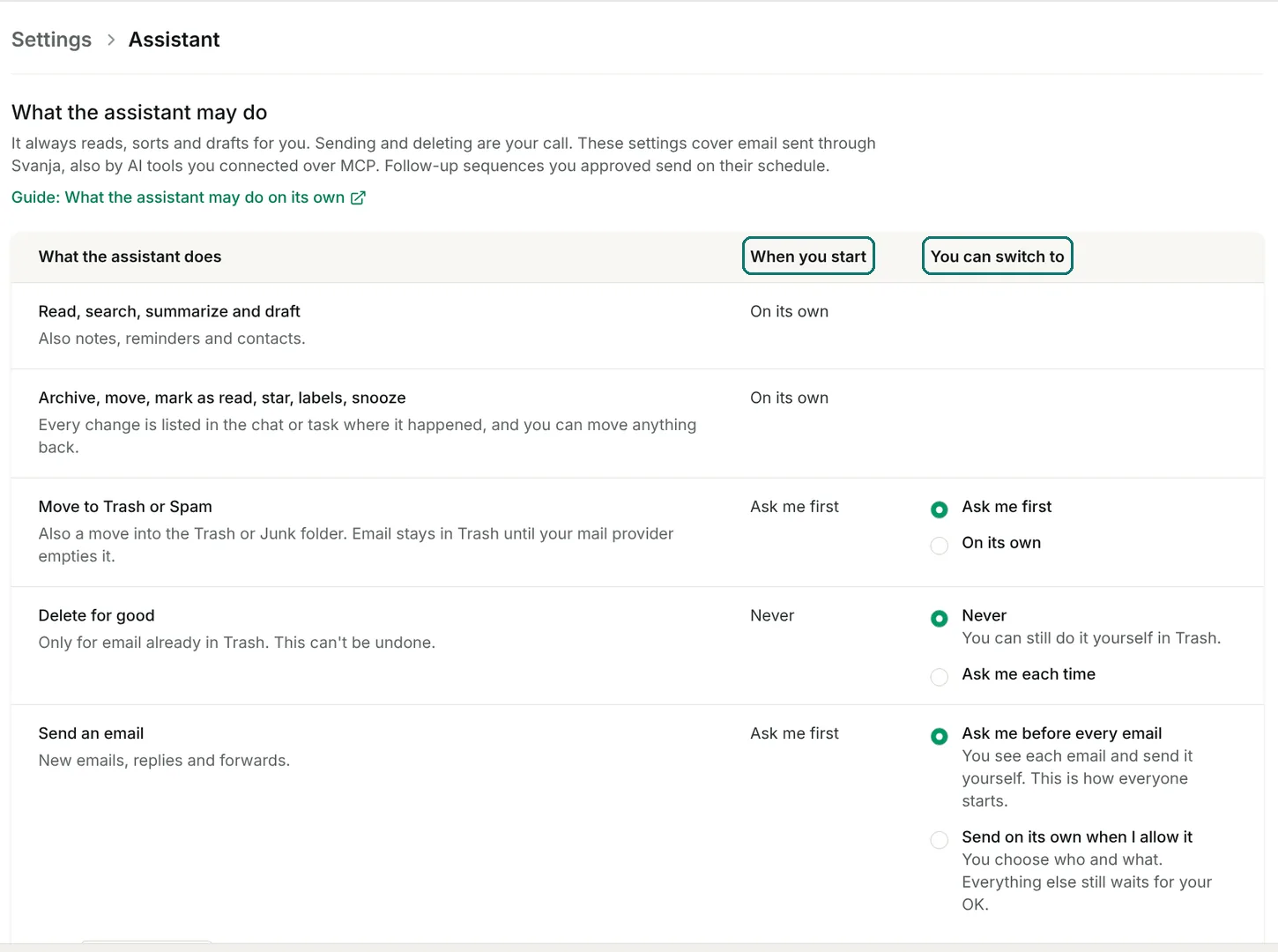
| What the assistant does | When you start | You can switch to |
|---|---|---|
| Read, search, summarize and draft | On its own | |
| Archive, move, mark as read, star, labels, snooze | On its own | |
| Move to Trash or Spam | Ask me first | On its own |
| Delete for good | Never | Ask me each time |
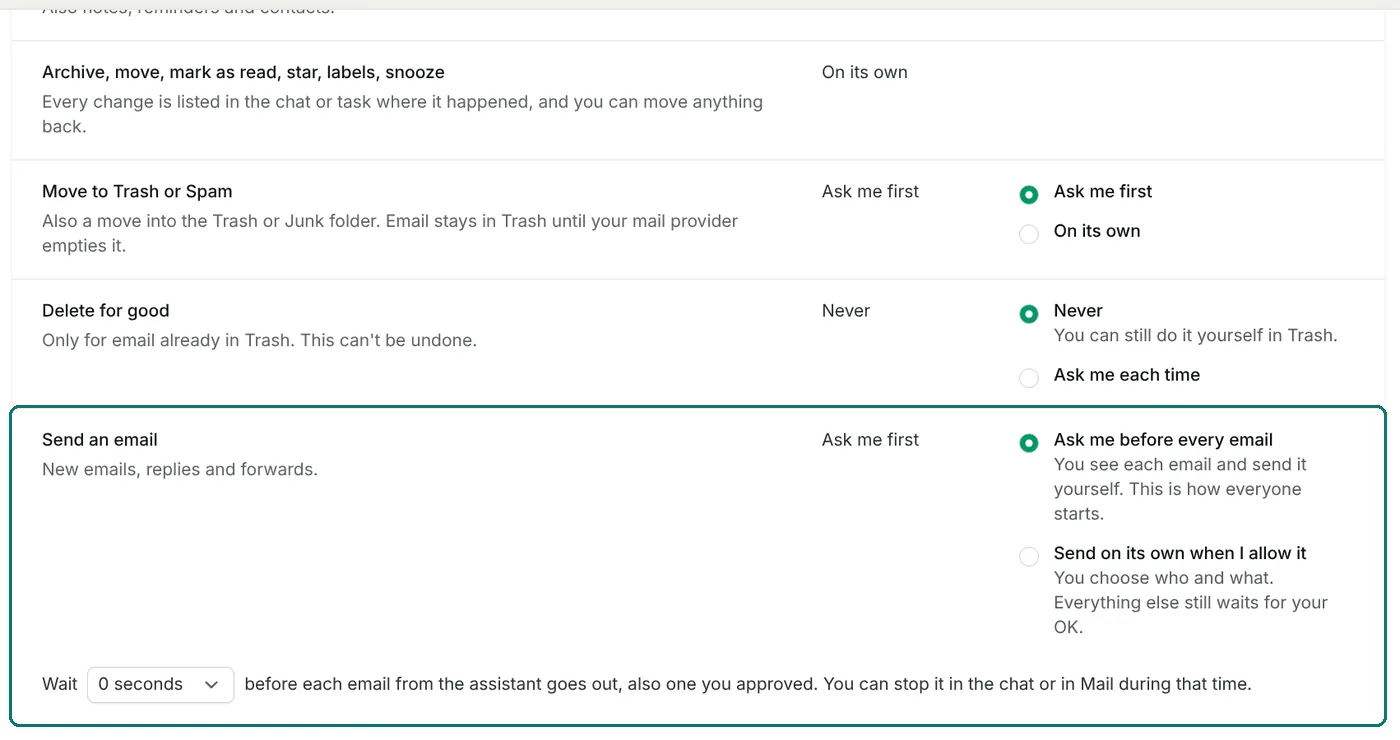
| Send an email | Ask me before every email | Send on its own when I allow it |
Every sorting change shows up in the chat or task where it happened, and you can always move an email back. Moving to Trash or Spam also covers moving messages into the Trash or Junk folder. Deleting for good only applies to email already in Trash, and it can’t be undone. When it’s set to Never, the assistant lets you know it isn’t allowed, though you can still delete the email yourself.
What does “Ask me first” look like?
When the assistant needs your OK, it shows a card titled Question for you. The card explains what it wants to do and why, such as “It asks because you have emailed Ellen before.” Nothing happens until you respond, even if that takes days. You’ll see the same card in the open email, in the chat, and on the task.
For an email, the card shows a preview with these choices:
- Send sends it.
- Don’t send sends nothing.
- Edit opens the draft in Mail.
- Ask for changes… lets you tell the assistant what to change.
For Trash, the card offers Move to Trash or Keep. When multiple emails are affected, a single card covers all of them. Once you answer, the card collapses into one line, like “Sent to Ellen Park.”
Let the assistant send on its own
You can let the assistant send some emails without asking, such as messages to a supplier’s support address.
- Open Settings, Assistant.
- Under Send an email, choose Send on its own when I allow it.
- Under May send on its own to, type an address or an @domain and choose Add.
- Check the switches under Always ask me first for.
- Set the daily limit next to emails a day on its own.
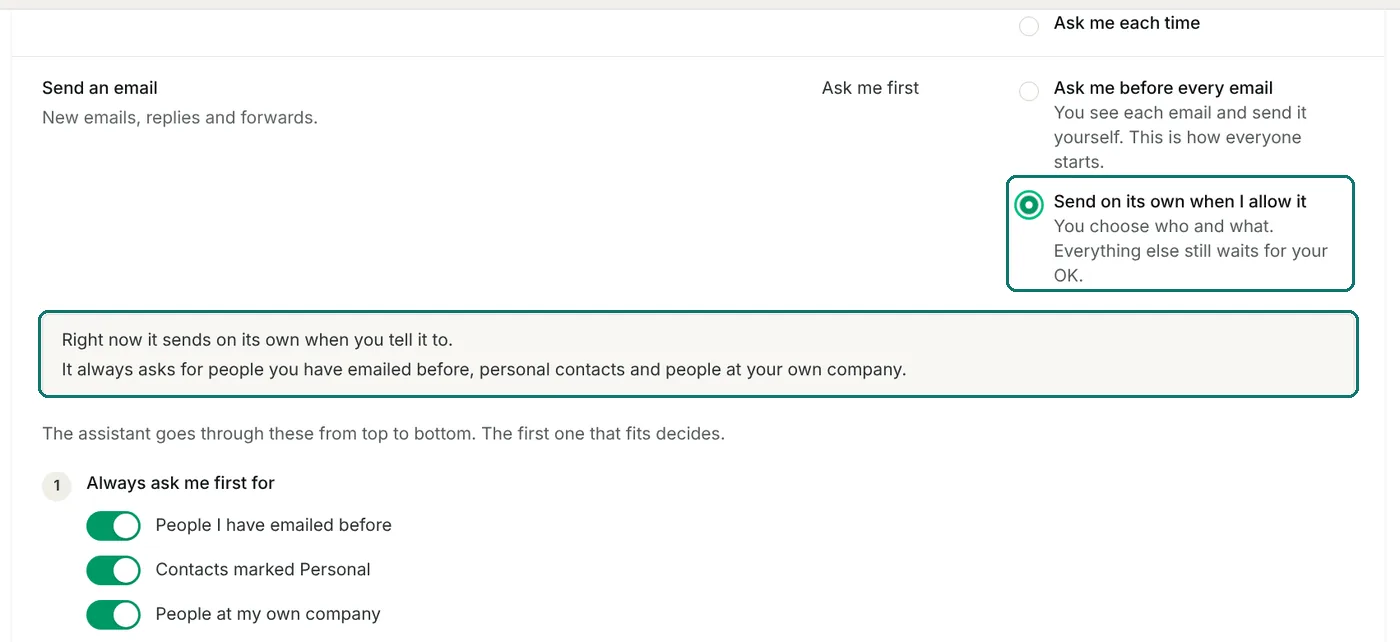
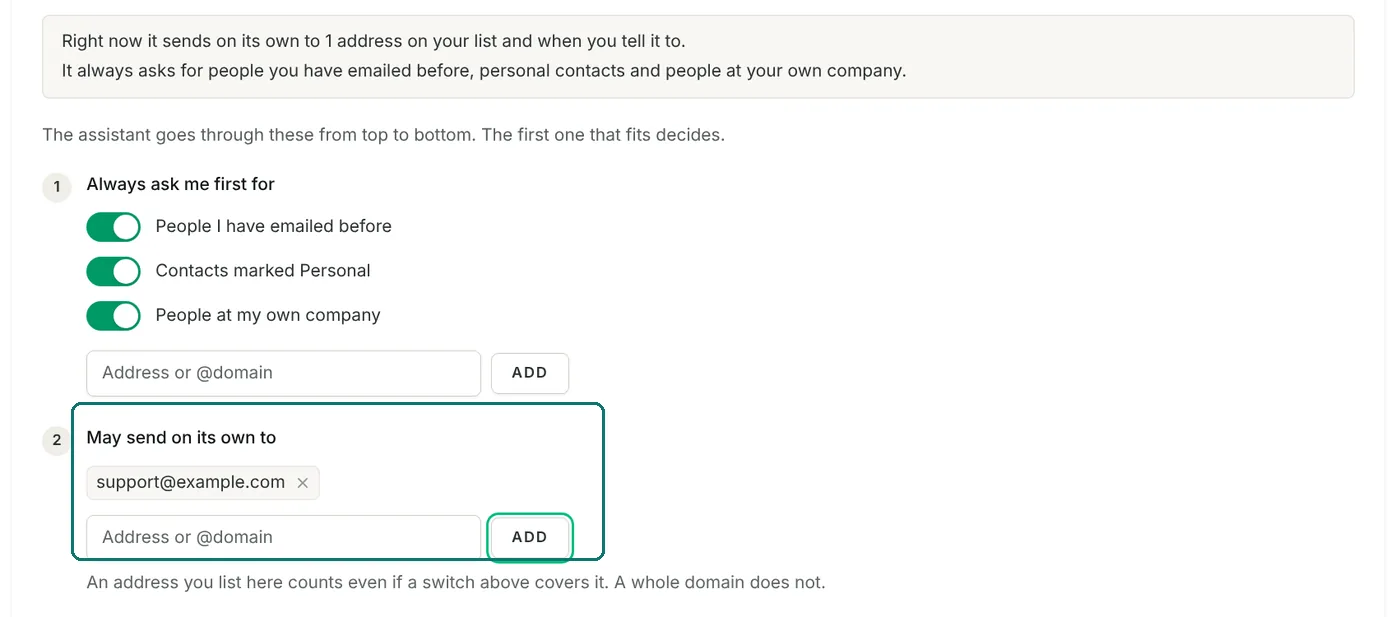
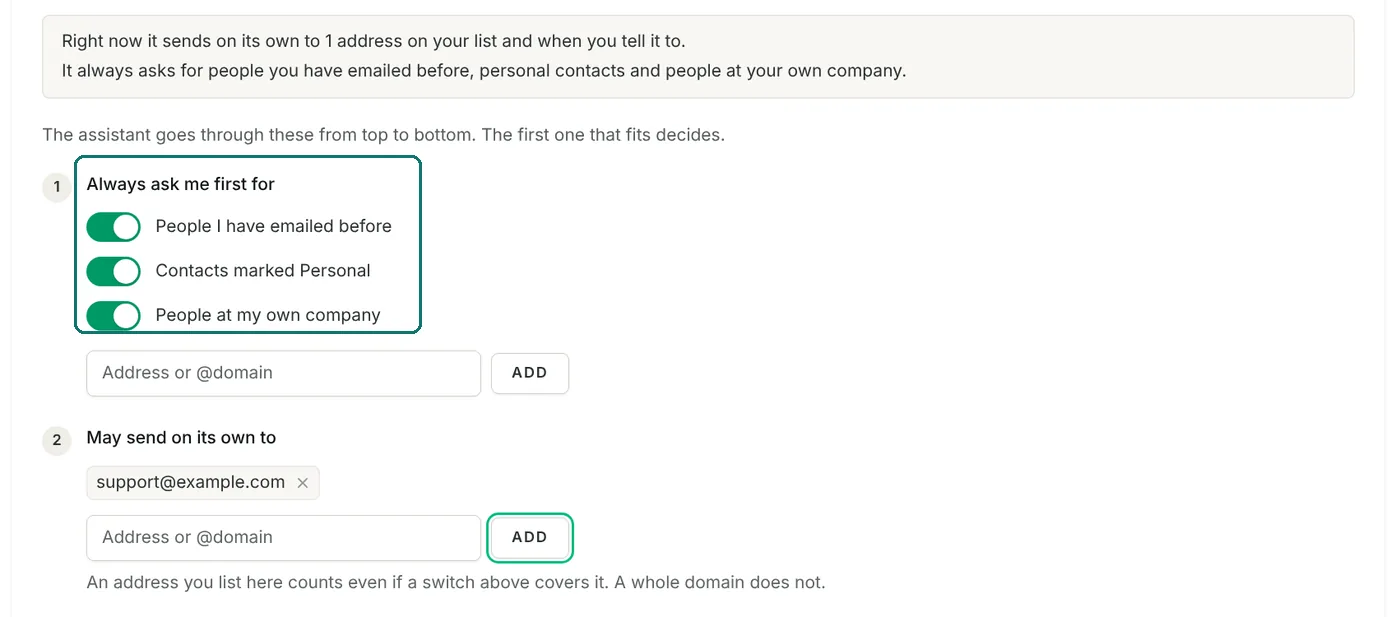
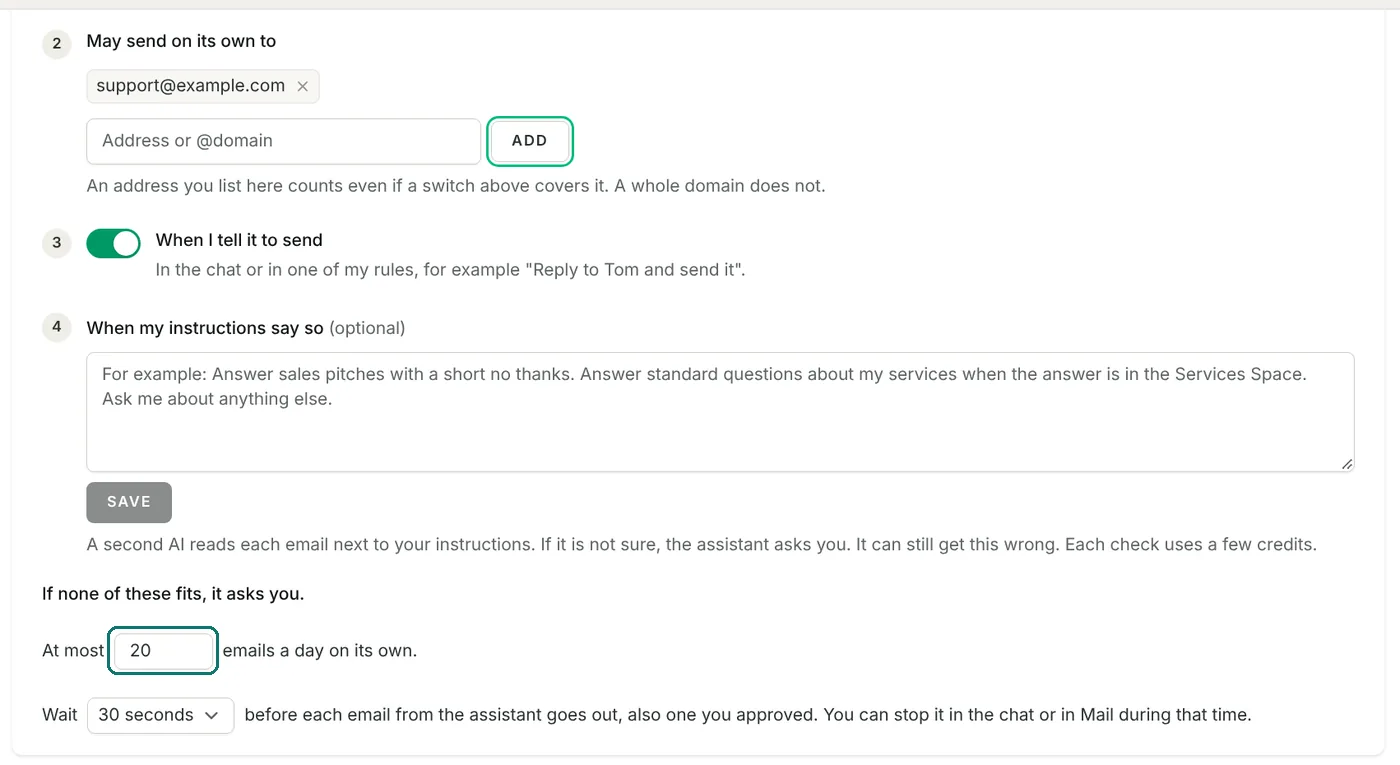
A one-sentence summary at the top explains what your settings do. Everything else still waits for your OK.
How does it decide whether to send?
For each email, the assistant runs through these checks from top to bottom. The first one that matches decides.
- Always ask me first for. If anyone on the email is covered here, it asks you. Three switches are on from the start: People I have emailed before, Contacts marked Personal, and People at my own company. You can add your own addresses and domains.
- The daily limit. It sends at most 20 emails a day on its own, unless you set another number from 1 to 200.
- May send on its own to. If everyone on the email is on this list, it sends. An exact address here overrides a switch, though a whole domain doesn’t.
- When I tell it to send. If you wrote “Reply to Tom and send it” in the chat, it sends. A rule that says to send counts too.
- When my instructions say so. If you saved instructions in your own words, a second AI checks each email against them. If it isn’t sure, the assistant asks. Each check uses a few credits, and the AI can get it wrong.
If nothing matches, it asks you. If you told it to only write a draft, that always wins. Each list holds up to 200 entries.
Wait adds a 0, 10, 30, or 60-second delay before each email goes out, including emails you approved. During that window, the chat or task shows “Sending to … in 30 seconds.” next to a Stop button, which puts the email back in your drafts.
Why did it send this email?
Every email the assistant sends on its own includes a reason, like “Allowed: support@shopify.com is on your May send list.” You can see the last 20 under Sent on its own on the settings page, where each row includes an Always ask for this address option.
When a card asks for your OK, its menu has two shortcuts. Send, and stop asking for sends the email and adds the address to your May send list. Always ask for does the opposite. You can also set the same preference on a contact for its address.
Does this apply to rules and MCP apps?
Yes. These settings cover all email the AI sends through Svanja.
- Rules follow the send settings. A rule that moves or labels email does what you set up, even when it moves email to Trash or Spam.
- AI tools over MCP, like an AI app you connected to Svanja, follow them too. When the setting says to ask, the email stays in Svanja as a draft marked “Waiting for your OK”, and you send it yourself.
- Follow-ups ask for your OK once, when you set them up. After that, their emails go out on schedule. See Snooze, reminders and follow-ups.
Email you send yourself isn’t affected, and neither are scripts you run with your own API key.
Beyond email, anything that leaves your account, like a Slack message, requires your request or an approval card. For actions on websites, see The computer and its browser.