The assistant is the AI in Svanja. You talk to it in a chat. Ask it a question, like “What did this client say about the budget?”, or give it work, like “Draft a reply with my usual three questions”.
It works inside your current team and can only see what you have permission to open. Short questions get an answer right in the chat. Longer jobs turn into tasks that run in the background.
What can the assistant reach?
The assistant only looks things up when your question calls for it. It can reach:
- email in the mailboxes you have access to
- your contacts and companies
- notes and files in your Spaces
- services you connected under Connections
- your earlier chats
- the web
- the Svanja docs, when you ask about the app itself
A Space is a folder for a single client or project. It holds your notes, files, and instructions for the assistant.
Where do I find the assistant?
You can open the assistant in two places, and both show the same chats.
- The side panel. Choose Assistant in the top bar, or press Ctrl+Shift+K (Cmd+Shift+K on a Mac). The panel opens on the right, next to the page you’re on, so you can ask about what’s in front of you. On a phone, it opens full screen.
- The Chat page. Open Chat in the sidebar for a full-page view with your chats on the left. Choose Open in side panel to go back to the page you came from.
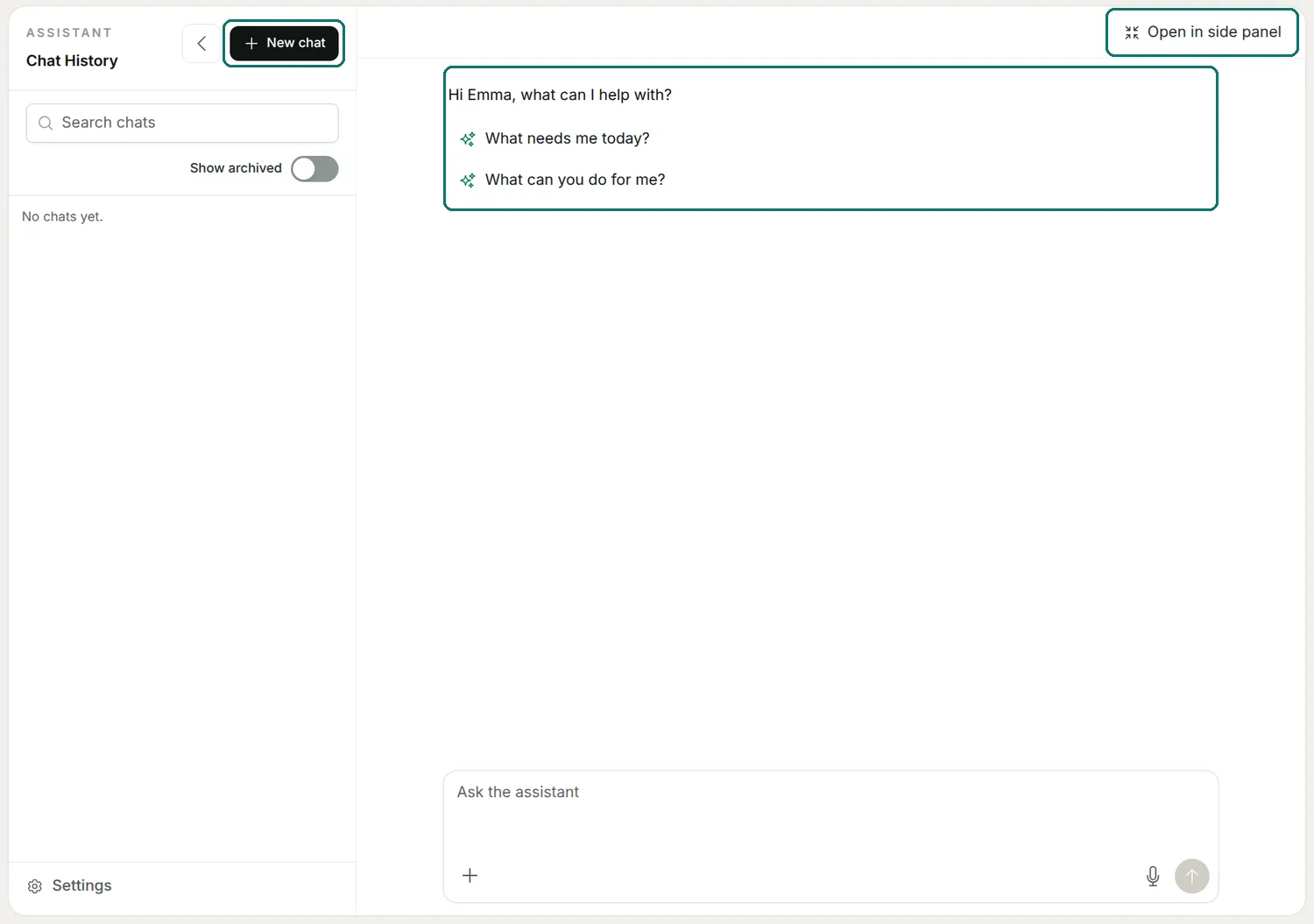
An empty chat suggests questions that fit the page, like What needs me today? When the panel is closed, the Assistant button shows a dot if an answer arrives or something is waiting for you.
Ask about an email
When you have an email open, the assistant knows which one you mean. The input shows a This email label, so “What do they want from me?” is enough. If the sender’s company has a client Space, the assistant reads that Space too. Click the x on the label if you want to leave the email out.
An open email also has an Ask the assistant menu. Press A to open it.
| Choice | What happens |
|---|---|
| Ask about this email… | Opens the input with the email attached and waits for your question. |
| Summarize this conversation | Sends the question right away. |
| Save to the … Space | Files the conversation in the client’s Space. |
| Make this a task | Starts a task that looks into the email and reports what it found. It doesn’t write a reply. |
| Make a rule for emails like this | Opens the rule editor with the email filled in. |
To write a reply, choose Draft a reply under the newest message. The assistant puts a draft into the email and checks with you before sending anything (what the assistant may do on its own). You can read more about how drafts work in Writing email.
Give the chat a Space, a file or a skill
On other pages, you tell the assistant what to work with.
- Choose + next to the input.
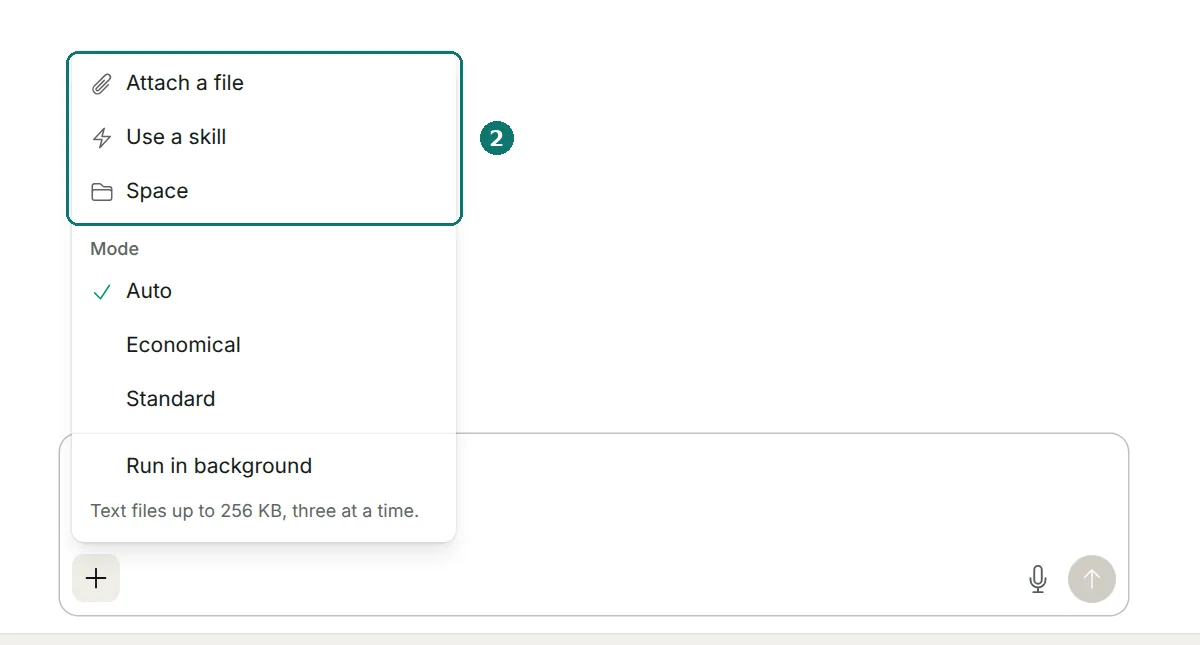
- Choose what to add:
- Attach a file: up to three text files, each up to 256 KB.
- Use a skill: one of your skills, which are saved steps for a job you do often.
- Space: the assistant reads that Space’s instructions first and searches there before looking anywhere else.
- Type your question and press Enter.
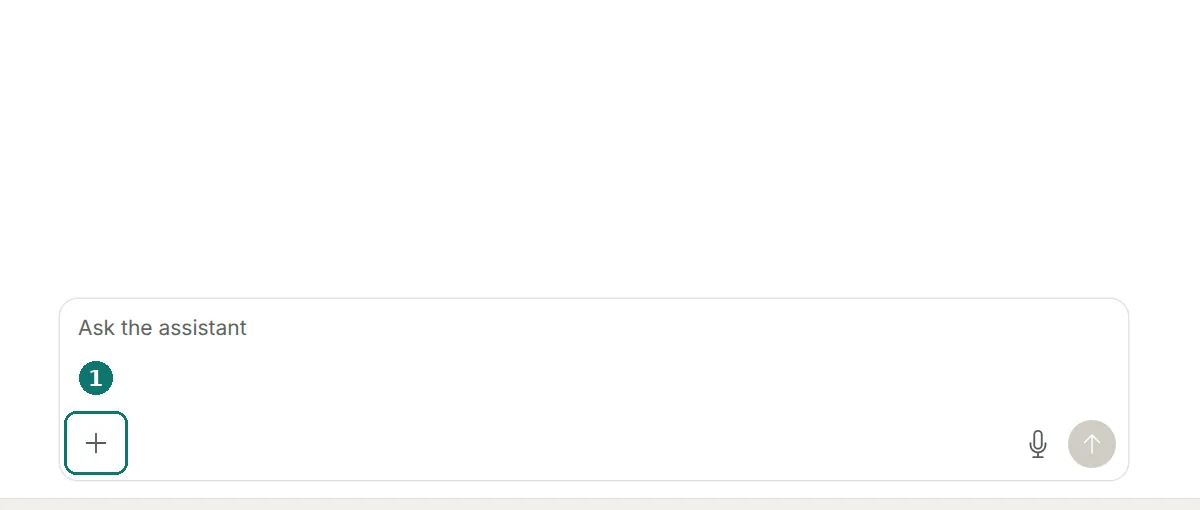
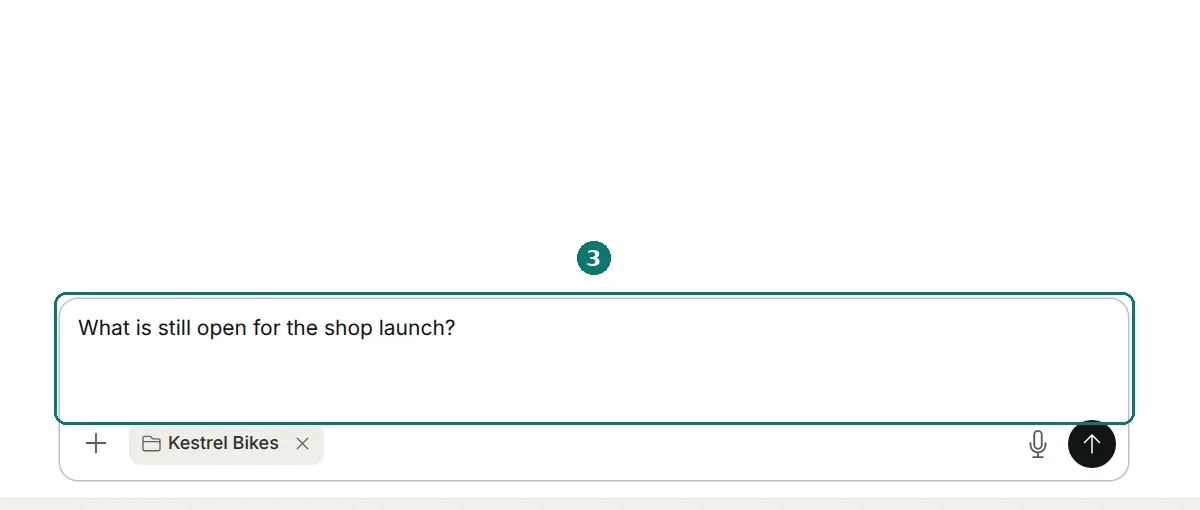
Whatever you pick appears as a label next to the input, and clicking its x removes it. You can also type / in the input to bring up your skills.
Speak instead of typing
In browsers that support voice input, the microphone button (Start voice input) lets you speak in English or German. You’ll see the text first and send it yourself. Under Channels, Voice also includes a Read answers aloud option.
Find, archive and delete chats
The assistant names each chat after a while. If you step away for an hour without writing, it starts a fresh chat when you return. The old one stays open if something is still waiting for you there, like a question or a draft.
On the Chat page, Chat History lets you search your past chats. Each chat has options to Rename chat, Archive chat, and Delete chat. Archiving hides a chat from the list, and Show archived brings it back. Deleting removes it from your history.
When does a question become a task?
Some jobs take several minutes, like reading a long thread to draft an offer. When that happens, the assistant starts a task on its own and lets you know. Tasks run in the background, so you can keep chatting or close the app. A card in the chat tracks its progress, and the finished result appears in the same chat.
If you want to start a request as a task right away, choose Run in background in the + menu before you send it.
What does the assistant cost?
Every answer uses credits, which are how you pay for AI work in Svanja. One credit costs one euro cent, and every plan includes a monthly allowance. A short question costs little, while a long investigation costs more.
Under Mode in the + menu, you can choose how the assistant thinks:
- Auto is the default and uses Standard.
- Economical and Standard are for everyday work, with Economical costing less.
- Deep spends more time on hard questions and code. It costs more and is part of Pro and Team.
Speaking costs 1 credit per minute, and you can send up to 10 messages a minute. Check Credits and usage to see where your credits went, or read Credits and prices for the full pricing.